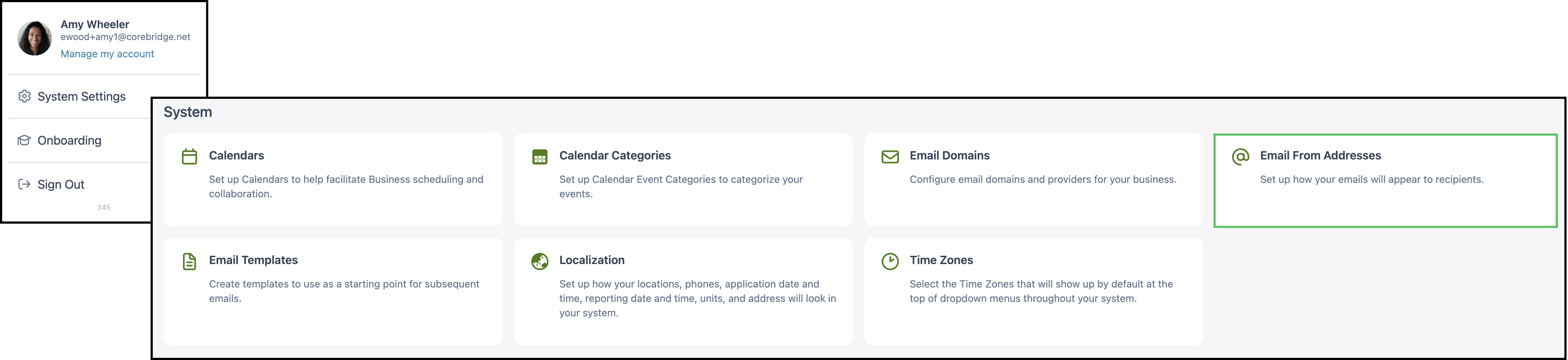
An Email From Address is the address CoreBridge uses when it sends email. From addresses are configured in System Settings / System / Email From Addresses, where the mailbox, who can use it, and which locations can use it are set. The address is available to send after it is authorized with the email provider.
Table of Contents
Setting up Email From Addresses
Navigate to System Settings / System / Email From Addresses.
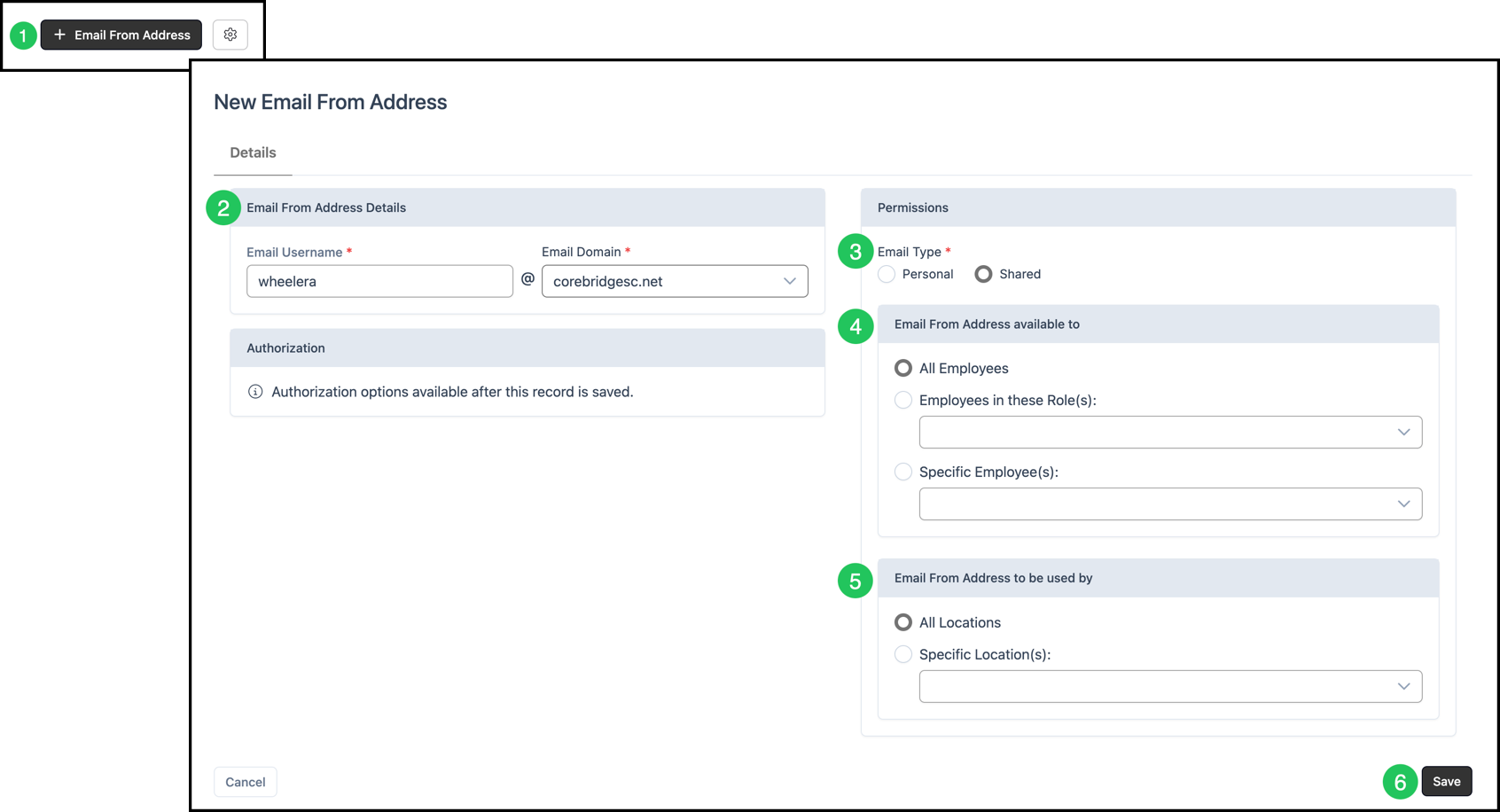
1. Click + Email From Address.
2. On the Details tab, enter the Email Username and select the Email Domain.
Note: The Email Domain is created first. For more information, see Creating Email Domains.
3. In Permissions, select the Email Type.
Note: Personal is for one employee. Select that Employee. Shared is for more than one person and shows the choices in steps 4 and 5.
4. Under Email From Address available to, select All Employees, Employees in these Role(s):, or Specific Employee(s):.
5. Under Email From Address to be used by, select All Locations or Specific Location(s):.
Note: Email From Address to be used by is shown for a Shared address when the system has more than one location.
6. Click Save.
Note: The Authorization section states that authorization options are available after the record is saved. Authorize the address before it can send.
Authorizing the New Email
After a new Email From Address is saved, it is authorized before it can be used to send email.
Navigate to System Settings / System / Email From Addresses.
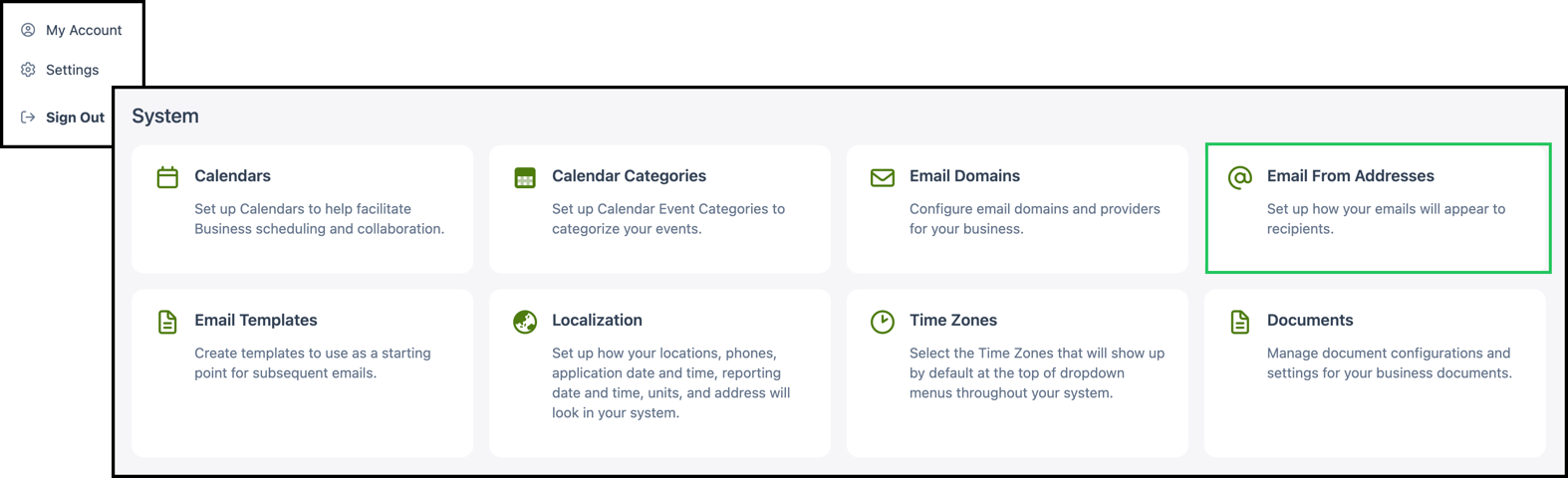
1. Select the Email From Address.
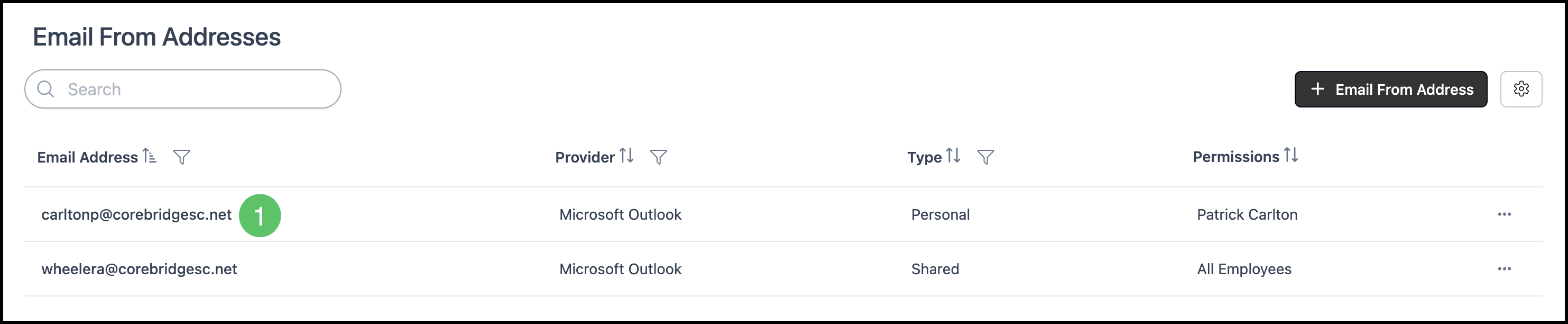
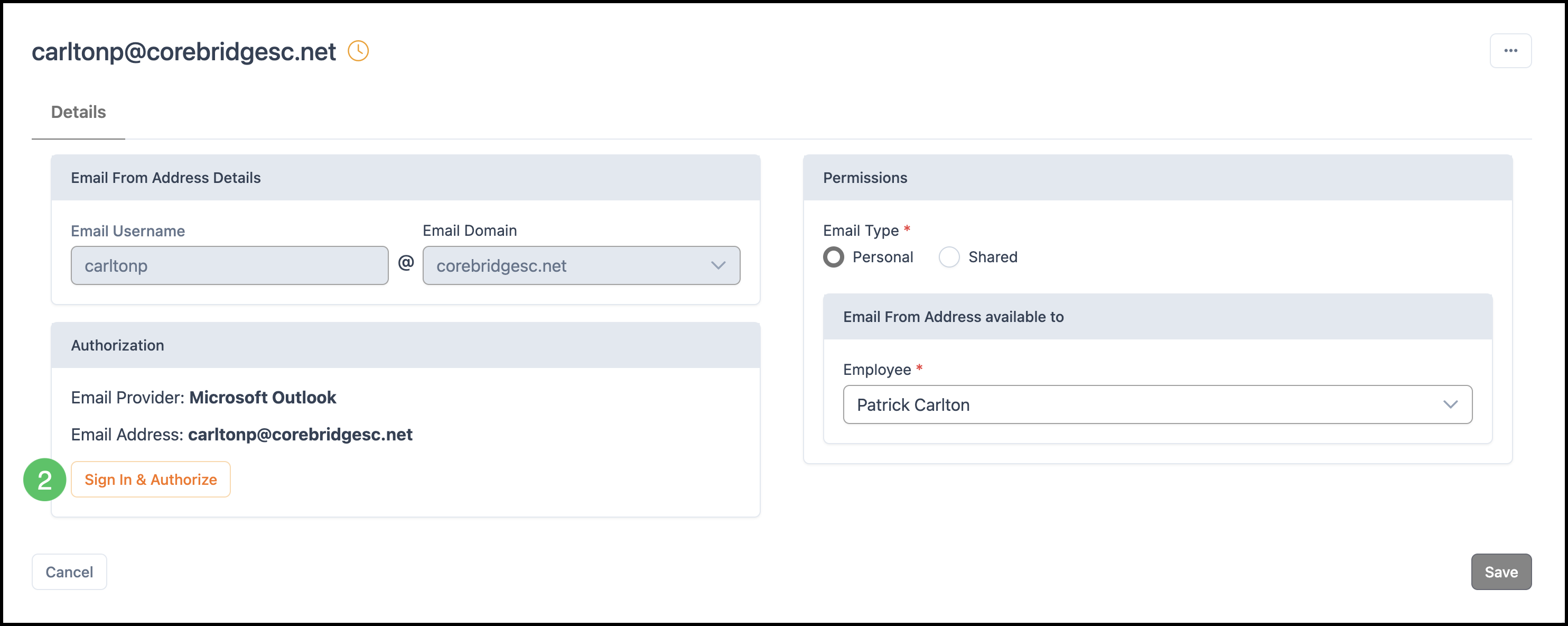
2. Click Sign In & Authorize (for example, Sign in with Google for Gmail, or the equivalent for the provider). Complete sign-in in the window that opens.
Note: An Email From Address that shows a Pending or unauthorized status is authorized before it can be used.
Note: After authorizing, the status in the Authorization section updates. The Email From Addresses list Search and filters can be used to find an address and check its status.