
Use Merge to combine duplicate Customer records into a single record. The process begins with the Source (the duplicate you want to remove) and merges its data into the Target (the record that remains). Once completed, the Source is permanently removed, leaving one consolidated record.
You cannot unmerge. A merge is permanent. The multi-step wizard (including the Preview and search for the target) is there to help reduce accidental merges, but once the merge is completed, it is final.
Table of Contents
- How to Merge
- Items Moved or Combined
- Items Not Merged
- Orders, Estimates, and Contacts
- Before the Merge
- After the Merge
How to Merge
The merge option is available for both Companies and Personal Accounts. Steps for merging are the same for both. This article will use Companies as an example.
Navigate Sales / Companies.
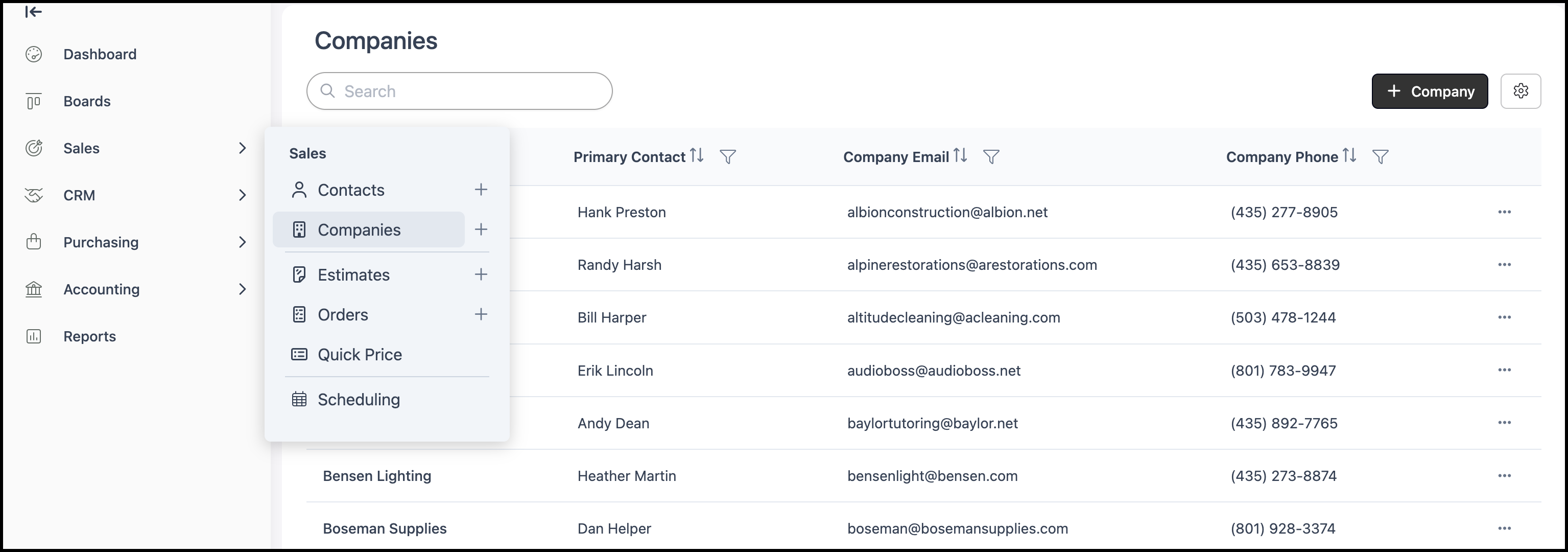
1. Open the Source Company (this is the one you want to get rid of).
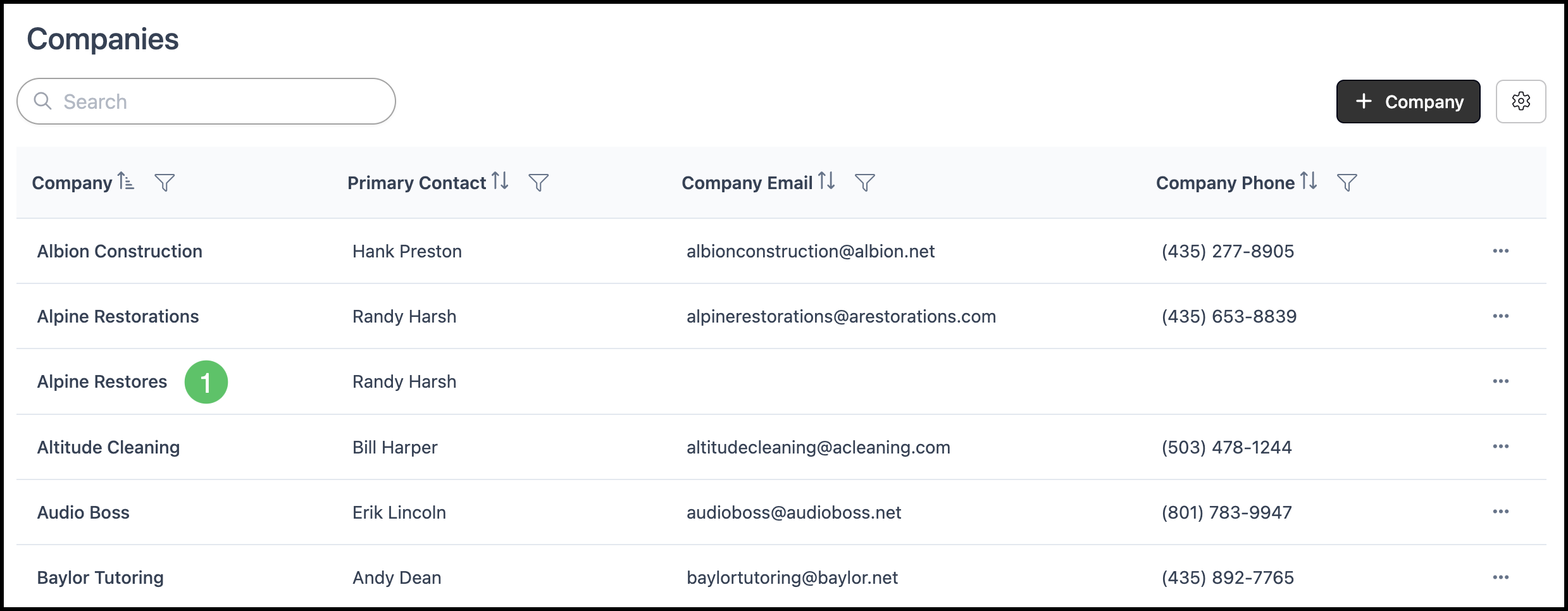
2. Open the Action menu.
3. Select Merge Customer.
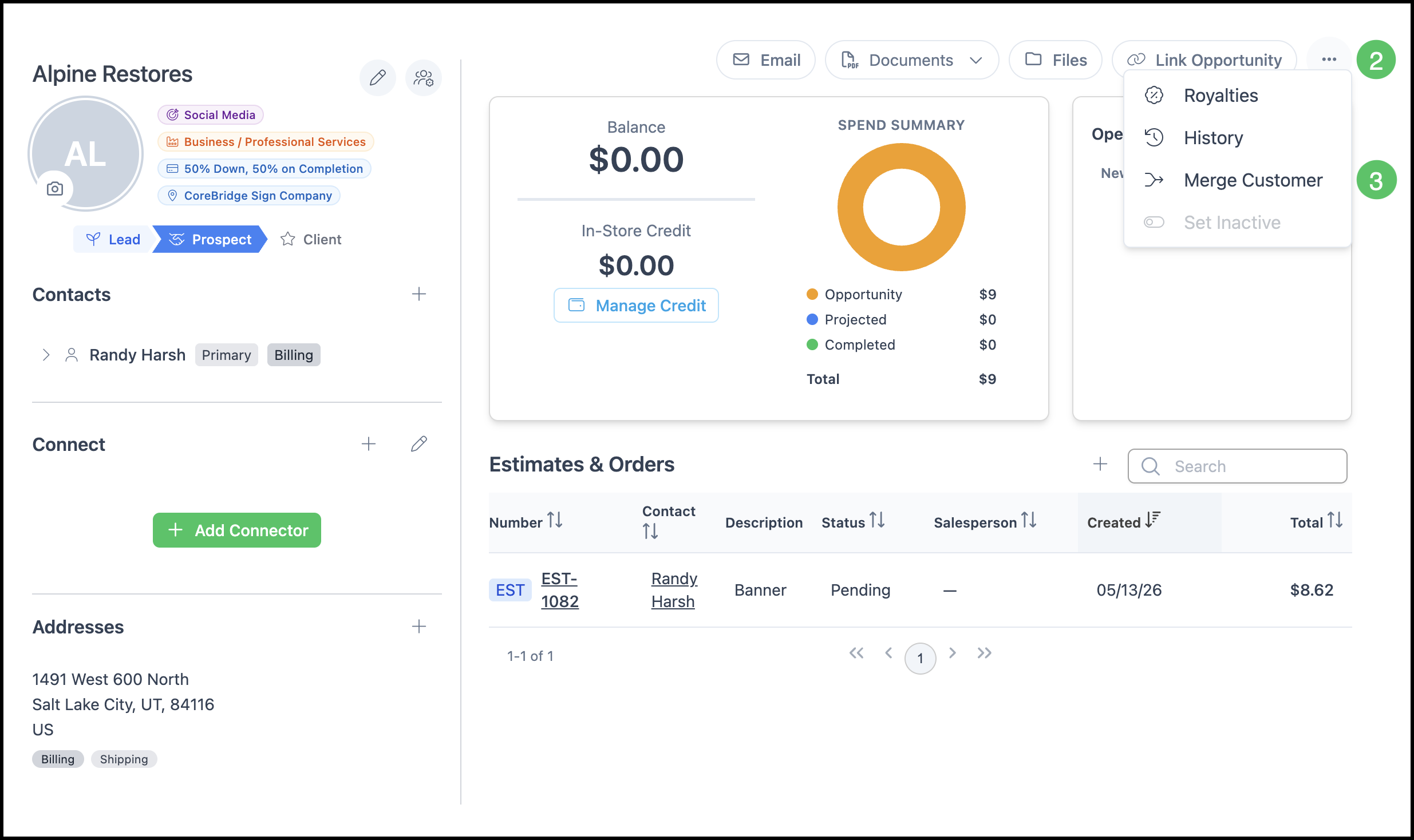
Note: All data from this Source Customer will be moved to the selected Target Customer, and this Source record will be permanently deleted when you continue. Automations using the deleted Company as conditions will not run.
4. Click Proceed to go to the Company search.
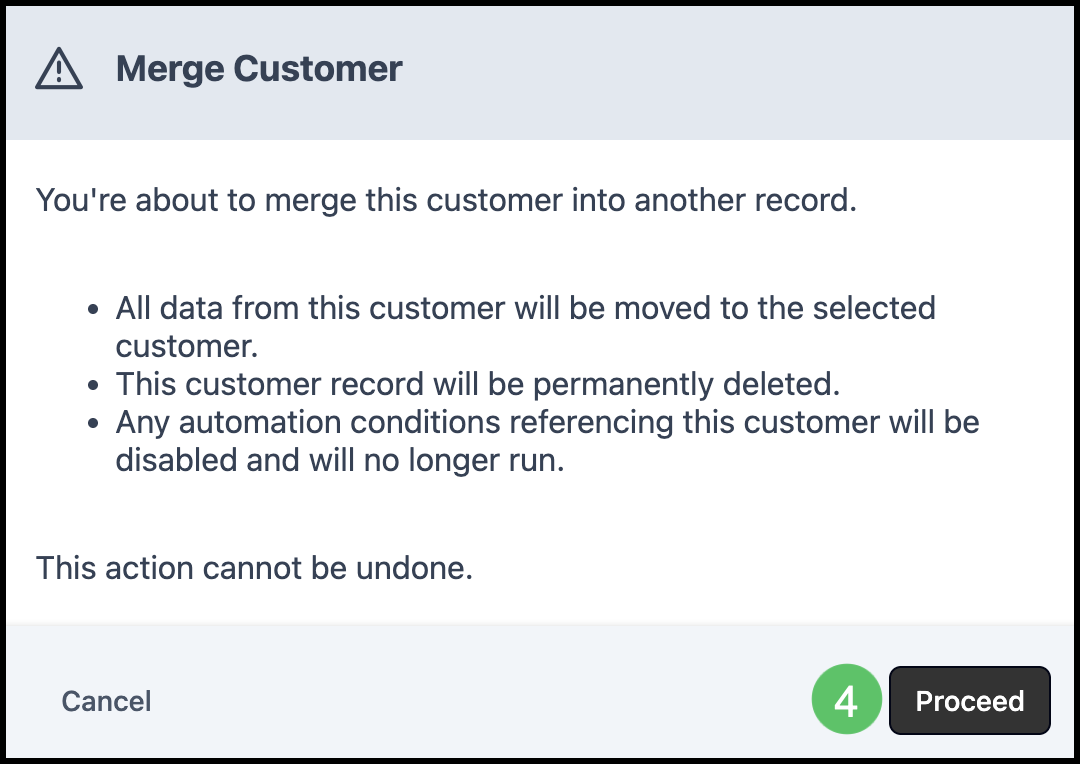
5. Select the Target Company.
Note: Source is the Company you started on; the Target is the Company you search for and select next.
6. Click Next.
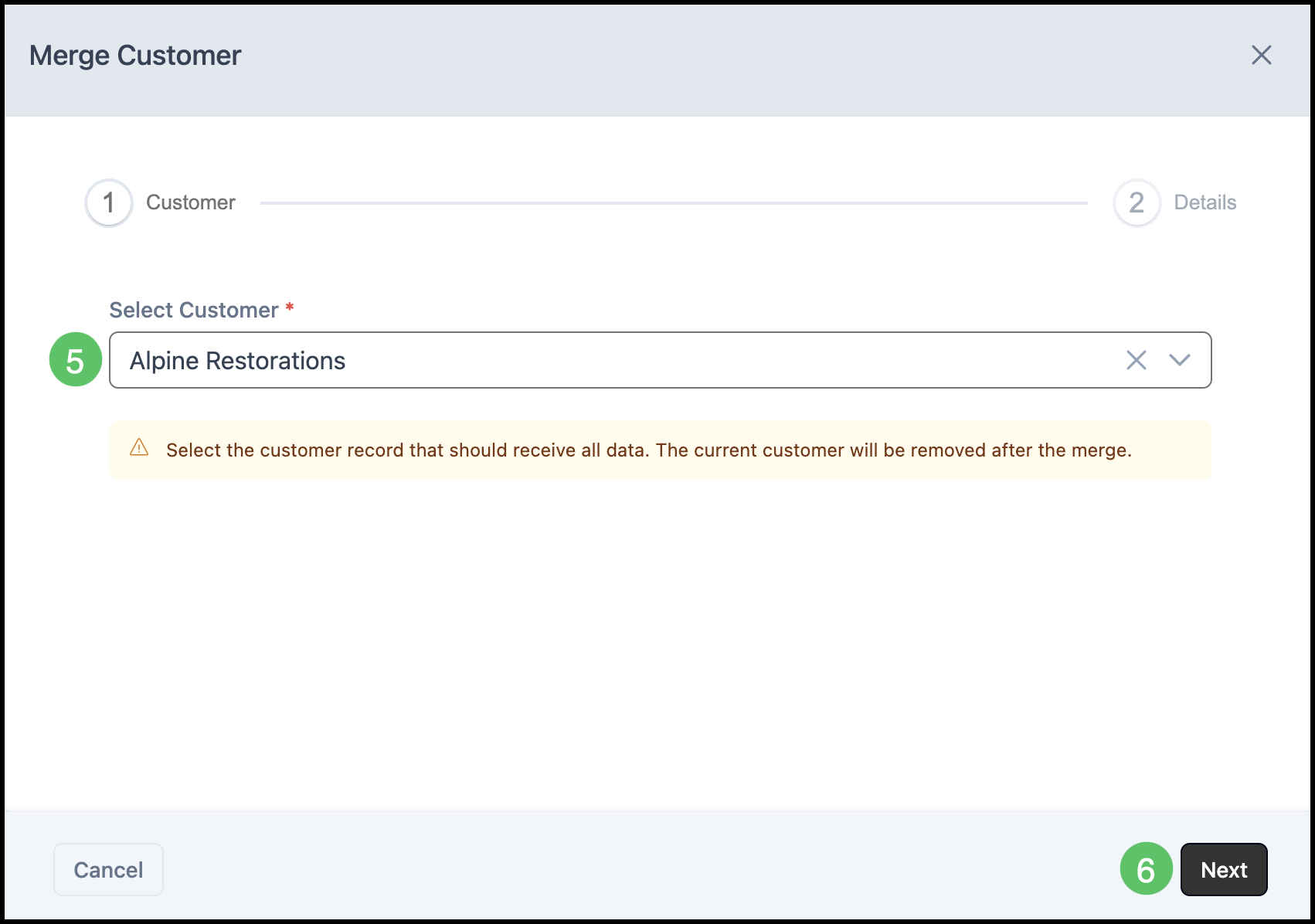
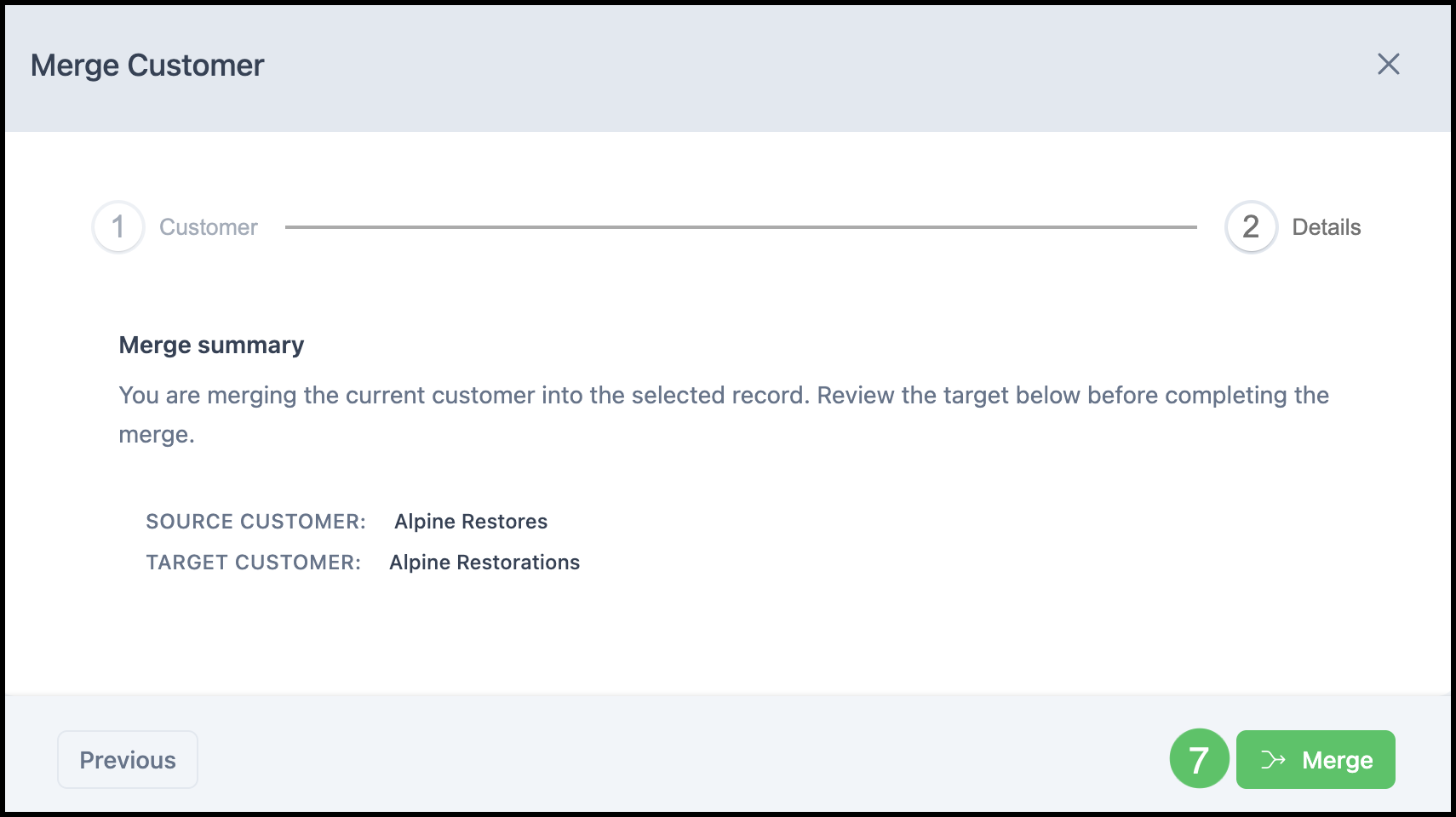
7. Click Merge to confirm.
Note: When the merge completes, the Source Company is removed and EVO opens the Target Company. You should see Orders and Estimates (as applicable), Contacts that were added (non-duplicate), and In-Store Credit on the Target if it applied.
Example: A Contact that was already the primary on the destination can remain, while a non-duplicate source Contact is added, and you can see the orders from both Companies on the one surviving record.
Items Moved or Combined
These move from the Source to the Target Company. This is the record that survives.
a. Orders and Estimates and their history (as applicable) move to the Target Company.
b. Non-duplicate shipping addresses on the source are added to the Target.
c. Non-duplicate Contacts on the source are copied to the Target.
Note: A contact is a duplicate if both first name and last name match a Contact that already exists on the Target. Duplicates are not copied. If two contacts only looked similar but the names were not a full match, they are treated as non-duplicate and the extra Contact is added.
d. In-store Credit: If the source Company has In-Store Credit, that amount is added to the Target Company’s In-Store Credit balance.
Items Not Merged
The Target Company’s values for these items stay unchanged, the Source does not replace them, The following remain on the destination and are not overwritten from the Source:
a. Billing address.
b. Company phone and fax.
c. Terms.
d. Tax exempt status.
e. Credit limit.
f. Origination and industry types.
g. Customer notes.
h. Customer-specific pricing.
i. Account history (source-specific history does not carry over).
Note: Duplicate contacts (same first and last name as on the Target) are not copied. Related Orders still transfer in those cases and may attach to the matching Contact on the Target.
Orders, Estimates, and Contacts
When a Source Contact has Orders or Estimates attached, those documents transfer to the Target Company as part of the merge.
- If the Contact is not a duplicate, the Contact (with its Orders and Estimates) is transferred to the Target Company.
- If the contact is a duplicate of a Contact on the Target (same first and last name), that Contact is not copied from the Source; the Orders still transfer to the Target and remain associated with the matching Contact on the Target record.
Before the Merge
- Be sure the Target (surviving) Company already has the billing, terms, tax, phone, origination, industry, and credit limit you want, because those are not taken from the Source. Whatever is on the Target before the merge stays the governing set of values for those fields.
- Copy any customer notes or customer-specific pricing you need from the Source to the Target (or save them elsewhere) before you merge. Those do not copy automatically.
- Remember: In-Store Credit on the Source will be added to the Target's balance. Plan for that in your review.
After the Merge
- Use the Target company’s account history going forward - only the Target’s history is retained in that way for that record.