Modules are distinct sections within the system that allow you to manage different aspects of your business, such as Sales, Production, Accounting, and more. Each Module is designed to organize related tools and workflows in one place, making it easier to complete tasks and access important information. Navigation to these areas is controlled by user permissions, so team members will only see the Modules they are authorized to use.
Table of Contents
Available Modules
Modules are available from the left sidebar on any screen.
a. The Side Bar can be expanded or collapsed to show or hide the Module list.
b. Certain Modules can be expanded to access Sections.
c. Settings can be accessed by clicking on the user name and selecting Settings.
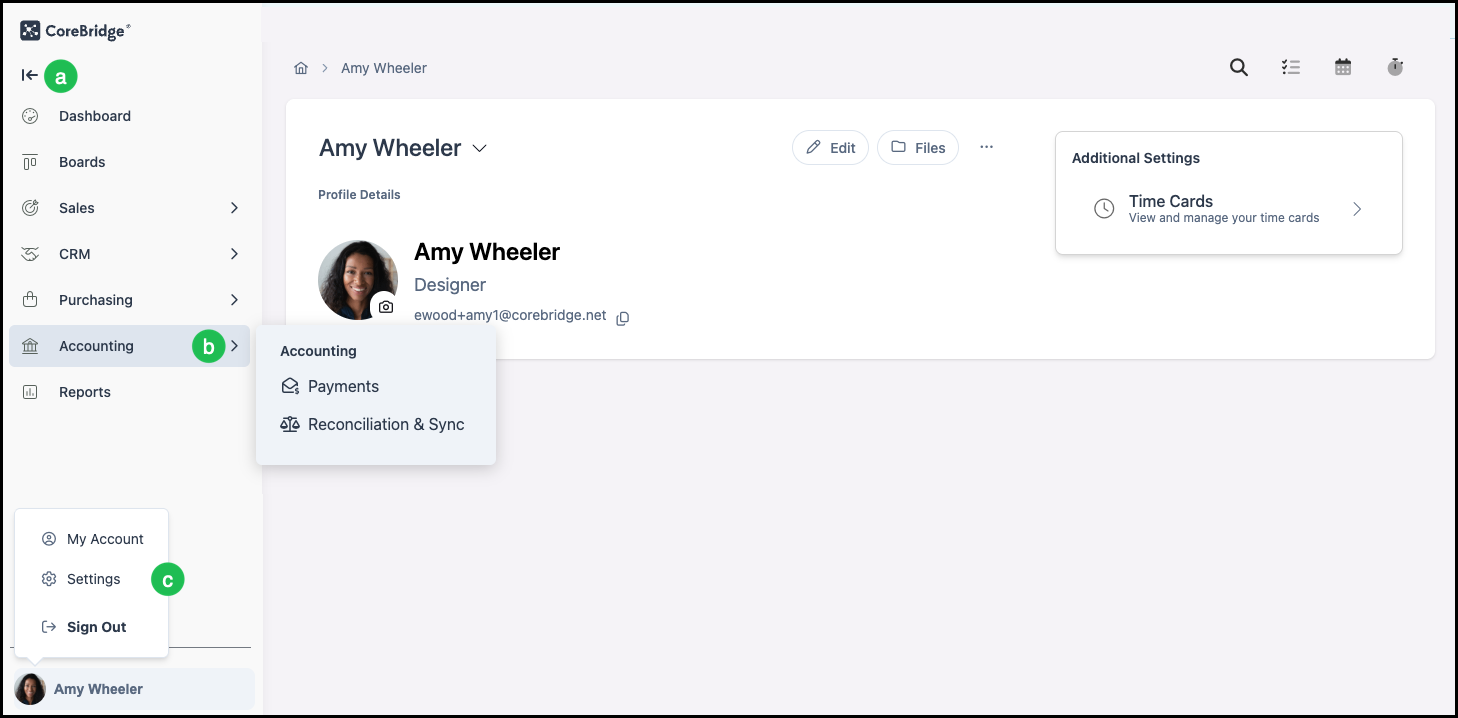
Which modules appear is controlled by your user permissions.
The main modules in EVO are:
- Dashboard - Your starting view for quick access to recent activity.
- Boards - Visual workflow boards for tracking Orders, Estimates, and Line Items.
- Sales - Create and manage Contacts, Companies, Estimates, and Orders.
- CRM - Manage leads and the lead pipeline.
- Purchasing - Create and manage Purchase Orders and vendor-related activity.
- Accounting - Manage payments, reconciliation, and financial data.
- Reports - Run and view reports.
Dashboard
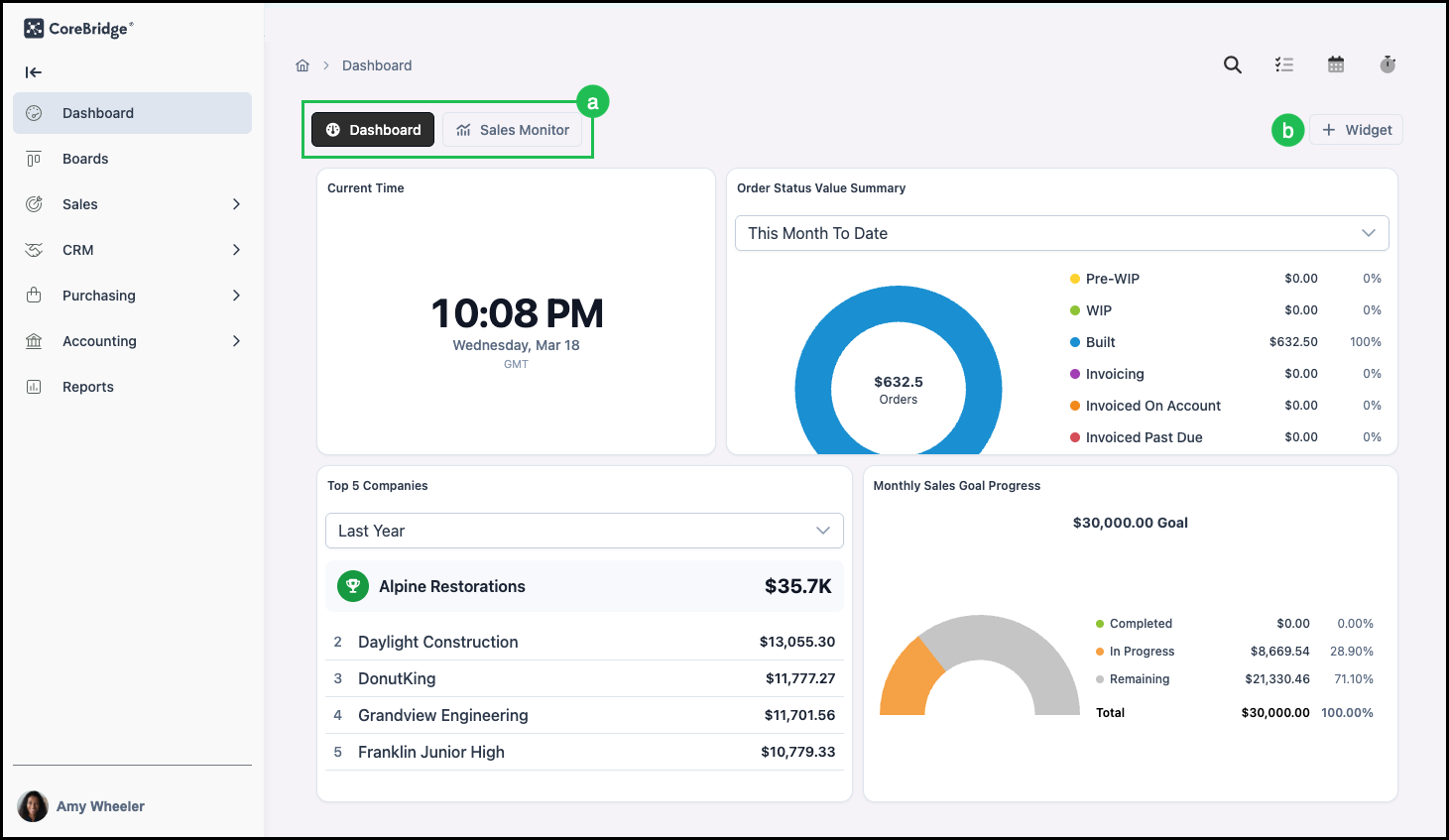
The Dashboard gives you a quick overview of recent activity and can include Widgets that you add or customize. For more information, please see How to Set Up Dashboards and Widgets.
a. A Dashboard option and a Sales Monitor option for switching between Dashboard views.
b. Add Widget button for adding Widgets to the Dashboard.
Boards
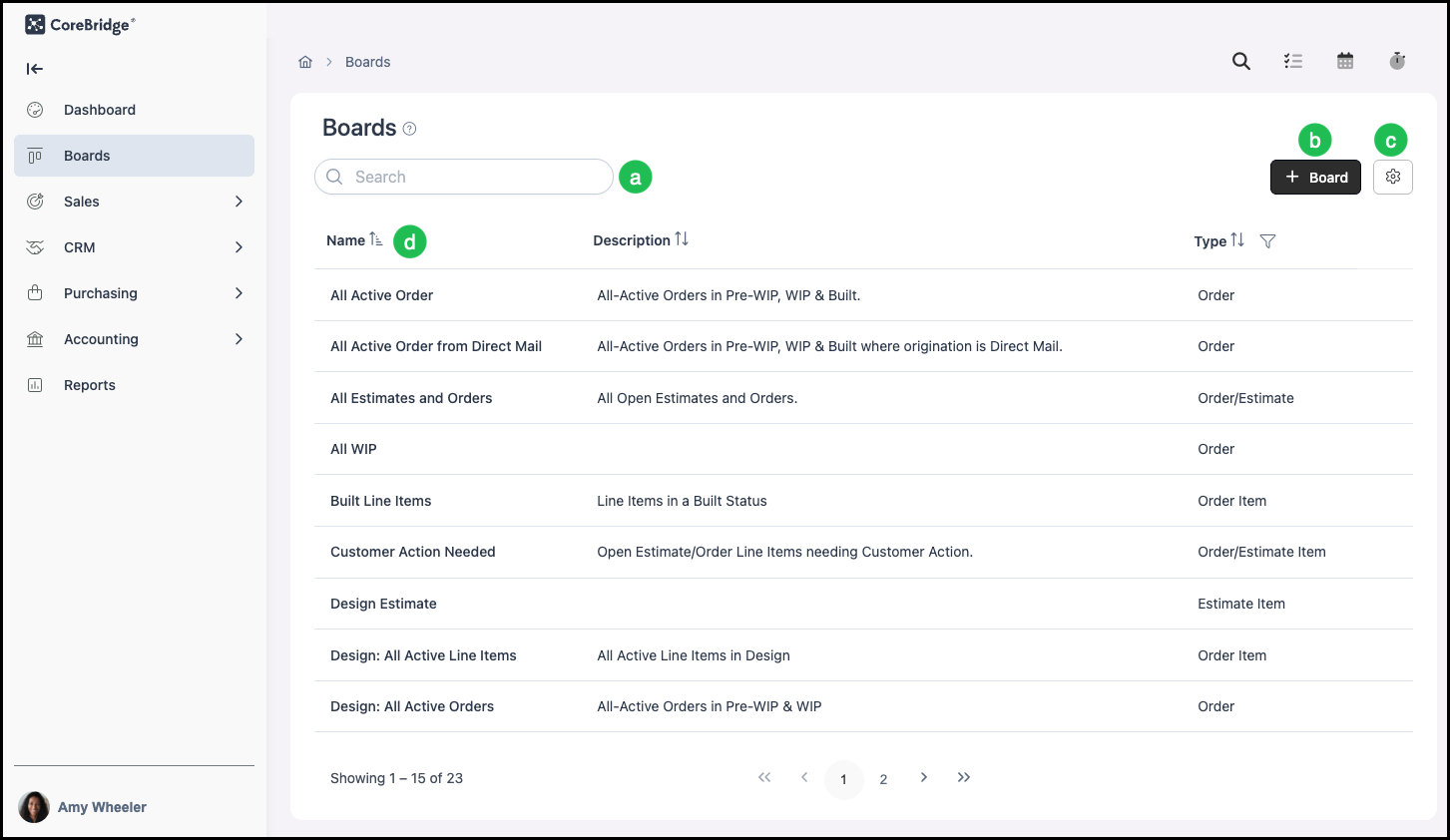
Boards provide a visual way to track the status of Orders, Estimates, Line Items, and Destinations as they move through your workflow. From the Boards module you can open different boards, each with a name, description, and type such as Order, Order Item, Estimate Item, or Order Destination.
a. A search box to find Boards.
b. Add Board button for creating a new Board.
c. Search Filter allowing you to select Show Inactive Records.
d. A list of boards with columns for Name, Description, and Type.
Sales
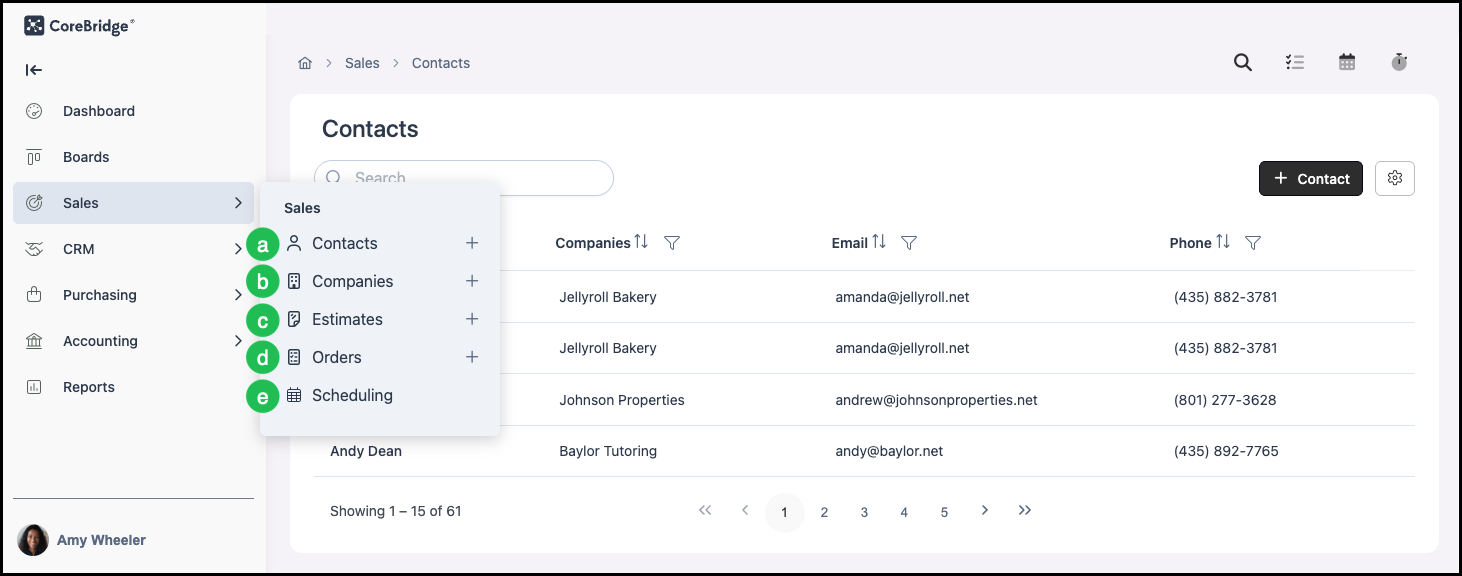
The Sales module is the central area for sales-related work. Click Sales in the sidebar to expand it and access the following:
a. Contacts - Manage individual contacts; you can also create a new Contact from here. For more information, please see Creating Contacts.
b. Companies - Manage companies; you can also create a new Company from here. For more information, please see Creating Companies.
c. Estimates - Create and manage Estimates. For more information, please see Creating an Estimate.
d. Orders - Create and manage Orders. For more information, please see Creating an Order.
e. Scheduling - View and manage calendars and scheduling.
CRM
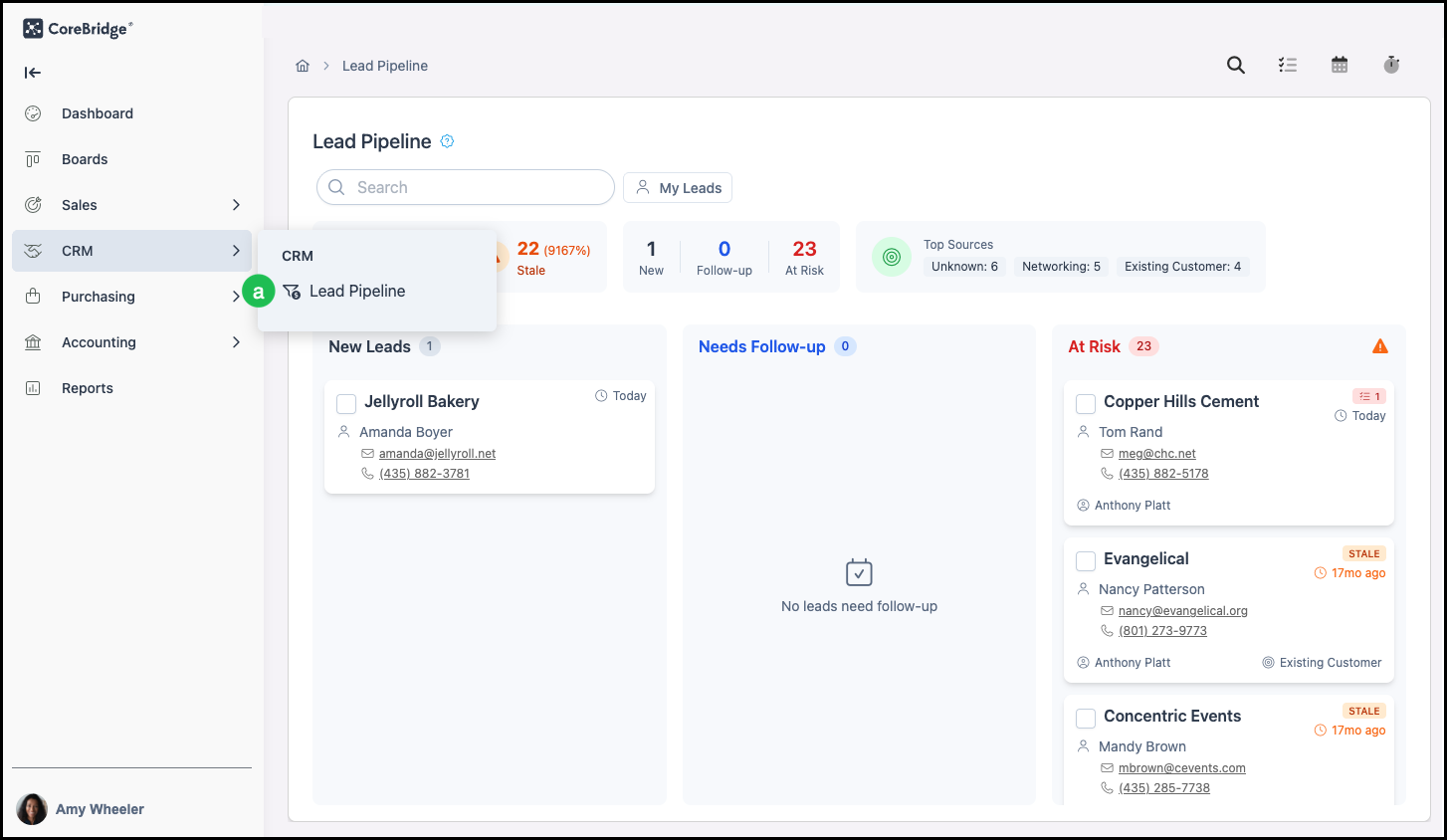
The CRM module is used for lead management. Click CRM in the sidebar to expand it.
a. Lead Pipeline - View and manage leads. The Lead Pipeline screen shows lead counts by stage (for example, New Leads, Needs Follow-up, At Risk) and allows you to search and work with leads.
Purchasing
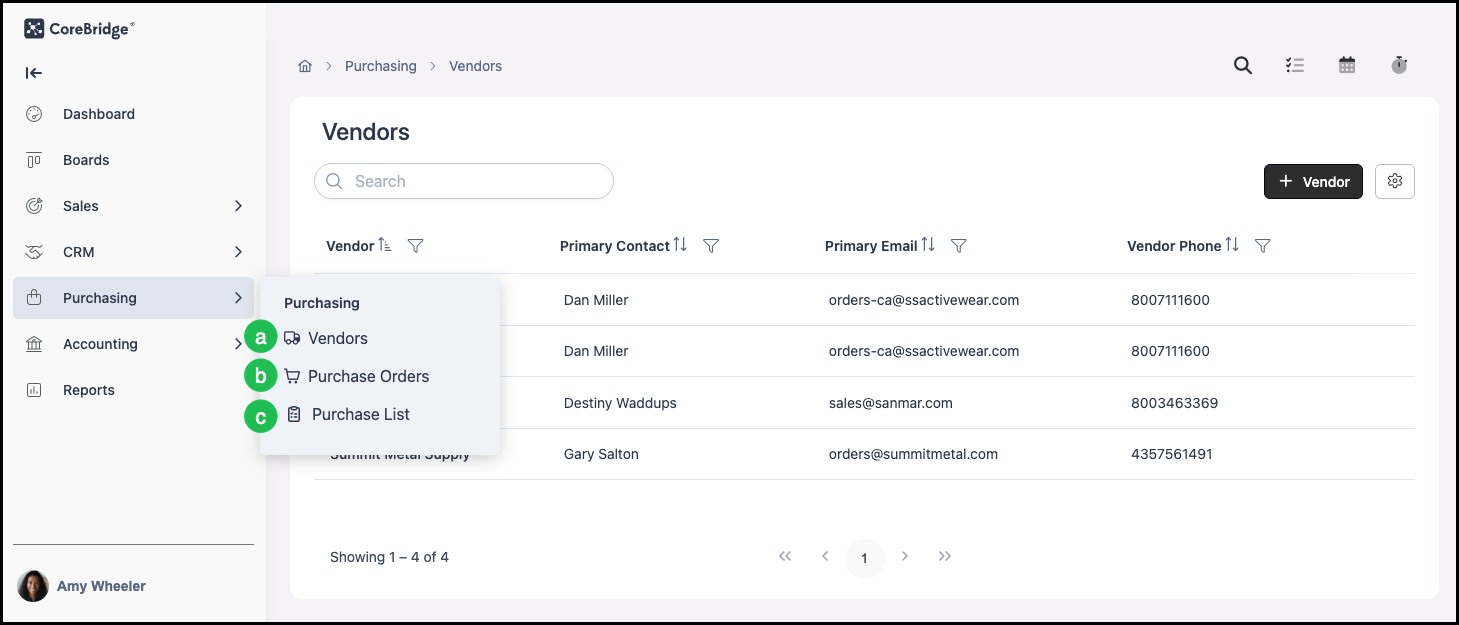
The Purchasing module provides tools to create and manage Purchase Orders, work with vendors, and manage purchasing-related activity. Click Purchasing in the sidebar to expand it and view the available options.
a. Vendors - External companies or suppliers that provide the Materials, services, or resources your business purchases to fulfill Orders.
b. Purchase Orders - Formal records used to request Materials or services from a Vendor.
c. Purchase Lists - Internal planning tools used to identify which Materials need to be ordered for upcoming production.
Accounting
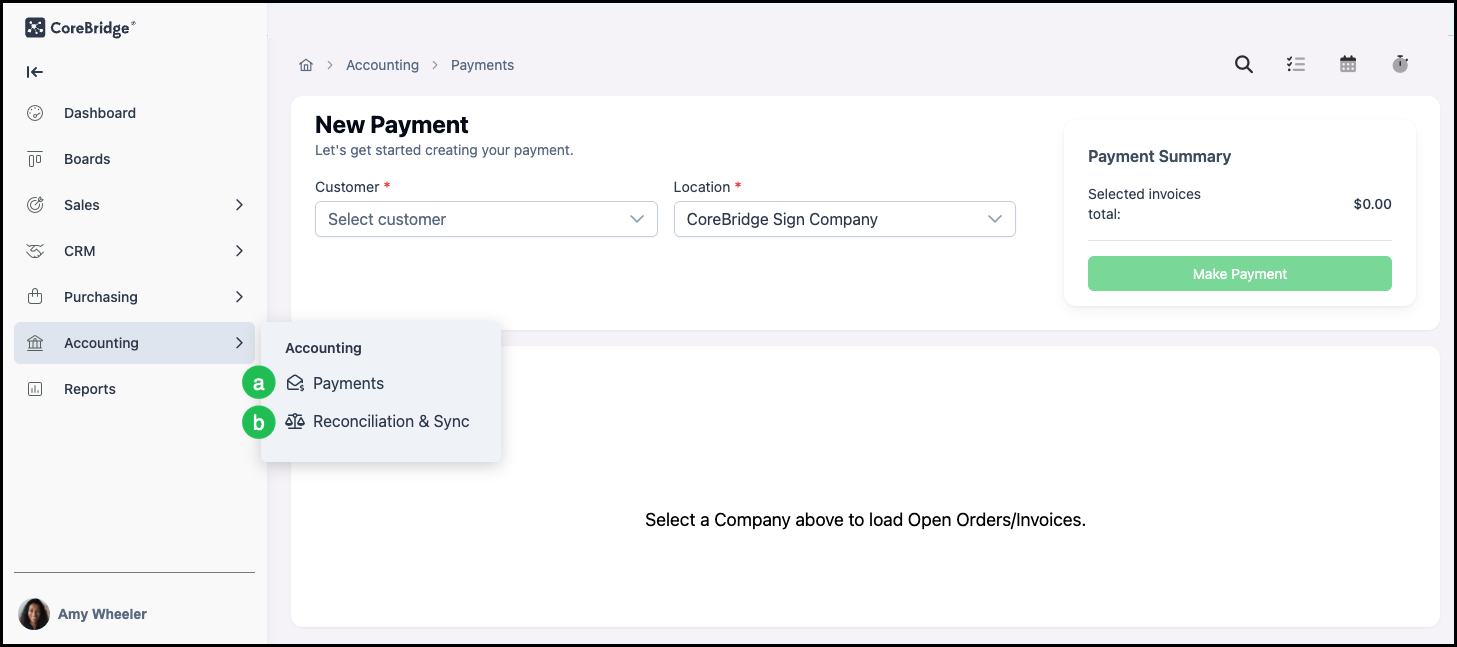
The Accounting module is where you manage financial transactions, including entering and reviewing Payments, reconciliation, and other accounting tasks. Click Accounting in the sidebar to expand it and access the accounting options available to your role.
a. Payments - Records of money received from a Customer and applied to an Estimate or Order.
b. Reconciliation & Sync ensures that financial data in the system matches your connected accounting software. This process confirms that Payments, refunds, and related transactions have transferred correctly and remain aligned across both systems. For more information, please see Reconciliation Overview.
Reports
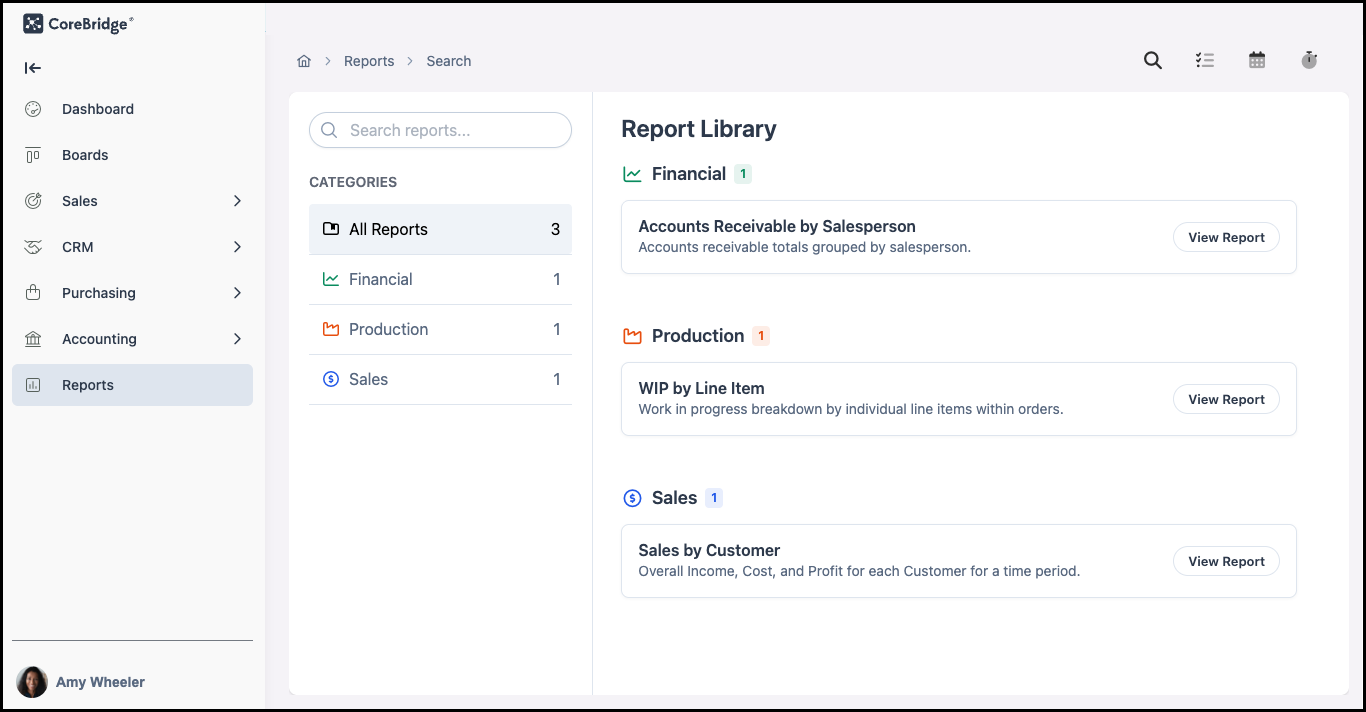
The Reports module gives you access to run and view reports. Click Reports in the sidebar to open the Reports area where you can select and run the reports your role has permission to use.
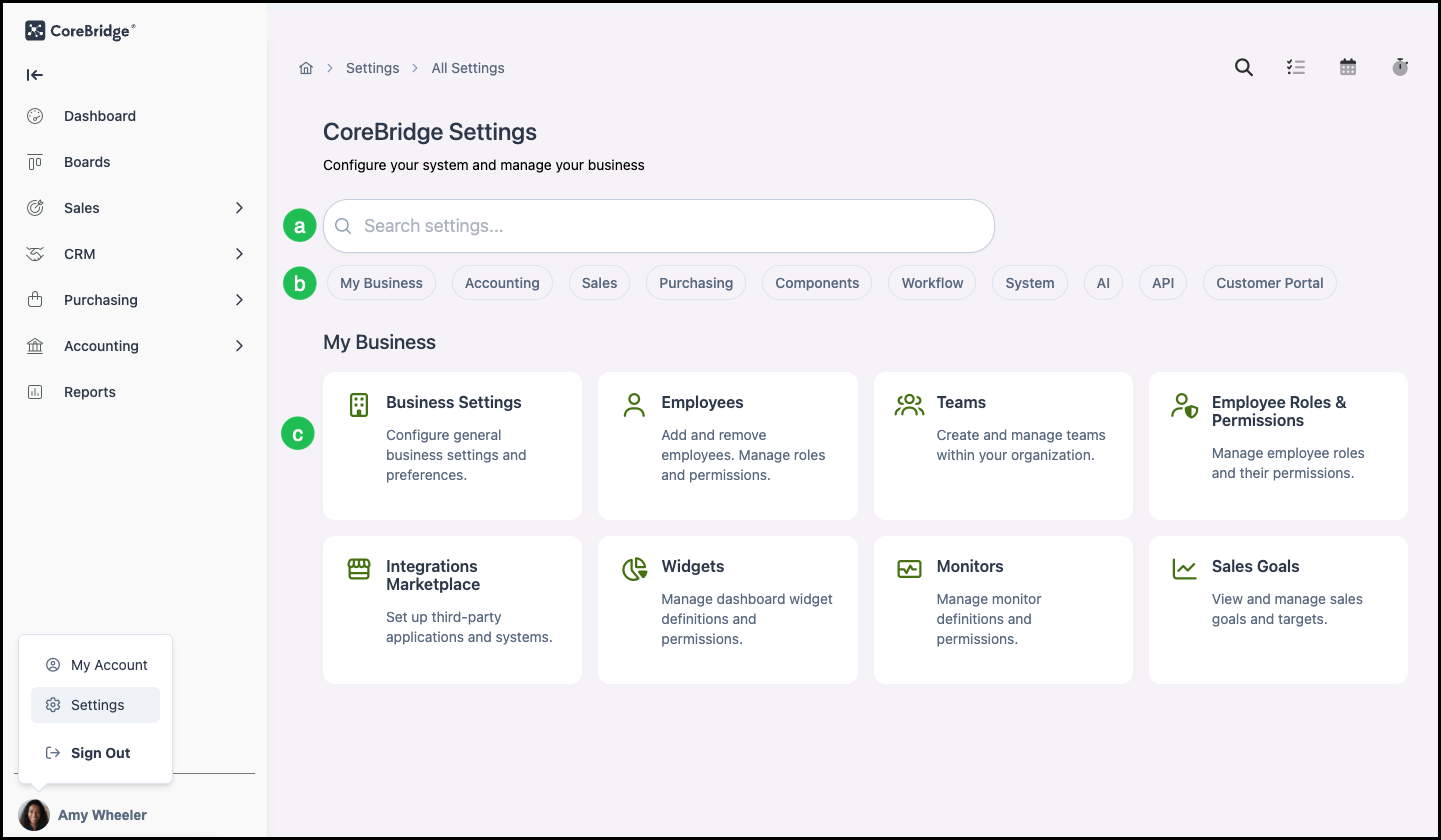
Settings
Settings is where administrators configure system-wide options and defaults. Access it by clicking on the user name and selecting Settings.
On the Settings page you will see:
a. A search box to find settings quickly.
b. Category buttons such as My Business, Accounting, Sales, Purchasing, Components, Workflow, System, AI, and API.
c. Under each category, links to specific settings within the Category. The options you see depend on your permissions and what is enabled for your business.