
An overpayment occurs when the total amount received on an Order exceeds the amount due. Rather than leaving excess funds unaccounted for, the system automatically converts the overpaid amount into In-Store Credit. This ensures the full payment is properly recorded while keeping the additional amount available for future use.
For more information on In-Store Credit, please see Company In-Store Credit.
Table of Contents
Overpayments
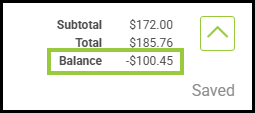
An overpayment on an Order can occur if a change is made to an Order after a payment has already been taken. This is indicated with a negative Balance in the Totals section of the Order.
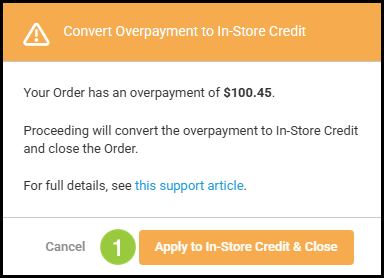
The system will alert you with a pop-up.
1. Click Apply to In-Store Credit & Close.
Note: If you click Cancel, no action will be taken, but the Order will not be able to move forward in the workflow.
a. You will see a confirmation that the overpayment amount has been processed to In-Store Credit.
b. The Order will then be Closed and Locked.
c. The Balance will update to $0.00.
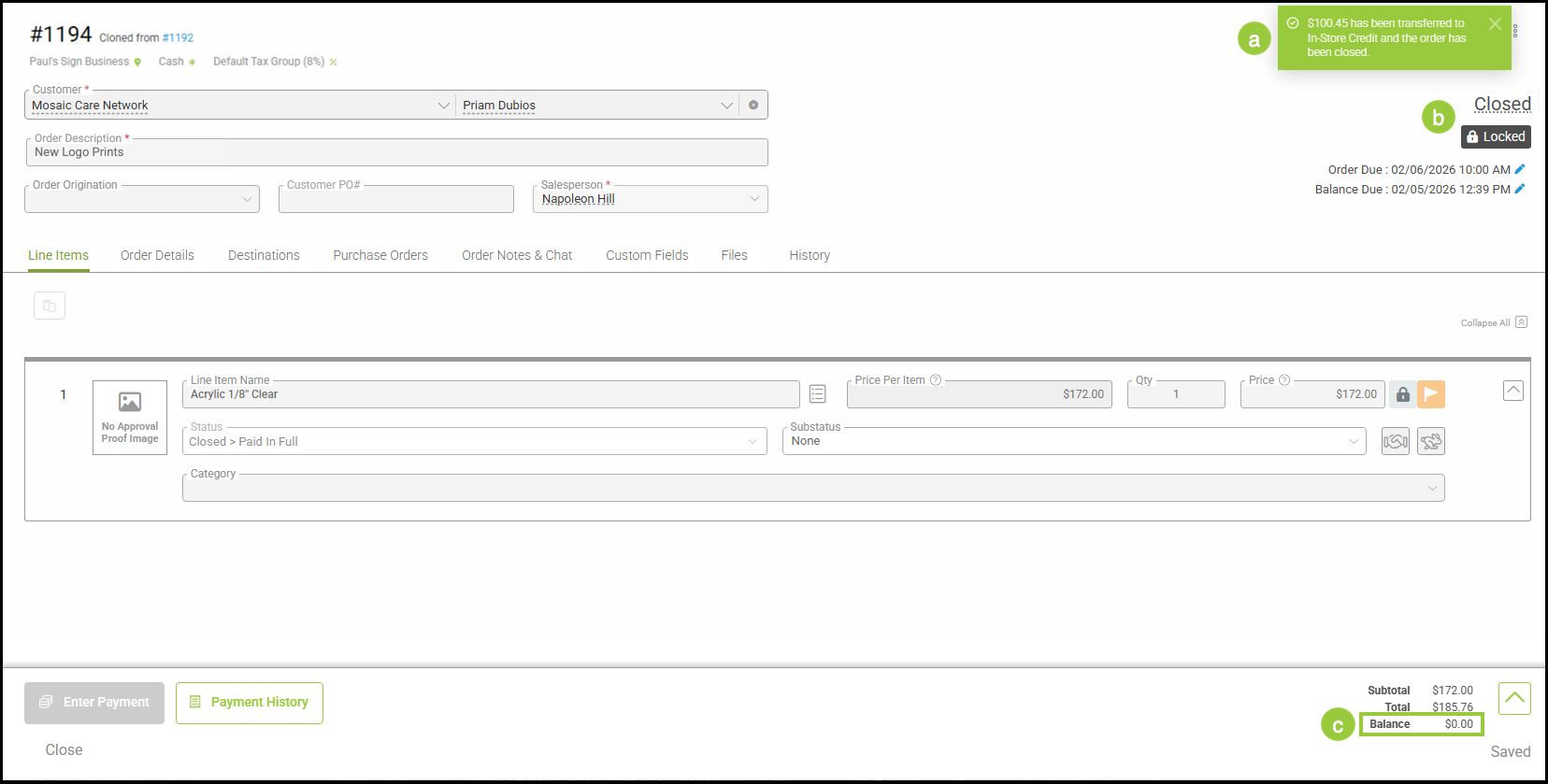
Nothing further needs to be done at this point. The In-Store Credit will remain on this Customer's account until needed.
Locating the In-Store Credit
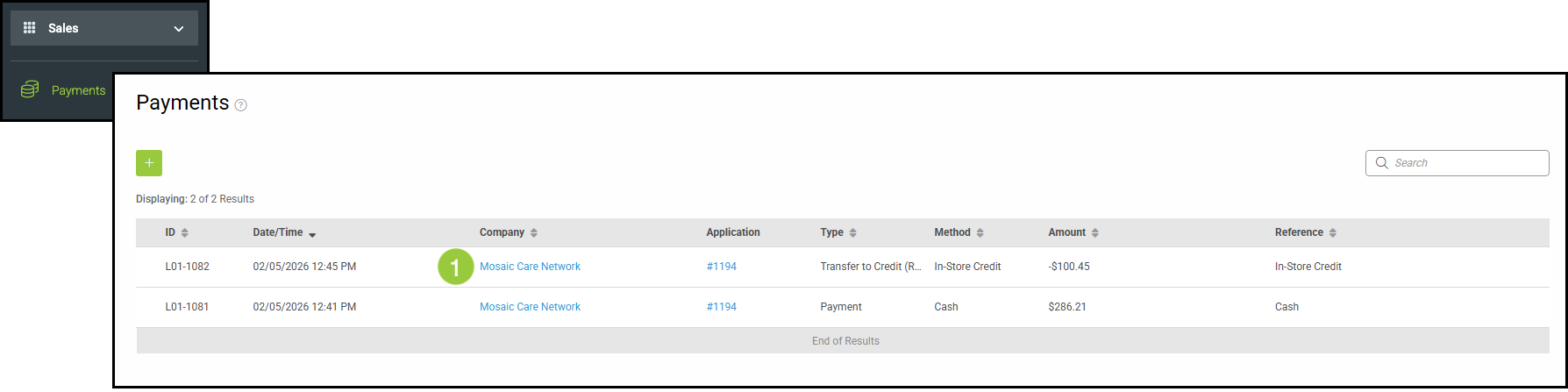
In-Store Credit can be located by navigating to Sales / Payments.
1. Select the name of the Company.
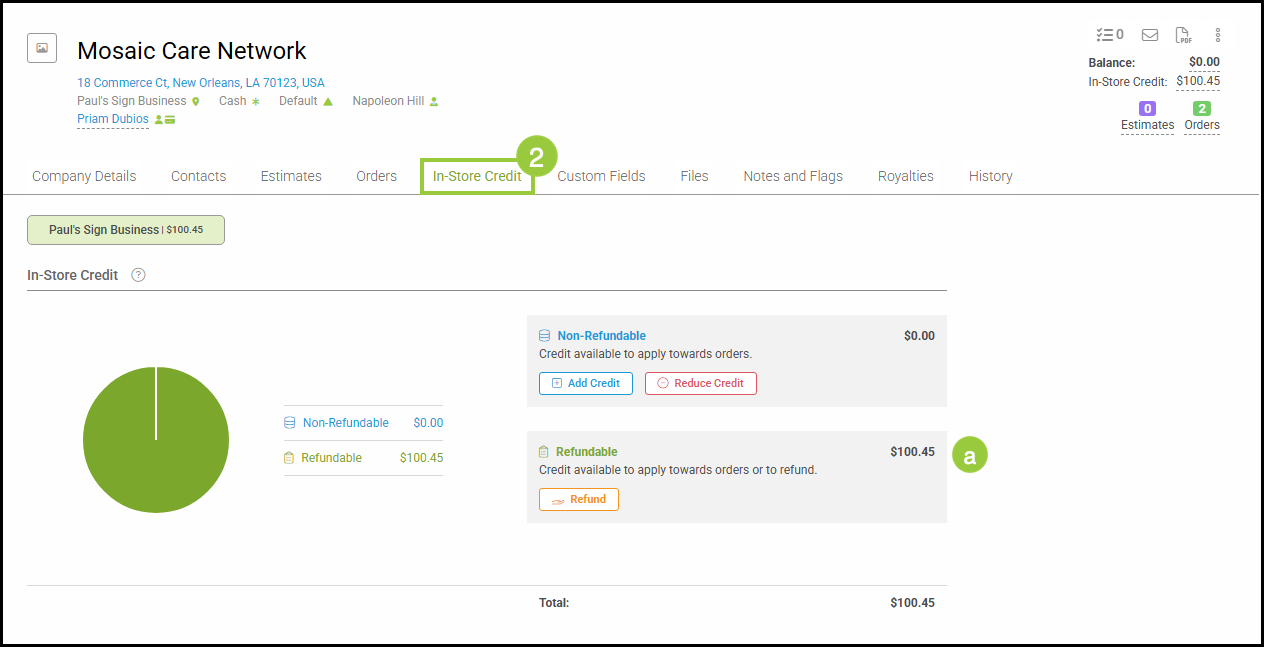
2. Select the In-Store Credit tab.
a. Overpayment will be applied as Refundable In-Store Credit.
Note: This screen can also be accessed by navigating to Sales / Customers / Companies, selecting the appropriate Company and the In-Store Credit tab.
For information on using Refundable In-Store Credit, please see Using In-Store Credit.
For information on the difference between Refundable and Non-Refundable Credit, please see Company In-Store Credit.