Labors are Components that represent the time required to complete work on an Order. They can be used individually or within Products to account for design, production, installation, and other billable work. CoreBridge includes preset Labors that can be customized, and additional Labors can be added to meet your production needs.
Table of Contents
Understanding and Creating Labors
A Labor can represent design time, production setup, printing supervision, installation, or finishing. The unit, cost, and retail rate on the Labor are what pricing and scheduling use when that Labor is added to an Order.
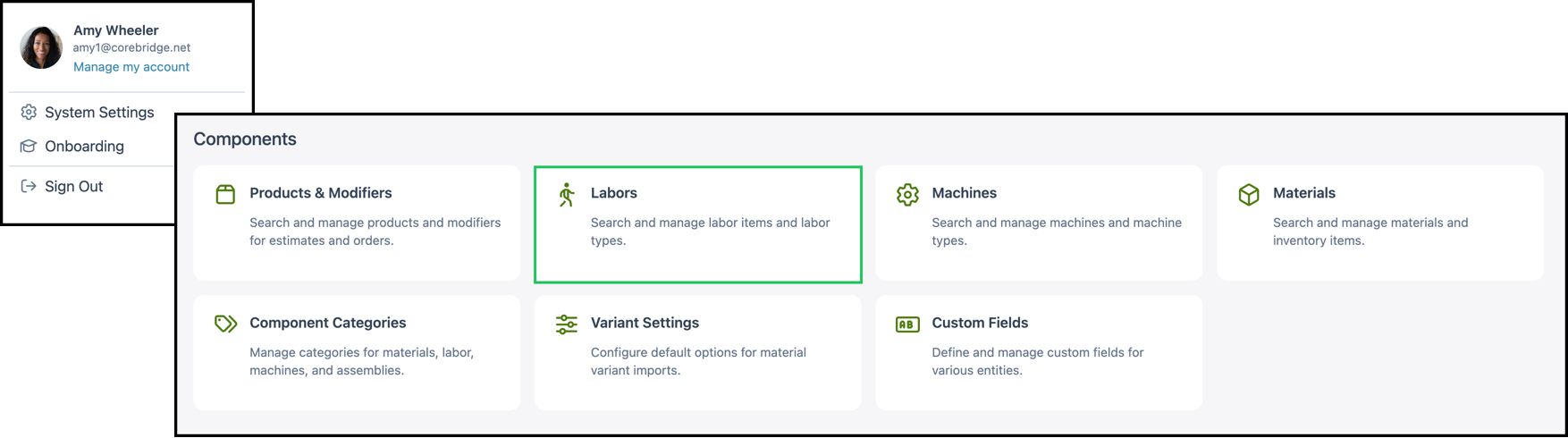
Navigate to System Settings / Components / Labors.
1. Click + Labor.
Note: Fields marked with a red asterisk are required in order to save the Labor.
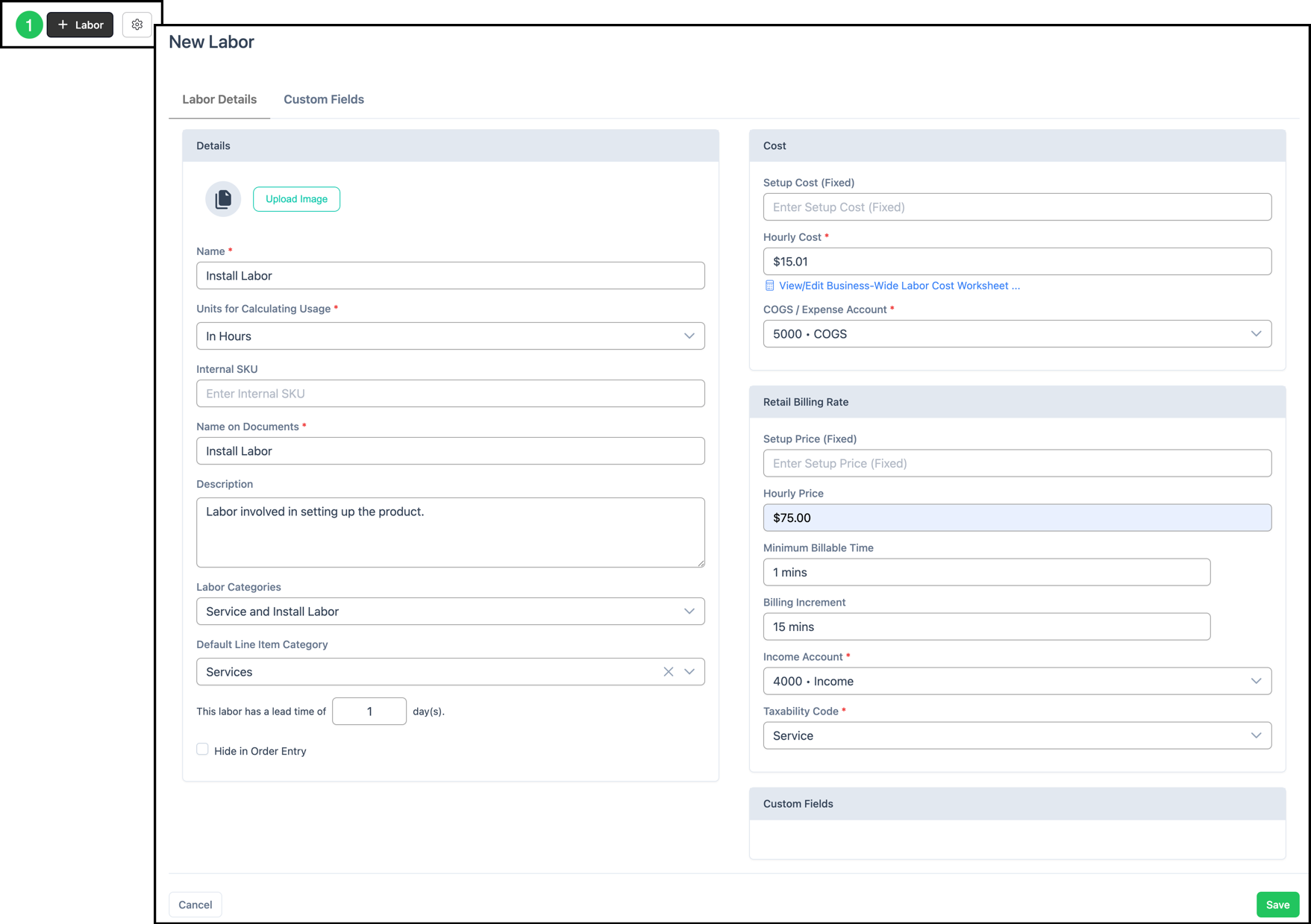
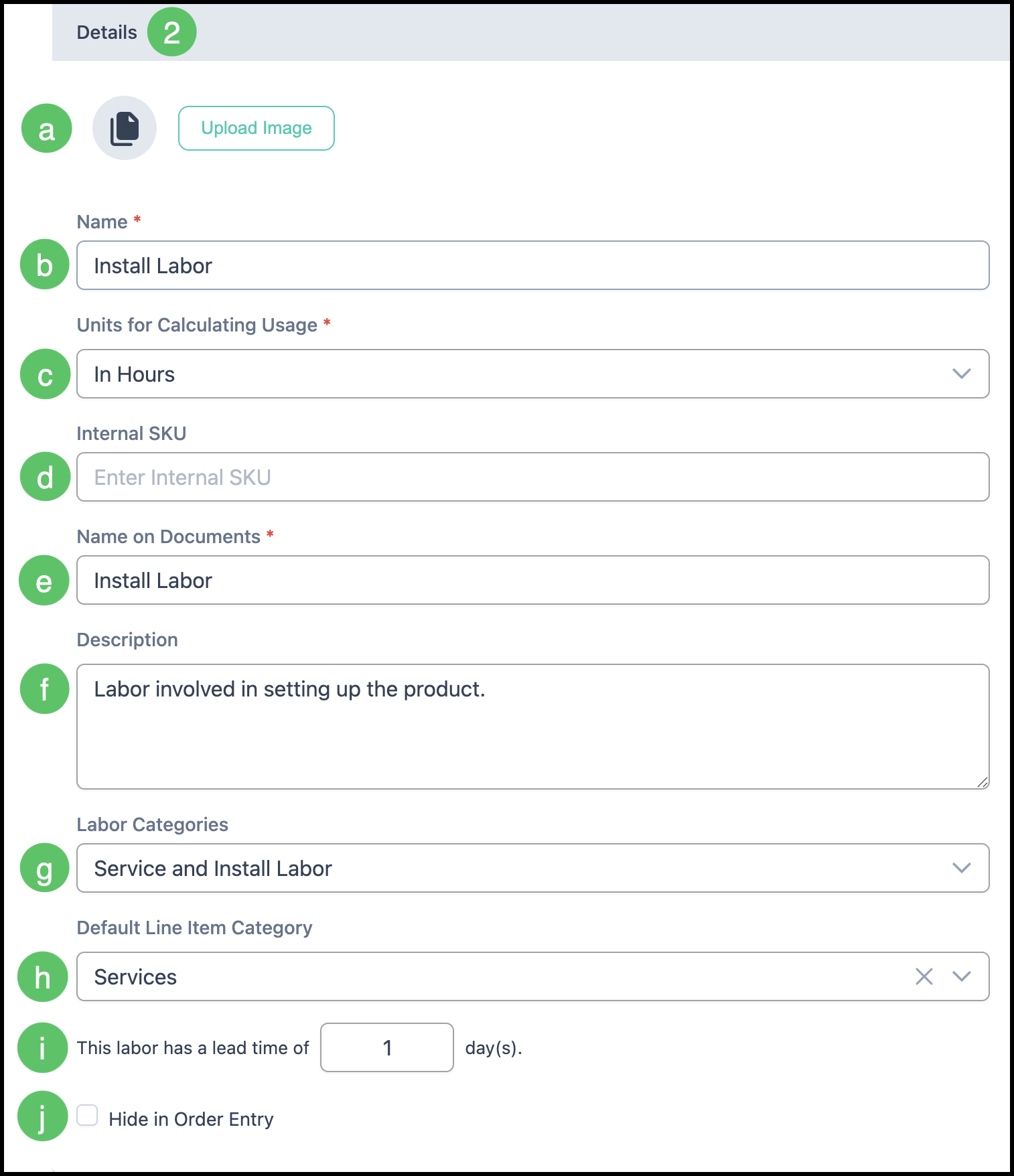
2. On the Labor Details tab, fill in the Details section.
a. Upload Image: Optional image that identifies this Labor.
b. Name: The name used inside CoreBridge.
c. Units for Calculating Usage: Select Each, In Minutes, or In Hours.
Note: Cost and price fields follow the unit selected here.
d. Internal SKU: An optional code used to identify this Labor.
e. Name on Documents: The name shown to customers. It fills from Name and can be changed.
f. Description: When this Labor should be used.
g. Labor Categories: One or more categories used to organize and filter Labors.
Note: Categories are managed in System Settings / Components / Component Categories on the Labor tab. For more information, see Managing Component Categories.
h. Default Line Item Category: The Line Item Category applied when this Labor is added to an Estimate or Order.
Note: Line Item Categories are managed in System Settings / Sales Settings / Line Item Categories.
i. This labor has a lead time of: Enter the number of days this Labor adds when Production and Order due dates are calculated.
j. Hide in Order Entry: When selected, this Labor cannot be picked as a line during Order entry. It can still be used inside a Product.
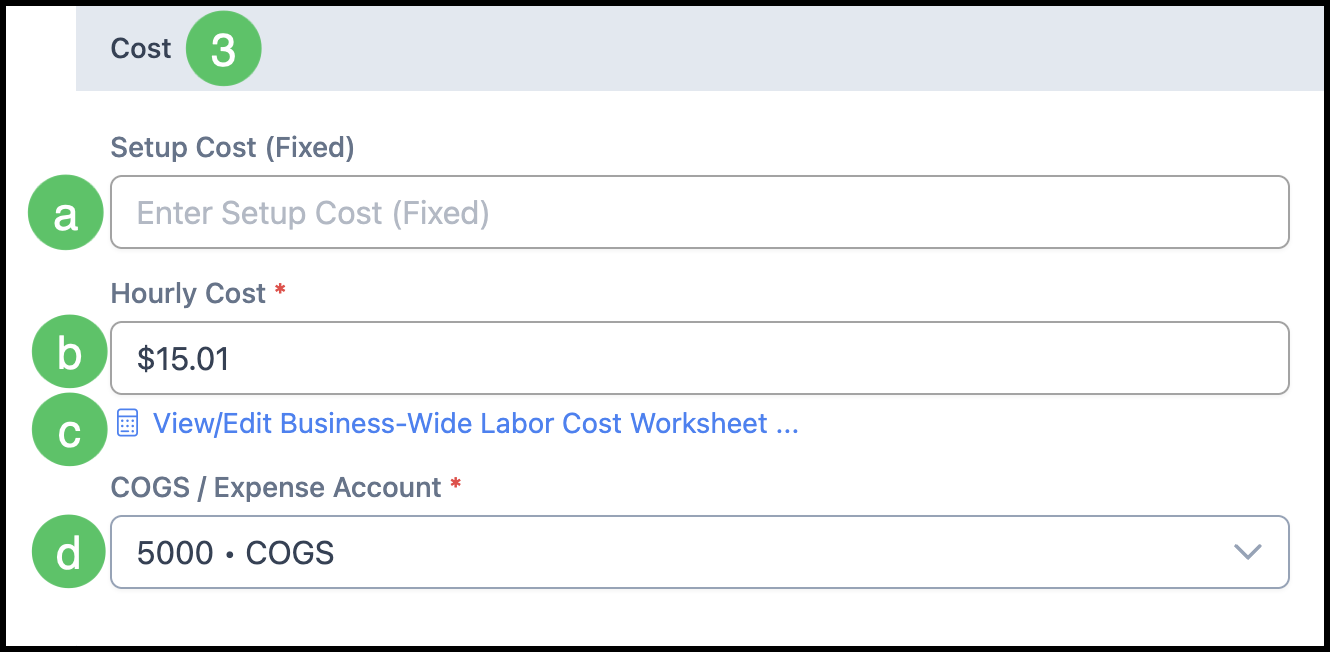
3. In the Cost section, enter the internal cost.
a. Setup Cost (Fixed): A fixed cost for this Labor, if one applies.
b. Hourly Cost: The cost per hour to complete this Labor, including the employee rate and overhead.
Note: This amount updates when the business-wide worksheet is applied to this Labor.
c. View/Edit Business-Wide Labor Cost Worksheet: Opens the worksheet used to calculate overhead. The worksheet is shared by the business. It is not stored separately on each Labor. Click Save to keep the worksheet, or Save & Apply to Current Labor to write the result into Hourly Cost on this Labor.
Note: For more information, see Labor Cost Worksheet.
d. COGS / Expense Account: The account used for this Labor's cost.
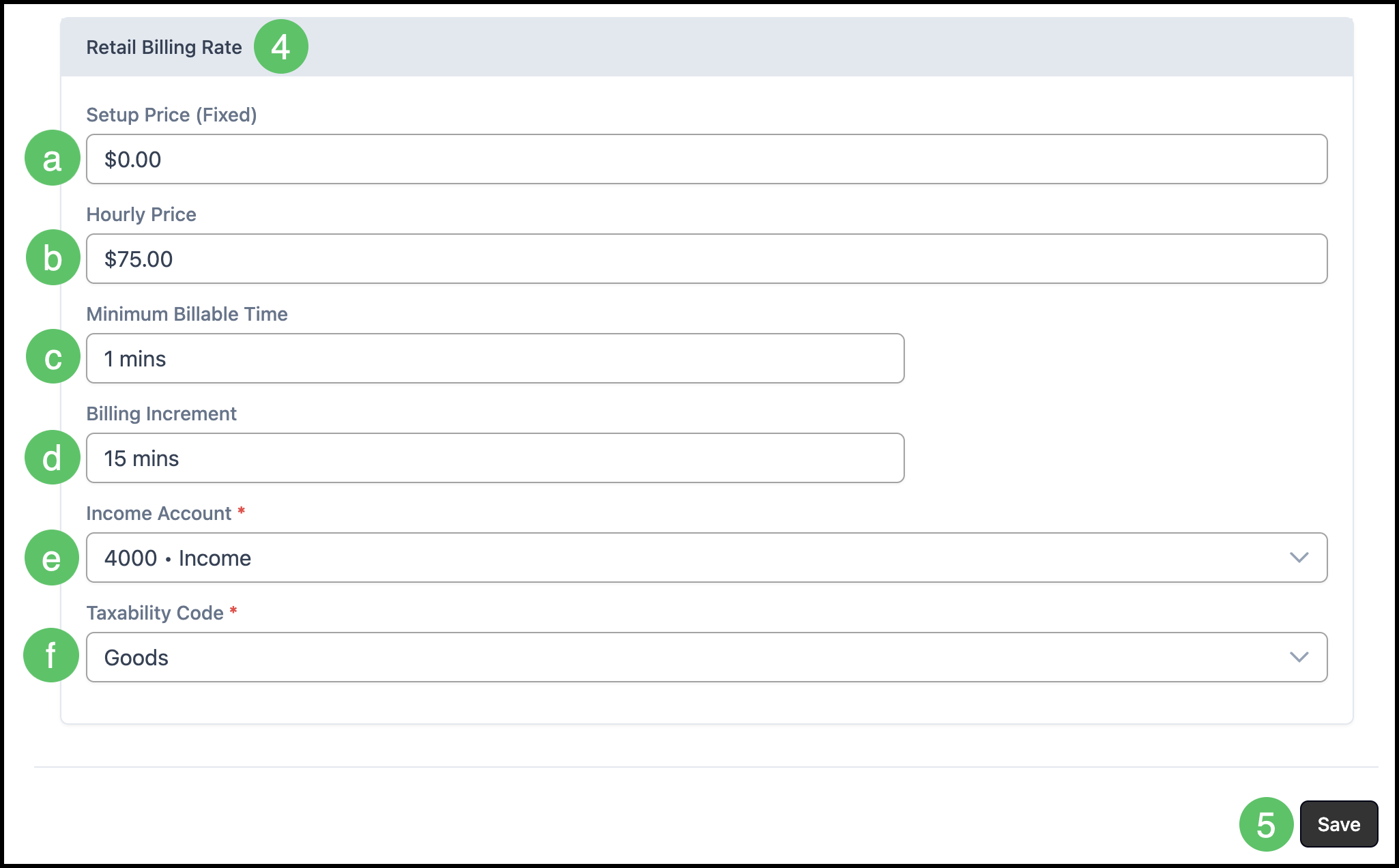
4. In Retail Billing Rate, enter the price charged when this Labor is added to an Estimate or Order.
a. Setup Price (Fixed): A fixed price for this Labor, if one applies.
b. Hourly Price: The price charged per hour, in addition to Setup Price (Fixed).
c. Minimum Billable Time: The shortest time a customer is charged for this Labor.
Example: If Minimum Billable Time is 60 minutes and the work takes 30 minutes, the customer is charged for 60 minutes.
d. Billing Increment: Billed time rounds up to this increment.
Example: If Billing Increment is 5 minutes and 37 minutes were used, the Labor is billed at 40 minutes.
e. Income Account: The account credited when this Labor is sold.
Note: Income Accounts are managed in System Settings / Accounting / Chart of Accounts.
f. Taxability Code: Whether this Labor is taxable, tax exempt, or taxable with exceptions.
Note: Taxability Codes are managed in System Settings / Accounting / Taxability Codes.
5. Click Save.
After a successful save, the Labor record opens. If required fields are missing, the Labor is not saved and the form shows what to complete.