
Custom Fields let you capture information that is unique to your business on records such as Company, Order, Contact, Employee, and Material. You design a layout for each record type in System Settings, then complete those fields when you work with the matching records. This article explains how to locate Custom Fields, open a layout, add and edit fields, and save your changes.
Table of Contents
- Before You Begin
- Important Information
- Locating Custom Fields
- Adding and Editing Custom Fields
- Using Custom Fields on Records
- Frequently Asked Questions
- Related Articles
Before You Begin
Custom Fields must be included in your plan. If you do not see Custom Fields under System Settings / Components, contact Support at supportdesk.corebridge.net to have it added.
Note: Designing layouts requires access to System Settings. For more information, see Employee Roles and Permissions in Settings.
Important Information
Keep these rules in mind before you add a field:
- Each Field Name must be unique for that record type.
- After you save a field, you cannot change its data type or the record type it belongs to.
- Open a layout by double-clicking a row on the Custom Fields screen. There is no Add button for record types.
- Removing a field from a layout stops it from being used going forward. Values already stored on records remain.
Locating Custom Fields
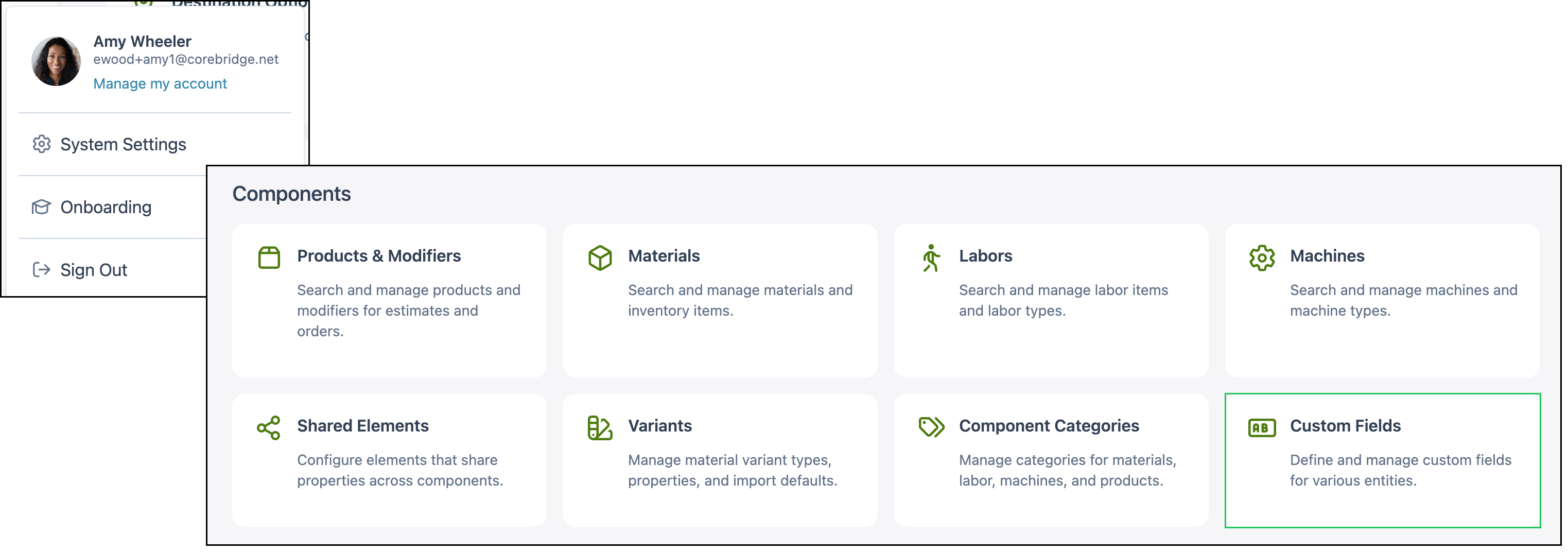
Navigate to System Settings / Components / Custom Fields.
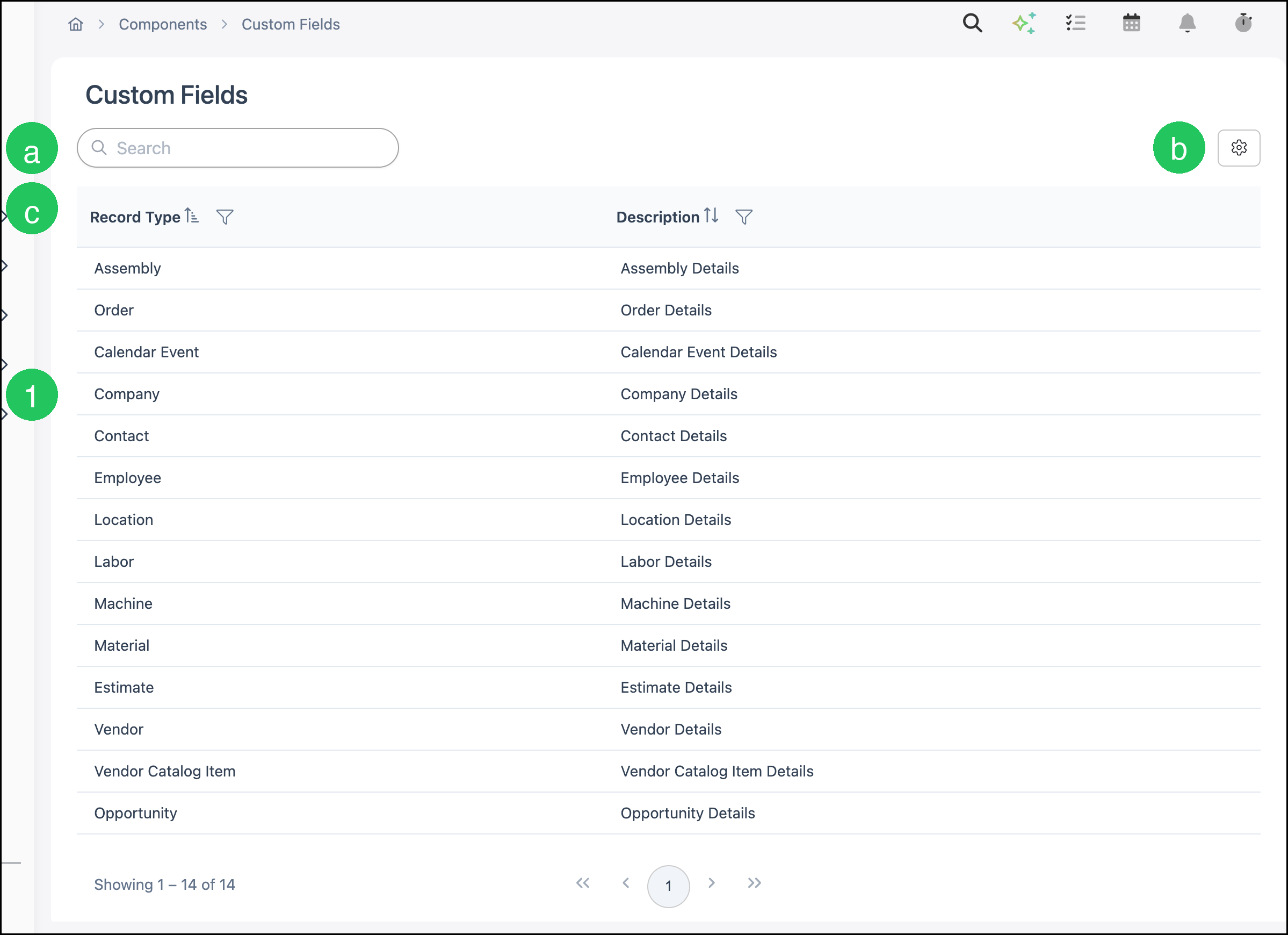
The Custom Fields screen lists every record type that can have a custom layout, such as Assembly, Order, Company, Contact, Employee, Material, and Opportunity.
a. Search filters the list of record types.
b. Search Settings opens column and search options for the list.
c. Record Type identifies the record the layout applies to. Description shows the matching details layout name, such as Company Details.
1. Click a record type, such as Company, to open its layout.
Adding and Editing Custom Fields
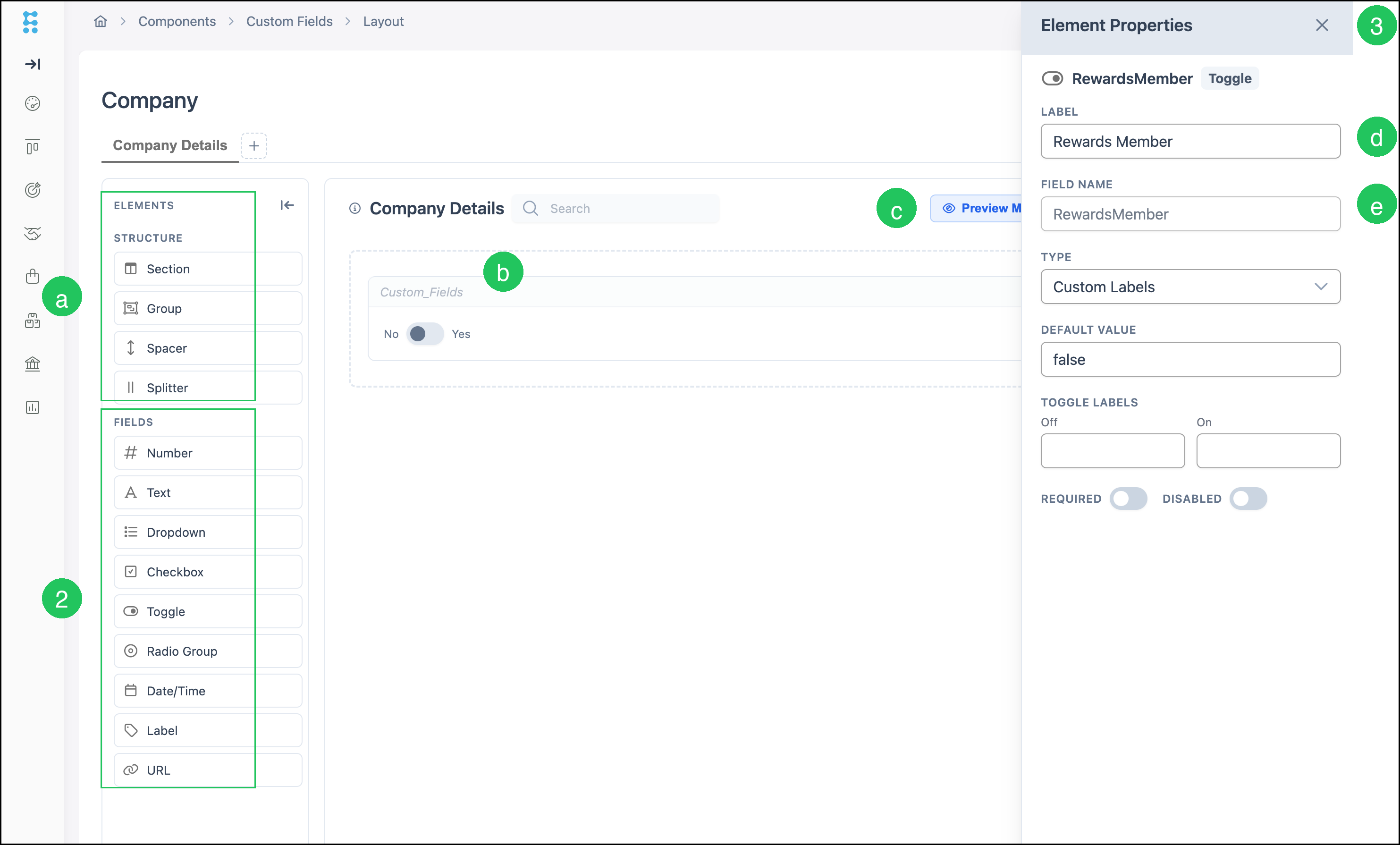
The layout designer opens for the record type you selected. The example below uses the Company layout.
2. Drag a field from Fields onto the layout.
a. Structure includes Section, Group, Spacer, and Splitter for organizing the layout.
b. The layout canvas shows the fields as they appear on the record, such as the Rewards Member toggle on Company.
c. Preview Mode shows how the layout looks when you complete the record.
3. Select the field on the canvas and complete Element Properties.
d. Label is the name shown on the record.
e. Field Name is the unique identifier. After the field is saved, Field Name cannot be edited.
Note: Additional properties depend on the field type. Examples include Type, Default Value, Required, and Disabled. For a Toggle, you can also set Toggle Labels.
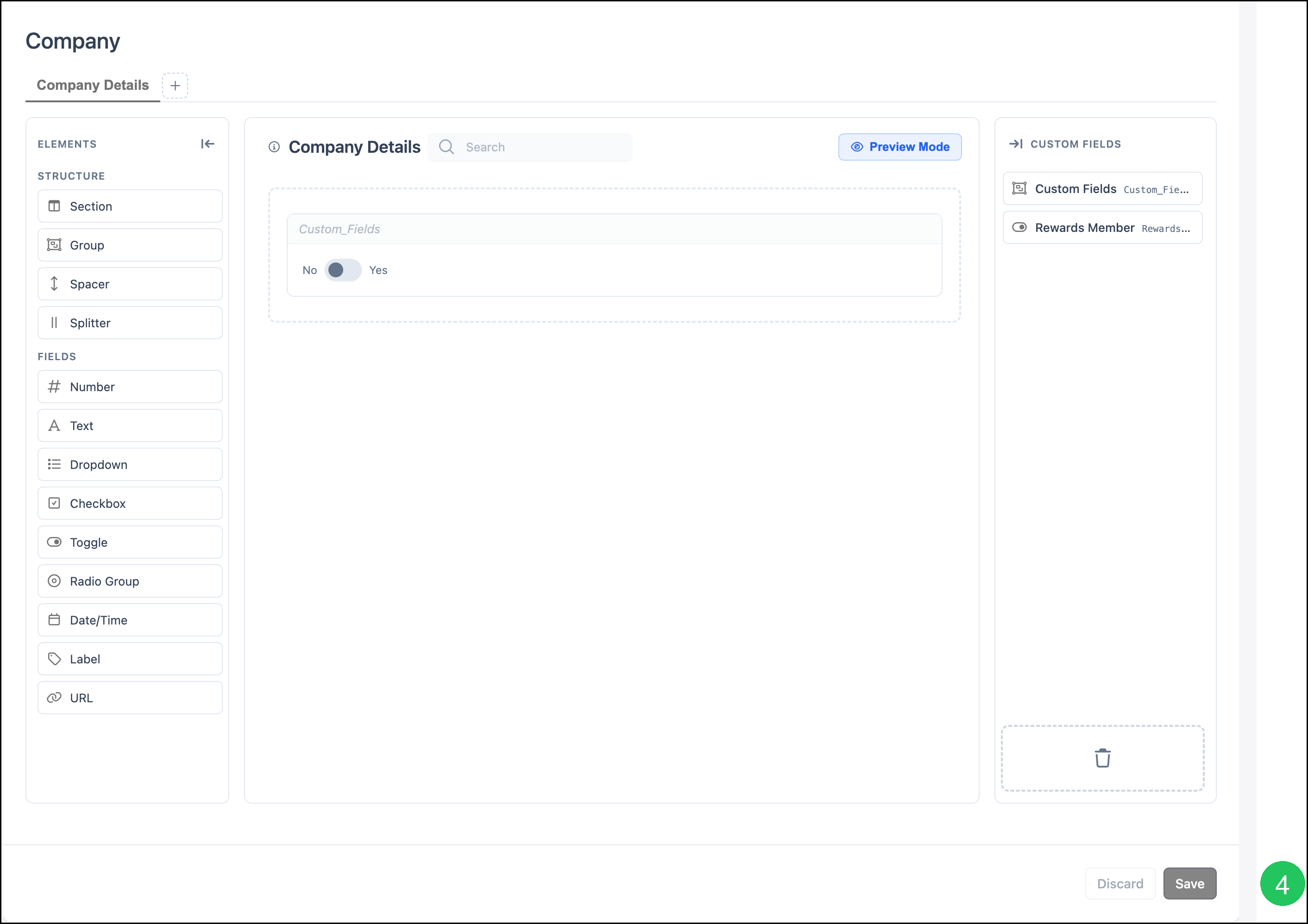
Note: Use + next to the tab name to add a subtab. Drag a field to the trash area on the layout to remove it from the layout.
4. Click Save.
Note: Click Discard to cancel unsaved layout changes.
Using Custom Fields on Records
After you save a layout, the fields appear when you open a record of that type. For example, Company fields such as Rewards Member appear on the Company.
Employee, Contact, Material, Labor, Machine, and other layouts follow the same pattern: design the layout under Custom Fields, then complete the fields on the matching record.
Note: Automations can run when an Order custom field is edited. For more information, see Automations Overview.
Frequently Asked Questions
1. Can I change a field type after I save it?
Answer: The field type and record type are set when you save. Choose the type before you click Save.
2. What happens if I remove a custom field from a layout?
Answer: The field is no longer available on the layout going forward. Values already stored on records remain.
3. Why is Custom Fields missing from System Settings?
Answer: Custom Fields must be included in your plan. Contact Support at supportdesk.corebridge.net if the Custom Fields card is missing under System Settings / Components.
4. How do I open a layout?
Answer: On the Custom Fields screen, double-click the record type row. For example, double-click Company to open the Company layout.
Related Articles
Automations Overview
Components Overview
Creating Companies
Creating Employees
Custom Field Examples
Employee Roles and Permissions in Settings
Materials Overview