
Purchase Order Options sets whether taxes are calculated on a Purchase Order. The choice is made on the Purchase Order Options screen, in the Tax section. When Include Taxes on Purchase Orders is enabled, taxes are calculated. When it is disabled, Purchase Order taxes are $0.00, and existing Purchase Orders keep their tax until they are next edited.
Table of Contents
Setting Purchase Order Options
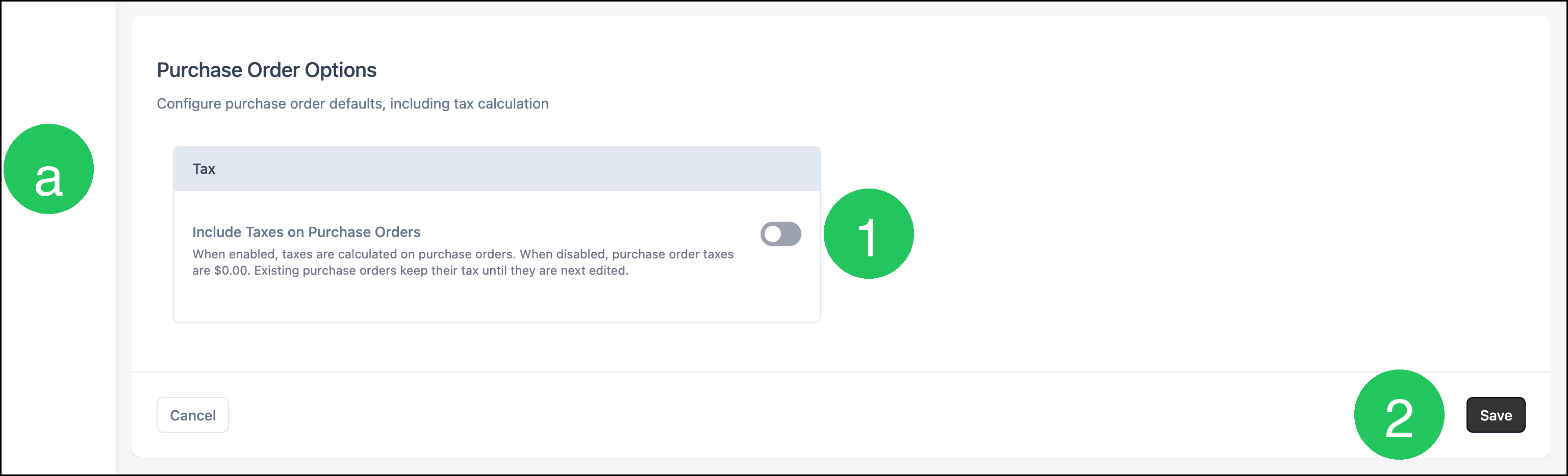
Navigate to System Settings / Purchasing Settings / Purchase Order Options.

1. Click Include Taxes on Purchase Orders.
a. Tax is the section for this option.
When the option is enabled, taxes are calculated on Purchase Orders. When it is disabled, Purchase Order taxes are $0.00. Existing Purchase Orders keep their tax until they are next edited.
2. Click Save.
Note: Save and Cancel become available after the option changes. Cancel returns the screen to the last saved choice.
Frequently Asked Questions
1. What happens to a Purchase Order that already has tax?
Answer: It keeps that tax until the Purchase Order is next edited. New calculations use the current Include Taxes on Purchase Orders setting.
2. When are Purchase Order taxes $0.00?
Answer: When Include Taxes on Purchase Orders is disabled. Taxes are calculated when the option is enabled.