
An Order starts as an Estimate. Approve & Convert to Order creates the Order. The Order then moves on a Board and through Order Status. Pay applies a payment on the Order. Reconciliation & Sync closes the payments for the location.
Table of Contents
- Creating the Estimate
- Converting the Estimate to an Order
- Moving the Order on a Board
- Order Statuses
- Changing the Order Status
- Invoiced Orders
- Closed Orders
- Reopened Orders
- Taking a Payment
- Reconciling Payments
- Frequently Asked Questions
- Related Articles
Creating the Estimate
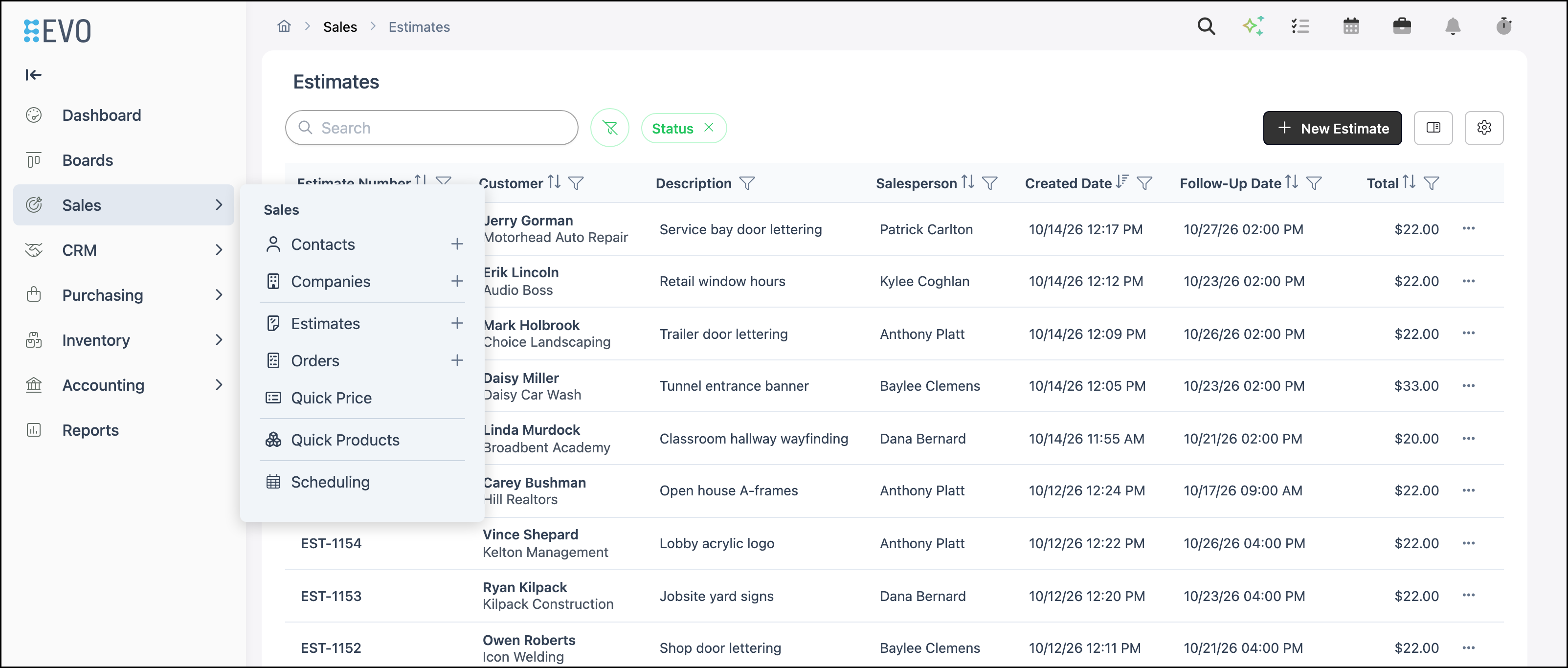
Navigate to Sales / Estimates.
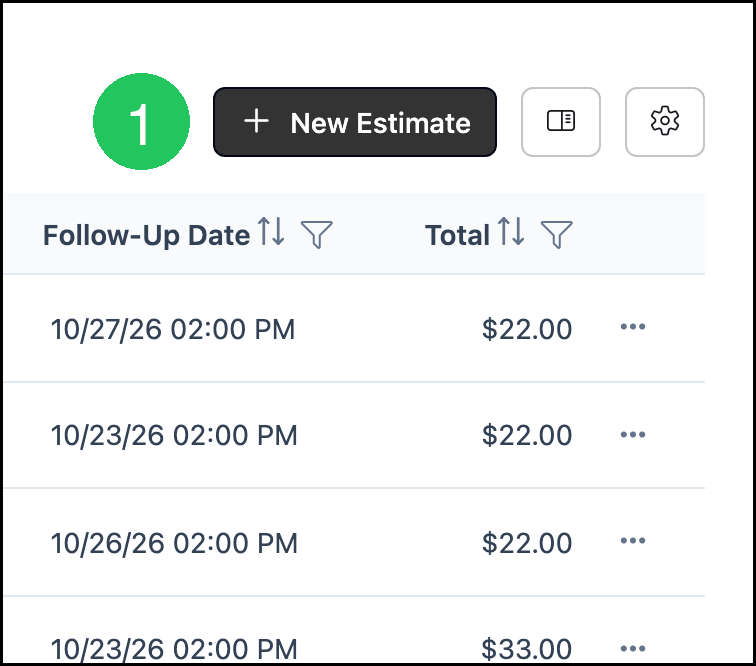
1. Click New Estimate.
Note: For full instructions, see Creating an Estimate.
Converting the Estimate to an Order
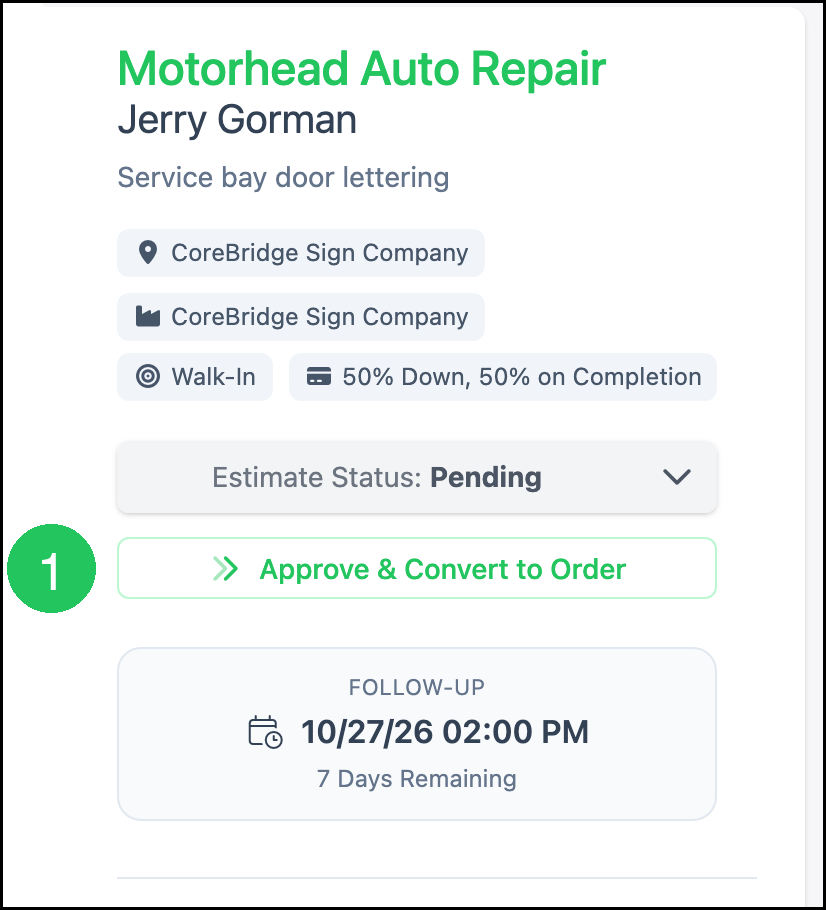
On an Estimate whose Estimate Status is Pending:
1. Click Approve & Convert to Order. The Order is created from the Estimate.
Note: For more information, see Creating an Order.
Moving the Order on a Board
Navigate to Boards.
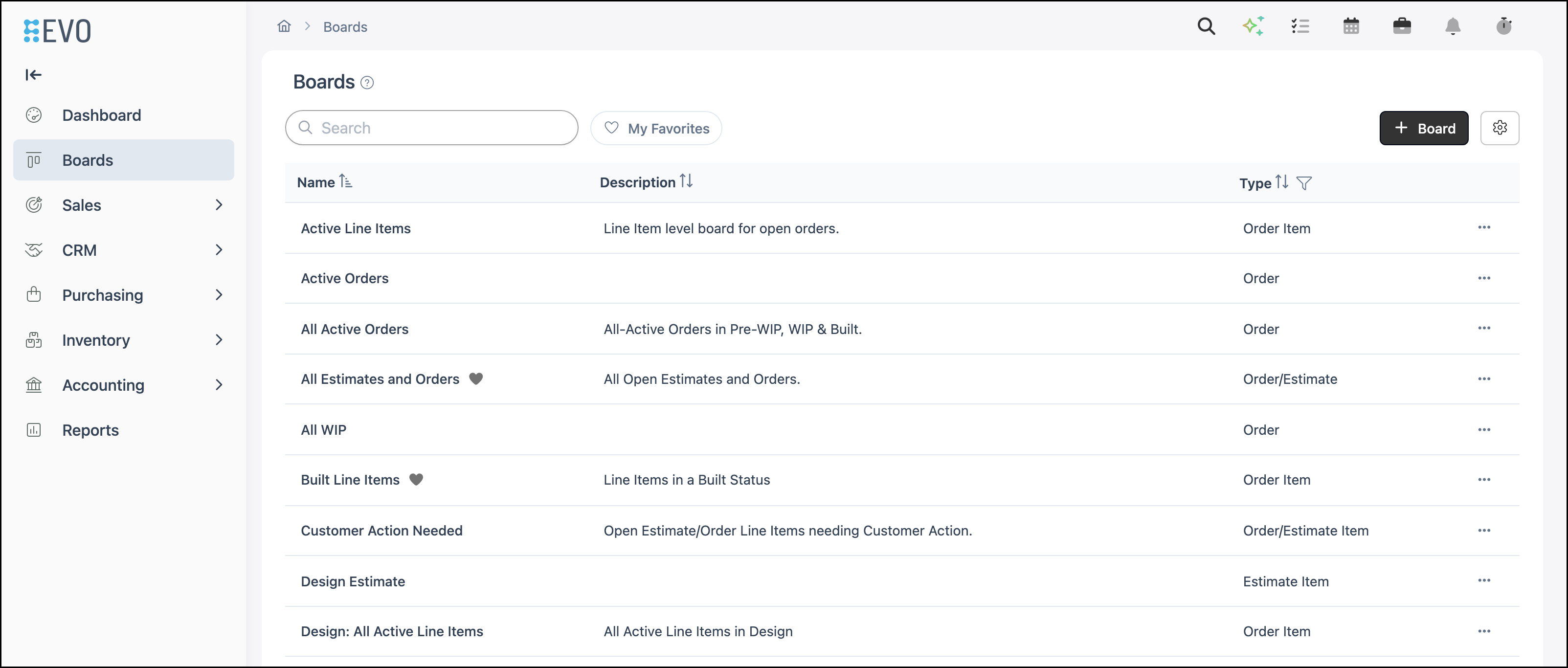
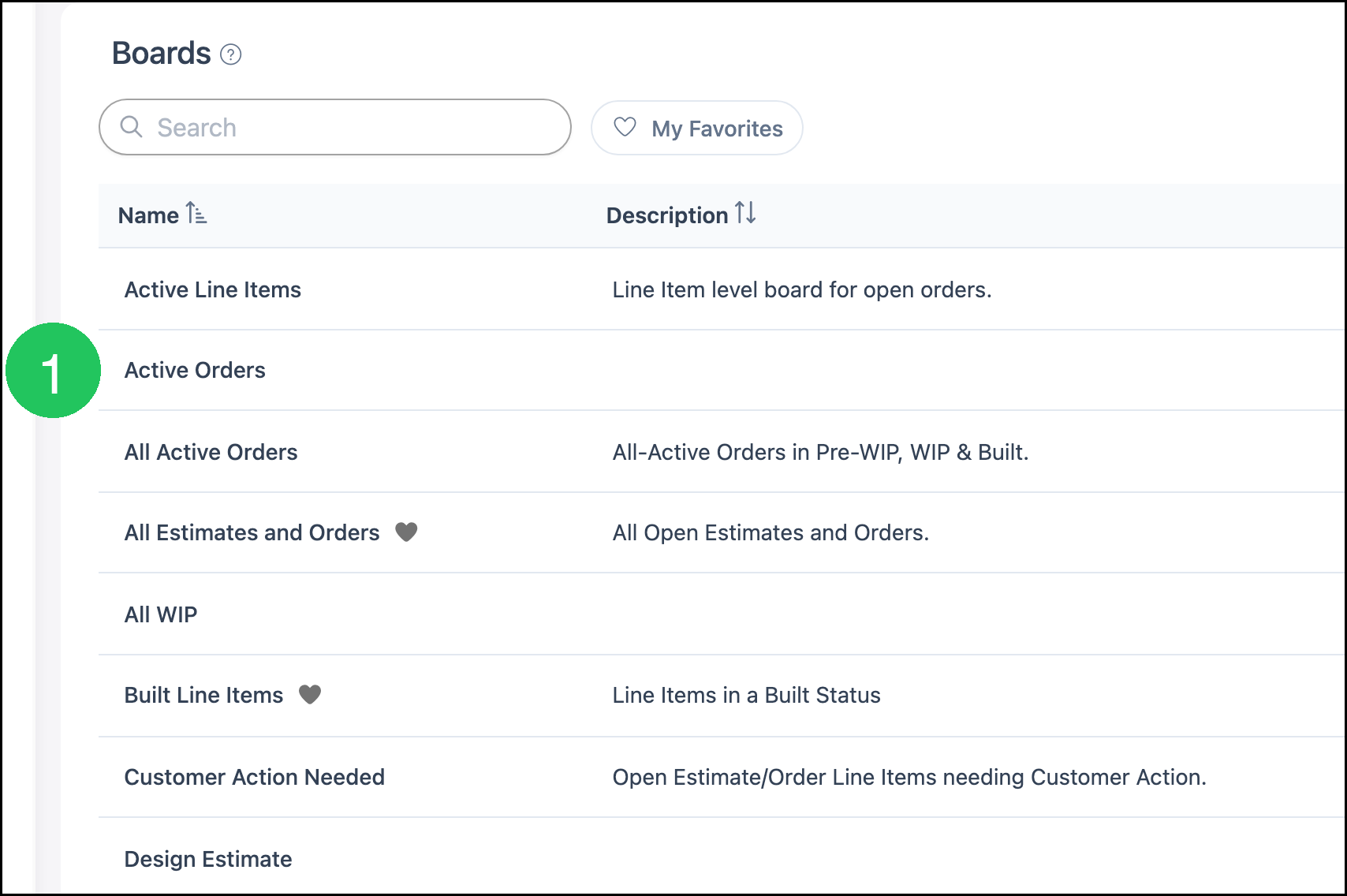
1. Click the board whose columns are Order Status. In this example, the board is Active Orders.
2. Drag the card into the column for the next Order Status.
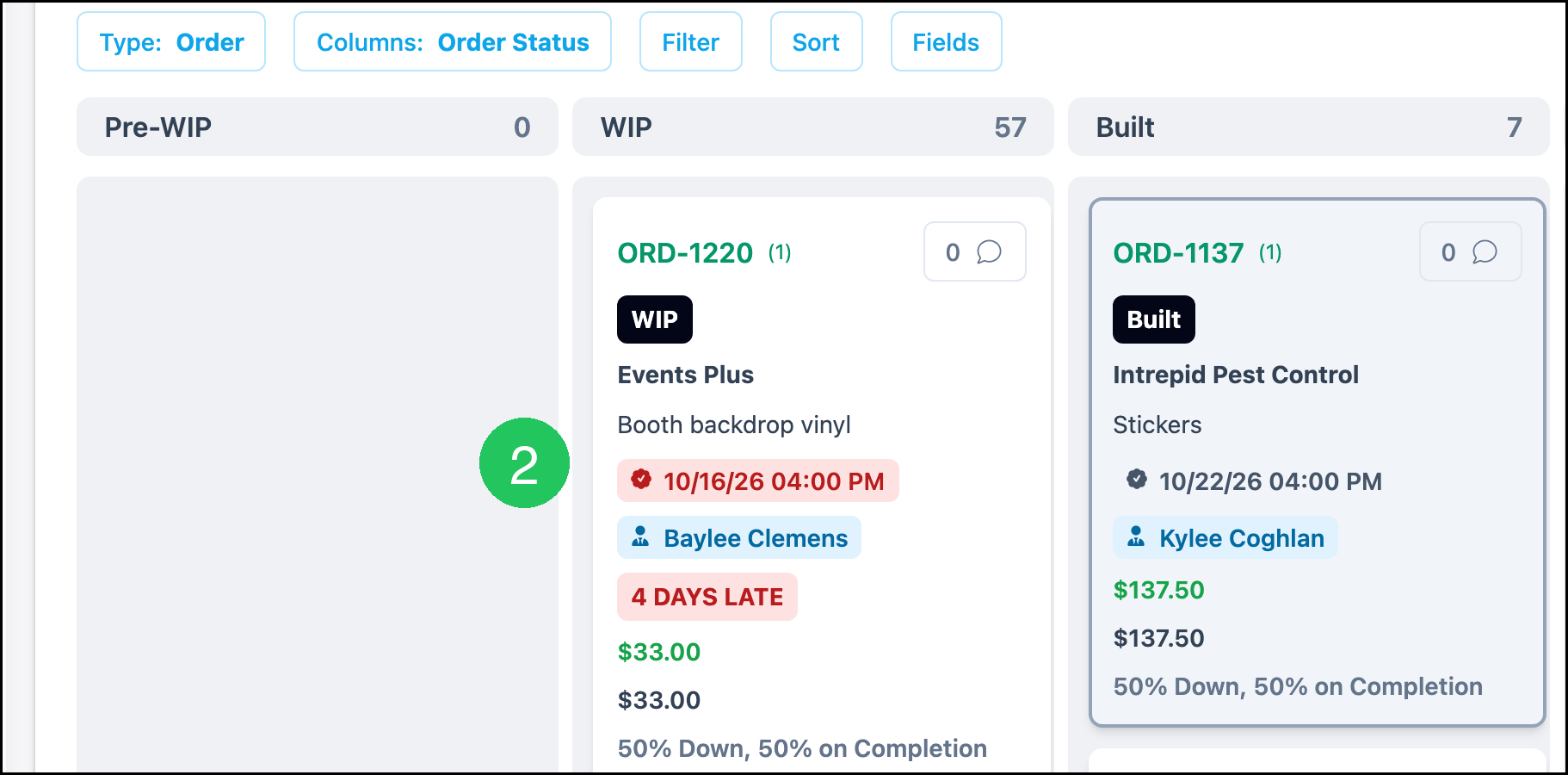
Note: A line item board uses the line item's own status. For more information, see Workflow Overview on Boards.
Order Statuses
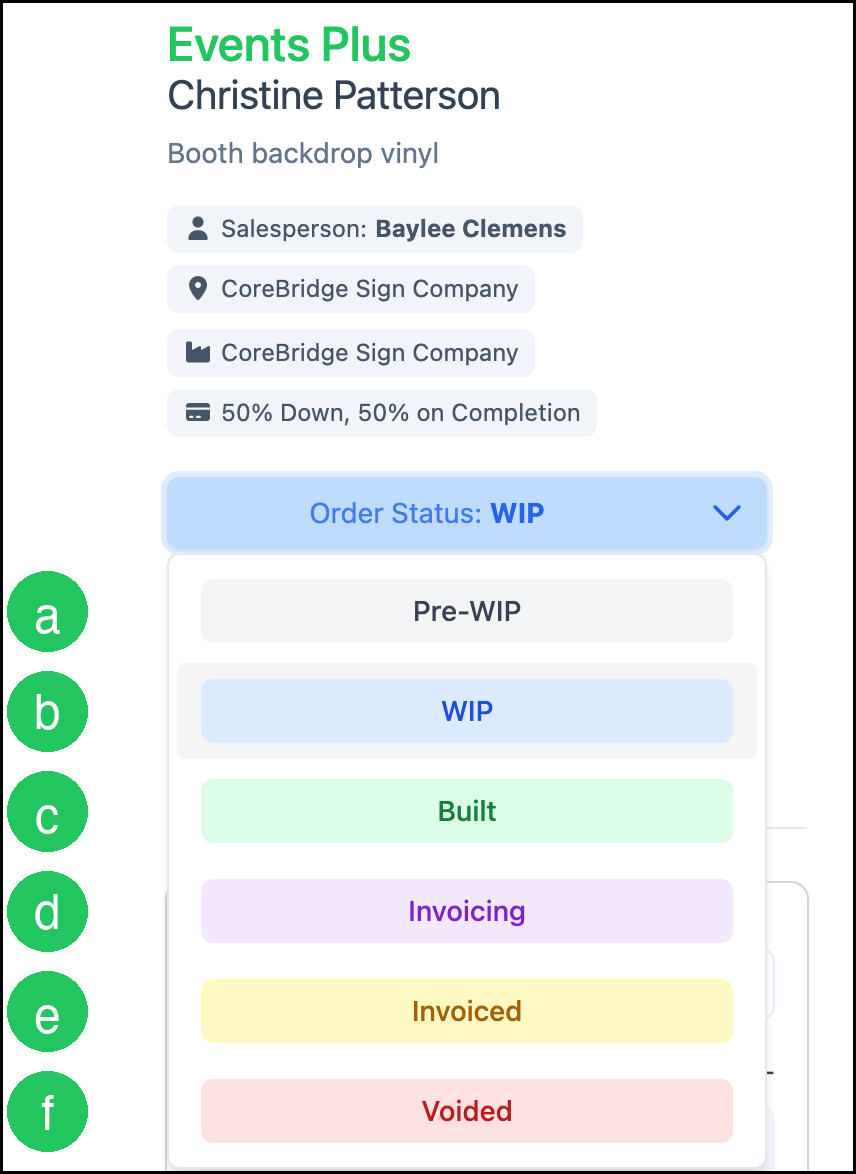
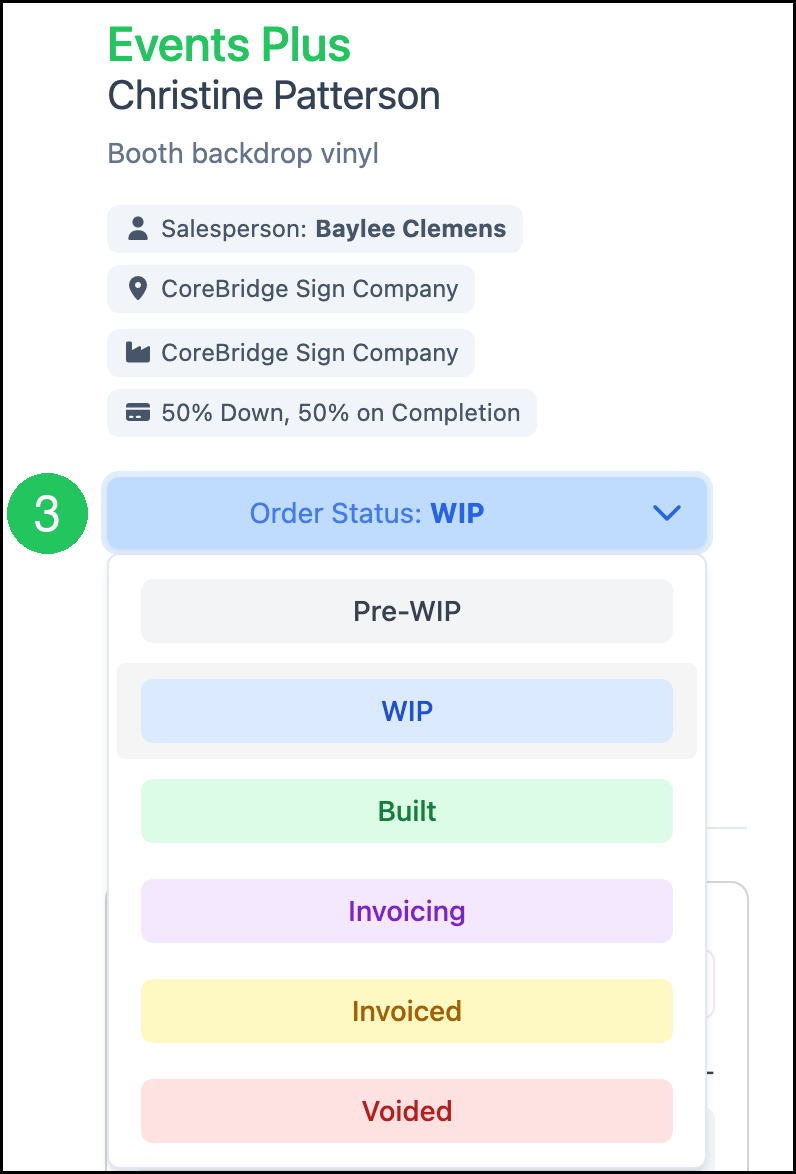
Order Status on an open Order offers these choices:
a. Pre-WIP is the stage before production starts.
b. WIP means production is underway.
c. Built means production is complete.
d. Invoicing is the stage when the Order is moving into billing.
e. Invoiced bills the Order. The number on the Order changes to an invoice number.
f. Voided takes the Order out of production.
Note: Closed and Reopened are not in this list. Each line item also has its own status for the work inside the Order's stage. Those names are set up for your shop. For more information, see Workflow Overview on Boards.
Changing the Order Status
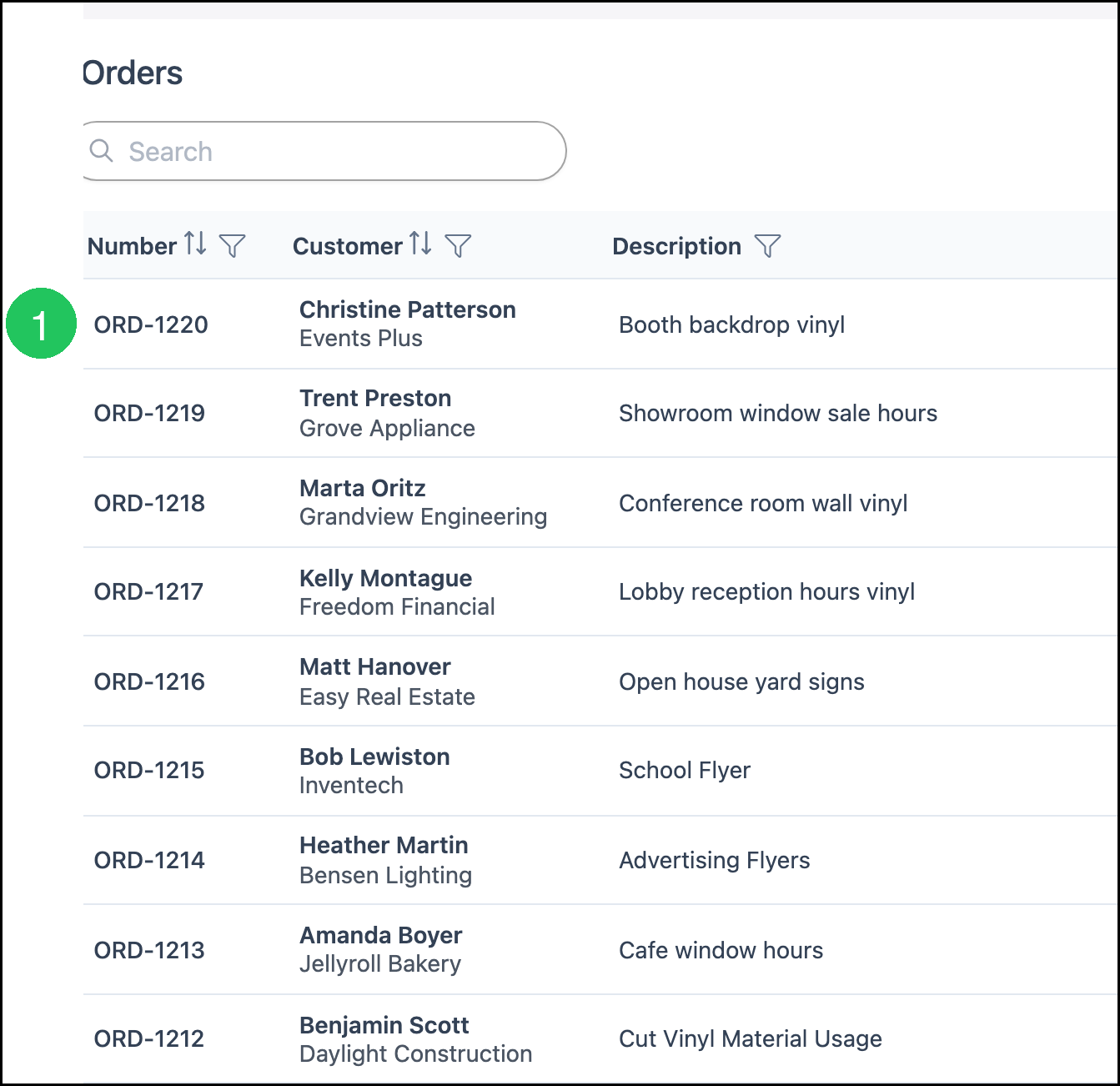
Navigate to Sales / Orders.
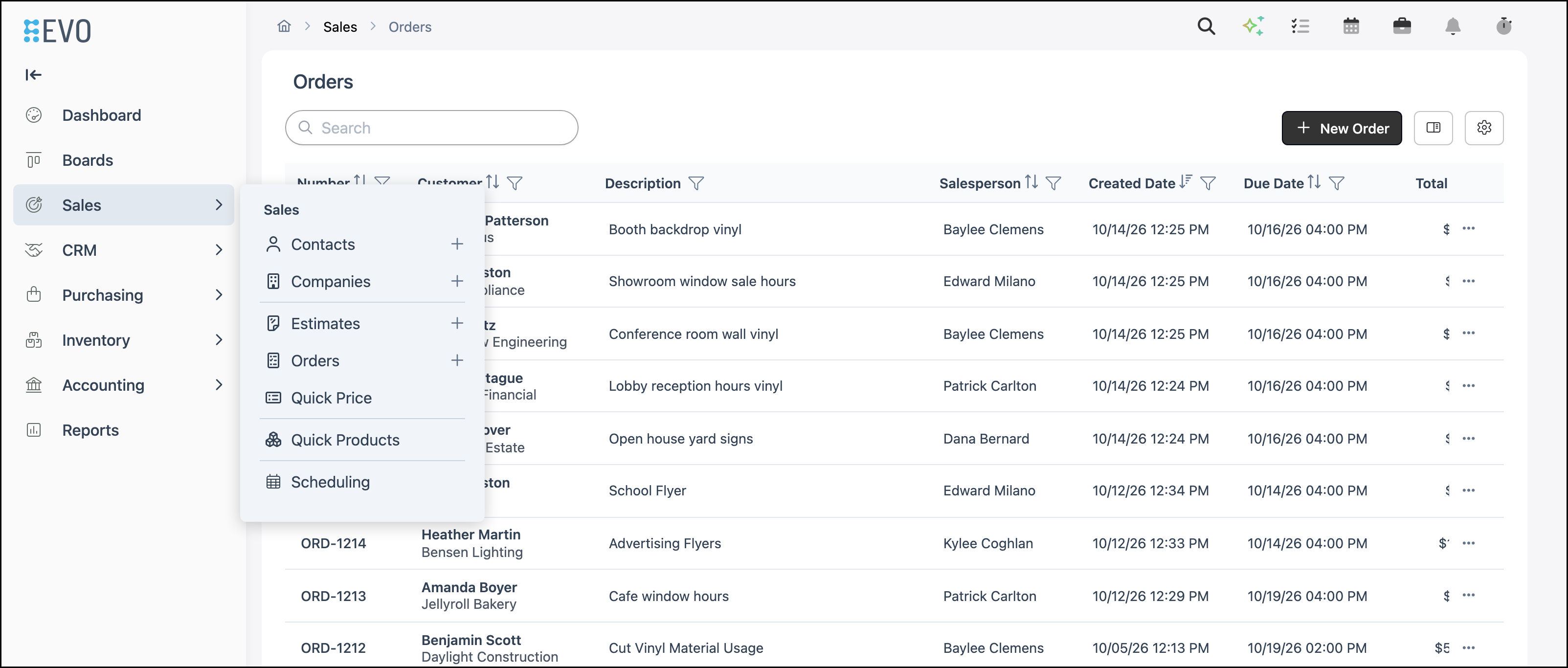
1. Click the Order.
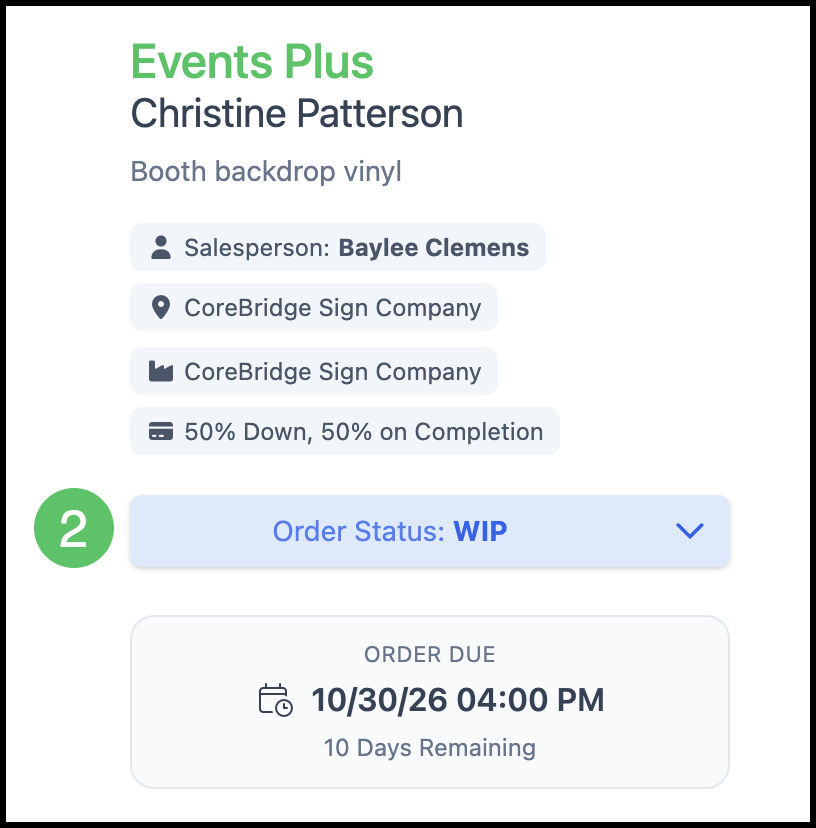
2. Click Order Status.
3. Select the status. The Order updates when the status is selected.
Invoiced Orders
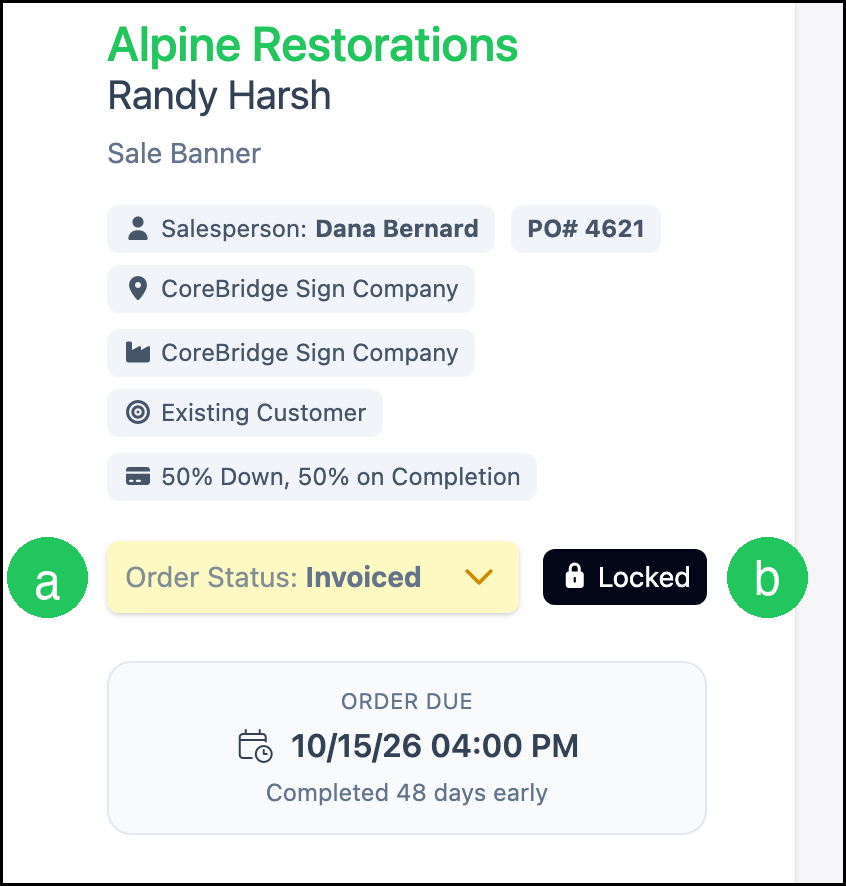
After Invoiced is selected, Order Status stays on Invoiced and cannot be changed from the Order.
a. Order Status shows Invoiced.
b. Locked appears beside Order Status.
Note: The Orders list can show Invoiced on Account or Invoiced Past Due for that Order. On the Order, Order Status still shows Invoiced. For more information, see Filtering Orders by Status.
Closed Orders
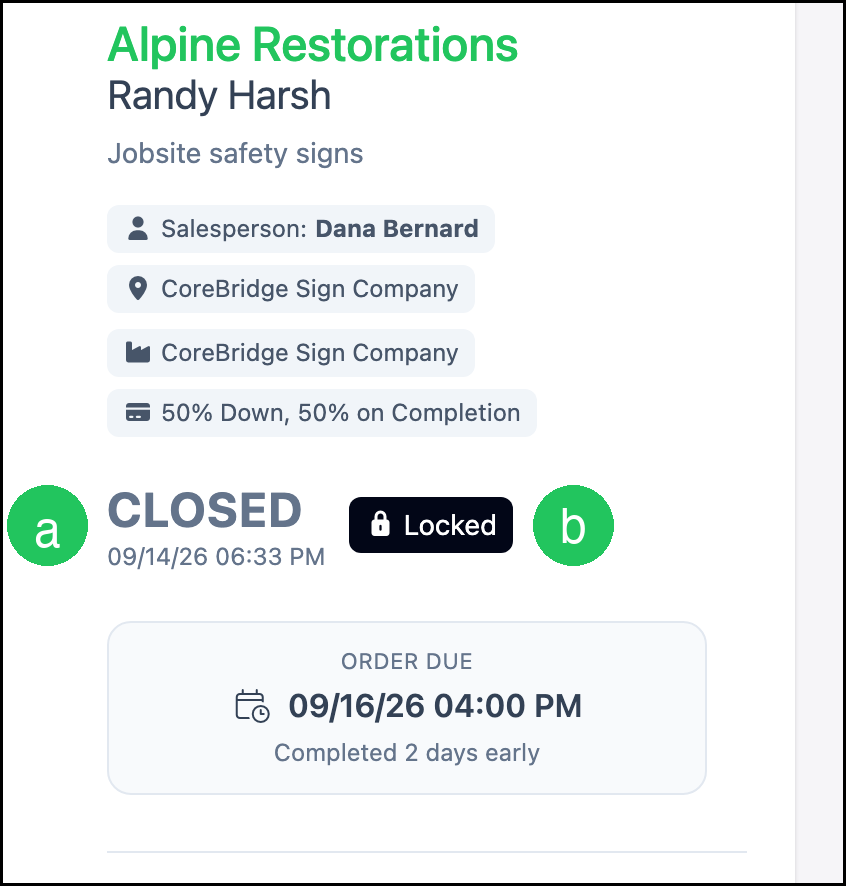
Closed is not a choice in Order Status. The Order shows the name, the date and time, and stays locked.
a. Closed replaces Order Status. The date and time appear under the name.
b. Locked appears beside Closed.
Reopened Orders
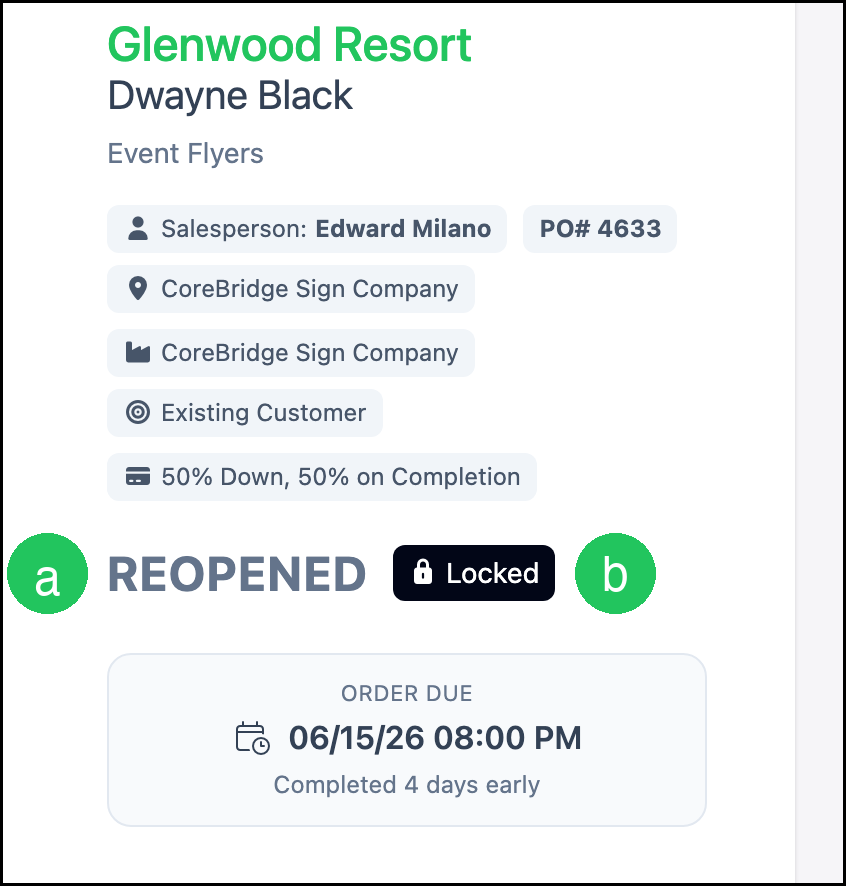
Reopened is not a choice in Order Status. The original Order shows Reopened and stays locked. For how an Order is reopened, see Full Unlock Feature.
a. Reopened replaces Order Status.
b. Locked appears beside Reopened.
Taking a Payment
On the Order:
1. Click Pay.
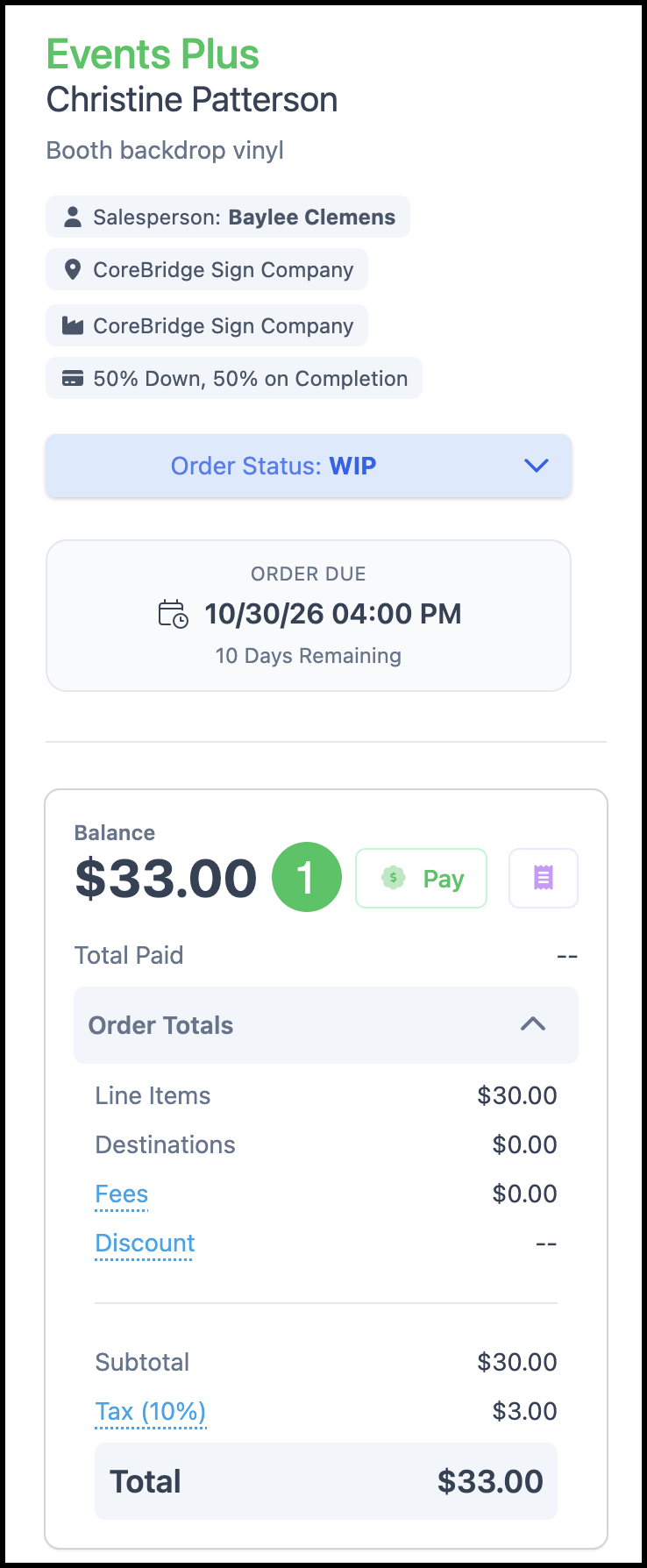
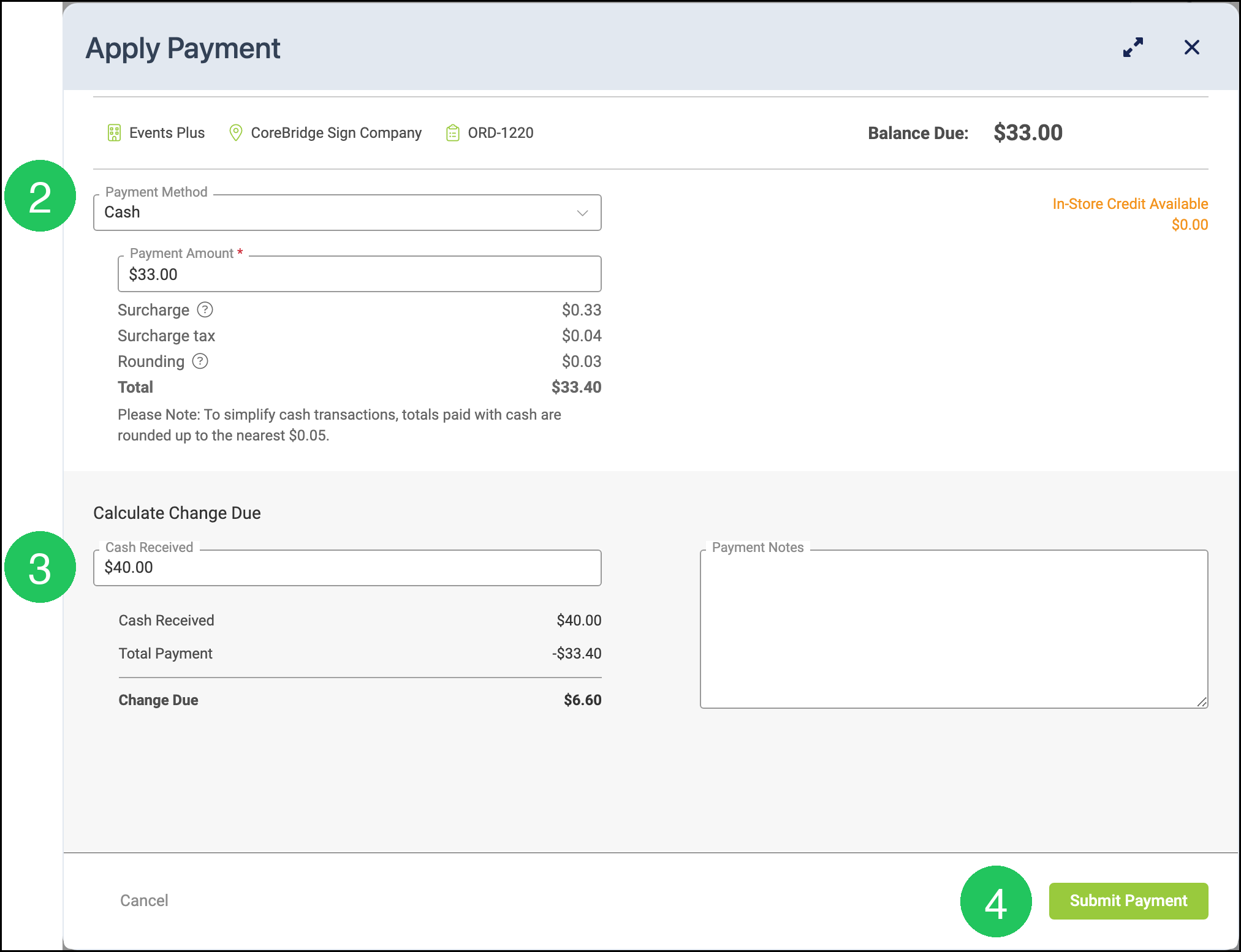
Apply Payment opens.
2. Select the Payment Method. This example uses Cash.
3. Enter Cash Received. Payment Amount shows the balance. A cash total can include a surcharge and rounding to the nearest $0.05.
4. Click Submit Payment.
Note: For more information, see Taking Payments and Payment Methods.
Reconciling Payments
Navigate to Accounting / Reconciliation & Sync.
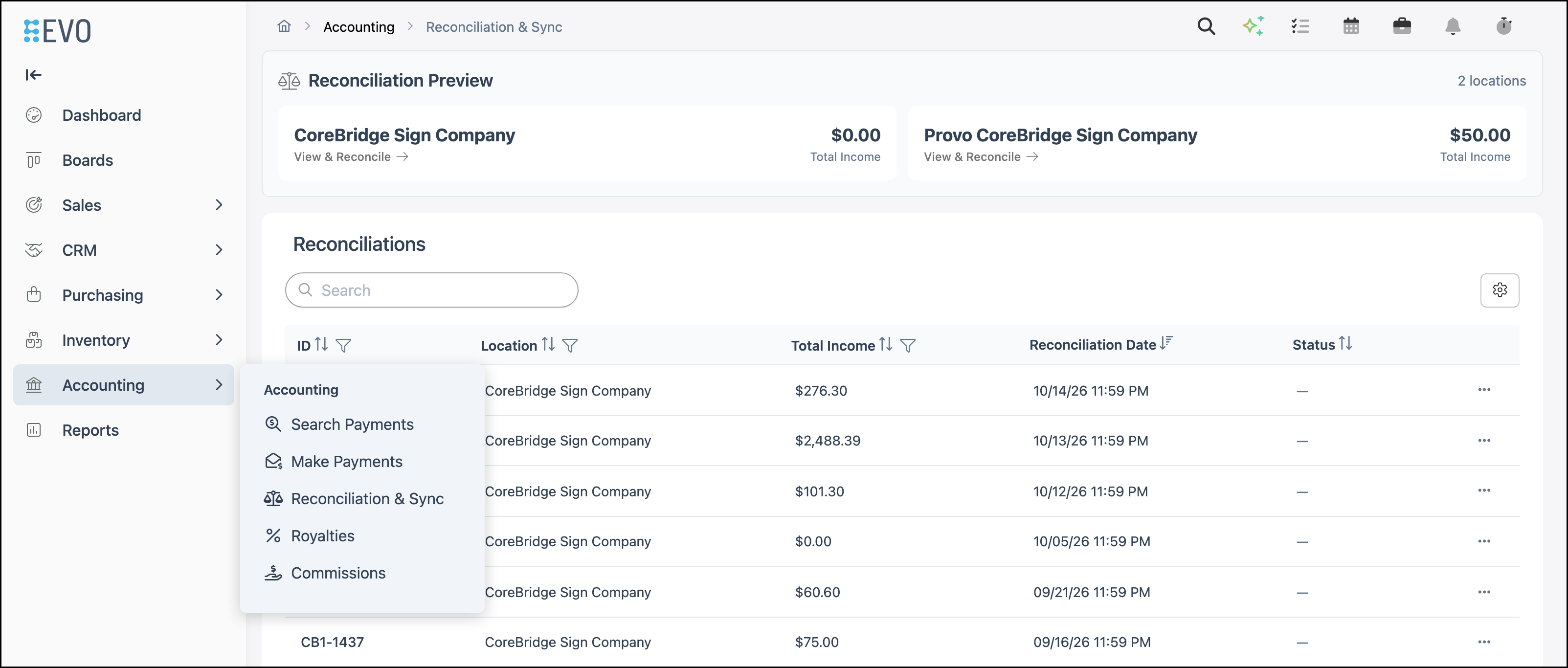
1. Click View & Reconcile for the location.
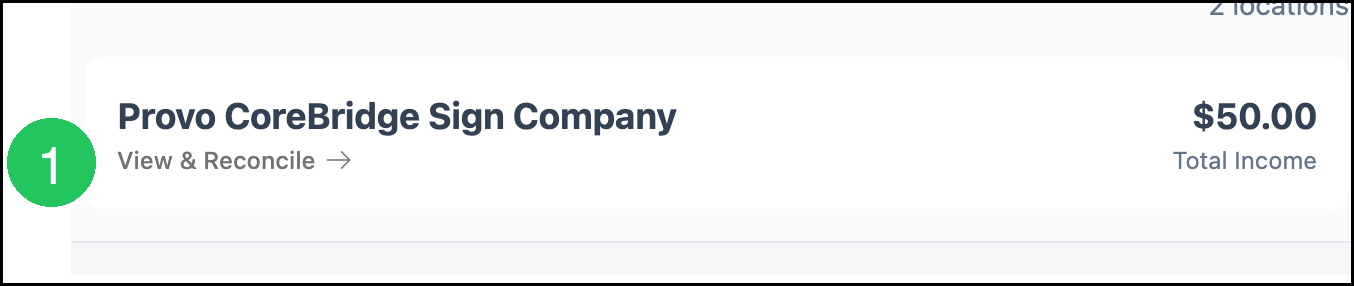
Reconciliation Preview shows Total Income and Total Payments for the period. Enter the counted amounts.
2. Click Reconcile.
Note: For more information, see Reconciliation Overview.
Frequently Asked Questions
1. Why is Order Status unavailable?
Answer: After the Order is invoiced, Order Status shows Invoiced and Locked. Closed and Reopened stay locked as well. For more information, see Full Unlock Feature.
2. What is the difference between Order Status and the status on a line item?
Answer: Order Status is the stage of the Order. Each line item has its own status for the work inside that stage. For more information, see Workflow Overview.
3. Why does the Orders list show a different status than the Order?
Answer: After invoicing, the Orders list can show Invoiced on Account, Invoiced Past Due, Closed, or Reopened. On the Order, Invoiced on Account and Invoiced Past Due still show Order Status as Invoiced.
4. Where is an Estimate converted to an Order?
Answer: On the Estimate, click Approve & Convert to Order when Estimate Status is Pending.
5. Where are payments reconciled?
Answer: Navigate to Accounting / Reconciliation & Sync, then click View & Reconcile. Reconcile is not an Order Status.