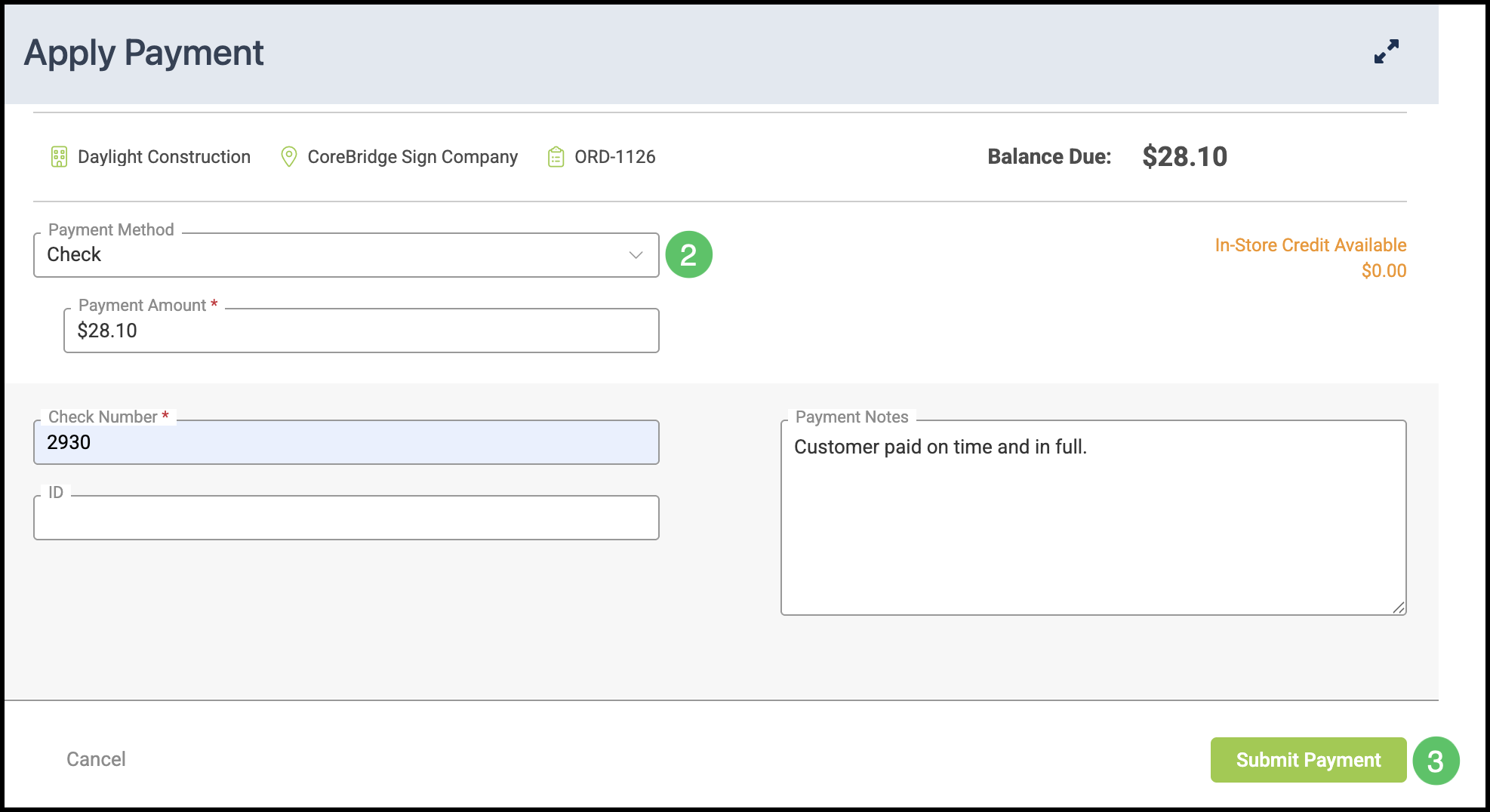
A payment records money applied to what a Customer owes on an Order or Invoice. You record a payment from Accounting for one or more open Orders and Invoices, or from an open Order. Both paths open Apply Payment, where you select a Payment Method and submit the payment.
Table of Contents
Recording Payments Through Accounting
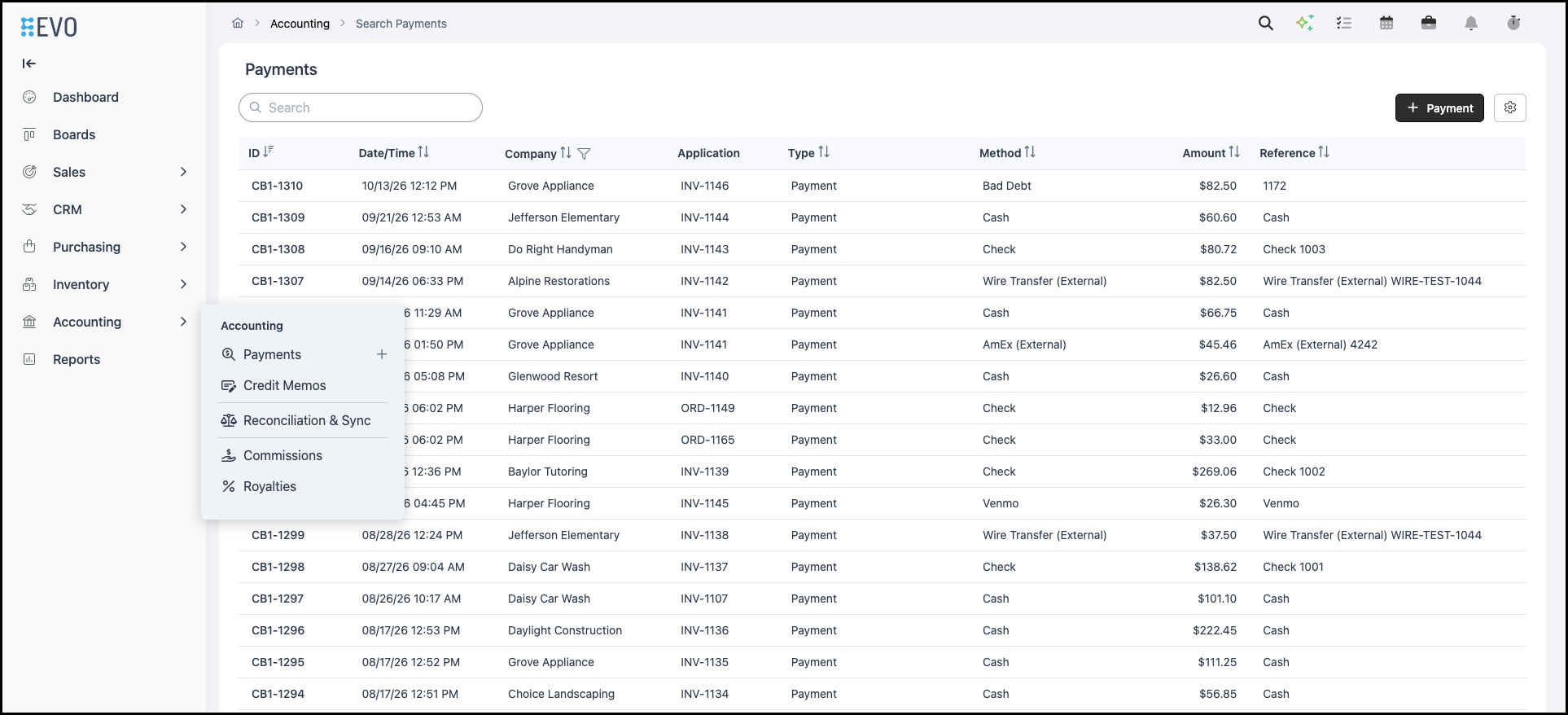
Navigate to Accounting / Payments, then click Payment.
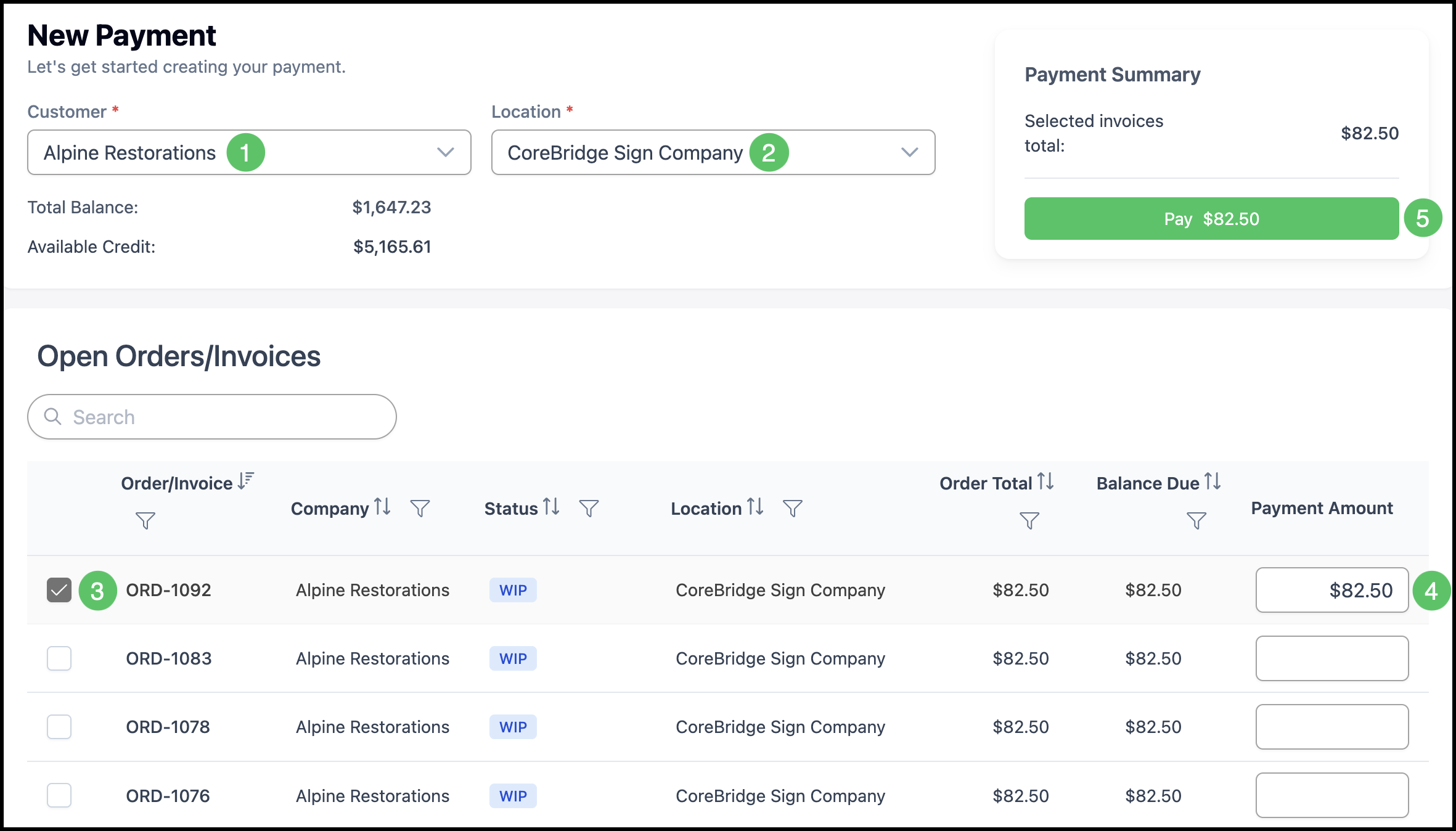
1. On the New Payment screen, select the Customer (required). The Customer is the company the payment is for.
2. Select the Location (required).
Note: After a Customer is selected, the screen loads open Orders and Invoices for that Customer.
3. Select one or more Orders or Invoices.
4. Enter a Payment Amount.
Note: The Payment Amount auto-populates with the amount owed, and can be adjusted. The Payment Summary shows Selected invoices total as you make selections.
5. Click Pay.
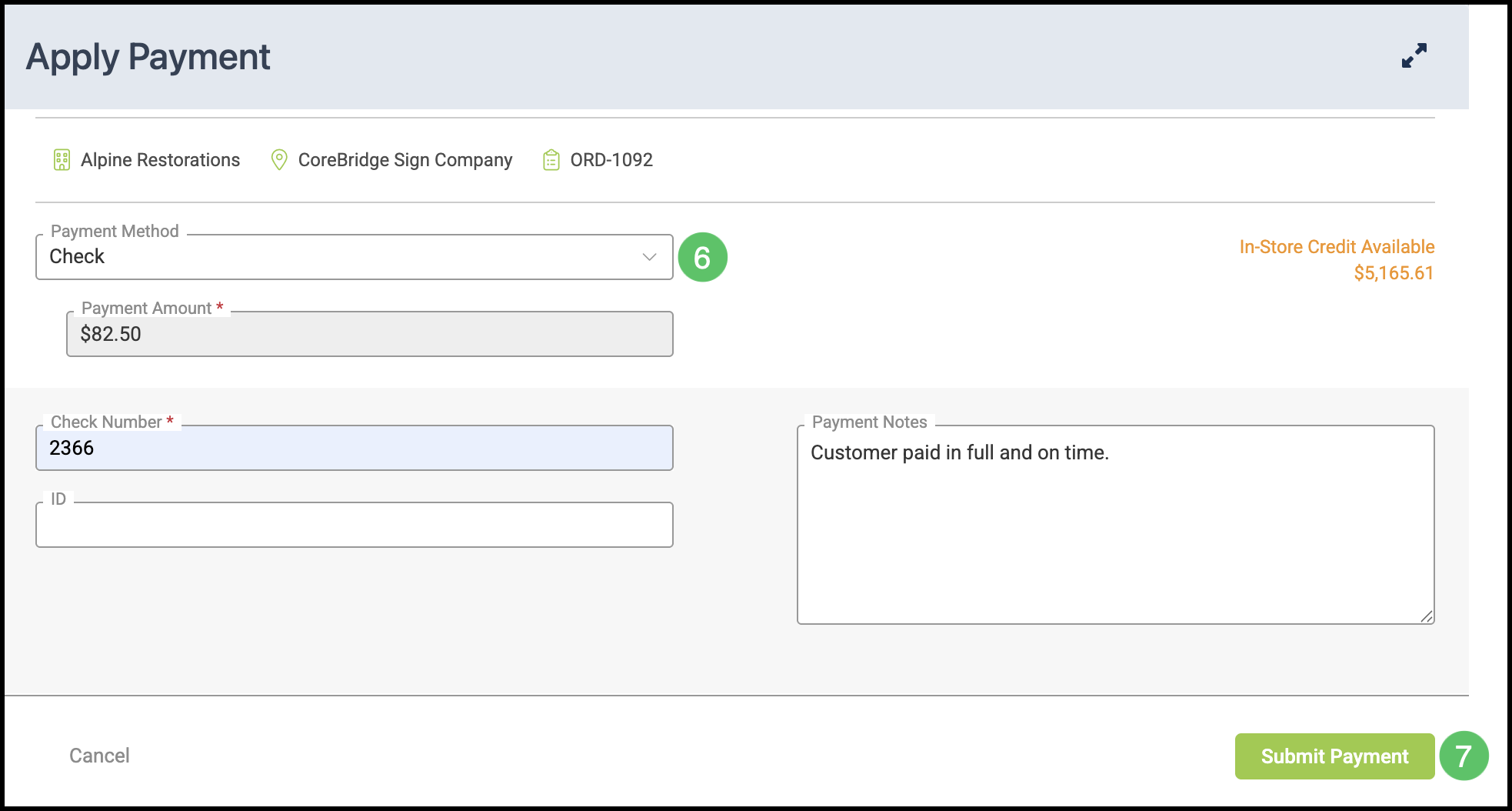
6. Select a Payment Method and complete the fields required for that method (for example card details for a non-integrated card entry). For more information, please see Payment Settings.
Note: Which methods appear depends on what your administrator has enabled under System Settings / Accounting / Payment Methods.
7. Click Submit Payment to finish.
Taking Payment on an Order
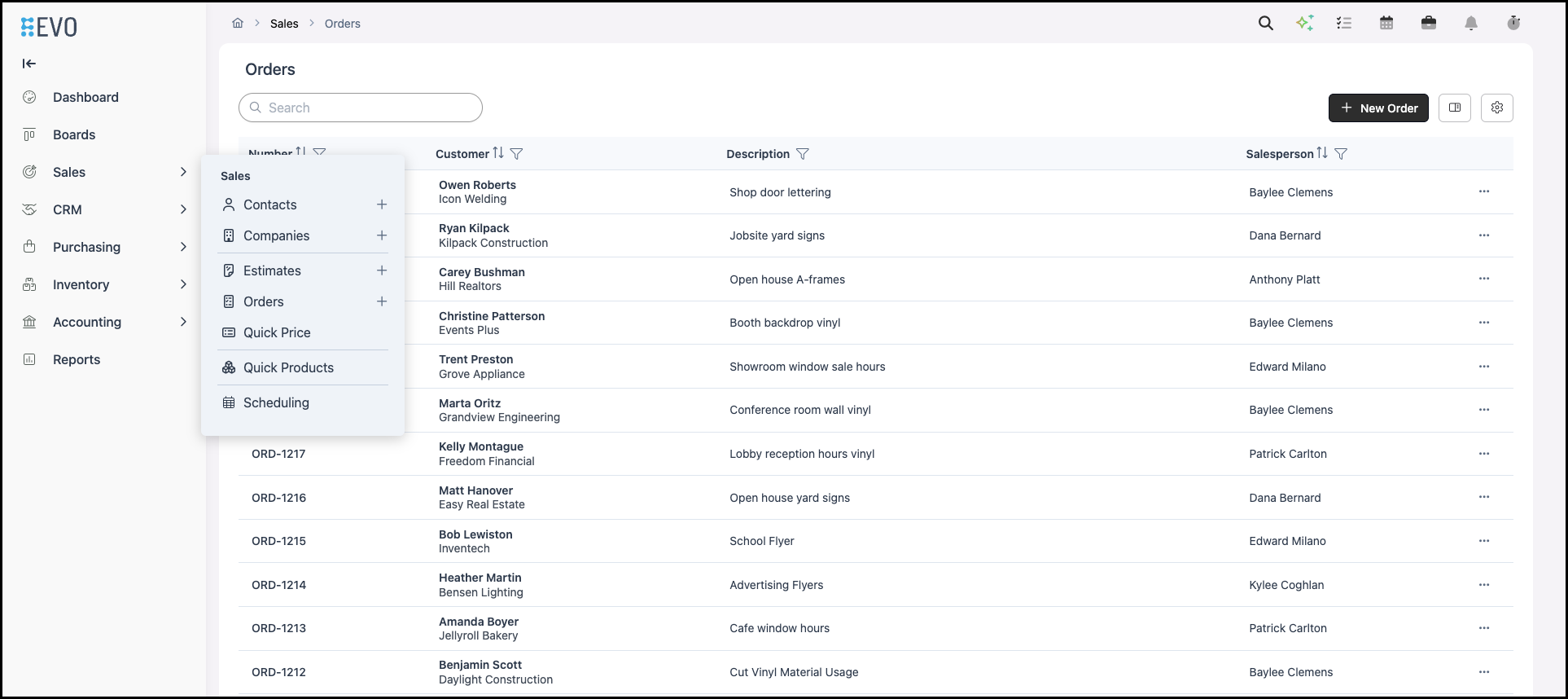
Navigate to Sales / Orders and open the Order you want to pay.
1. Click Pay.
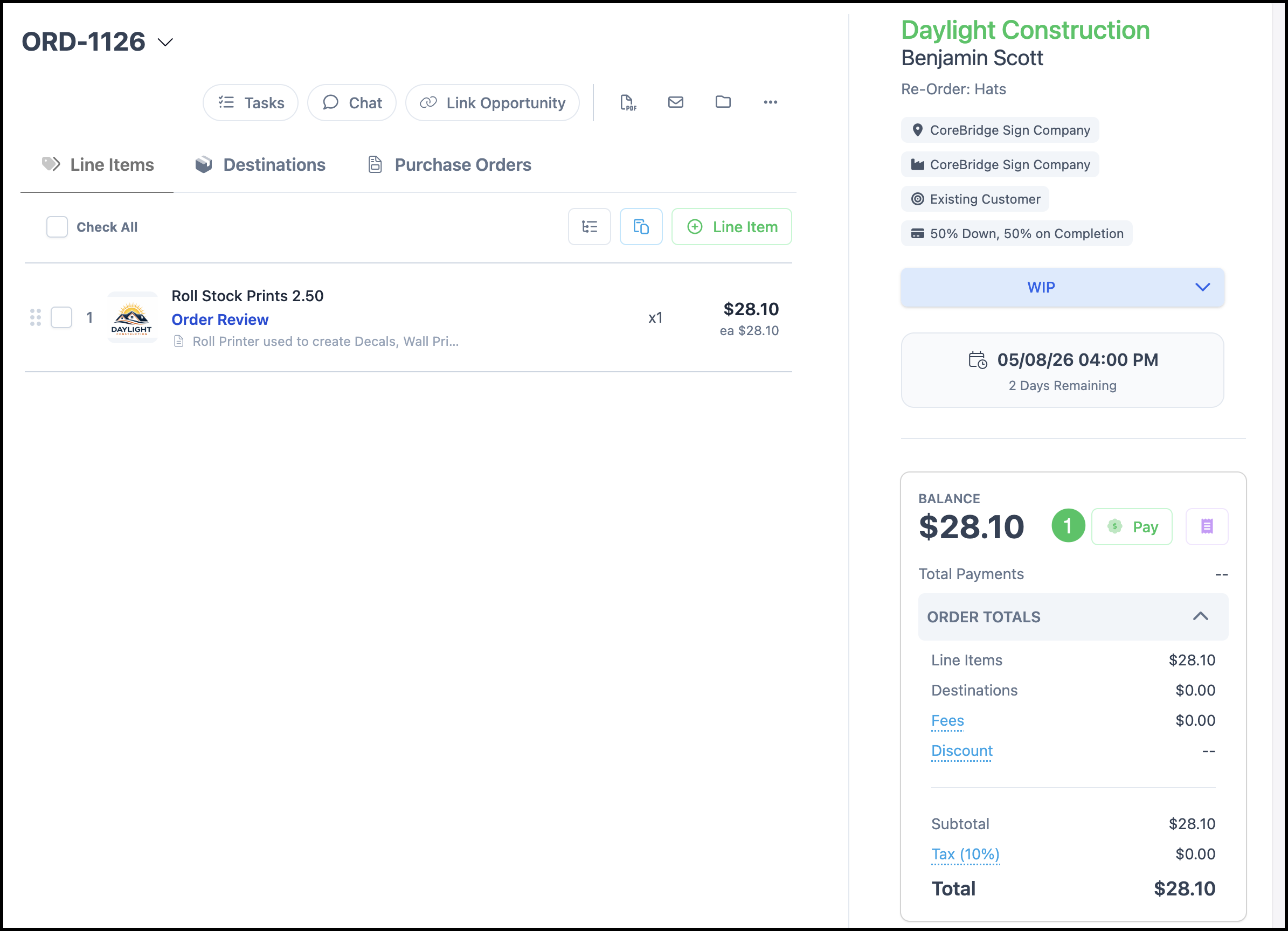
2. Select a Payment Method and complete the fields required for that method (for example card details for a non-integrated card entry). For more information, please see Payment Settings.
Note: Which methods appear depends on what your administrator has enabled under System Settings / Accounting / Payment Methods.
3. Click Submit Payment to finish.