Inventory Settings control how inventory is displayed and managed throughout CoreBridge. Use these settings to configure inventory behavior on Estimates and Orders and customize how inventory information appears throughout the system.
Table of Contents
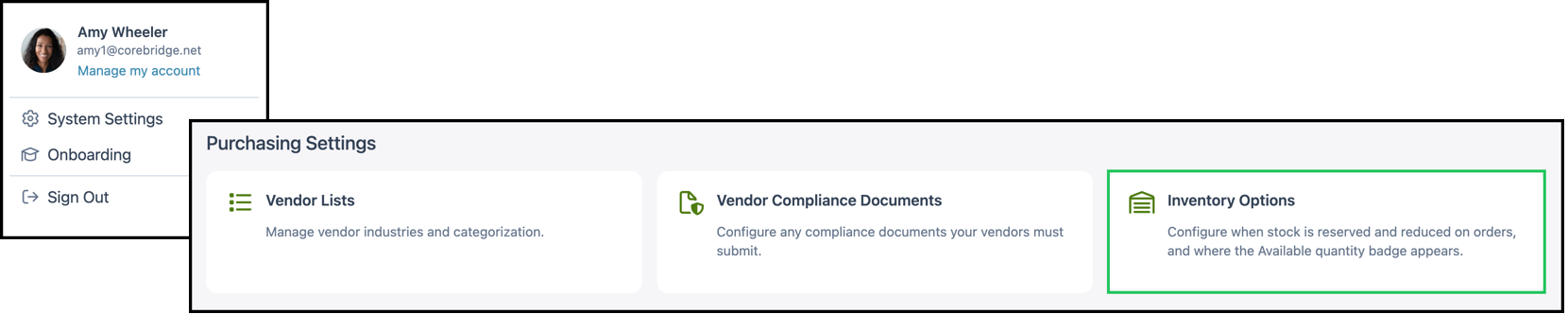
Navigate to System Settings / Purchasing Settings / Inventory.
General Settings
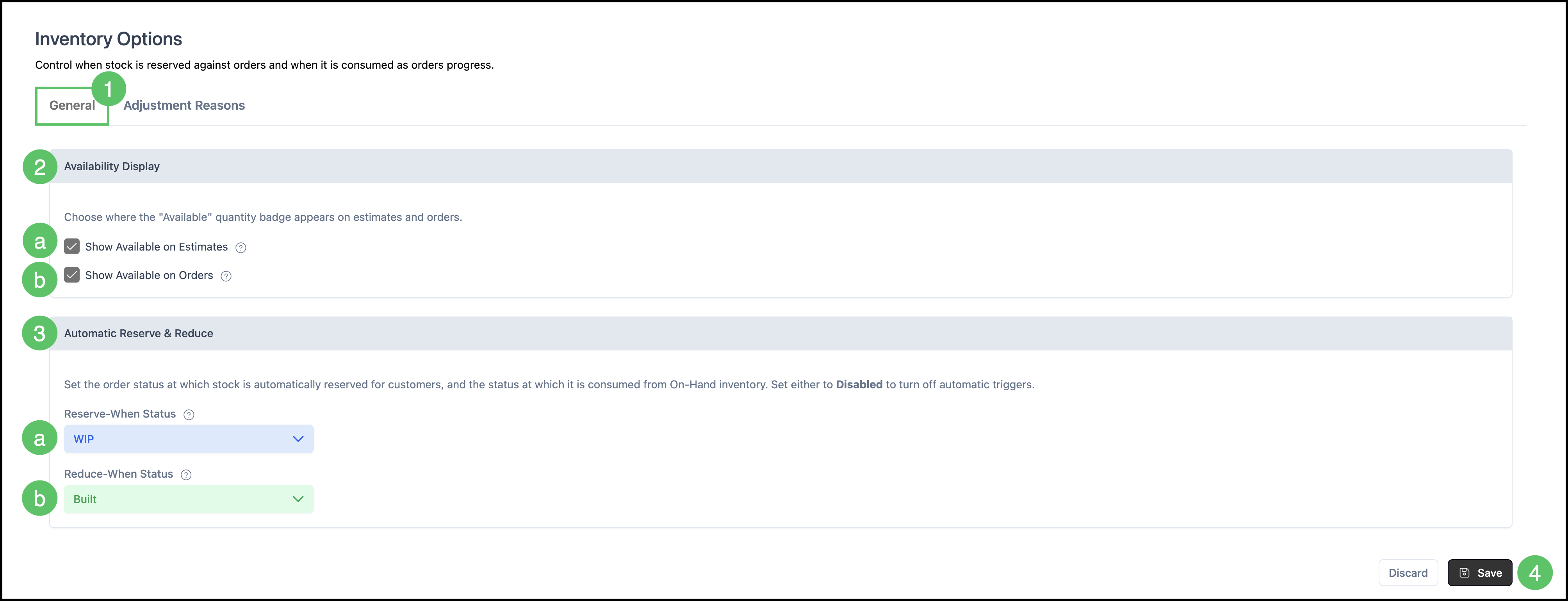
1. Select the General tab.
2. Set Availability Display.
a. Show Available on Estimates - Displays the available inventory quantity for tracked Materials on Estimate Line Items.
b. Show Available on Orders - Displays the available inventory quantity for tracked Materials on Order Line Items.
3. Set Automatic Reserve & Reduce.
a. Reserve-When Status - Defines the Workflow Status at which Materials are reserved. When stock is reserved, the Available quantity decreases while the On-Hand quantity remains unchanged.
b. Reduce-When Status - Defines the Workflow Status at which reserved stock is deducted from the On-Hand inventory quantity.
Note: The Reduce-When Status must be the same as or occur after the Reserve-When Status.
Note: Set either the Reserve-When Status or Reduce-When Status to Disabled to prevent that automatic inventory action from occurring.
4. Click Save.