Adjustment Reasons allow you to define and manage the reasons used when making inventory stock adjustments. These reasons help track changes to inventory quantities and maintain accurate stock records.
Table of Contents
Adjustment Reasons
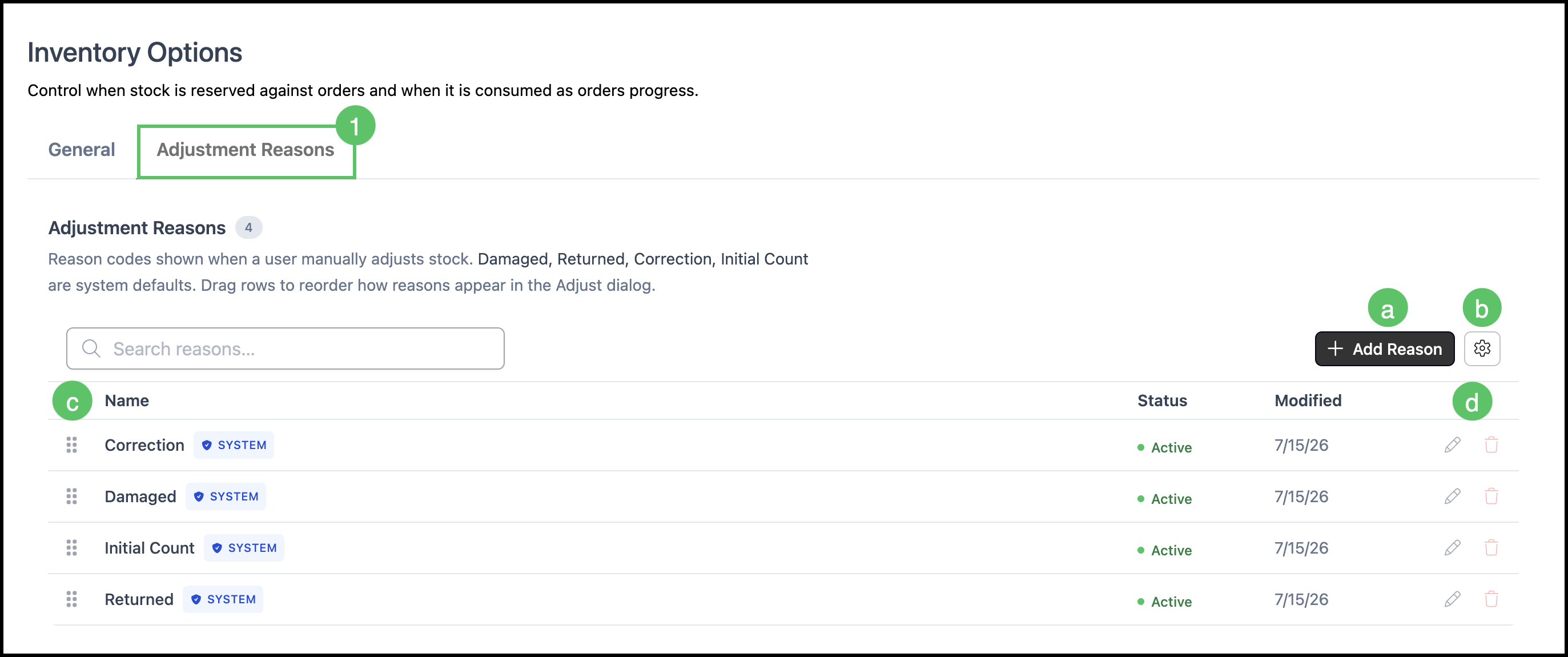
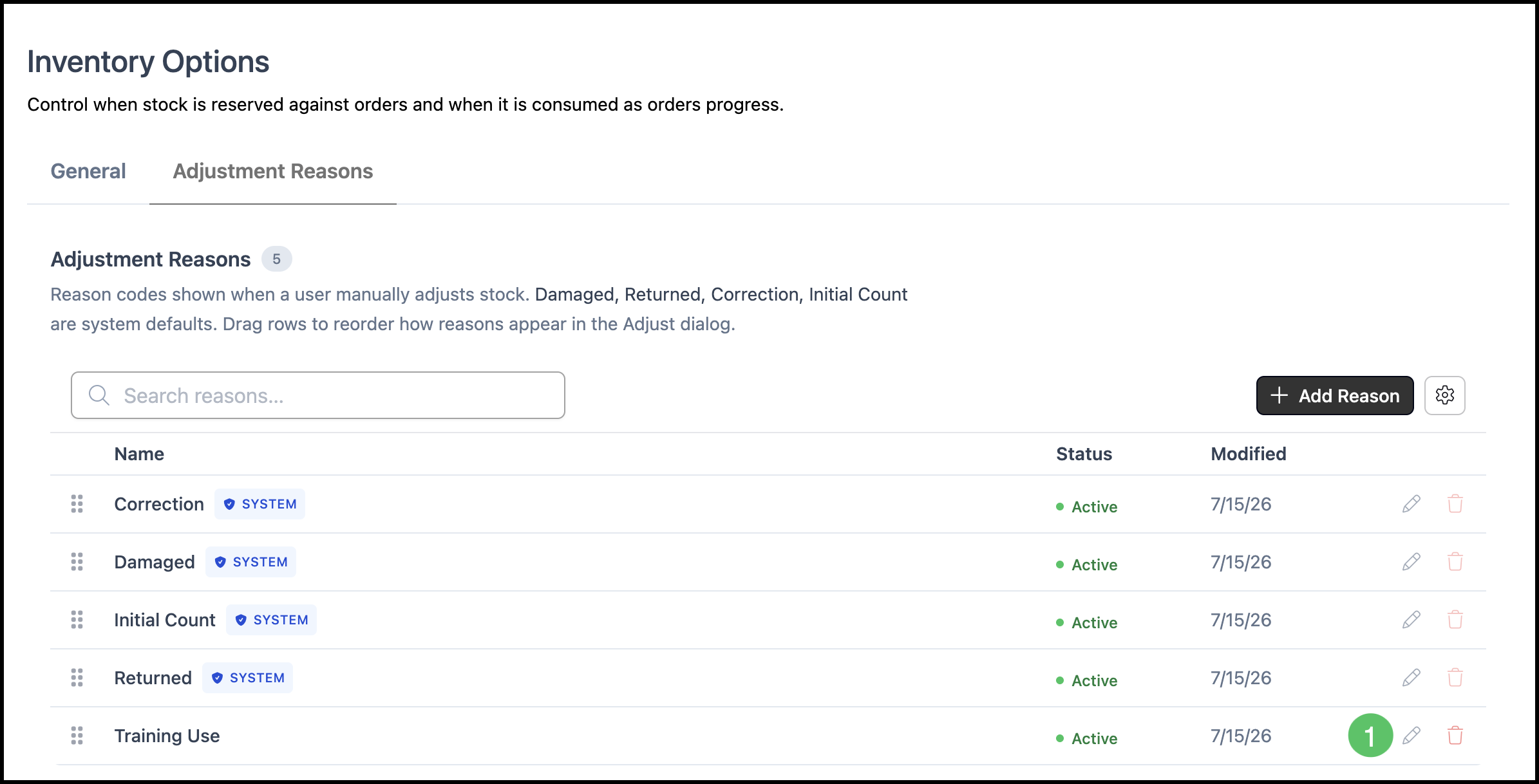
1. Select the Adjustment Reasons tab.
a. Add Reason - Opens the Add Reason dialog, where you can create a new inventory adjustment reason.
b. Search Settings - Controls whether inactive adjustment reasons are displayed.
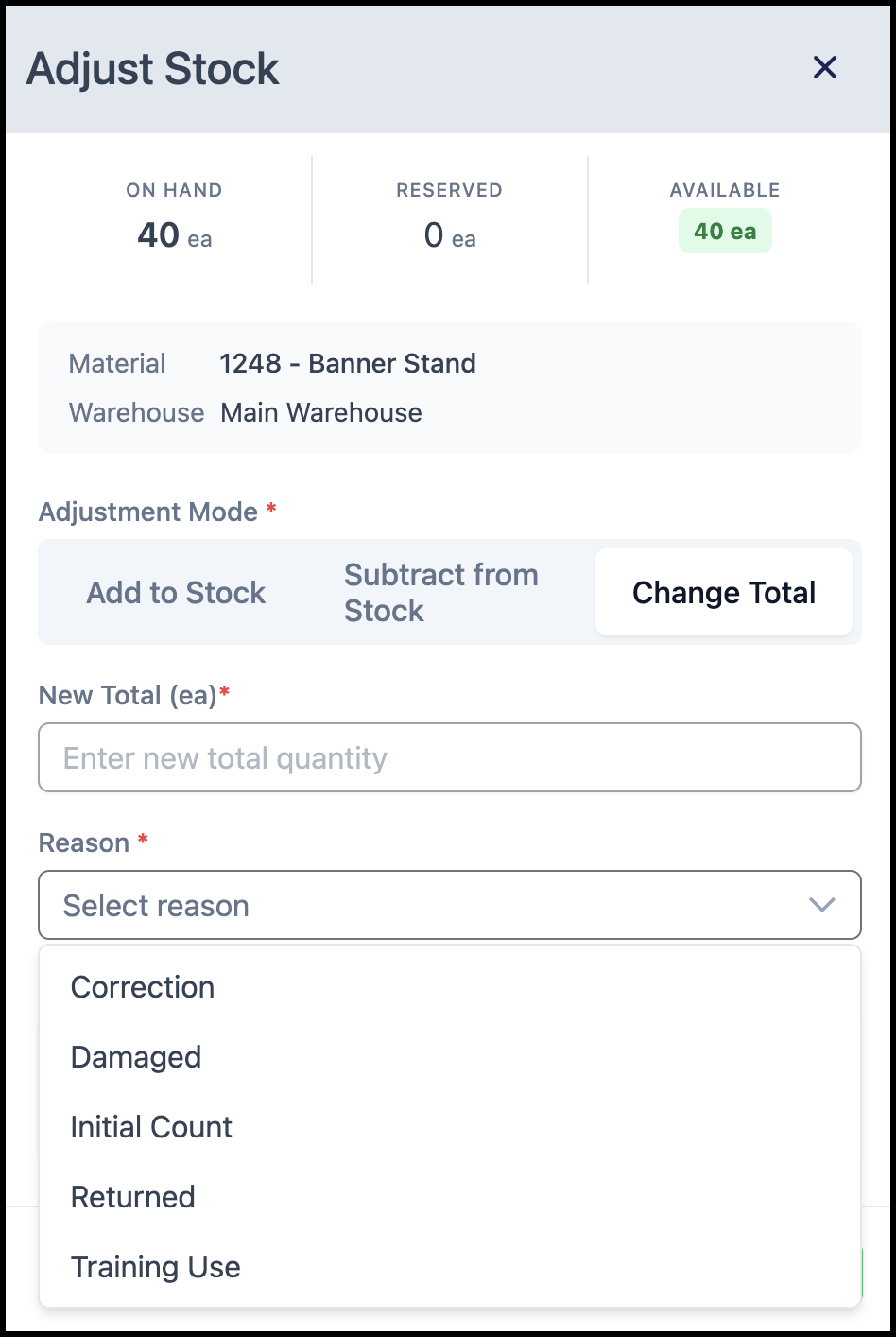
c. Reason List - Displays the available adjustment reasons. Reasons can be reordered by dragging and dropping to change the order in which they appear in the Adjust Stock dialog. See the example below.
d. Edit/Delete - Provides options to edit an existing adjustment reason or delete a reason that is no longer needed.
Note: CoreBridge includes four system-defined adjustment reasons by default. These reasons can be set to active or inactive, but their names cannot be changed and they cannot be deleted because they are used for reporting.
Example:
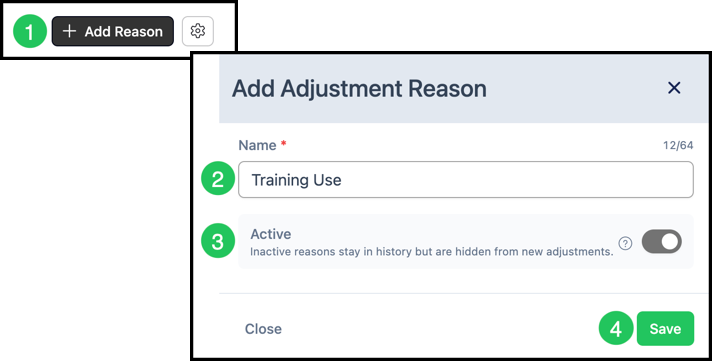
Adding an Adjustment Reason
1. Click Add Reason.
2. Enter a Name.
3. Verify Active.
Note: This is enabled by default.
4. Click Save.
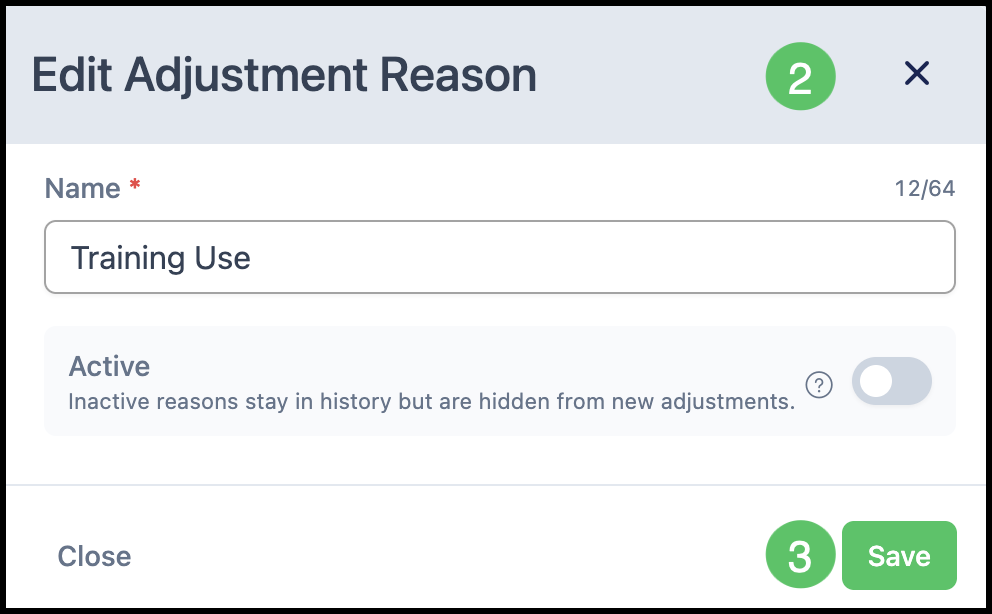
Editing a Reason
1. Click the Edit icon.
2. Make the necessary changes.
3. Click Save.