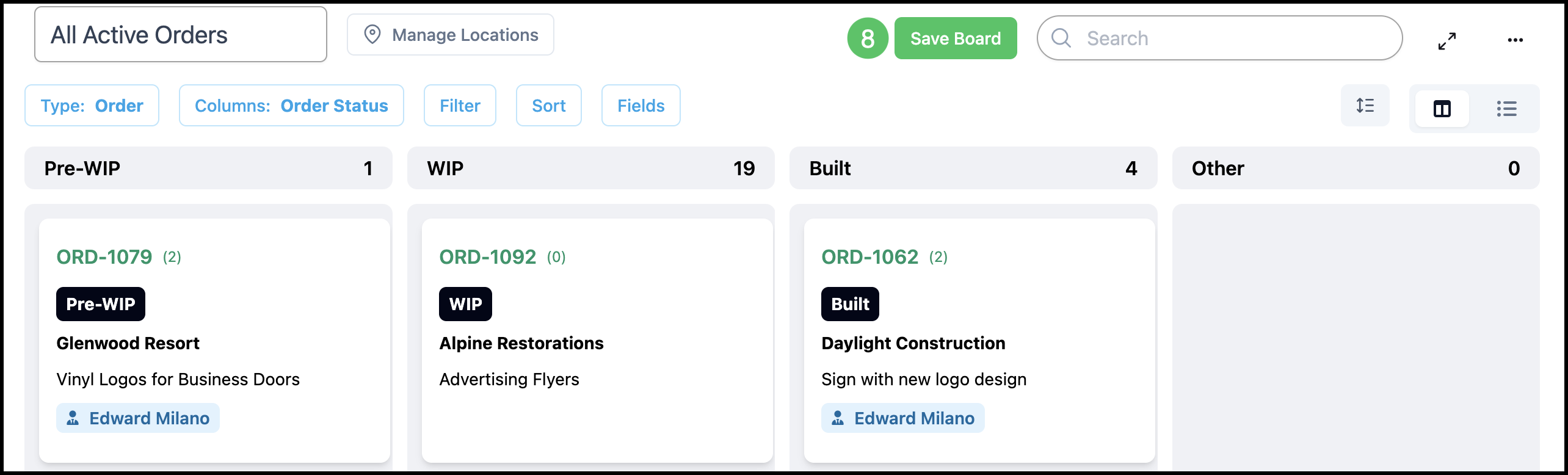
Board Filters are a way to customize the information appearing on your Boards. Configuring your Board Filter settings allows you to have personalized filters for each individual Board.
For more information on opening boards, the boards list, and using the board workspace, please see Boards Overview.
Table of Contents
Board Filters
Filters control which jobs appear and apply so only matching records stay visible. Changes made here apply to the currently signed-in user and remain active even after navigating away from the Board.
Navigate to the Boards module.
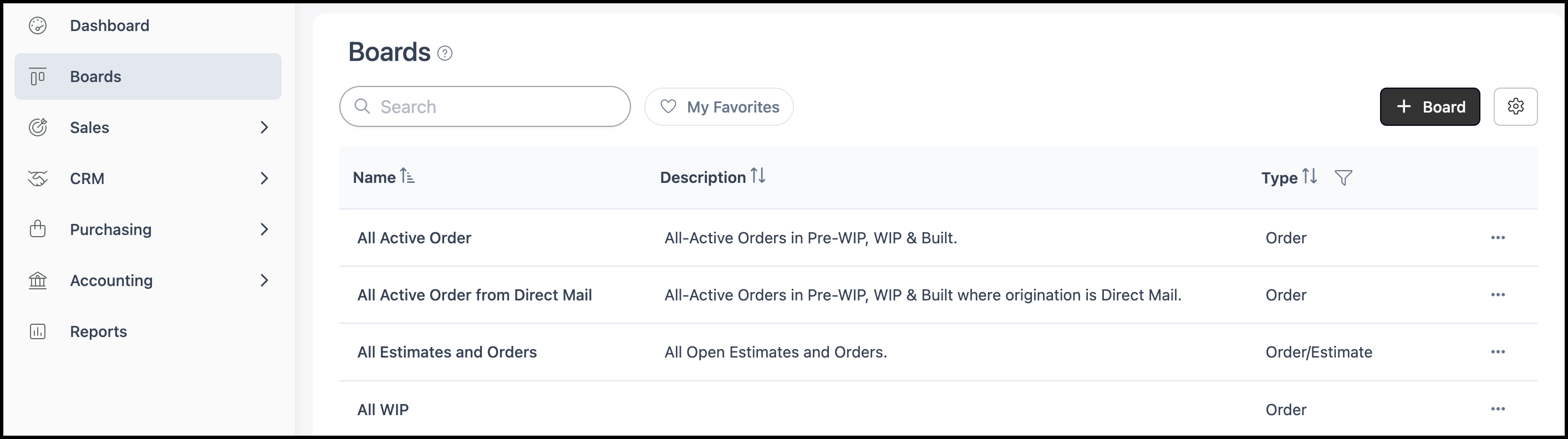
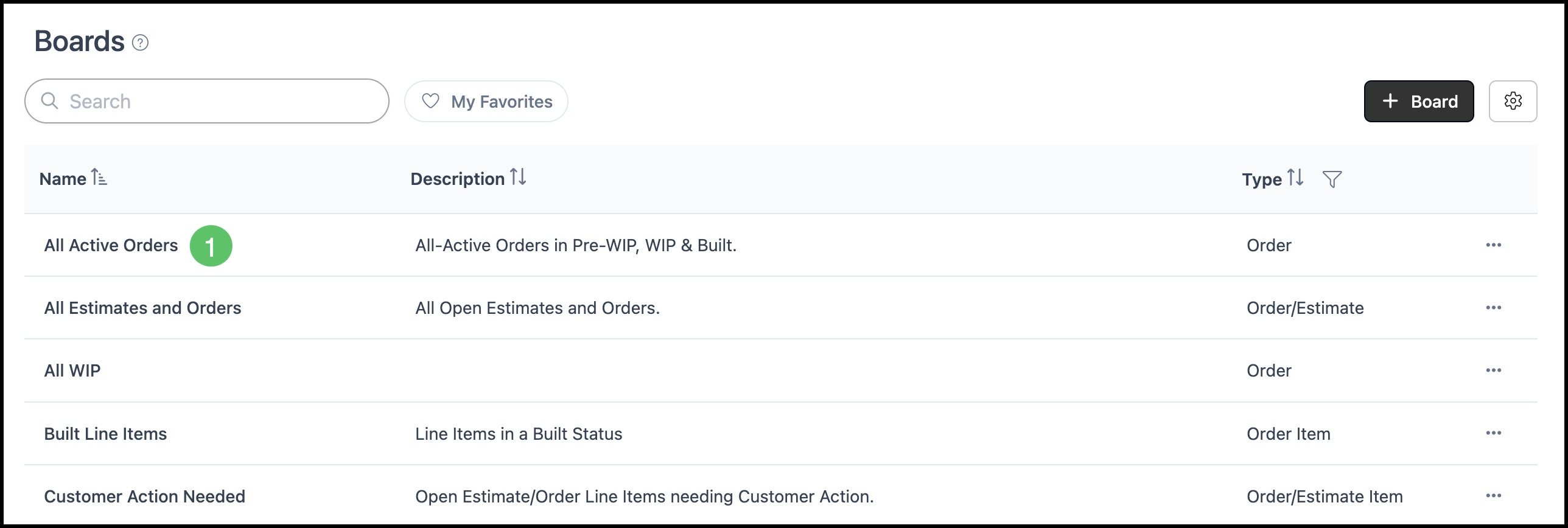
1. Click the Name of the board you want to add Board Filters to.
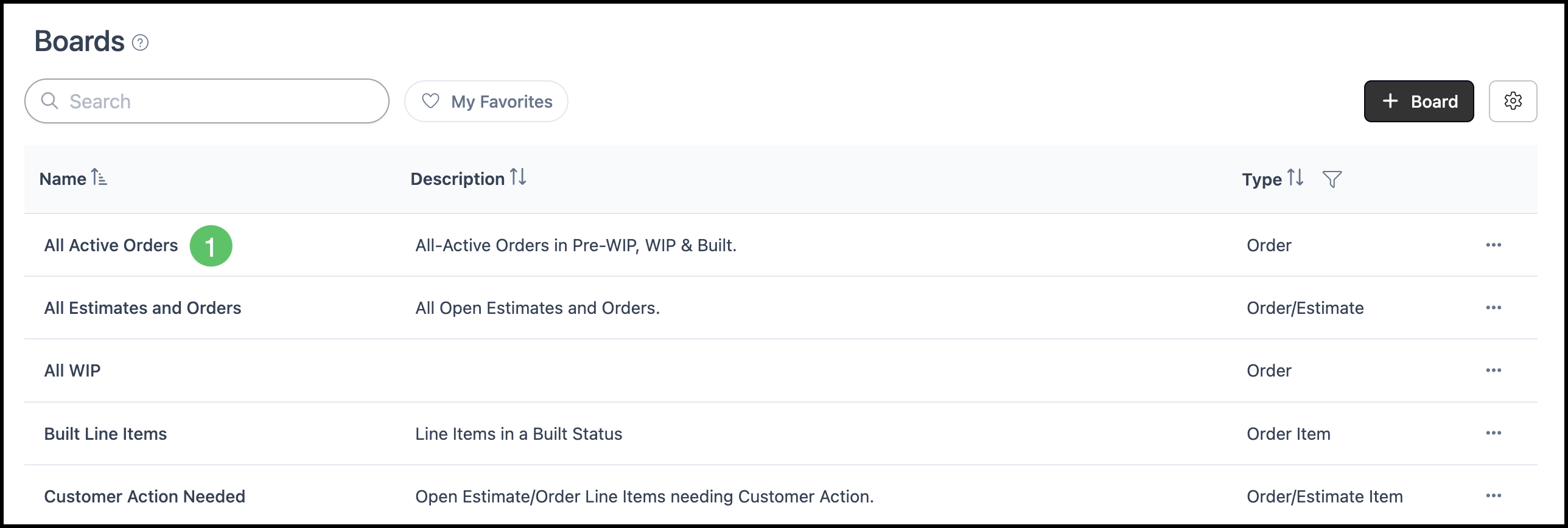
2. Click Filter to open the Filters panel on the right.
3. Click the Plus icon.
a. The main Board filter can only be modified in Edit mode by users with the appropriate permissions.
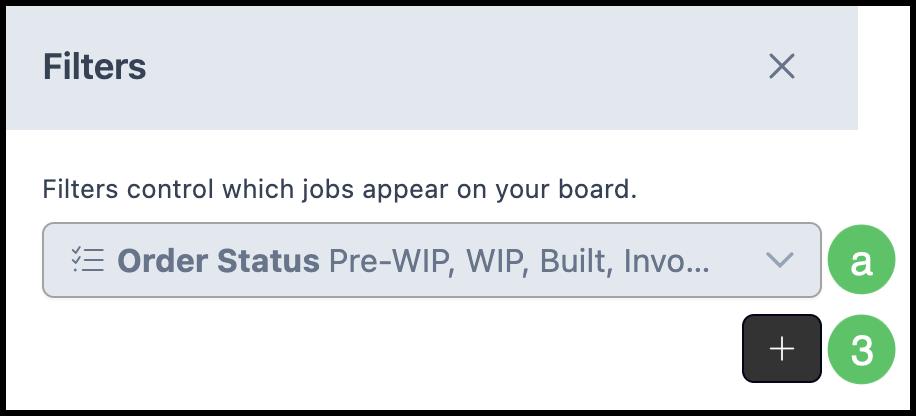
4. Select the desired Filter.
5. Make any associated selections. Filters will be applied immediately.
a. The Reset button will undo your selections at any time.
Note: Another Reset button is available outside of the filter side menu. See example below.
b. Use the subtract button if you want to remove a single Filter.
c. Use the add button if you would like to add an additional Filter.
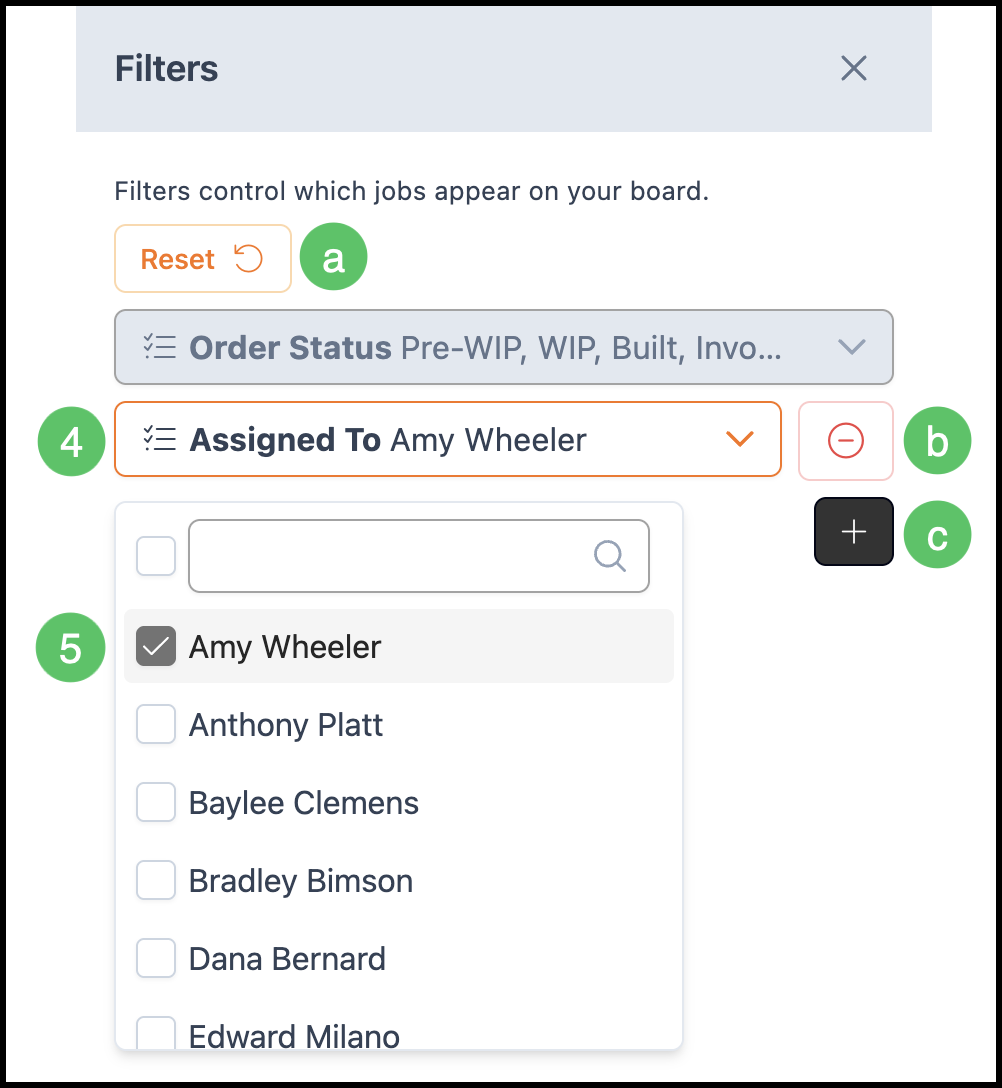
Example:

Company Wide Board Filters
Company Wide Board Filters control how boards are filtered across the entire organization, ensuring consistency in how information is displayed. Because changes made here affect all boards at a global level, only those with the appropriate permissions, such as administrators or owners, can update these settings.
Navigate to the Boards module.
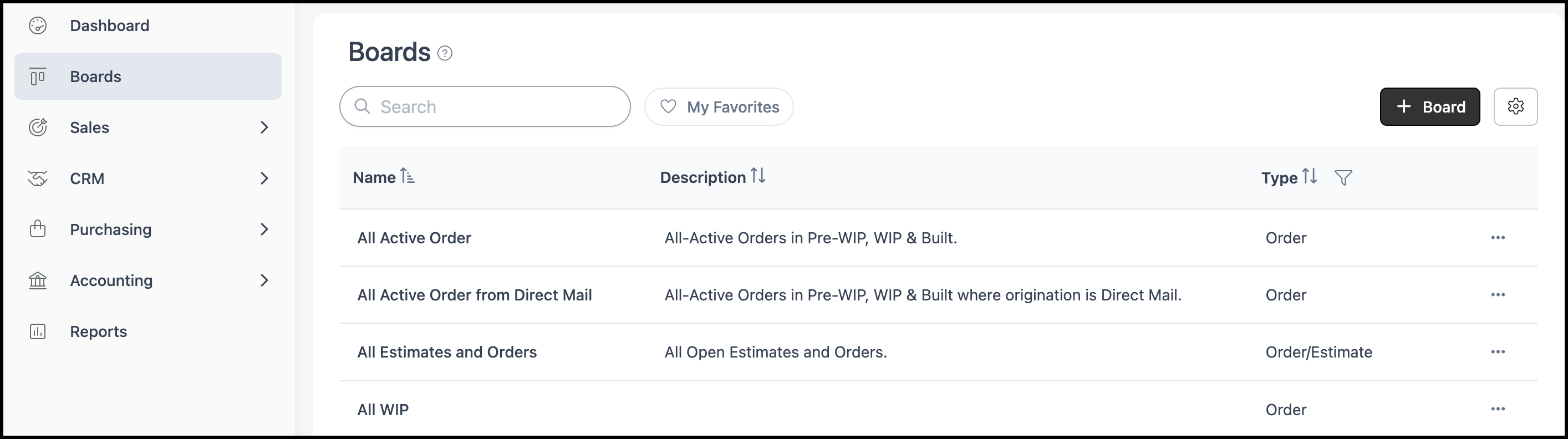
1. Click the Name of the board you want to add Board Filters to.
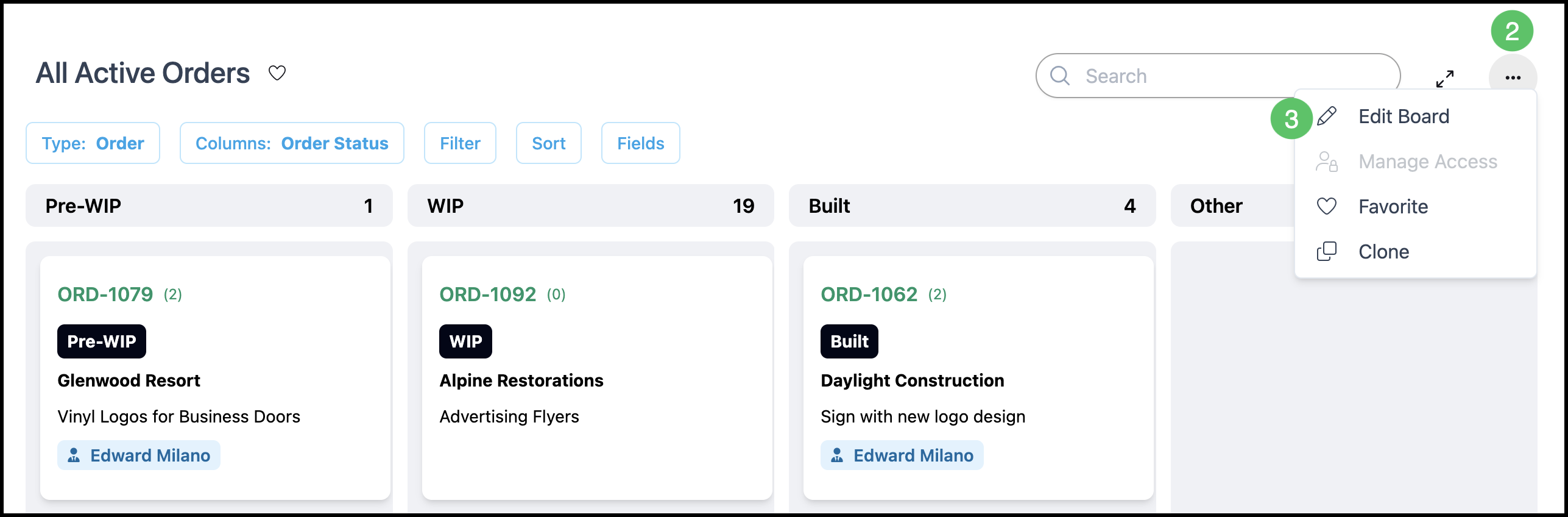
2. Click the Actions menu.
Note: Availability of the Actions menu depends on user permissions, as changes made here apply at a Company wide level.
3. Click Edit Board.
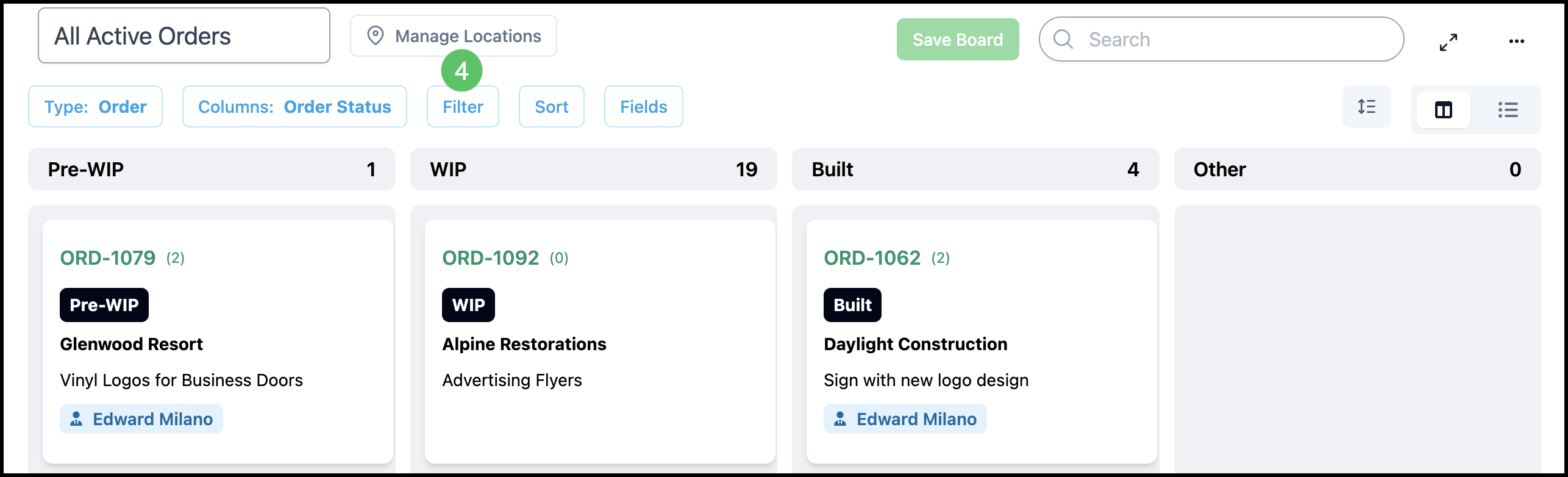
4. Click Filter to open the Filters panel on the right.
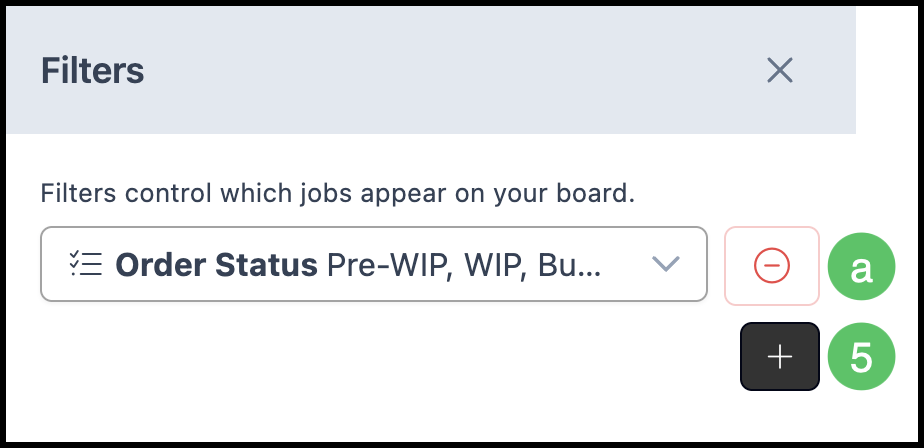
5. Click the Plus icon.
a. This is the main Board filter and can be changed or removed while in Edit mode by those with appropriate permission.
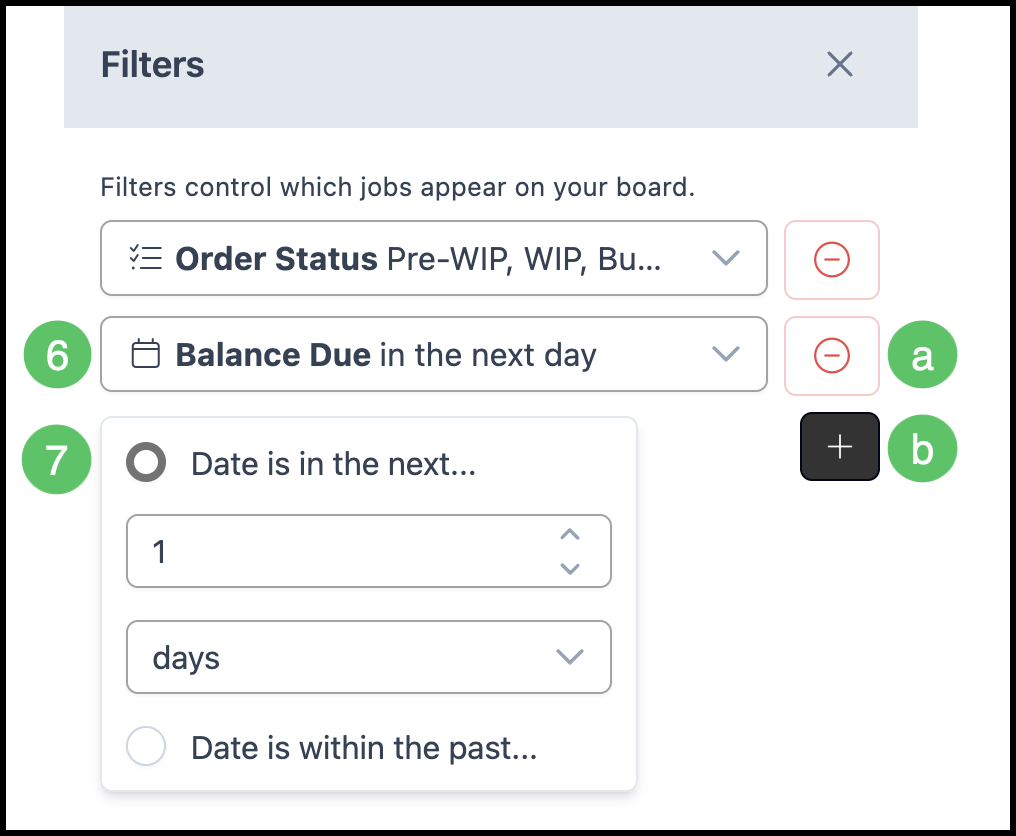
6. Select the desired Filter.
7. Make any associated selections.
a. Use the subtract button if you want to remove a single Filter.
b. Use the add button if you would like to add an additional Filter.
8. Click Save Board.