
Adding Employees in CoreBridge is an important step in setting up and maintaining efficient operations. By creating individual Employee profiles you can then set permissions to ensure that team members have access only to the tools and data necessary for their specific responsibilities as well as initiate notifications to keep them updated on workflow items.
Table of Contents
Adding Employees
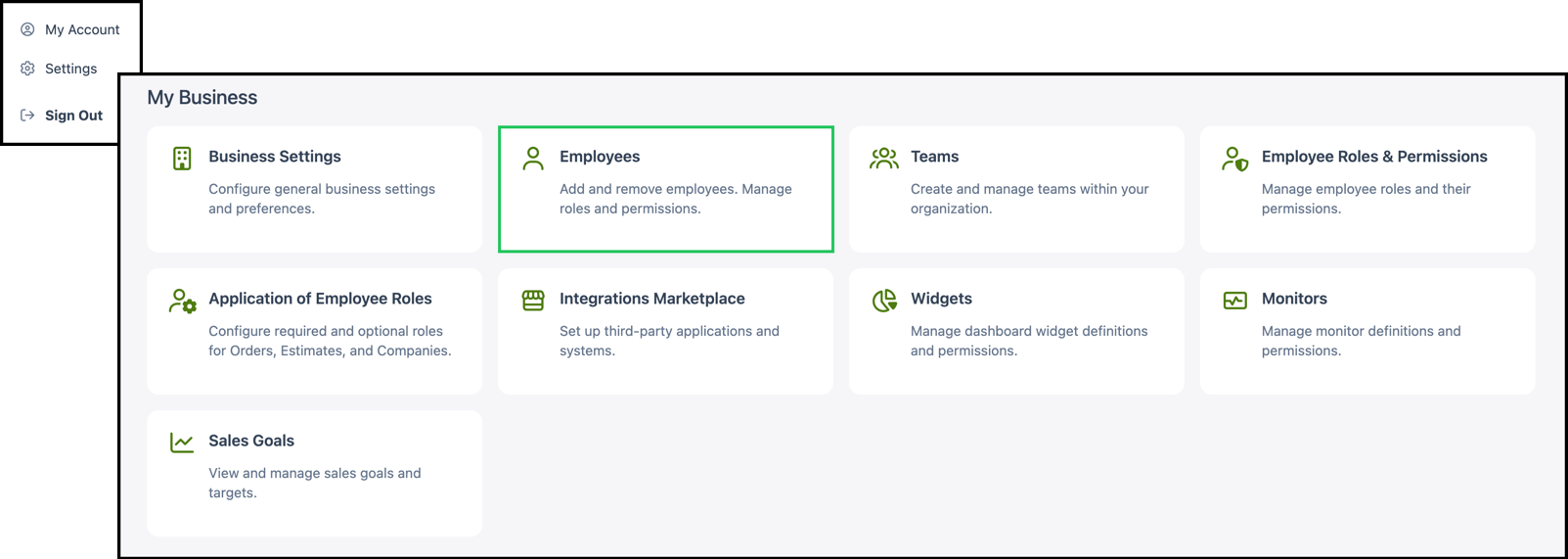
To add employees into the system navigate to Settings / My Business / Employees.
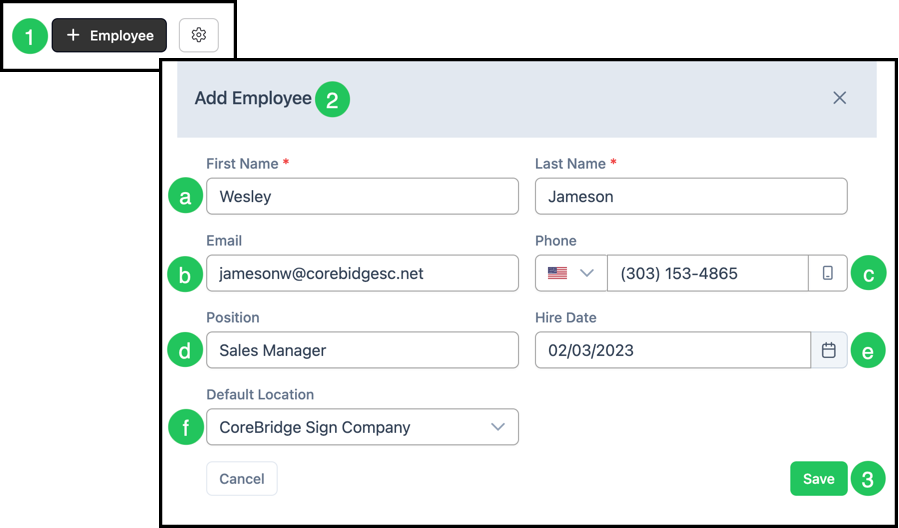
1. Select the + Employee button to open the Add Employee modal.
2. Fill out all relevant fields in the Add Employee form.
a. First and Last Name - Required. Enter the Employee's First and Last Name.
b. Email - Enter the Employee's email address.
c. Phone - Enter the Employee's phone number. A country code dropdown is available to select the appropriate region. Note: Only enter numbers as the system will automatically handle formatting.
d. Position - Enter the Employee's job title or position.
e. Hire Date - Select the Employee's hire date using the date picker.
Note: Required fields are marked with a red asterisk.
f. Default Location - This is the Location where the Employee will most frequently be working.
Note: This is found in systems with multiple Locations.
3. Click Save to create the Employee profile.
Note: After an Employee profile is created, you can add additional details such as addresses, enable online access, and assign Employee Roles from the Employee Detail page. Select the Employee from the list to open their profile and make further edits.
Frequently Asked Questions
1. Question: What happens if I exceed the number of available Employee profiles?
Answer: The number of available profiles is a limit based on your current subscription. If you need to add more users with system access, please contact sales@corebridge.net to increase your user license count.
2. Question: Can I add Employees who don't need system access?
Answer: Yes. You can create profiles for team members without granting them system access. After creating the Employee, you can choose not to enable online access for their profile. This is useful for managing internal records without using a system license.
3. Question: How do I assign or change permissions for an Employee?
Answer: Once the Employee profile is created, select the Employee from the list found in Settings / My Business / Employees. In the Employee Roles section, click Manage and View Permissions. You can adjust what areas of the system they can access based on their role. To grant system access, use the Online Access section and select Enable Online Access.
4. Question: Can I add an address for an Employee?
Answer: Yes. After creating the Employee, select them from the list to found in Settings / My Business / Employees. In the Addresses section, click Add Address to enter address information.
5. Question: Can I update an Employee's information after their profile is created?
Answer: Yes. Select the Employee from the list under Settings / My Business / Employees to open their detail page, then make edits or updates as needed.
6. Question: How do I deactivate or remove an Employee?
Answer: Be sure to revoke access once an Employee leaves your company. Navigate to Settings / My Business / Employees and select the correct individual to open their detail page. In the Online Access section, you can revoke their access to the system.