Location Details define how your business is organized within the system. Each Location stores key information such as connection details, addresses, tax and time zone defaults, and record prefixes. Locations also help distinguish records when your business has multiple sales centers or offices.
For more information on adding additional Locations to your system, please contact sales@corebridge.net.
Table of Contents
Accessing Location Details
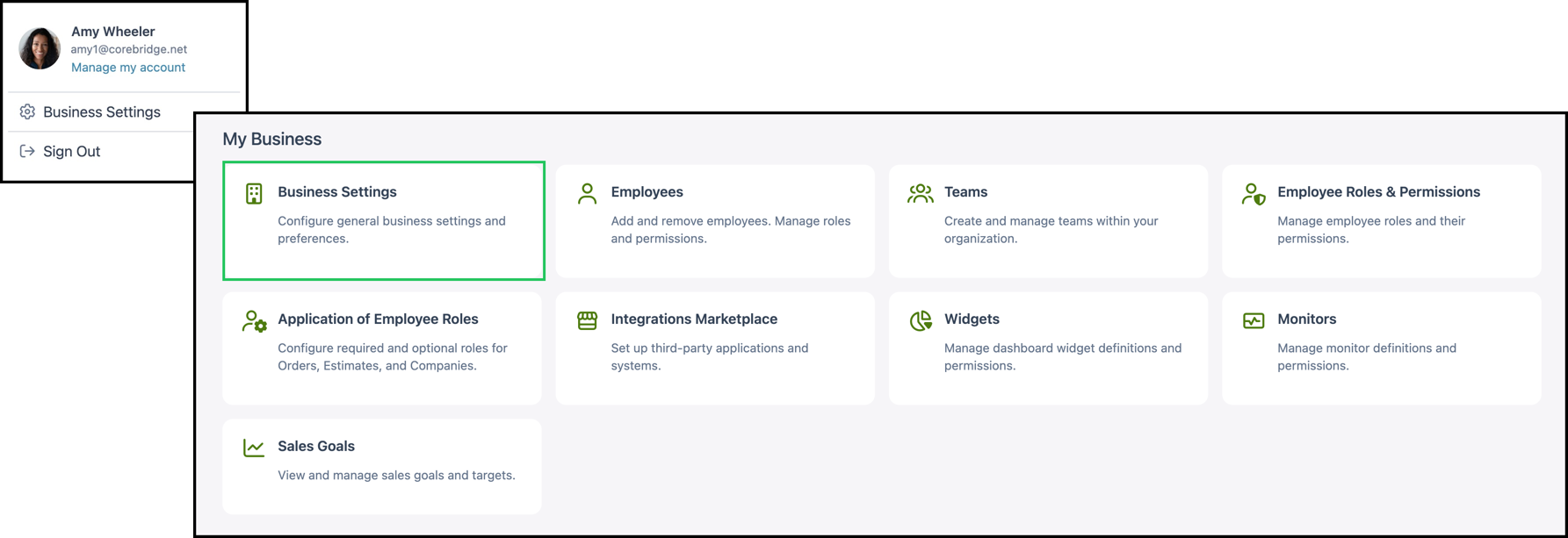
Navigate to Business Settings / My Business / Business Settings.
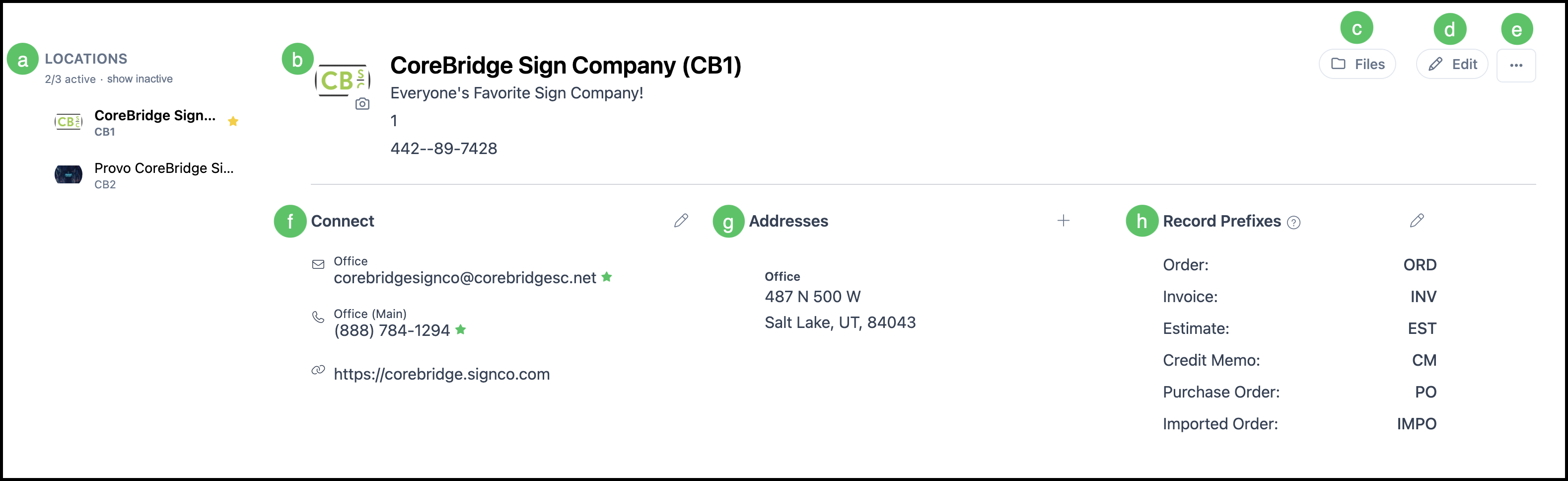
From this page, you can view and update the current Location’s details. If your business has more than one Location, you can access the All Locations section to see and switch between them.
a. All Locations - A section listing your Locations. From here you can see how many Locations exist and select a Location to view or edit its details.
Note: If you have inactive Locations, they can be viewed by clicking on show inactive.
b. Location Details - The Location name appears at the top of the page. Below it you can configure optional company information such as a slogan, abbreviation, or Location Number.
c. Files - Pertinent Files can be uploaded and stored here.
d. Edit - Opens the Edit Location Details side panel. From here you can configure information such as Location Name, Timezone, and Tax Group.
Note: For more information, see Edit Location Details Side Panel below.
e. Click the ellipsis to view the record History.
f. Connect - Contact information for this Location.
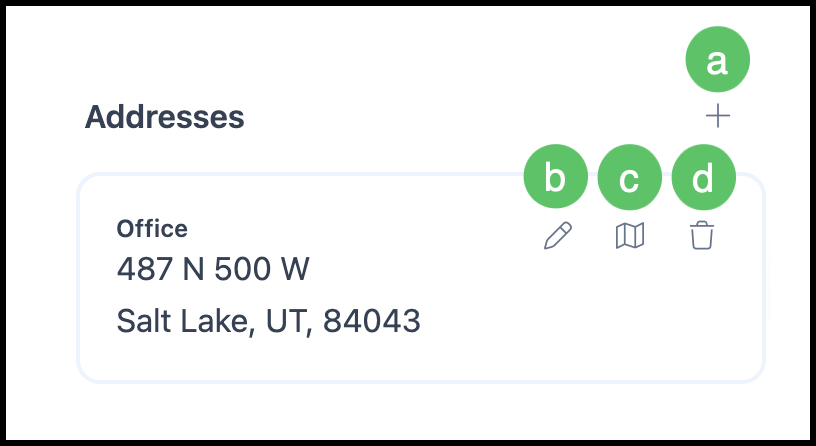
g. Addresses - Physical or mailing addresses associated with the Location. You can add more addresses using the Plus button.
Note: Additional options appear on hover. For more information, see Addresses below.
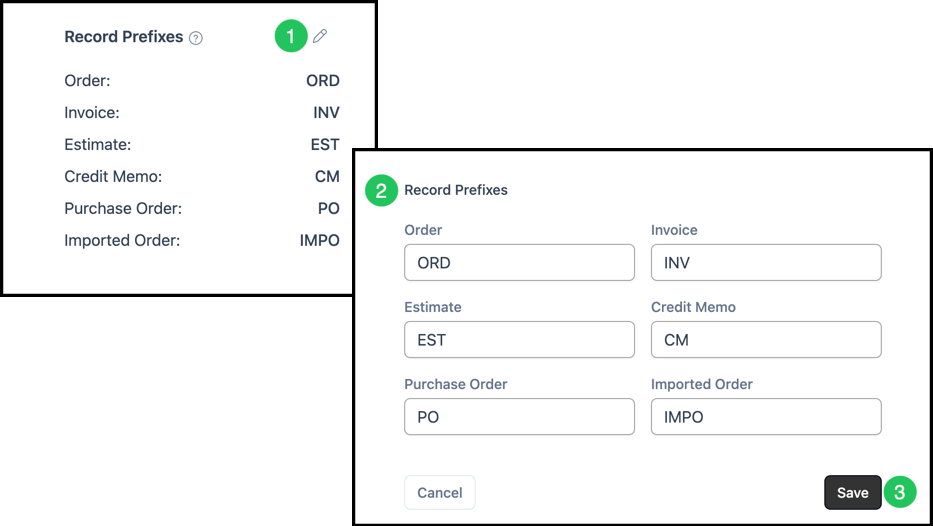
h. Record Prefixes - The characters that appear before record numbers for this Location, such as Order, Invoice, Estimate, Credit Memo, Purchase Order, and Imported Order. Prefixes can be edited by clicking the Edit icon in this field or by clicking the Edit button above to open the Company Details side panel.
Edit Location Details Side Panel
The Location Details is where all basic information about the Location can be entered.
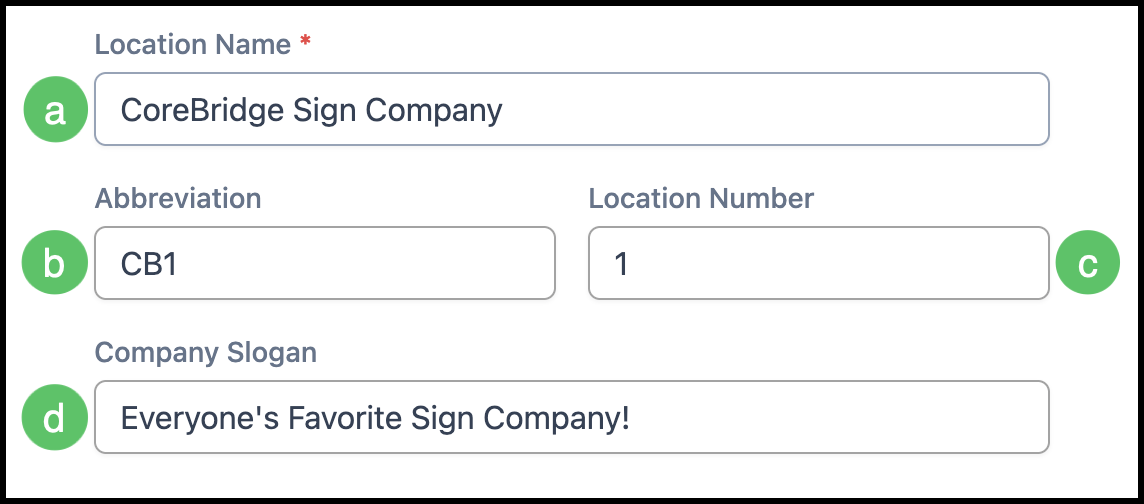
Note: All fields marked with a red asterisk are required.
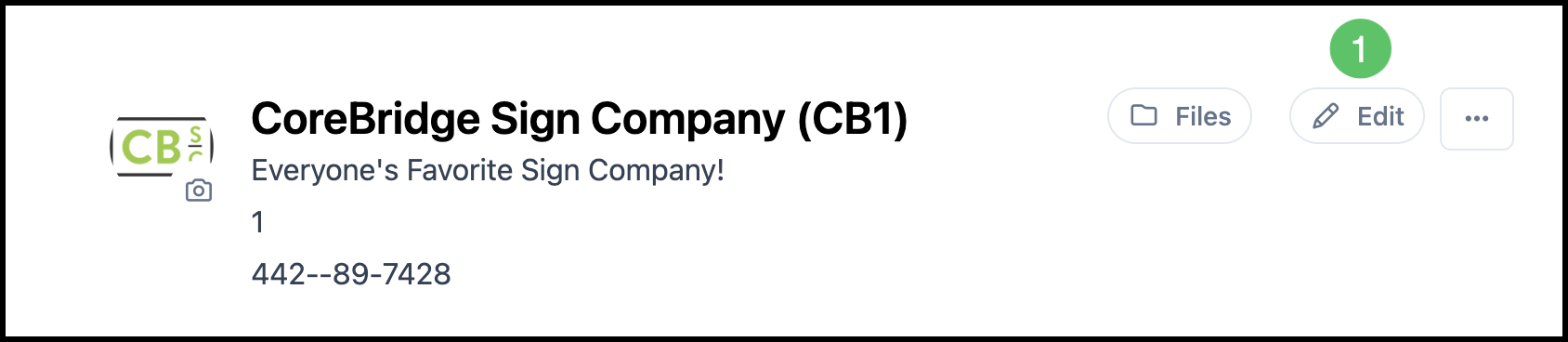
1. Click the Edit icon.
a. Location Name - The name of the Location.
b. Abbreviation - An abbreviated version of the Location Name.
c. Location Number - If you have multiple Locations, the Location Number field can be used to differentiate between them.
d. Company Slogan - Company tagline or slogan.
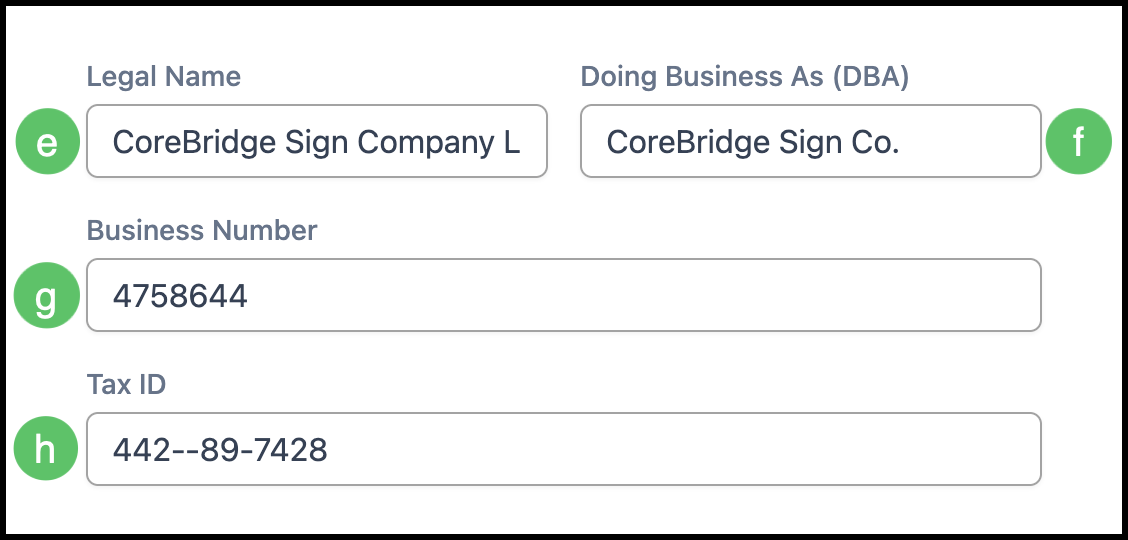
e. Legal Name - The name your government recognizes and identifies your business as.
f. DBA - "Doing Business As" allows you to record the name your business operates under that may be separate from your business's Legal Name.
g. Business Number - Any alternative identification numbers utilized by tis Location.
h. Tax ID - A government appointed tax identification number that is associated to this Location.
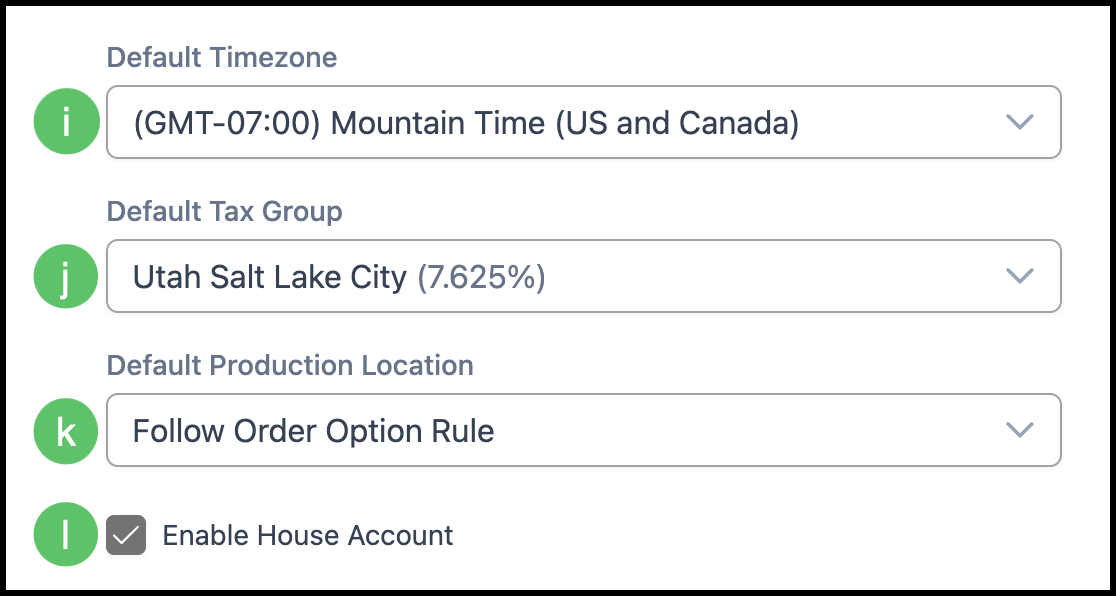
i. Default Timezone - The default Timezone for this Location.
j. Default Tax Group - The default Tax Group for this Location.
k. Default Production Location - The default Production Location for this Location.
Note: Follow Order Option Rule allows this Location's Default Production Location to follow the same default that has been defined in Business Settings / Sales Settings / Estimate and Order Options / Orders tab.
l. Enable House Account - This setting allows you to create and use a shared account for Customers, like walk-ins, rather than requiring each transaction to be tied to an individual Customer profile.
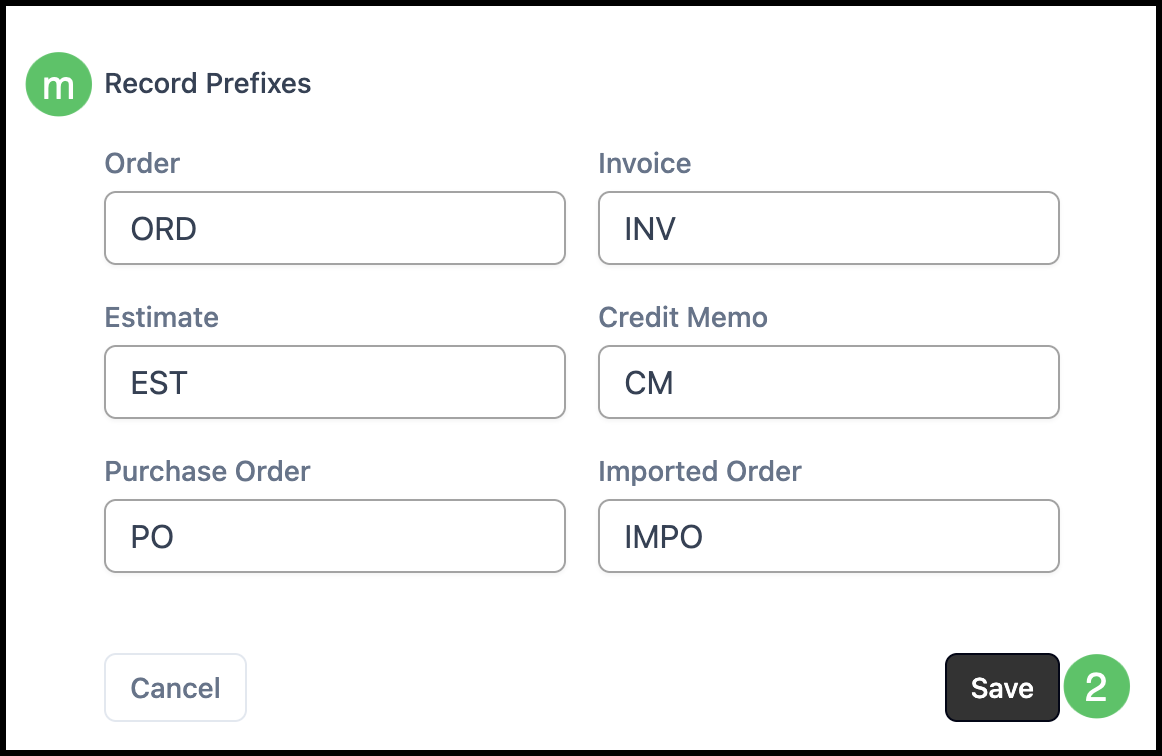
m. Record Prefixes are the characters that appear before record numbers for this Location, making it easy to identify the type of record (Estimate, Order, Invoice, and so on) and, when you have multiple Locations, which Location the record belongs to.
2. Click Save.
Connect
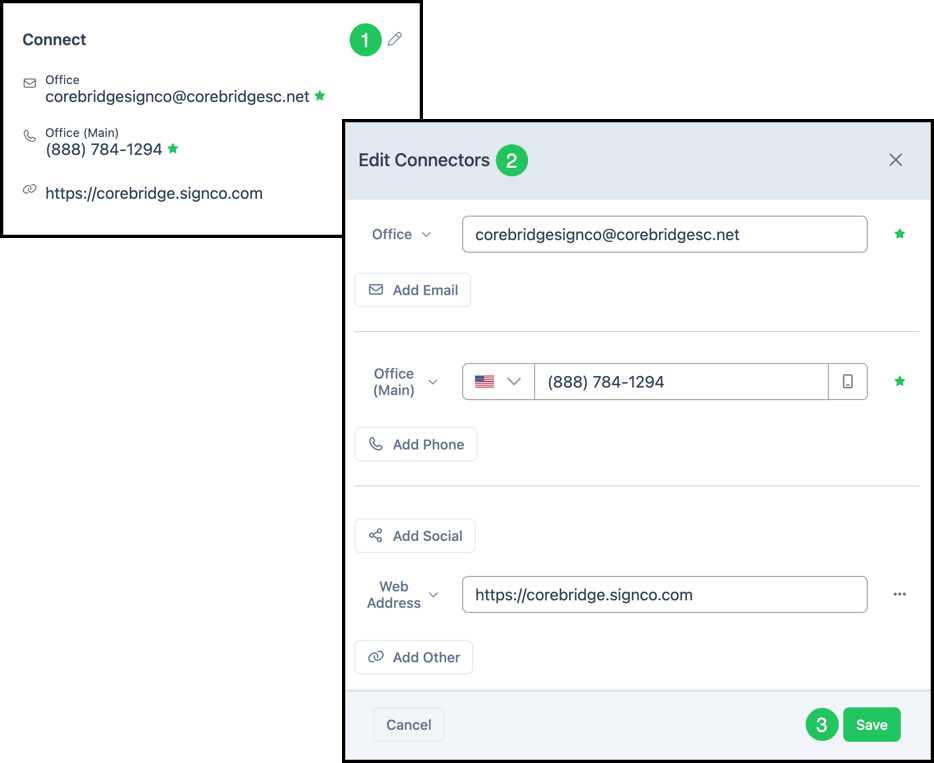
The Connect area is where you enter contact information for the Location.
1. Click the Edit icon.
2. Add or edit connectors using the controls provided in this section.
3. Click Save.
Addresses
a. The Plus button allows you to add additional addresses.
b. The Edit icon allows you to edit previously saved addresses.
c. The Map icon opens a new tab with this address pulled up on a map.
d. The Delete icon removes the address.
Note: Options for Edit, Map, and Delete appear on hover.
Record Prefixes
1. Click the Edit icon.
Note: The Edit icon opens the Edit Locations Details side panel, allowing you to make any necessary changes to the Record prefixes.
2. Make any changes to the Record Prefixes.
3. Click Save.