
An @ Mention tags an Employee in a comment on an Estimate or Order. Type @ plus the Employee's name in Notes, then post the comment so they can review it on that Estimate or Order.
Note: @ Mentions work the same way on Estimates and Orders. This article uses an Order as an example.
Table of Contents
Important Information
- Use @ Mentions in Notes on an Estimate or Order.
- You mention Employees. You cannot mention a Company or Customer contact.
- You can mention more than one Employee in the same comment. Type @ again and select another Employee.
- Mentioned Employees can review the comment in Notes on that Estimate or Order.
Adding an @ Mention
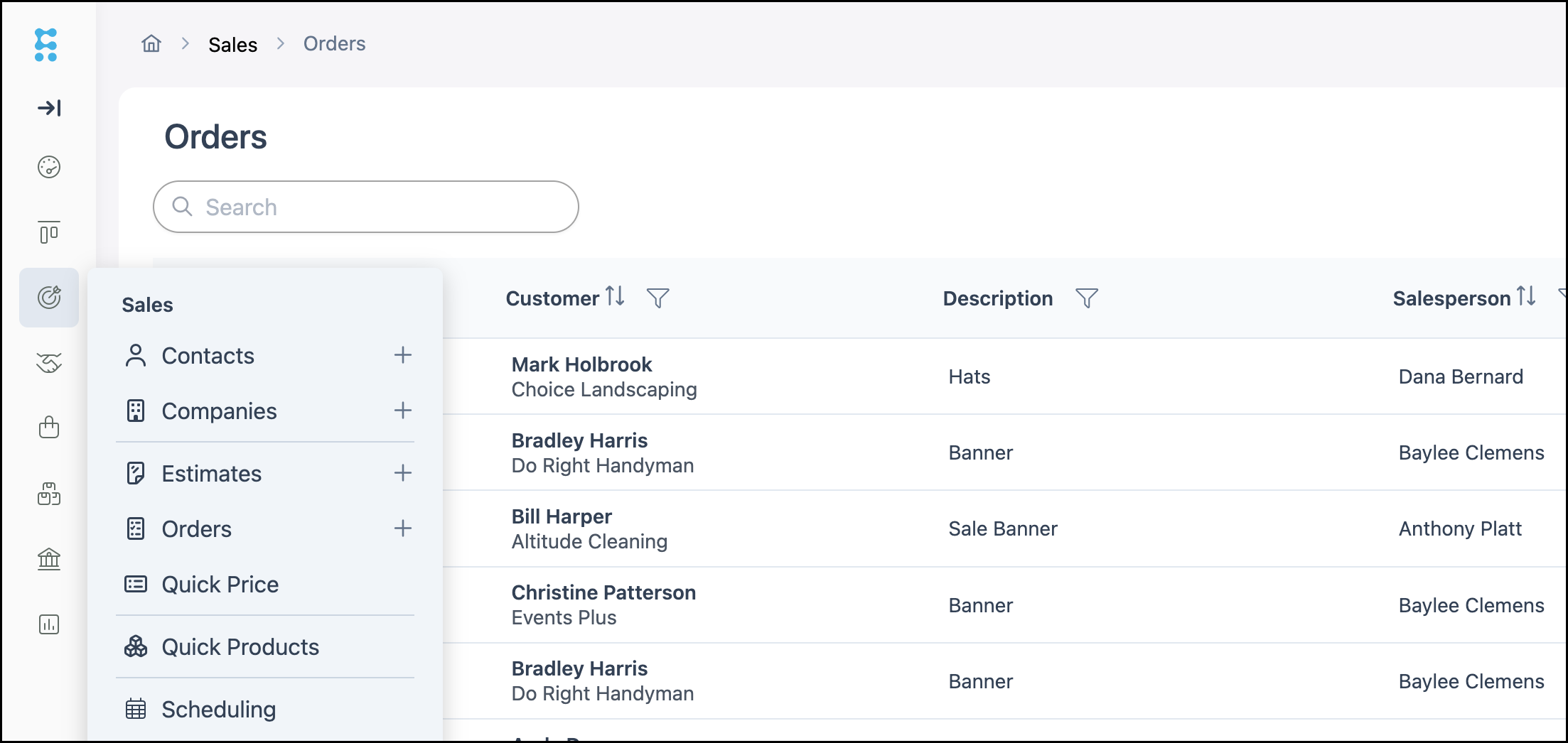
Navigate to Sales / Orders and open the appropriate Order.
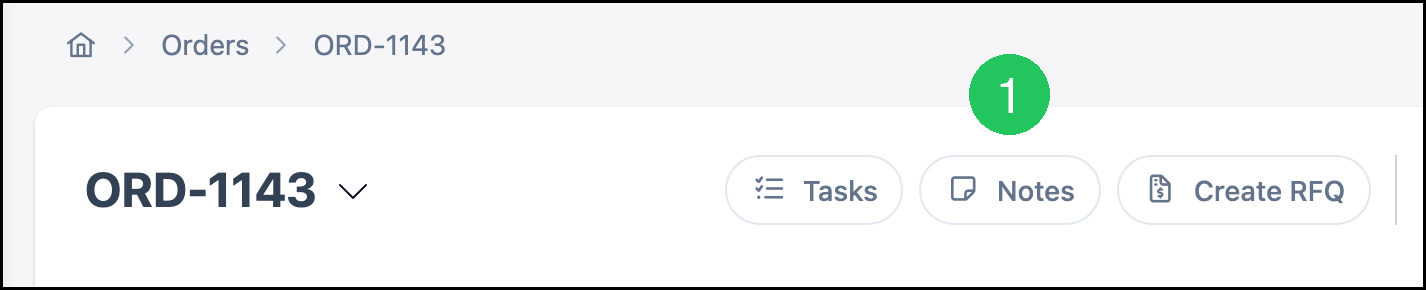
1. Click Notes.
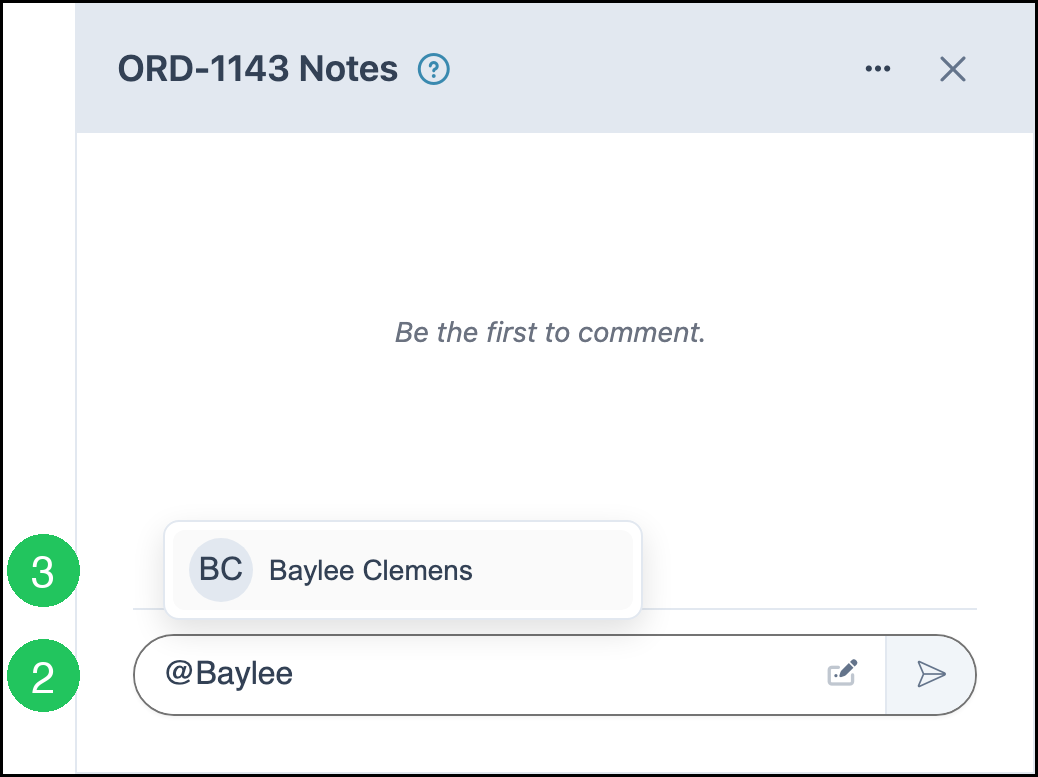
2. In the message field, type @ followed by the Employee's name.
3. Select the Employee from the list.
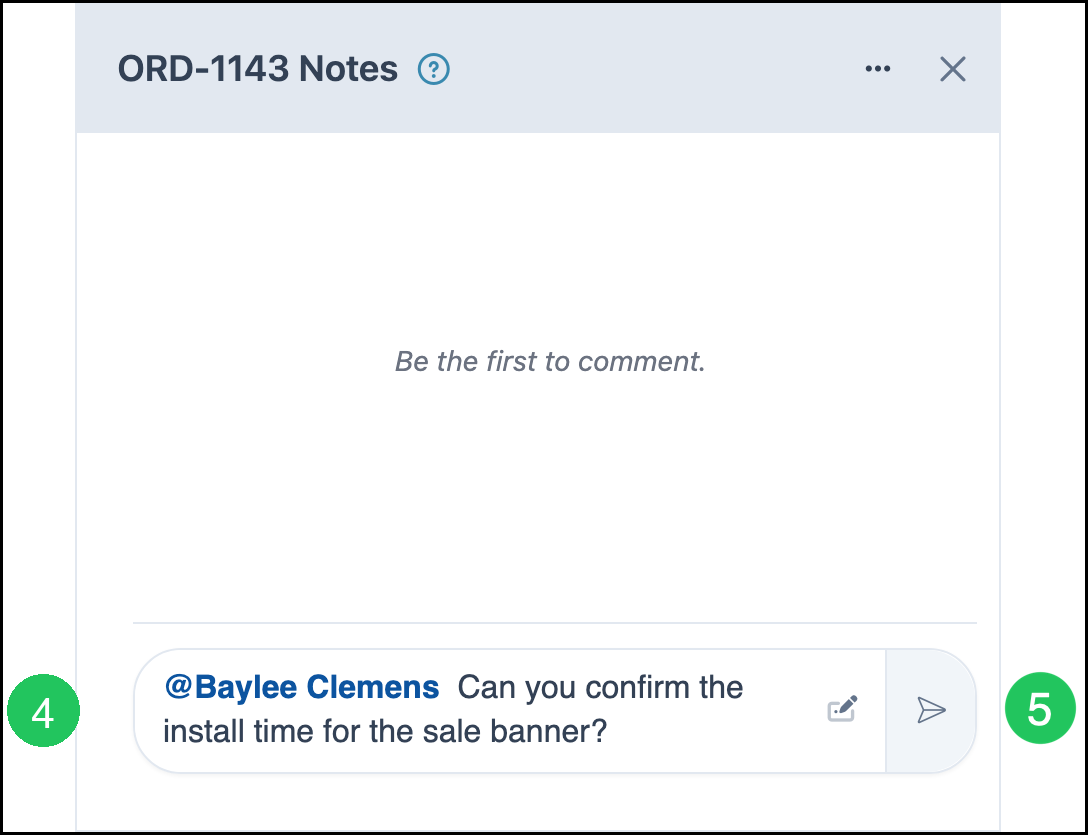
4. Type the rest of the comment.
5. Click Post comment.
Note: If you opened the Rich text editor, click Post.
Frequently Asked Questions
1. Where can I use @ Mentions?
Answer: In Notes on an Estimate or Order.
2. Who can I mention?
Answer: Employees. You cannot mention a Company or a Customer contact.
3. Can I mention more than one employee in the same comment?
Answer: Yes. Type @ again and select another Employee.
4. How does the mentioned employee see the comment?
Answer: They can review the comment in Notes on that Estimate or Order.
5. I typed @ and do not see the Employee I need. What should I do?
Answer: Continue typing the Employee's name to narrow the list. Mentions include Employees only.
Related Articles
Company Notes in Chat
Estimate and Order Tools Menu
Estimates Overview
Messages and Notifications
Orders Overview