
Markup and Margin Pricing Tables set a margin, markup, or unit price from a table on the Product Pricing card. Each column is a threshold for a variable such as Total Quantity or Total Area, and each row is a pricing tier. A Discount Table on the same card applies a quantity discount from the same kind of table.
Table of Contents
Markup and Margin Pricing Tables
A pricing table stores a rate for each threshold and tier. Cost Plus - Margin and Cost Plus - Markup store a percentage. Market - Product stores a unit price.
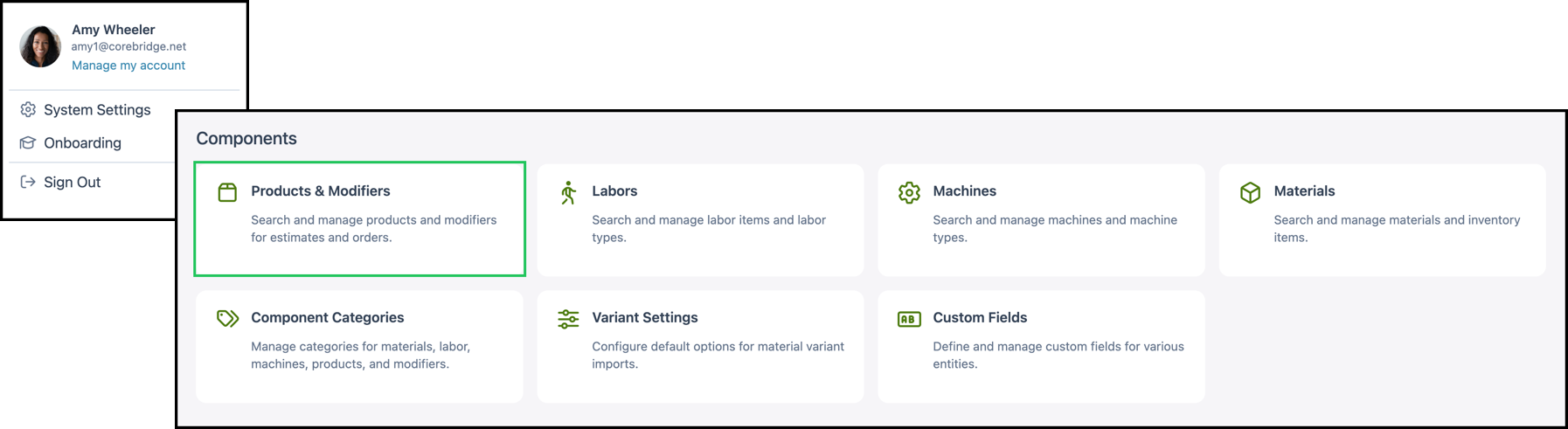
Navigate to System Settings / Components / Products & Modifiers.
1. Select the Product.

2. Click the Pricing card.

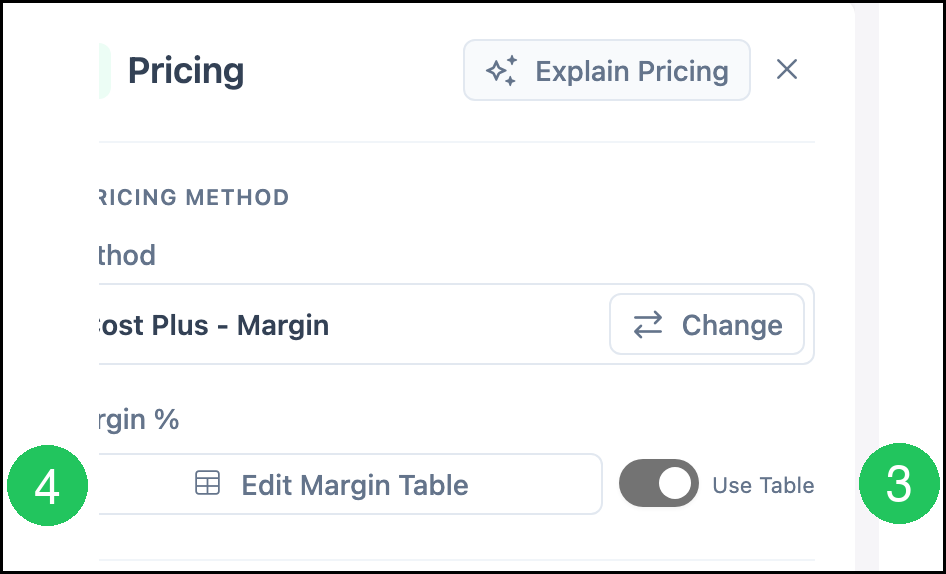
3. Turn on Use Table.
Note: CoreBridge uses the rates in the table for the margin, markup, or unit price. The button name follows the method. Cost Plus - Margin shows Edit Margin Table. Cost Plus - Markup shows Edit Markup Table. Market - Product shows Edit Unit Price Table. Custom shows Edit Pricing Formula on the method row.
4. Click Edit Margin Table.
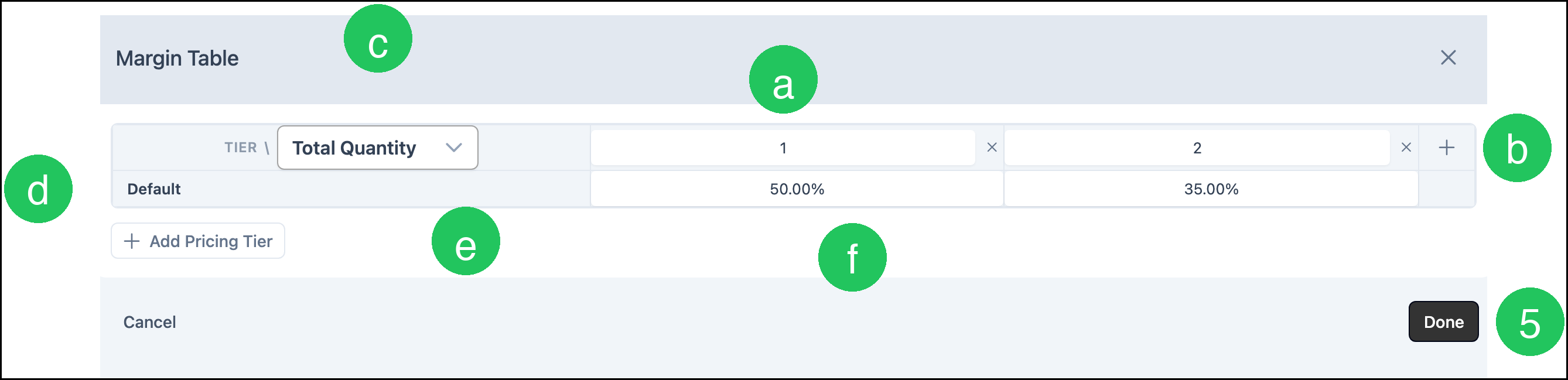
The table uses columns for thresholds and rows for pricing tiers.
a. Columns. Each column is a threshold for the variable. CoreBridge uses the rate in the column that matches the current value.
b. Plus. The plus icon adds a threshold.
c. Variable. The list at the top of the columns chooses what the columns measure, such as Total Quantity, Total Area, Item Height, Roll Length Used, or Total Sheets Used.
d. Rows. Each row is a pricing tier. Default applies unless the order uses another tier.
e. Add Pricing Tier. Adds a row for another tier, such as Wholesale.
Note: Additional tiers, such as Wholesale, are managed at System Settings / Sales Settings / Pricing Tiers.
f. Cells. Each cell is the margin or markup percentage for that threshold and tier. Click a cell to enter the rate.
5. Click Done.
6. Click Save.

Discount Tables
A Discount Table applies a quantity discount from thresholds and tiers. It is set under Quantity Discounts on the Product Pricing card.
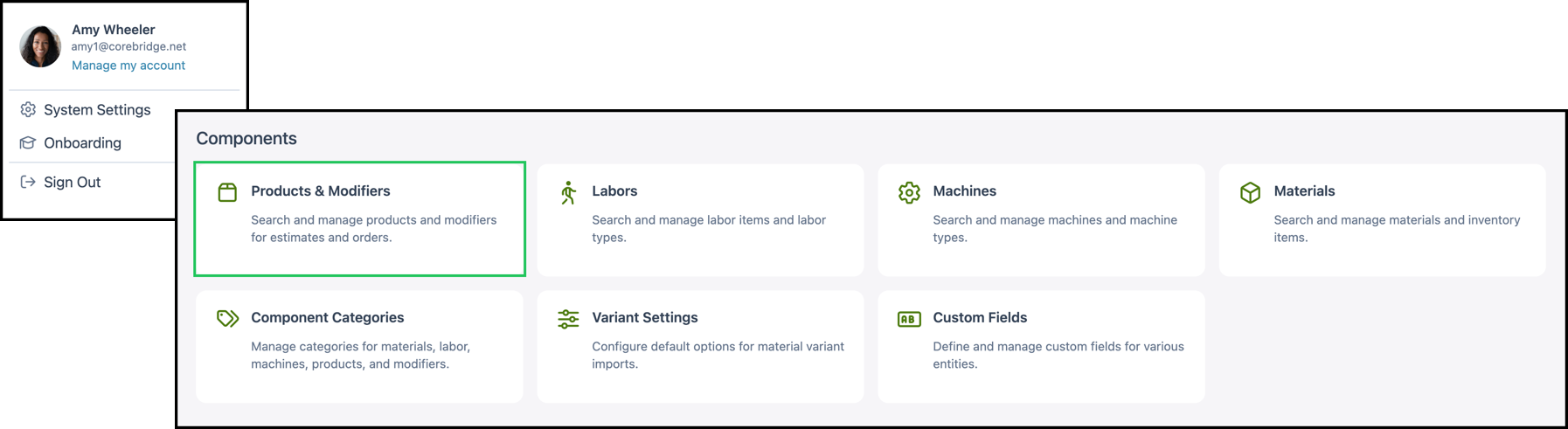
Navigate to System Settings / Components / Products & Modifiers.
1. Select the Product.

2. Click the Pricing card.

3. Under Quantity Discounts, turn on Use Table.
4. Click Edit Quantity Discounts.

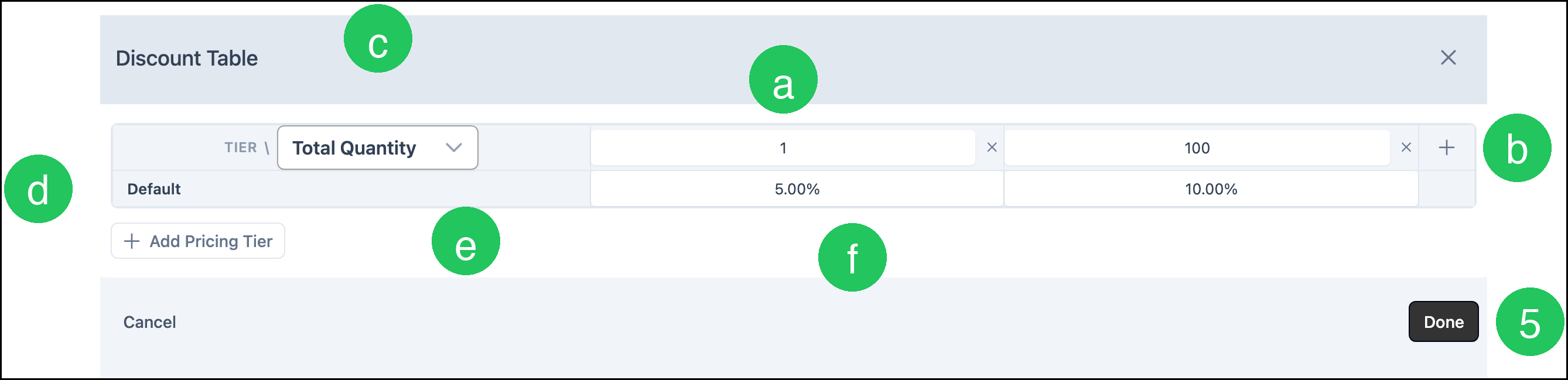
The discount table uses the same layout as a margin or markup table.
a. Columns. Each column is a threshold for the variable. CoreBridge uses the discount in the column that matches the current value.
b. Plus. The plus icon adds a threshold.
c. Variable. The list at the top of the columns chooses what the columns measure, such as Total Quantity, Total Area, Item Height, Roll Length Used, or Total Sheets Used.
d. Rows. Each row is a pricing tier. Default applies unless the order uses another tier.
e. Add Pricing Tier. Adds a row for another tier, such as Wholesale.
Note: Additional tiers, such as Wholesale, are managed at System Settings / Sales Settings / Pricing Tiers.
f. Cells. Each cell is the discount percentage for that threshold and tier. Click a cell to enter the discount.
5. Click Done.
6. Click Save.
