
Line Item groups keep related Line Items together on an Estimate or Order so they can move through workflow as a set. This article explains how to set grouping options, create a group, and work with grouped Line Items.
Table of Contents
- Locating Line Item Grouping Options
- Grouping Options
- Creating a Group
- Working with Groups
- Editing a Group
- Grouped Items on Boards
- Frequently Asked Questions
- Related Articles
Locating Line Item Grouping Options
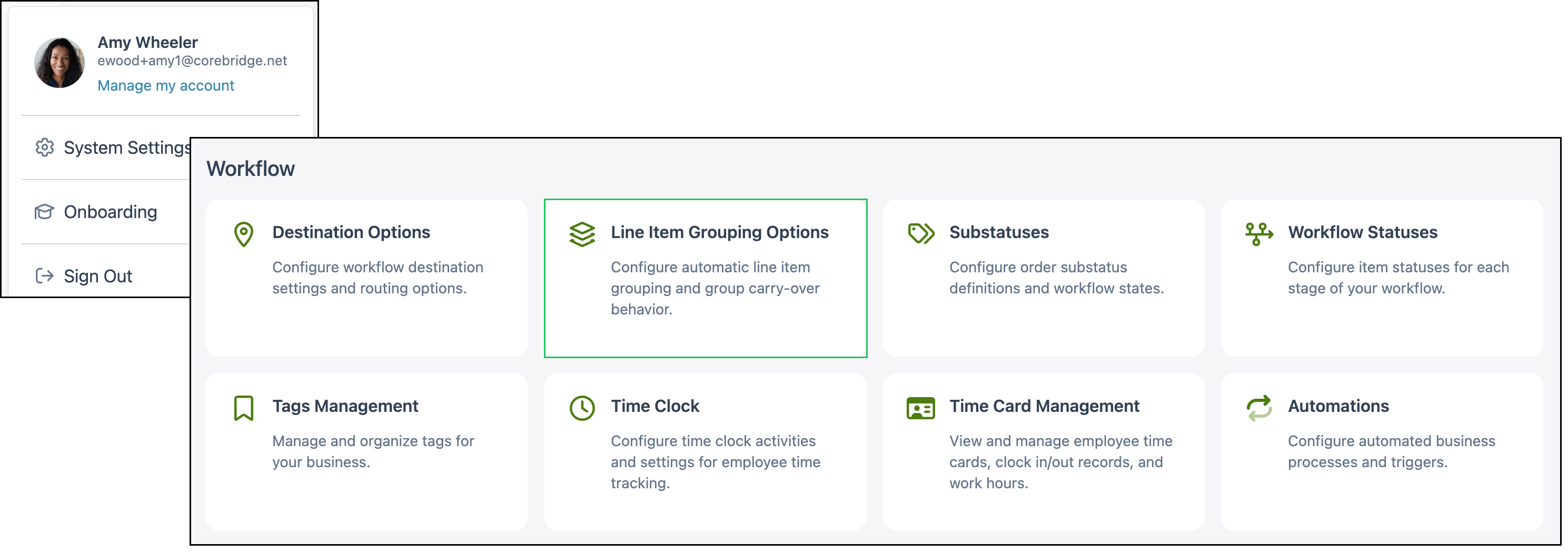
Navigate to System Settings / Workflow / Line Item Grouping Options.
Grouping Options
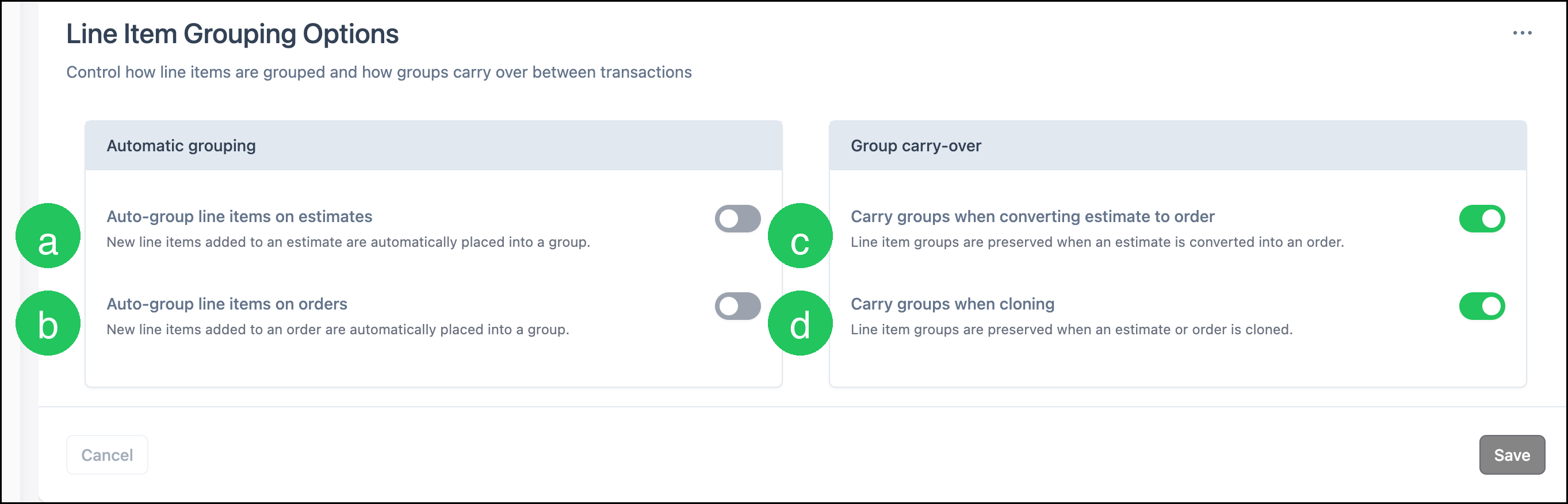
The Line Item Grouping Options screen controls automatic grouping and whether groups carry over to a new Estimate or Order.
a. Auto-group line items on estimates - When selected, new Line Items added to an Estimate are automatically placed into a group.
b. Auto-group line items on orders - When selected, new Line Items added to an Order are automatically placed into a group.
c. Carry groups when converting estimate to order - When selected, Line Item groups are preserved when an Estimate is converted into an Order.
d. Carry groups when cloning - When selected, Line Item groups are preserved when an Estimate or Order is cloned.
Note: Click Save after you change an option. Cancel discards unsaved changes. Save and Cancel stay unavailable until you change an option.
Creating a Group
Create groups from the Line Items tab on an Estimate or Order. Line Item behavior is the same on Estimates and Orders. This article uses Orders as an example.
Navigate to Sales / Orders.
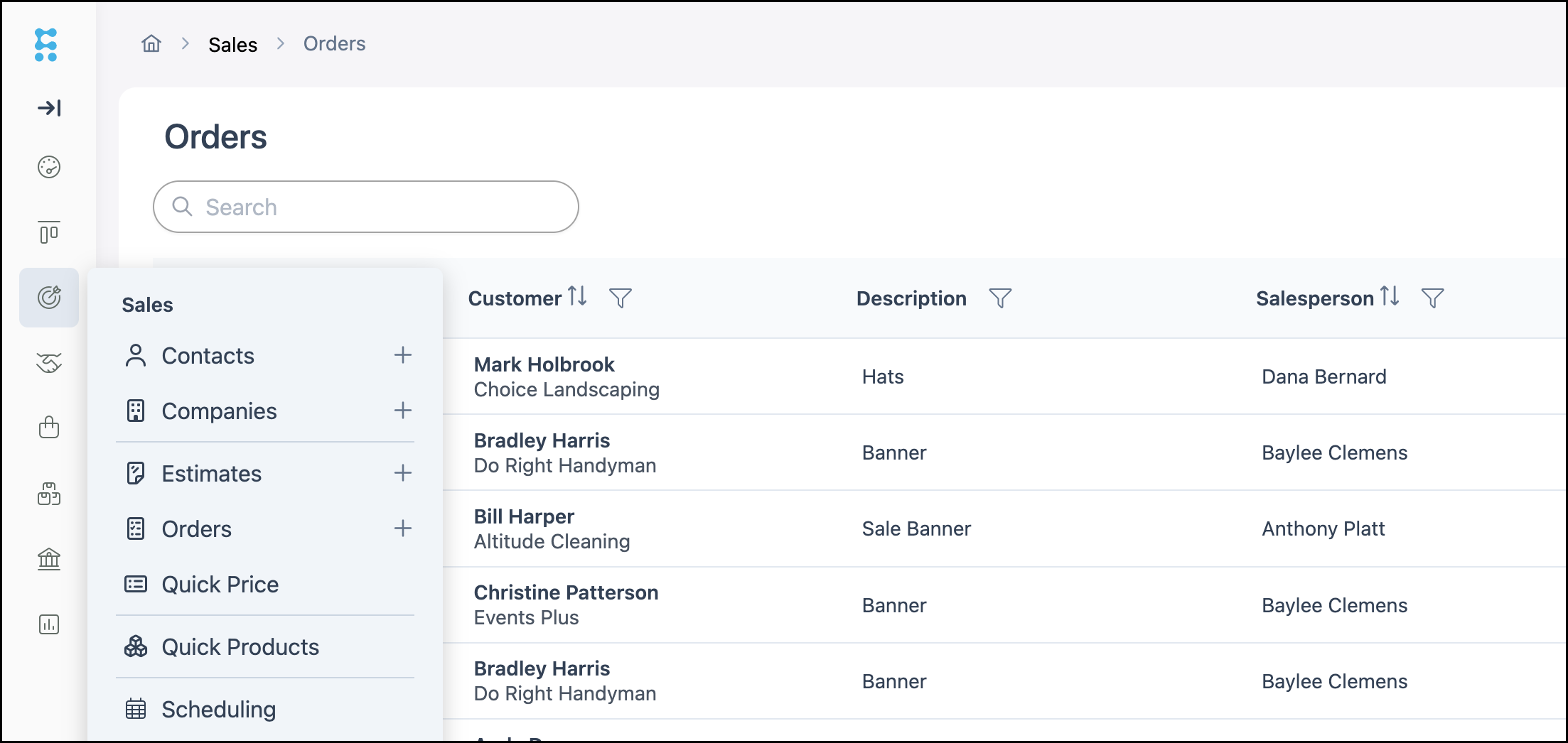
Open an Order, then select the Line Items tab if it is not already selected.
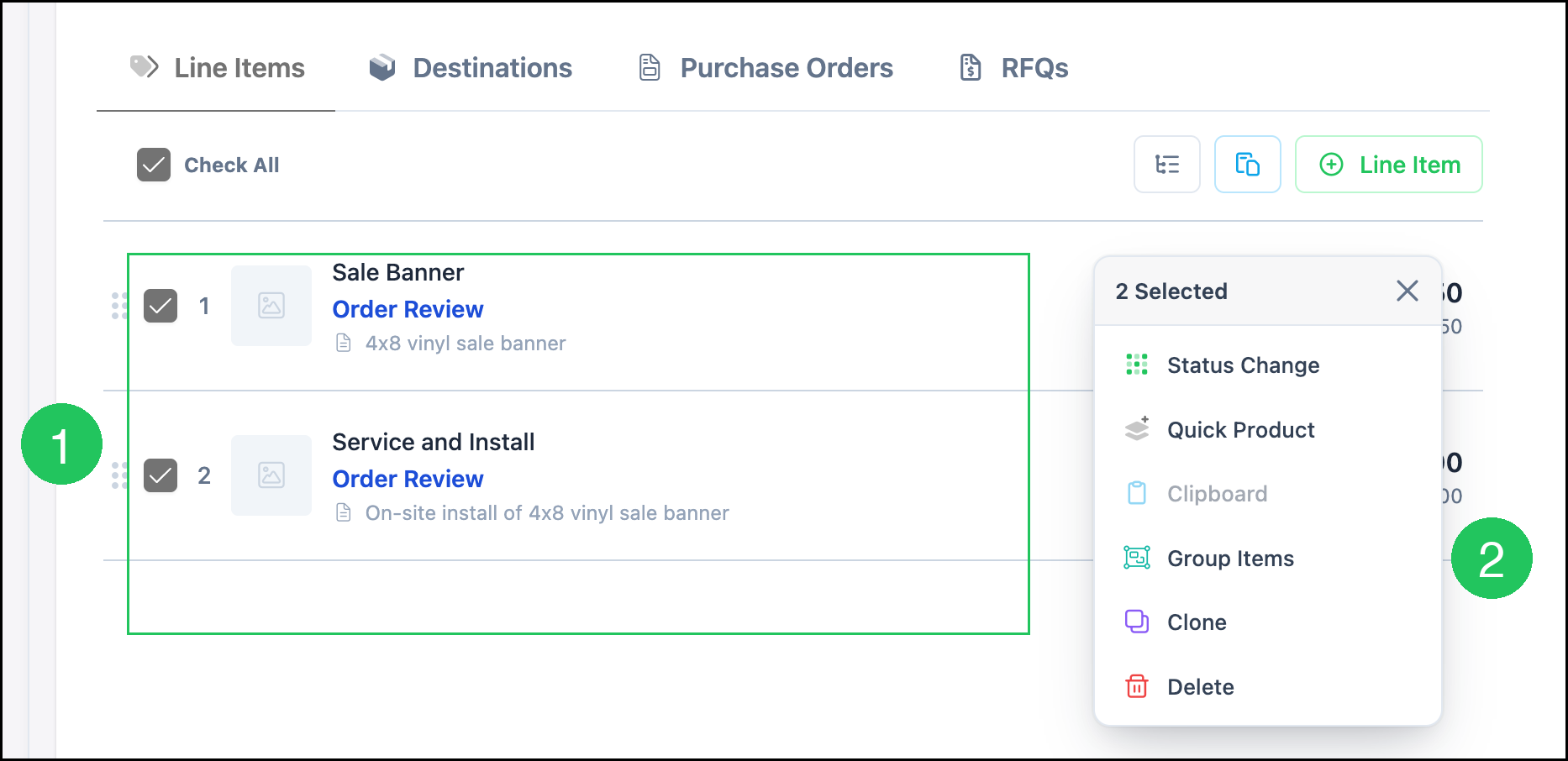
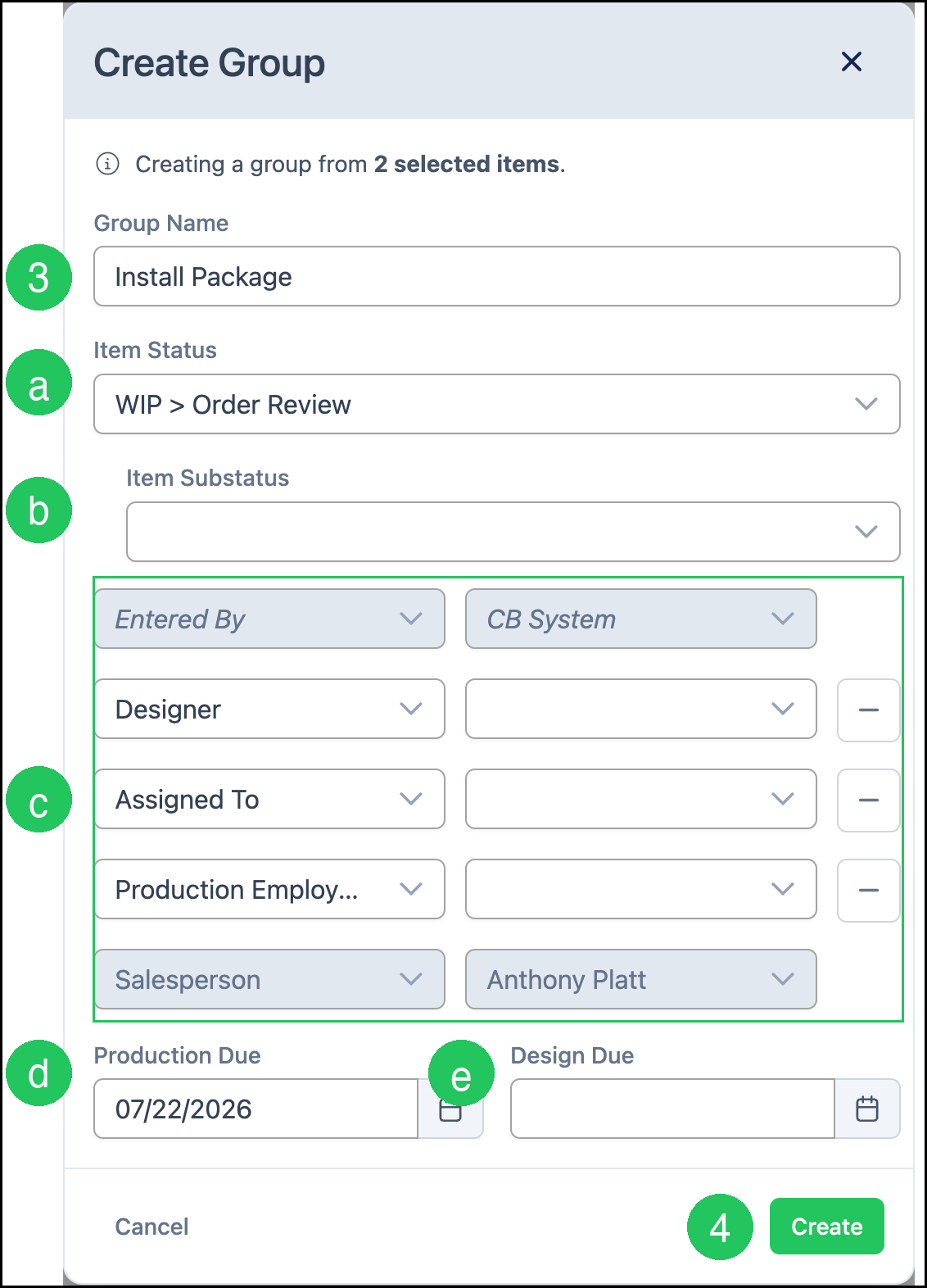
1. Select the Line Items to include in the group.
2. Click Group Items.
3. Enter a Group Name.
a. Item Status - Sets Status for every Line Item in the group. For more information, see Line Item Statuses.
b. Item Substatus - Sets Substatus for every Line Item in the group.
c. Line Item Roles - Assigns employees to roles such as Designer, Assigned To, and Production Employee for the group. Some roles, such as Entered By and Salesperson, are set by the Estimate or Order and stay unavailable.
d. Production Due - Sets the production due date for the Line Items in the group.
e. Design Due - Sets the design due date for the Line Items in the group.
4. Click Create.
Note: Click Cancel to close the dialog without creating a group. A Line Item belongs to one group at a time. Groups stay on the same Estimate or Order.
Working with Groups
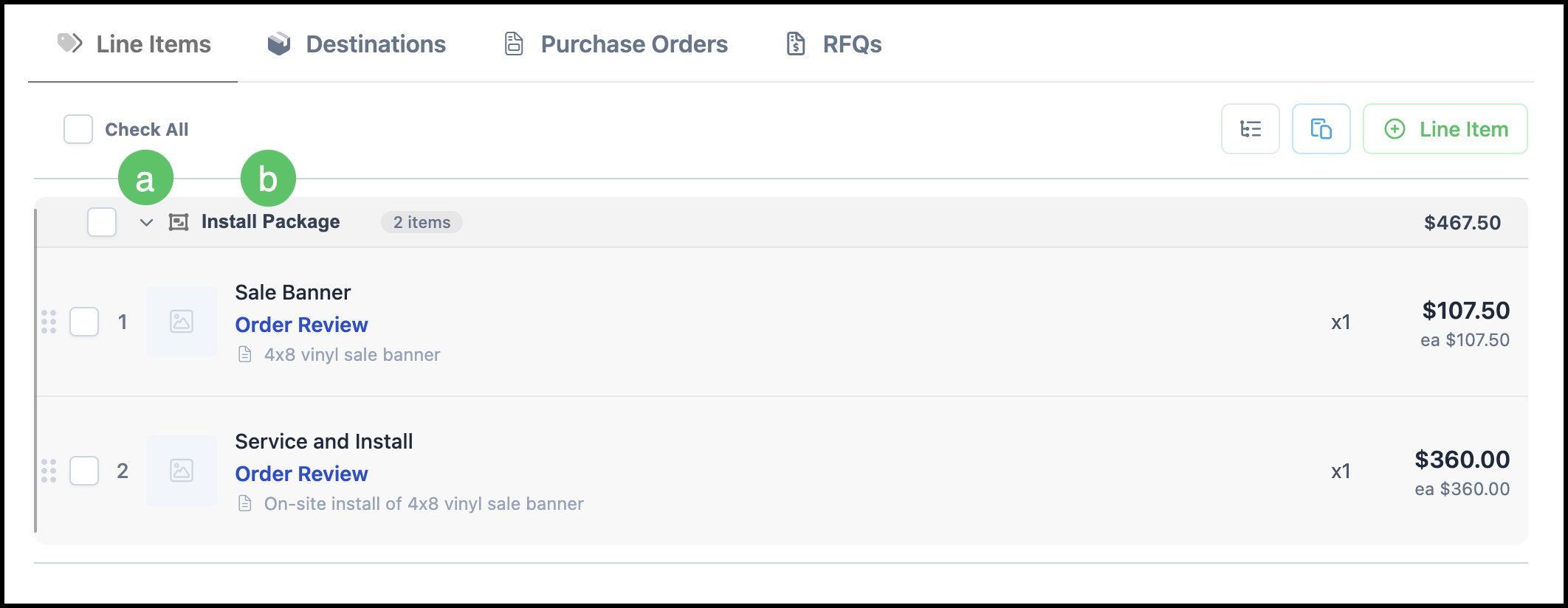
Grouped Line Items display together on the Line Items tab under the group name.
a. Collapse arrow - Collapses the Line Items under the group name.
b. Group name - Identifies the group. Click the group name to open a dialog that lists the Line Items in the group.
Editing a Group
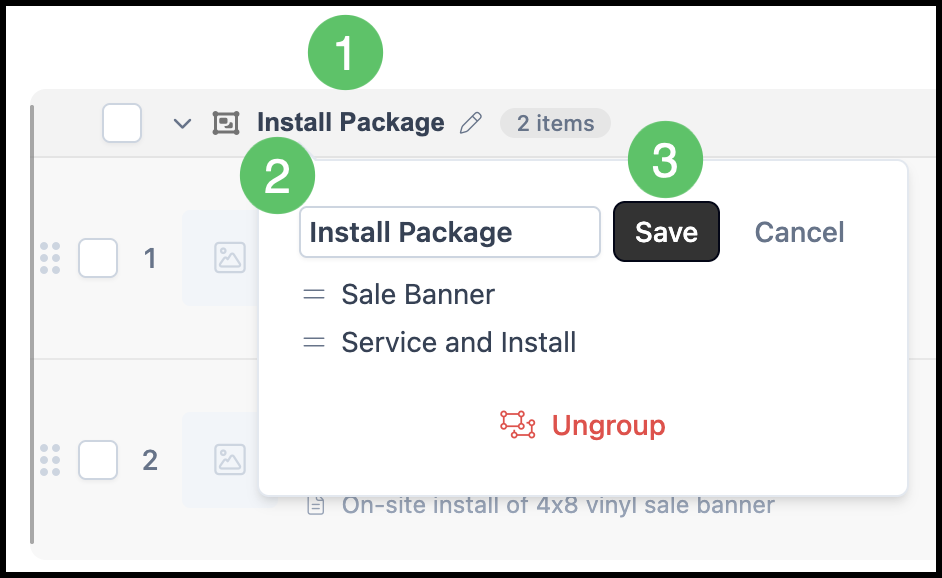
1. Click on the group name.
2. Make the necessary changes. From the group dialog you can rename the group or remove the grouping.
Note: Ungroup removes the group after you confirm in the Ungroup? dialog. The Line Items stay on the Estimate or Order as individual items.
3. Click Save.
Note: Status, Substatus, Line Item Roles, Production Due, and Design Due stay in sync for every Line Item in the group. Quantity, pricing, tags, and documents stay unique to each Line Item. For more information on Line Items, see Line Items Overview.
Grouped Items on Boards
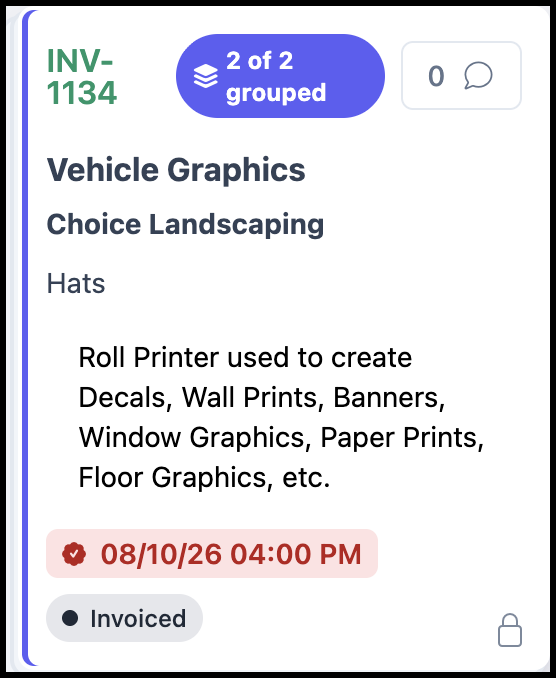
On Boards, grouped Line Items can display together on a card. Changing Status for grouped Line Items updates the other Line Items in the group. Groups are created from an Estimate or Order, not from Boards. For more information, see Boards Overview.
Frequently Asked Questions
1. Where do I create a Line Item group?
Answer: Create groups from the Line Items tab on an Estimate or Order. Select Line Items, then click Group Items.
2. Do groups appear on documents or work orders?
Answer: Groups are used for workflow and Boards. Documents and work orders continue to show each Line Item on its own.
3. Can I group Line Items from more than one Order?
Answer: A group stays on a single Estimate or Order. Line Items from different Estimates or Orders are not grouped together.
4. What happens when I ungroup Line Items?
Answer: Ungroup removes the group after you confirm in the Ungroup? dialog. The Line Items stay on the Estimate or Order as individual items.
Related Articles
Boards Overview
Estimate and Order Options
Estimates Overview
Line Item Statuses
Line Items Overview
Orders Overview