Statuses help you track progress and communicate the current stage of work across the system. Once your Statuses and Substatuses are configured, they can be applied throughout daily operations to keep teams aligned and workflows consistent.
This article explains how to use Statuses within Estimates, Orders, Purchase Orders, and Calendar Events. You will learn where Statuses appear, how to update them, and how they support visibility and coordination across your process.
Table of Contents
- Estimates, Orders, and Purchase Orders
- Item Statuses and Substatuses in Calendar Events
- Related Articles
Estimates, Orders, and Purchase Orders
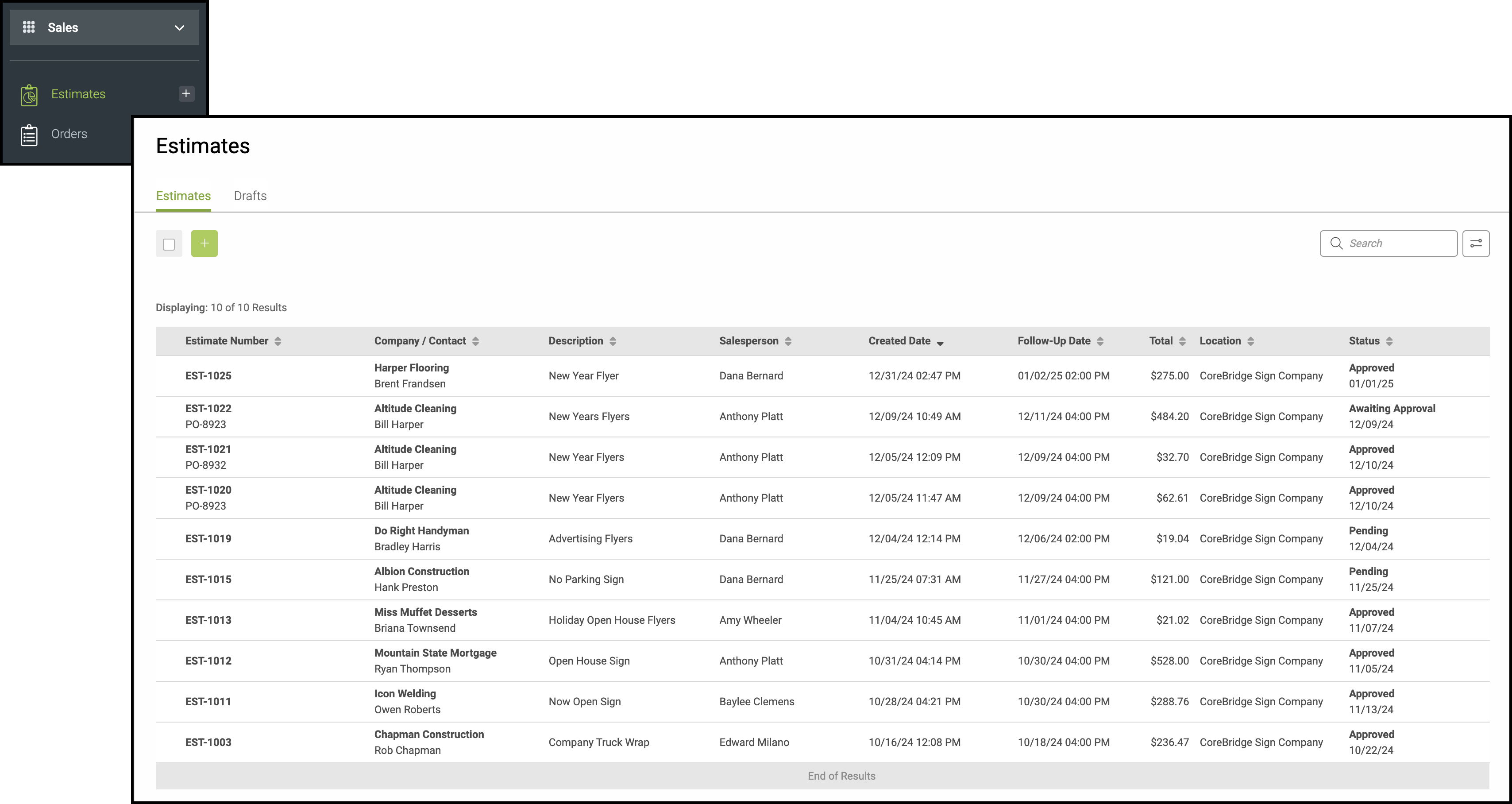
Using Item Statuses and Item Substatuses follows the same basic procedure within Estimates, Orders, and Purchase Orders. This example will use an Estimate.
Navigate to Sales / Estimates and select an Estimate.
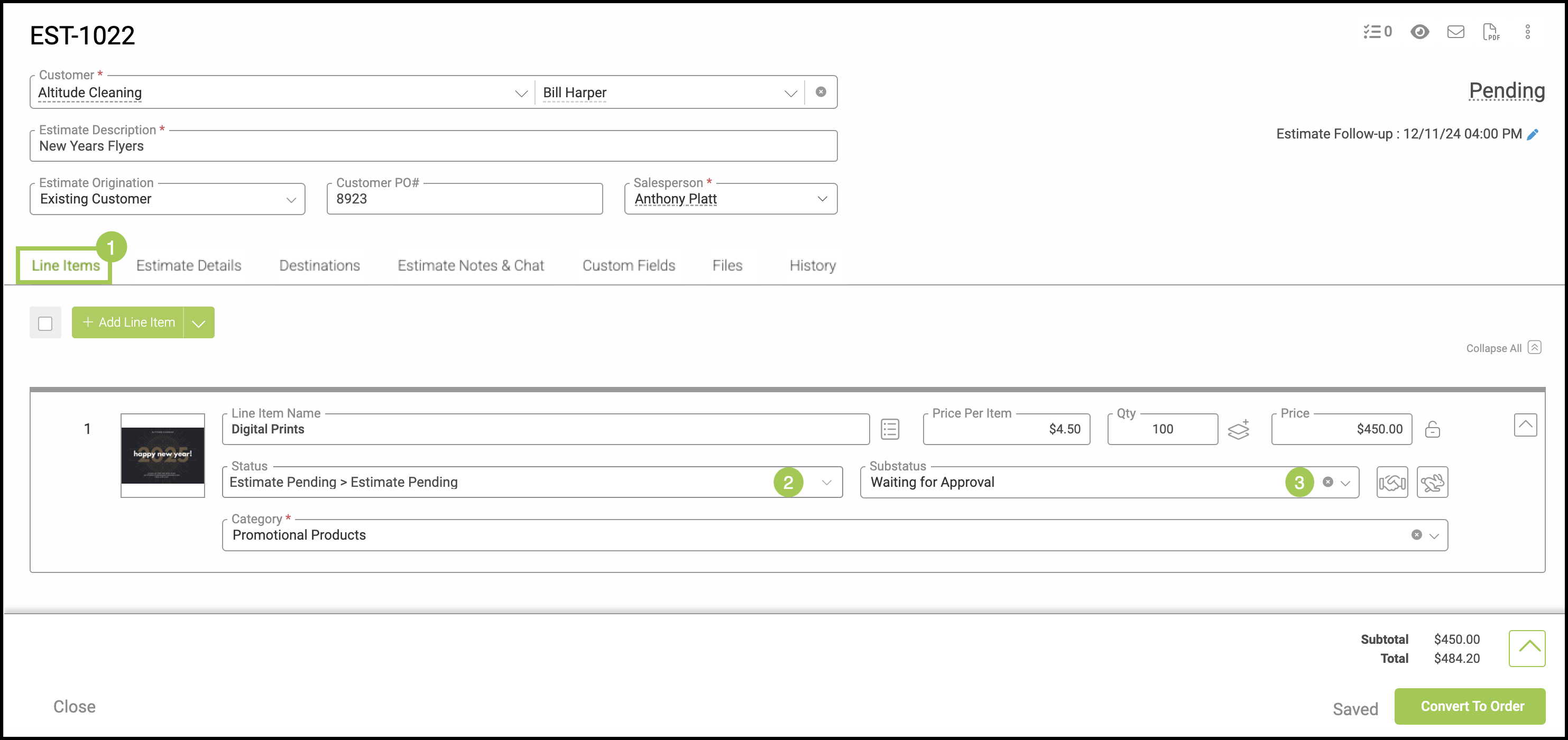
1. Select Line Items tab.
Note: Each Line Item within an Order or Estimate can be labeled with an Item Status an Item Substatus.
2. Using the drop down menu chose the desired Item Status.
3. Using the drop down menu chose the desired Item Substatus.
Item Statuses and Substatuses in Calendar Events
Item Statuses and Item Substatuses can be added in Calendars or in the Scheduling Feature by following the same process. This example uses Calendars.
Note: Item Satuses and Item Substatuses can be set during event creation as well. For more information, please see Scheduling Overview.
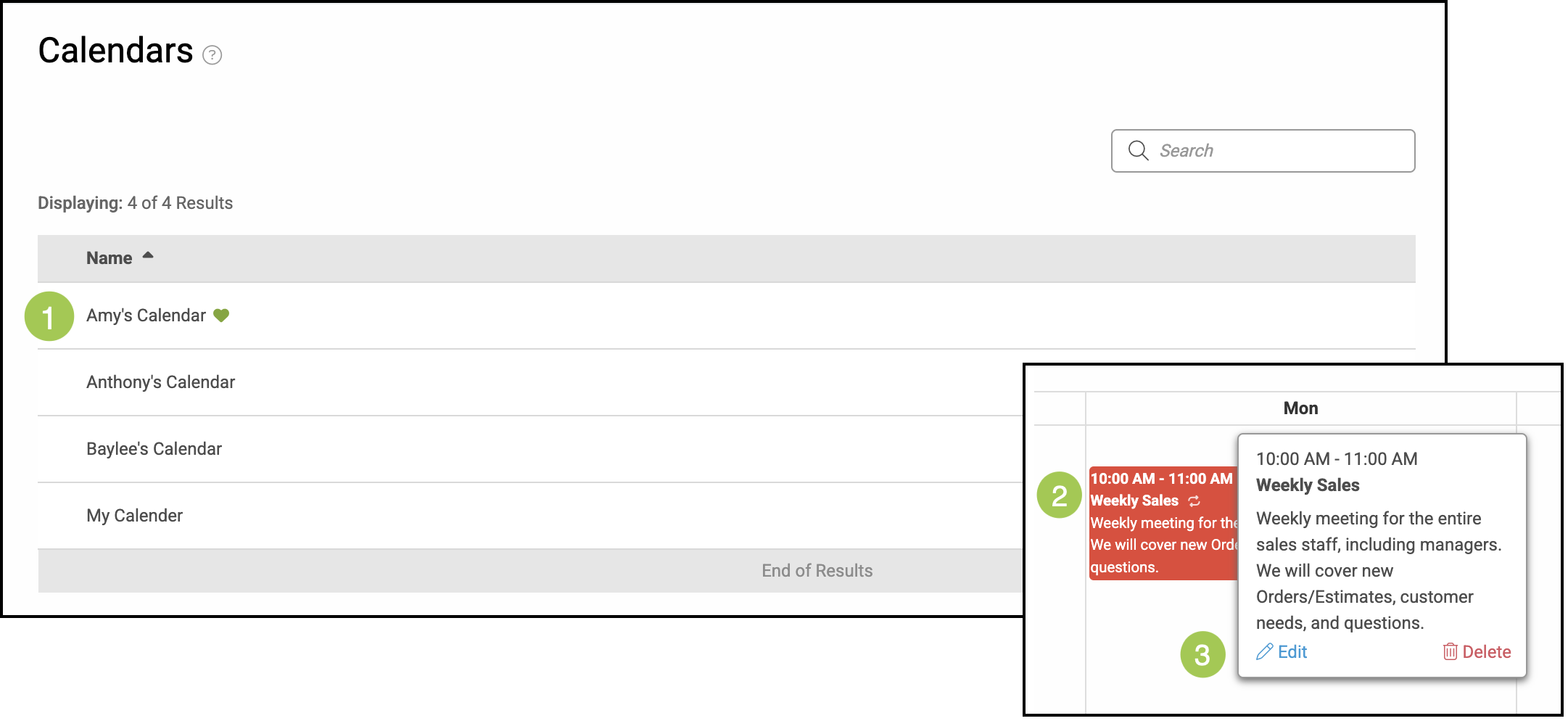
Navigate to My Profile / Calendars.
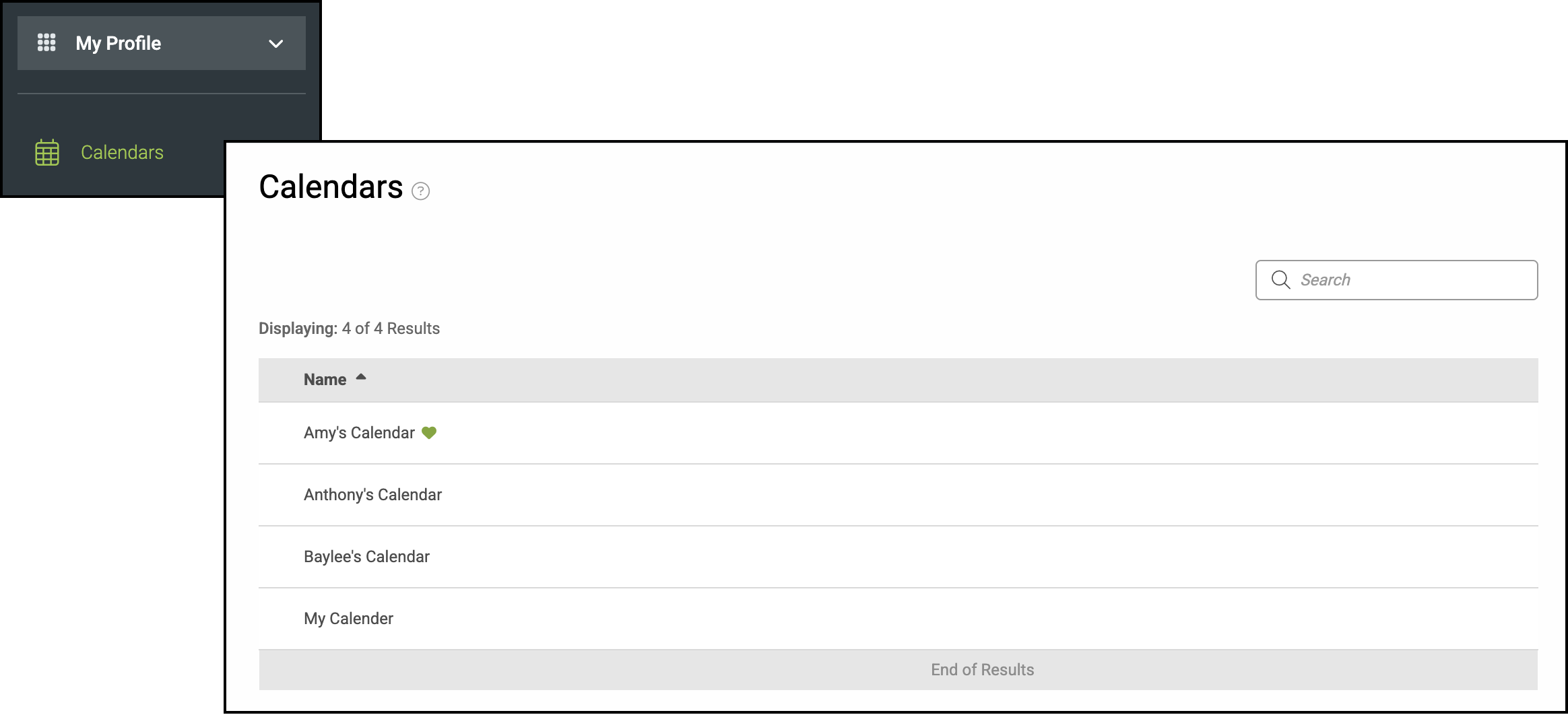
1. Select a Calendar.
2. Click on an event.
3. Click Edit.
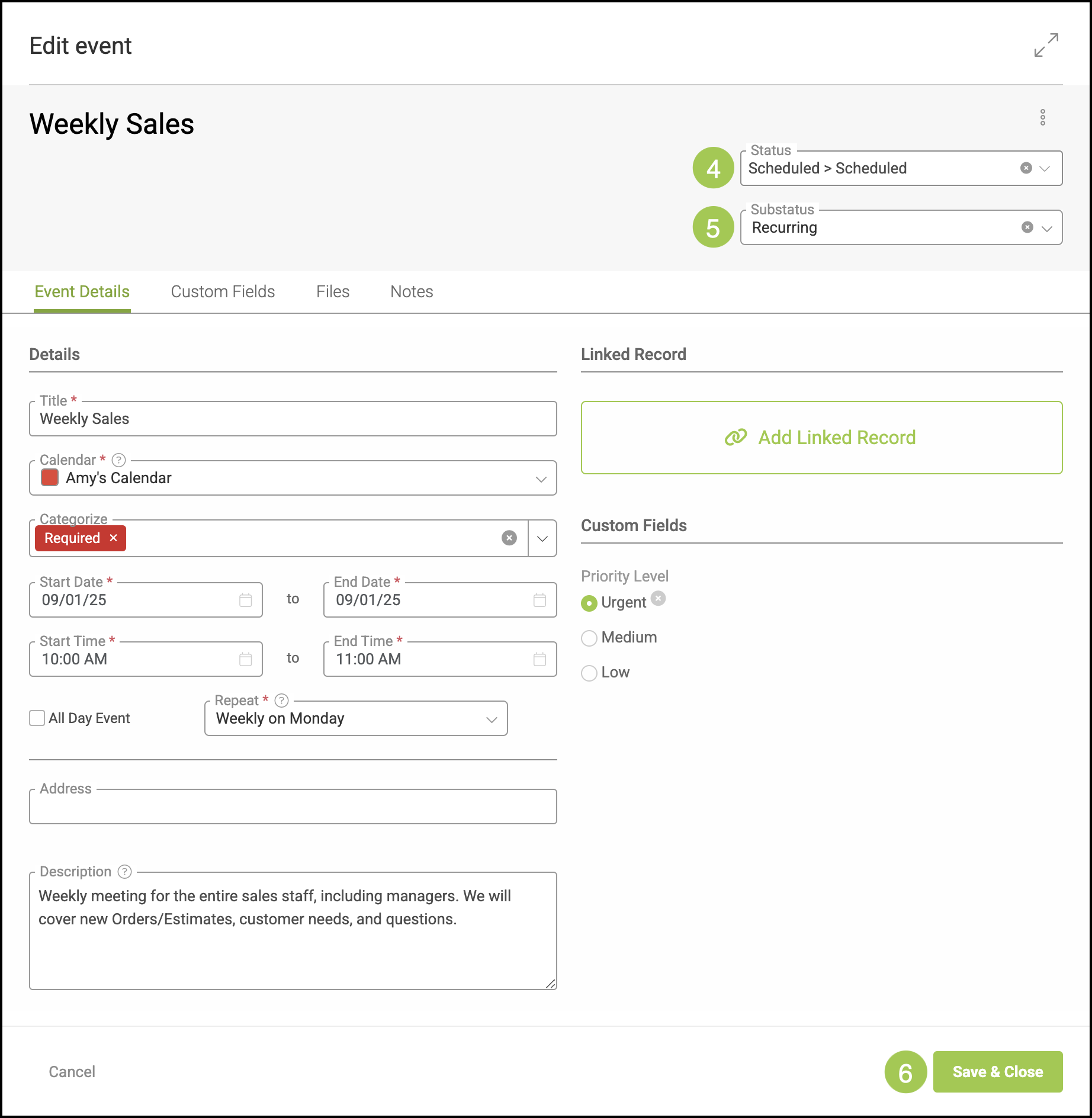
4. Select a Status from the dropdown menu.
Note: Statuses can be managed in Settings / Workflow / Statuses / Calendar Events. Statuses added there will populate in this dropdown.
5. Select a Substatus from the dropdown menu.
Note: Substatuses can be managed in Settings / Workflow / Substatuses. Substatuses must be linked to a Status in order to populate in this dropdown.
6. Click Save & Close.