Calendars in CoreBridge provide a shared, centralized view designed for team collaboration and streamlined scheduling. With this feature, you are able to coordinate tasks, manage resources, track key deadlines, and stay aligned across departments, ensuring everyone is on the same page and working efficiently.
Important Details
- Integrated Calendars are available for use once the corresponding integration has been installed and connected in your system settings.
- Multiple Calendars can be viewed together using the Scheduling Feature. This can be managed in Sales / Scheduling.
- For more information on the Scheduling Feature, please see Scheduling Overview.
Table of Contents
Adding Calendars
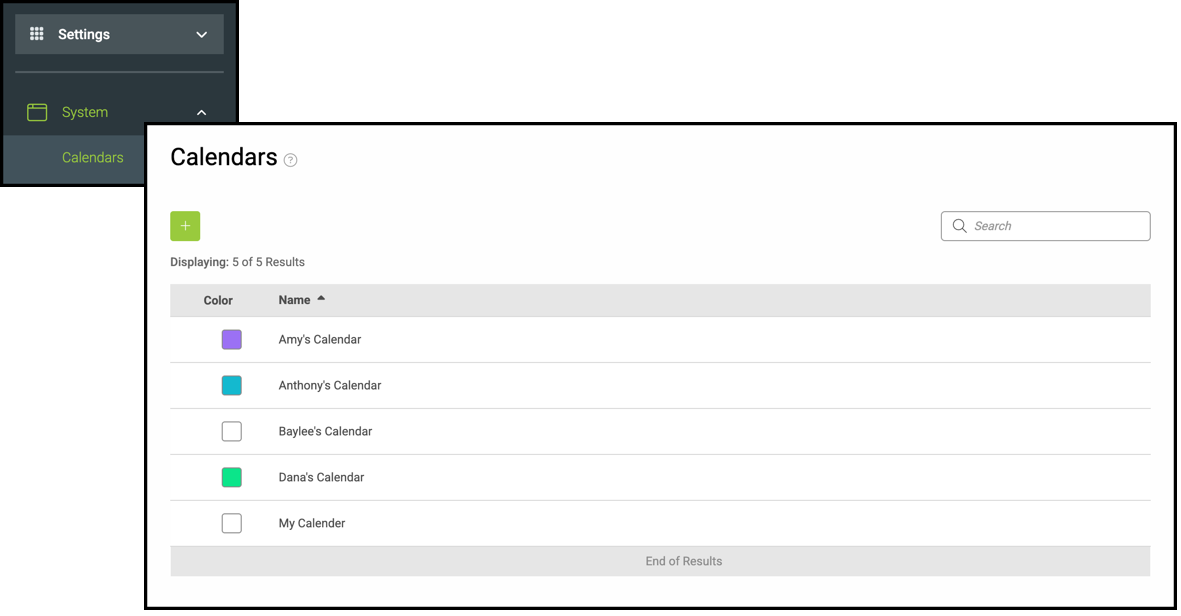
Navigate to Settings / System / Calendars.
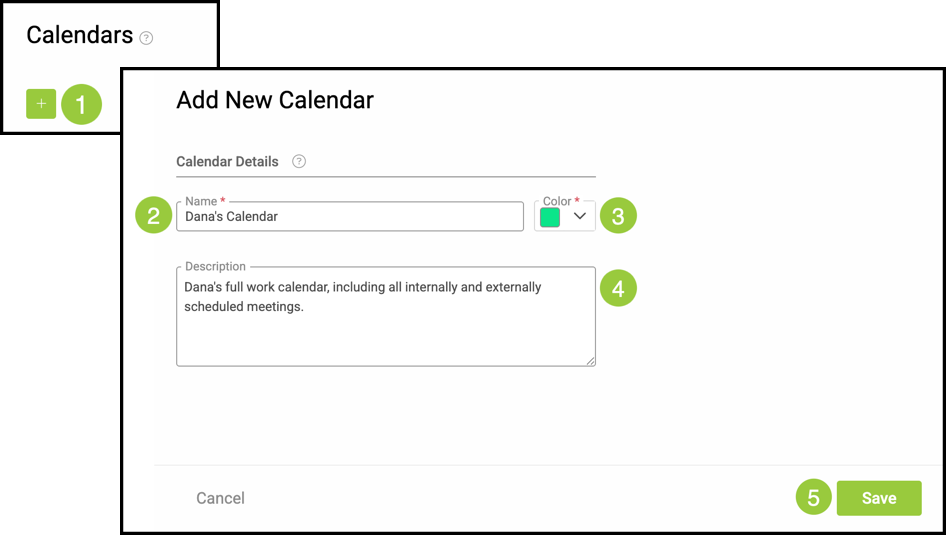
1. Click the Green Plus button.
2. Name - This name is visible to all users and should be used to differentiate between other calendars.
3. Choose a Color for this Calendar.
Note: This field is now required. For calendars created previously, you can go back and assign colors retroactively.
4. Description - This should explain clearly what the calendar will be used for.
5. Click Save.
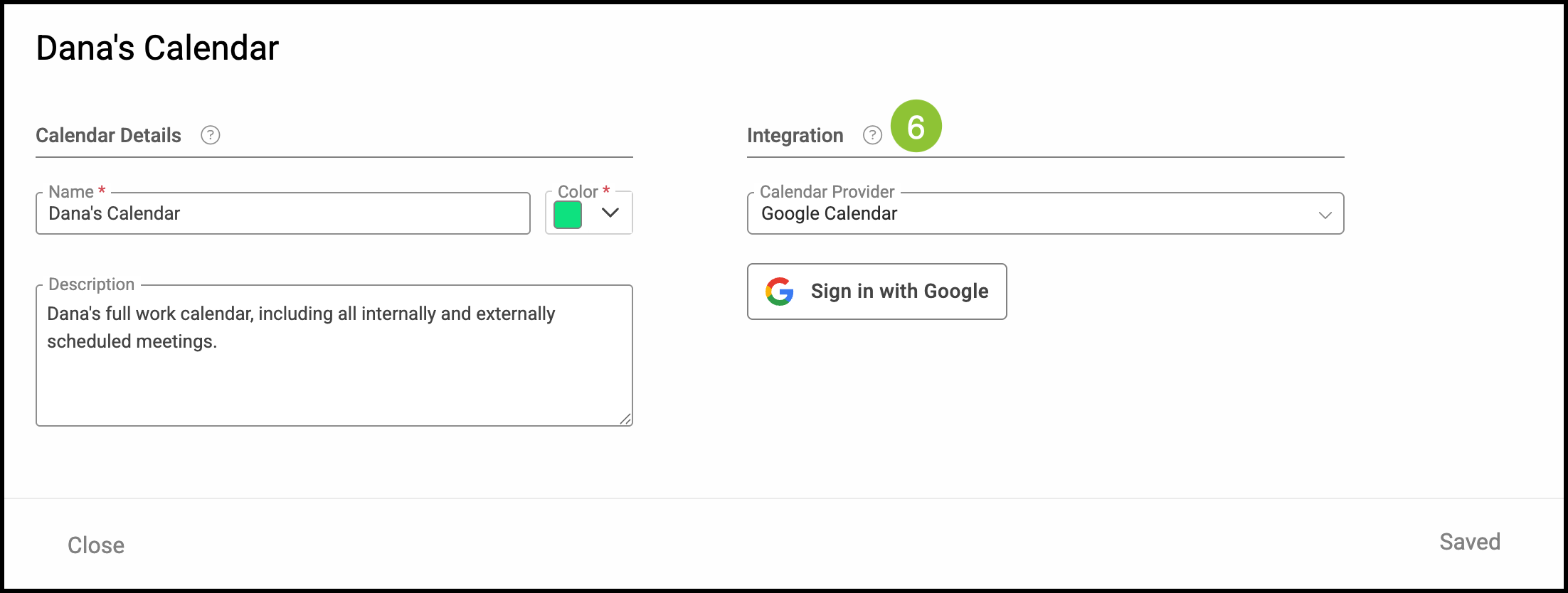
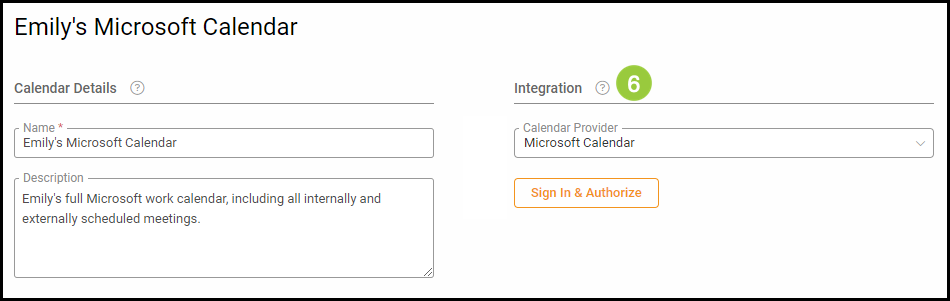
After clicking Save, the page will refresh with the option to use an integrated calendar if you have one installed in your system. For more information on Calendar Integrations, please see Google Calendar, or Microsoft Calendar.
6. Use the dropdown to select which Calendar Provider you would like to use and sign in to the appropriate integration as directed.