
Once your Calendars are set up, they become a central tool for managing schedules and coordinating work across your team. From daily task planning to tracking production milestones, Calendars support visibility and accountability throughout your workflow.
This article explains how to locate and navigate your Calendars, create and manage Events, add Events from linked Calendars, and connect Estimates and Orders to scheduled activities. By understanding how to use these features together, you can keep projects organized and ensure important dates stay on track.
Table of Contents
- Locating Calendars
- Adding an Event
- Adding an Event from a Linked Calendar
- Linking Estimates or Orders
- Related Articles
Locating Calendars
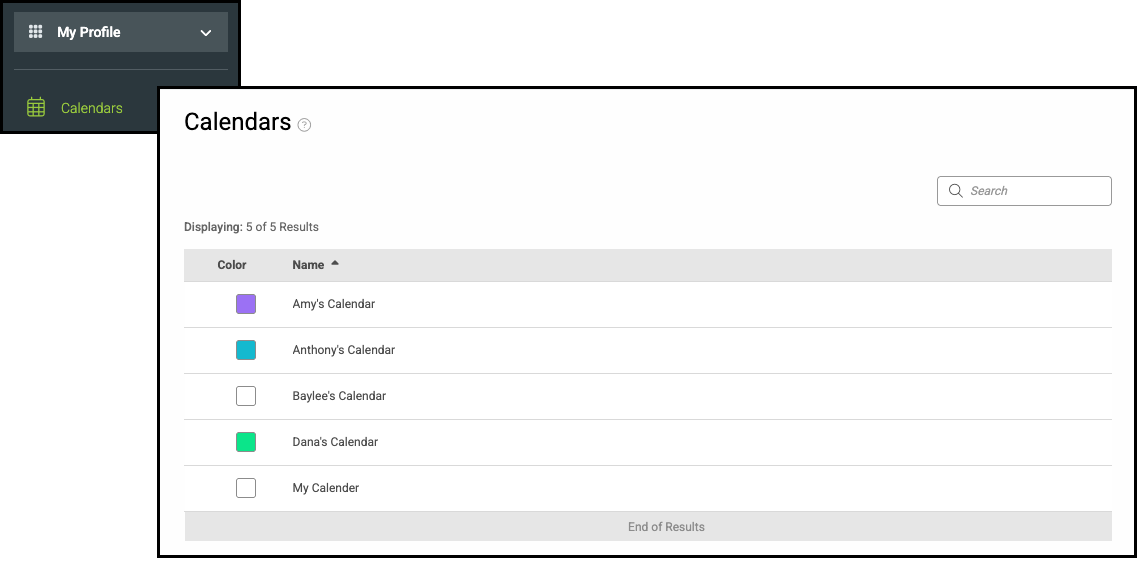
To locate a Calendar, navigate to My Profile / Calendars.
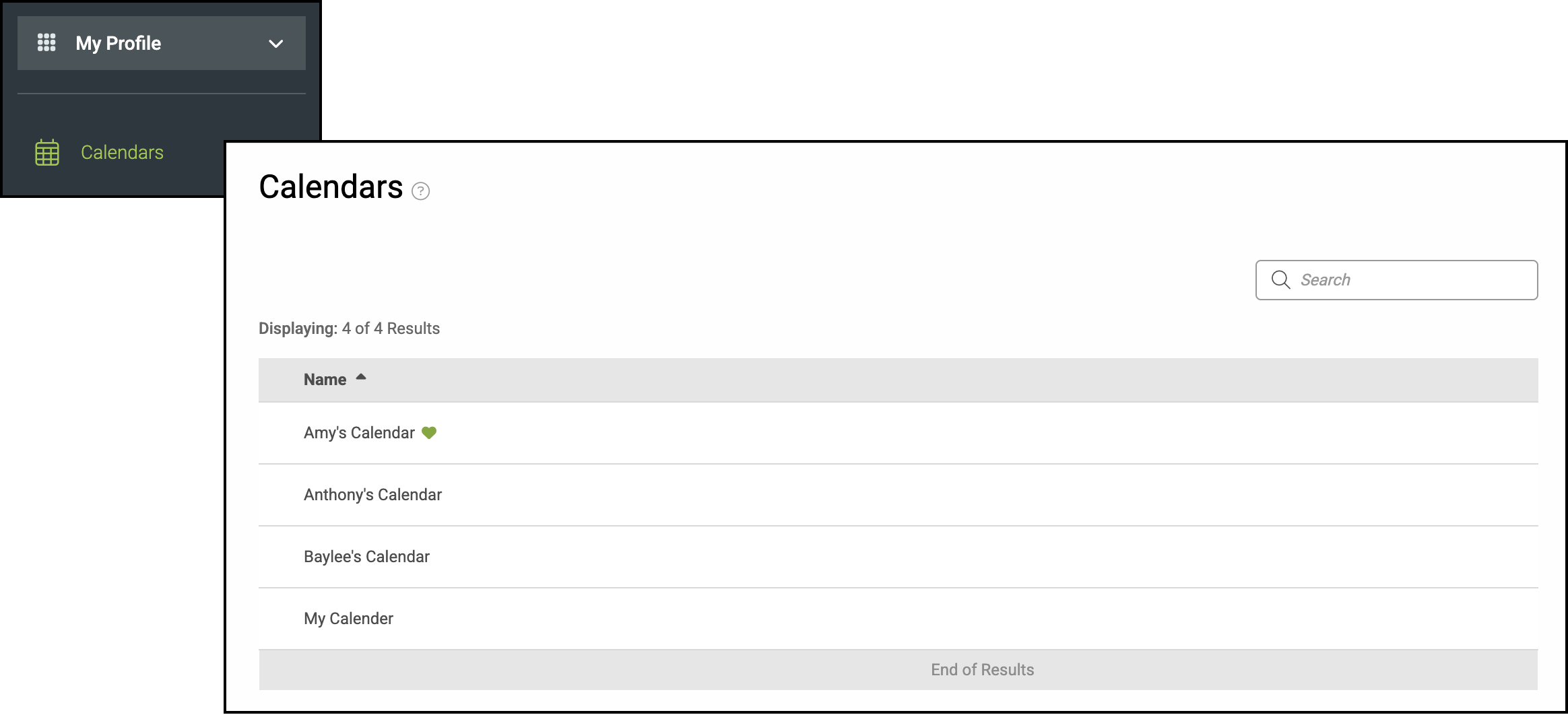
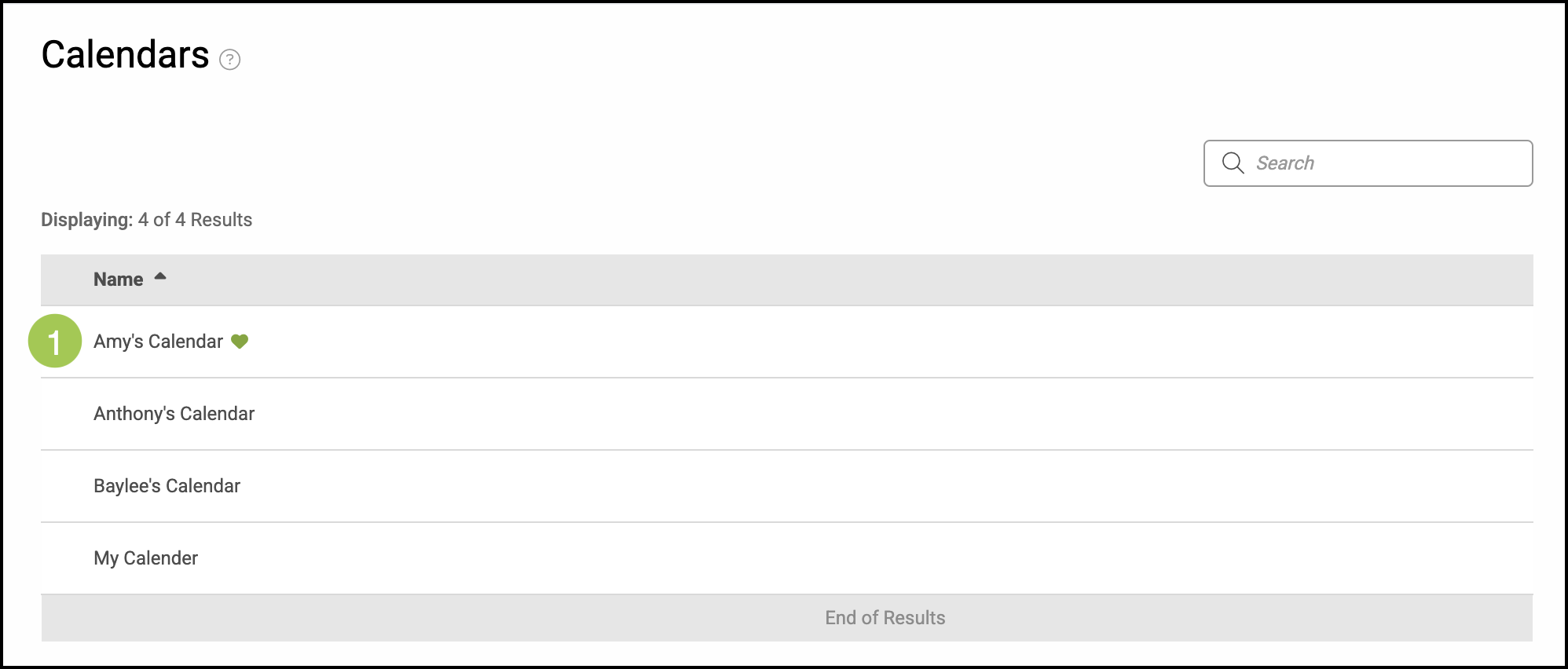
1. Click into a calendar to view details and add events.
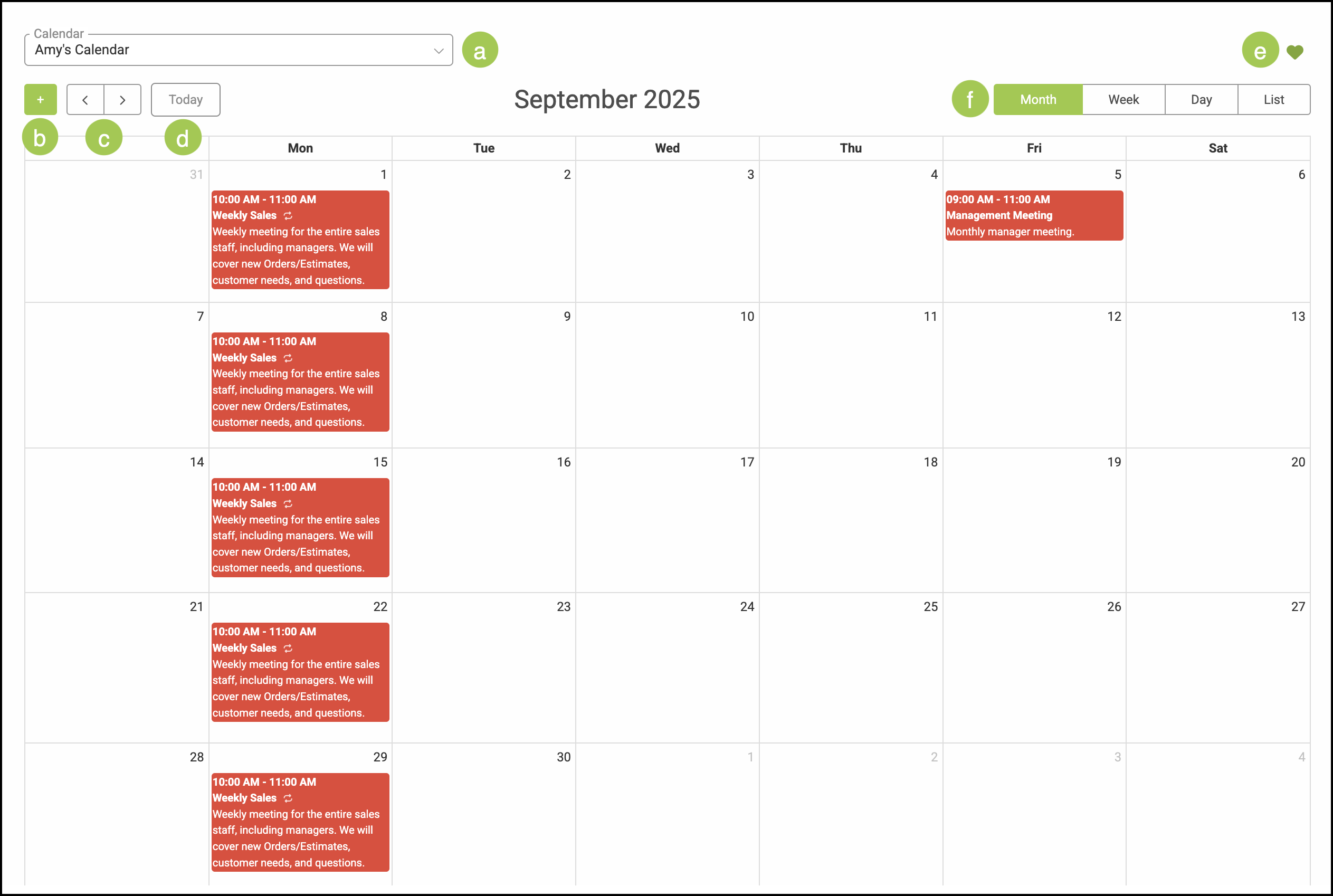
a. The dropdown allows you to switch which calendar you are viewing.
b. Clicking the Green Plus button allows you to add an event to the calendar.
Note: A pop-up will appear where you can enter the necessary information. See below for more information.
c. The arrows adjust the schedule forward or backward. The amount of time the view shifts depends on the option you’ve selected on the right (month, week, day, etc.)
d. This button resets the view to the current day.
e. This heart will designate this calendar as a favorite and will be visible on the previous screen.
f. Here you can select how the calendar is displayed, with options for month, week, day, or list views.
Adding an Event
- You can add events directly within the CoreBridge Calendar or through the Scheduling feature.
- For more information, please see Scheduling Overview.
- Any event created in CoreBridge will automatically sync to your linked calendar integrations, keeping everything up to date in one place.
- Event descriptions will appear in your linked calendars, but linked Estimates or Orders will not carry over.
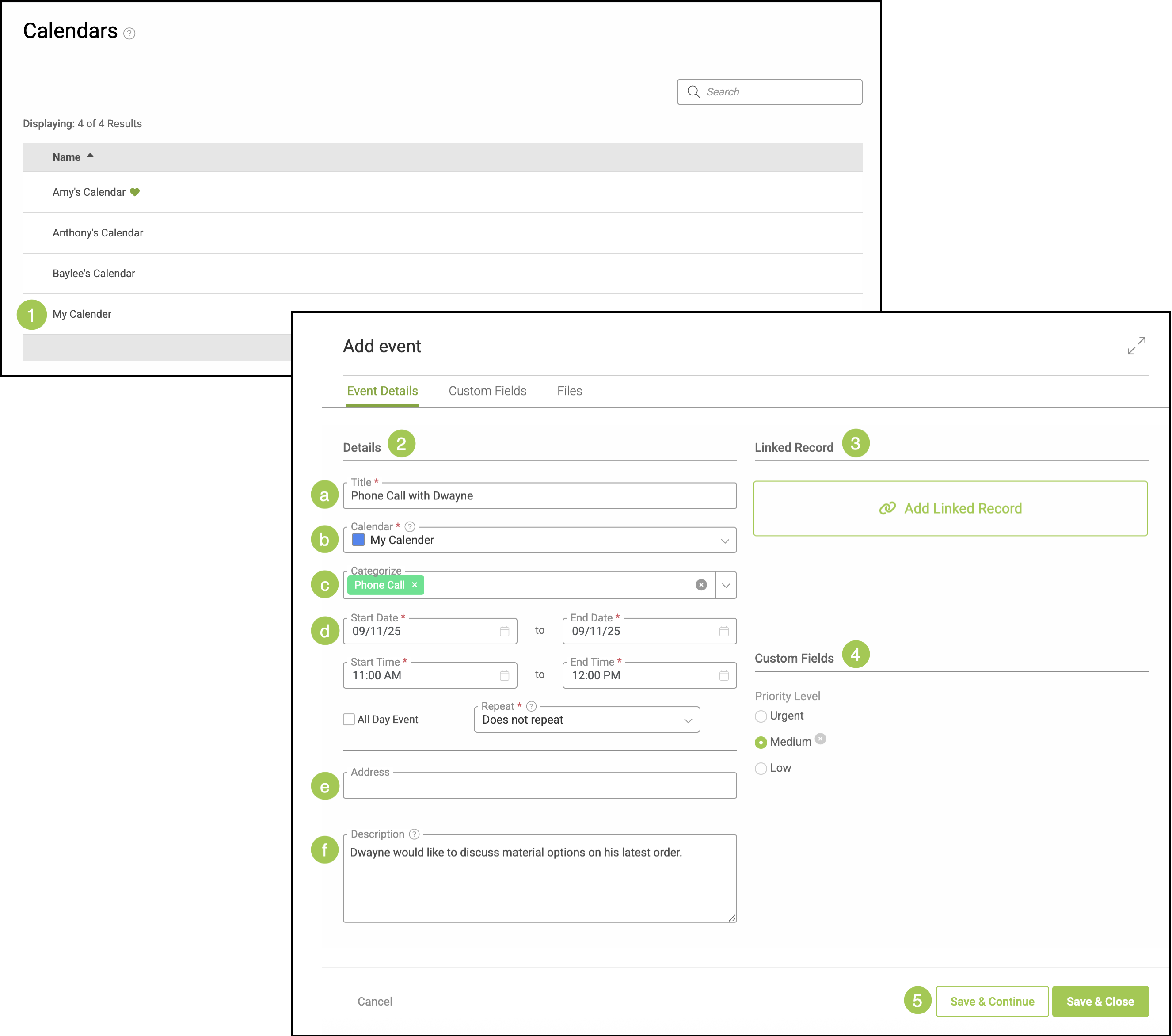
Navigate to My Profile / Calendars.
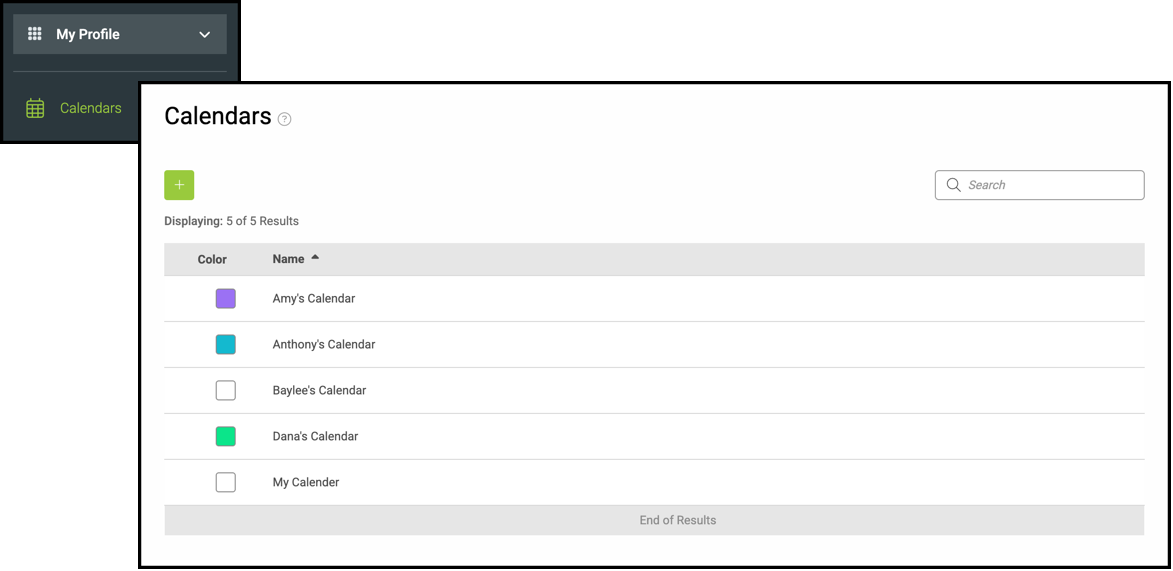
1. Click into the appropriate calendar.
2. Enter in the necessary Details.
a. Give this event a short, recognizable name.
b. Use the dropdown to select which linked Calendar this event belongs on.
c. Use the dropdown to select a Category.
Note: Categories can be managed in Settings / System / Calendar Categories. For more information, please see Calendar Categories.
d. Use the dropdown menus to populate the dates and times for the event, including whether this is an all day event and if it repeats in the future.
e. Provide an address, if applicable.
f. Provide a short description, if desired.
3. Click on Add Linked Record to link an Estimate or Order to this event.
Note: See below for more details.
4. Quick Custom Fields will show here. For more information on creating Custom Fields, please see Custom Fields.
5. Select either Save & Continue or Save & Close.
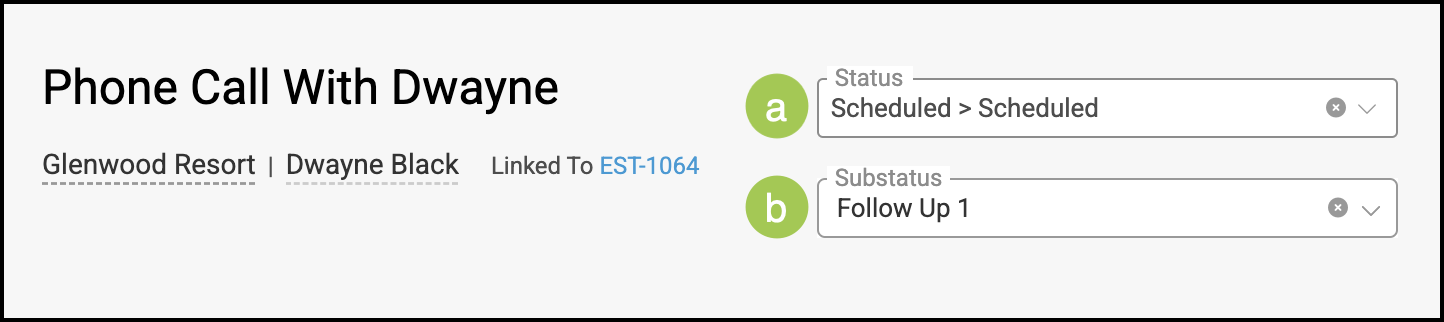
Note: Clicking Save & Continue will give you further options. For more information, see the example below.
Example:
a. Statuses can be managed in Settings / Workflow / Statuses / Calendar Events. Statuses added there will populate in this dropdown.
Note: To update an existing event’s Status, click Edit. A pop-up will appear where you can make changes.
b. Substatuses can be managed in Settings / Workflow / Substatuses. Substatuses must be linked to a Status in order to populate in this dropdown. For more information on this, please see Status Setup.
Adding an Event from a Linked Calendar
You can bring events from your external calendars into CoreBridge, making it easy to keep all of your scheduling information in one place. Importing events ensures your CoreBridge Calendar stays up to date and aligned with the other calendars you already use.
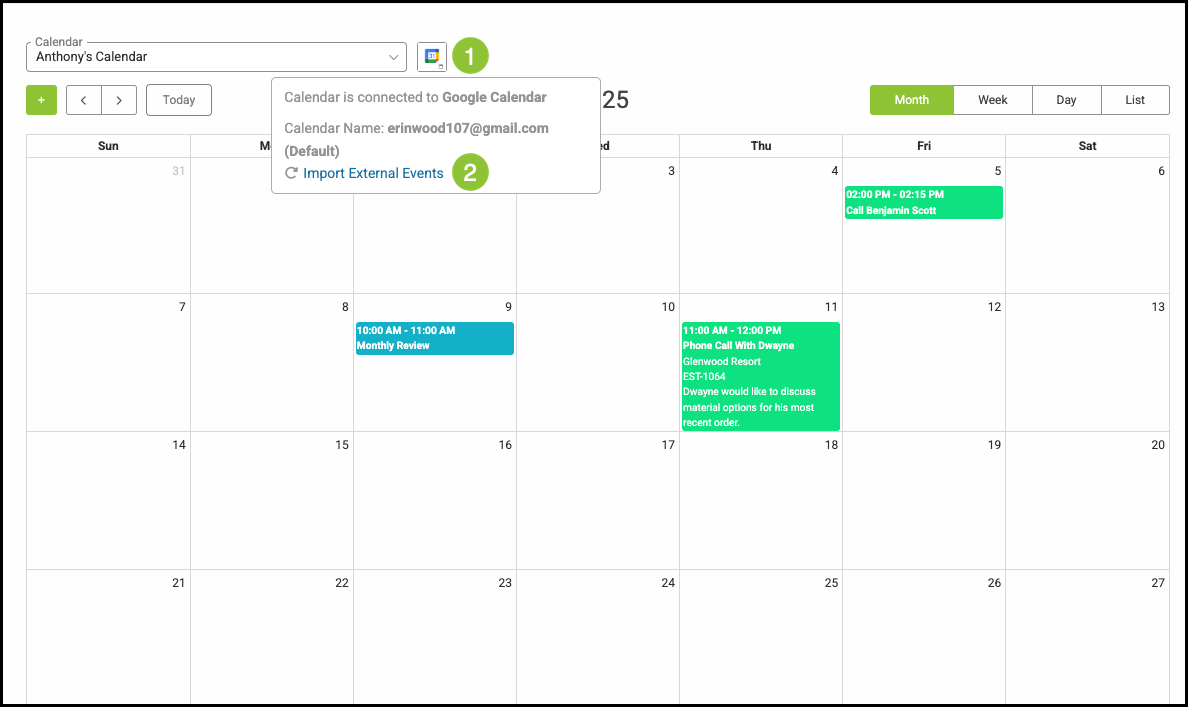
Navigate to My Profile / Calendars and select the appropriate Calendar.
1. Hover over the Linked Calendar icon.
2. Click Import External Events.
Linking Estimates or Orders
Linking Estimates or Orders to an event is quick and easy, allowing you to see important details directly on the schedule.
1. In the Event Details tab, click Add Linked Record.
2. Use the dropdown to select the Estimate or Order.
Note: Utilize the Search Field to quickly find the necessary Estimate or Order.
3. Click Save.
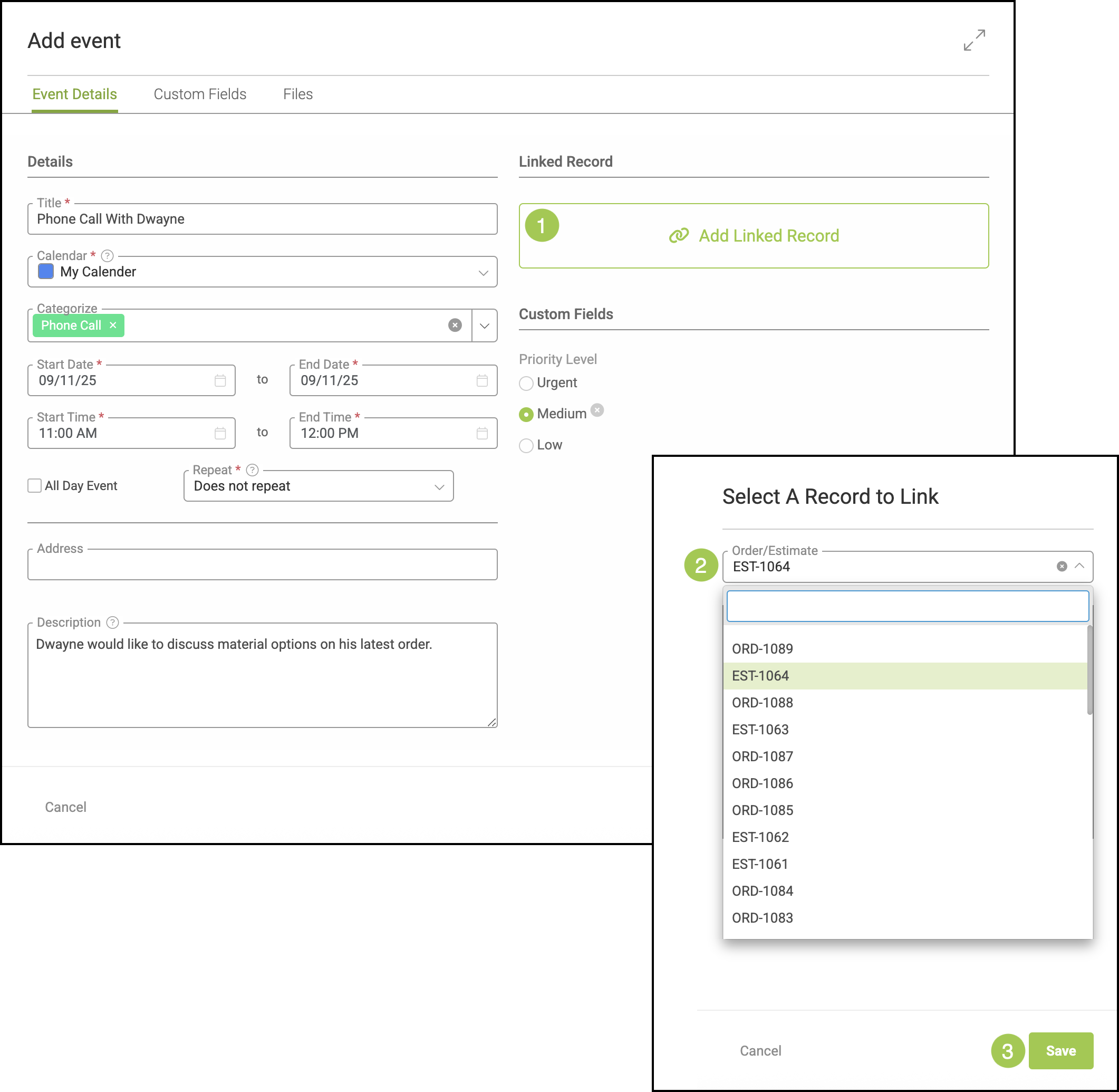
4. Select Save & Continue or Save & Close.
Note: Save & Continue will give you the option to add a Status and/or Substatus to this event. See example above.