
Calendar Categories are color-coded tags that let you assign custom categories to events. These Categories can be managed in two ways, either during Event Creation, or in Settings.
Table of Contents
- Managing Calendar Categories During Event Creation
- Managing Calendar Categories in Settings
- Related Articles
Managing Calendar Categories During Event Creation
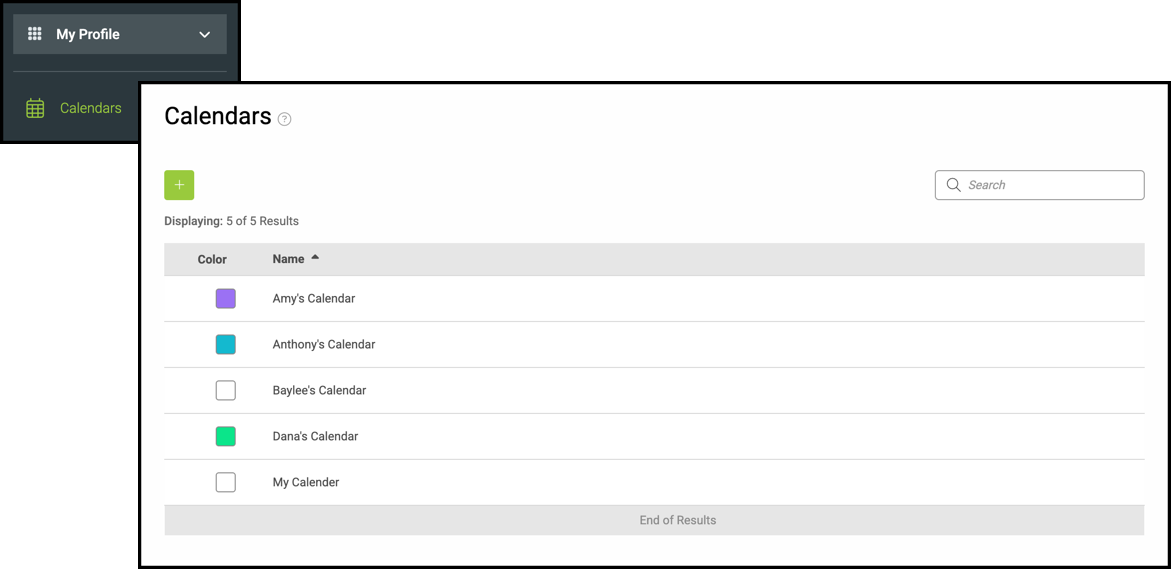
Navigate to My Profile / Calendars and click into the appropriate Calendar.
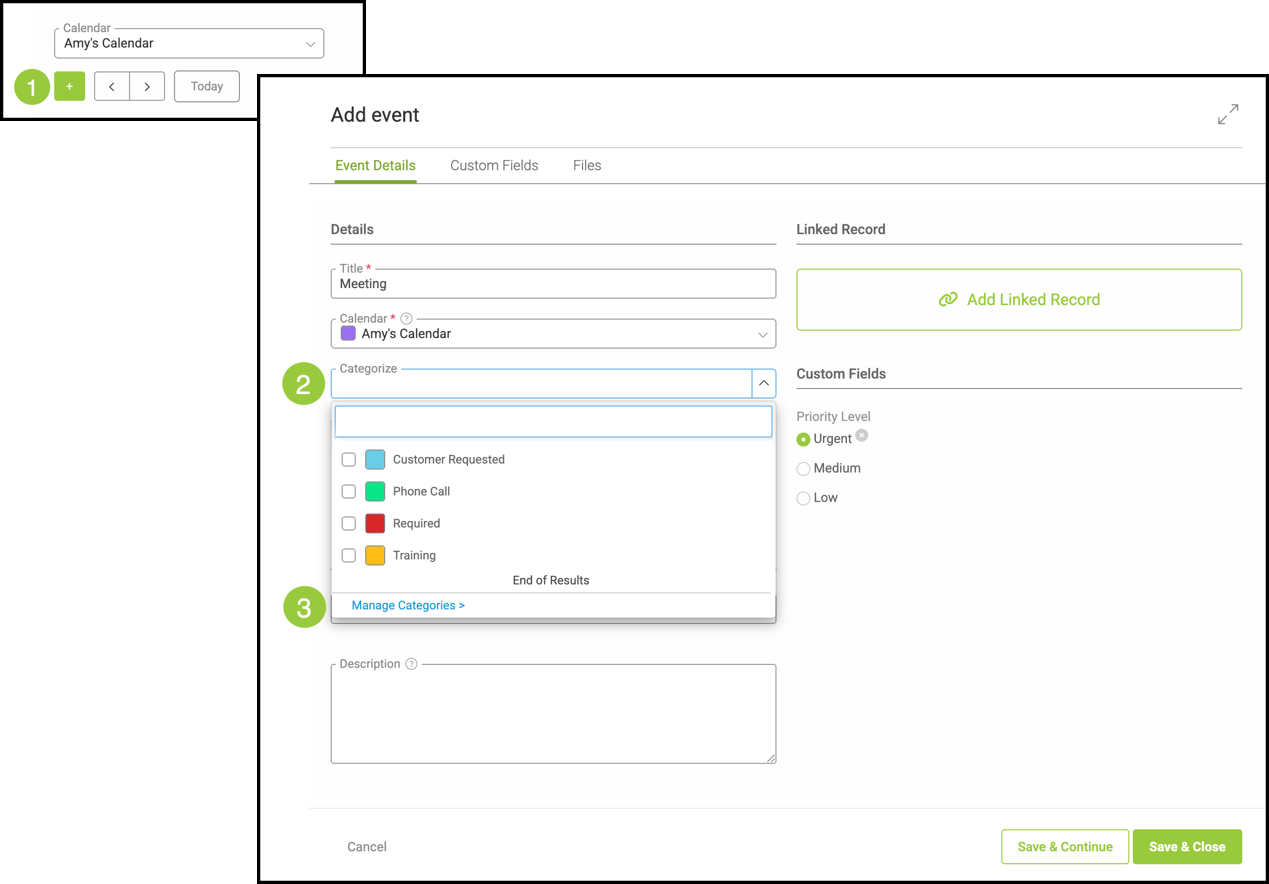
1. Click the Green Plus button.
2. Click the Categories dropdown.
3. Click Manage Categories.
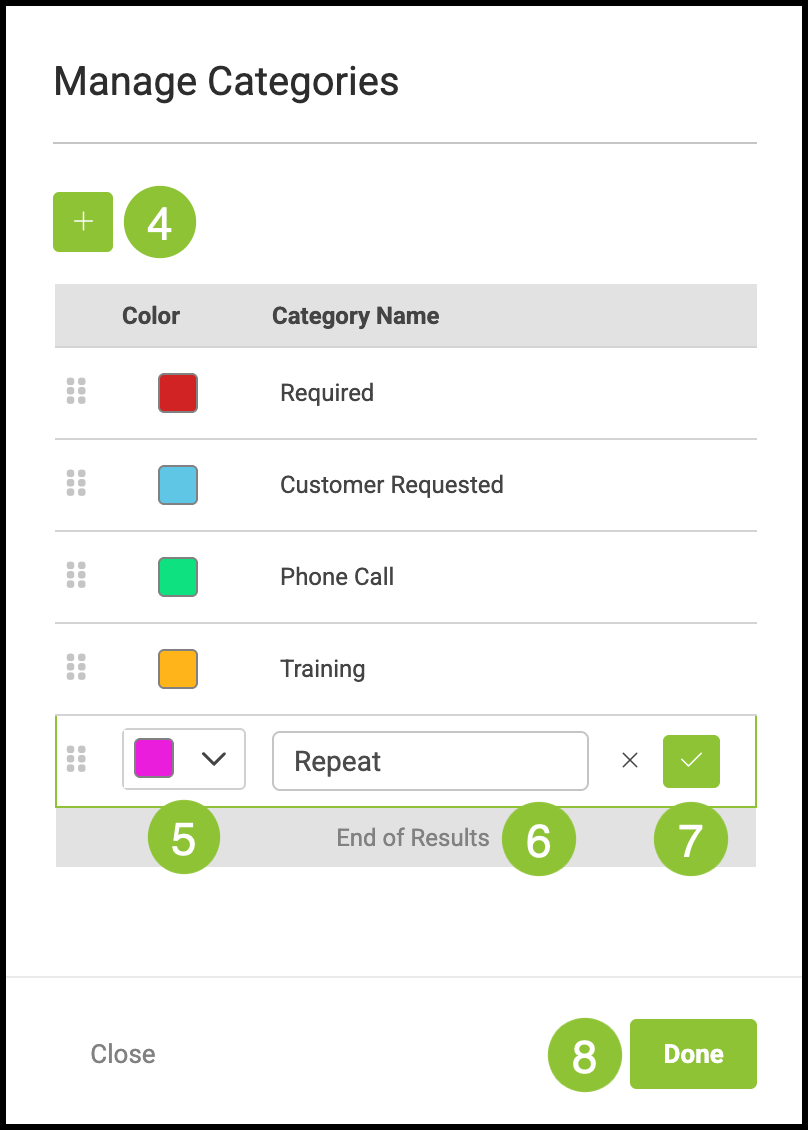
4. Click the Green Plus button.
5. Select a color.
6. Name the Category.
7. Click the Green Check.
8. Click Done.
Managing Calendar Categories in Settings
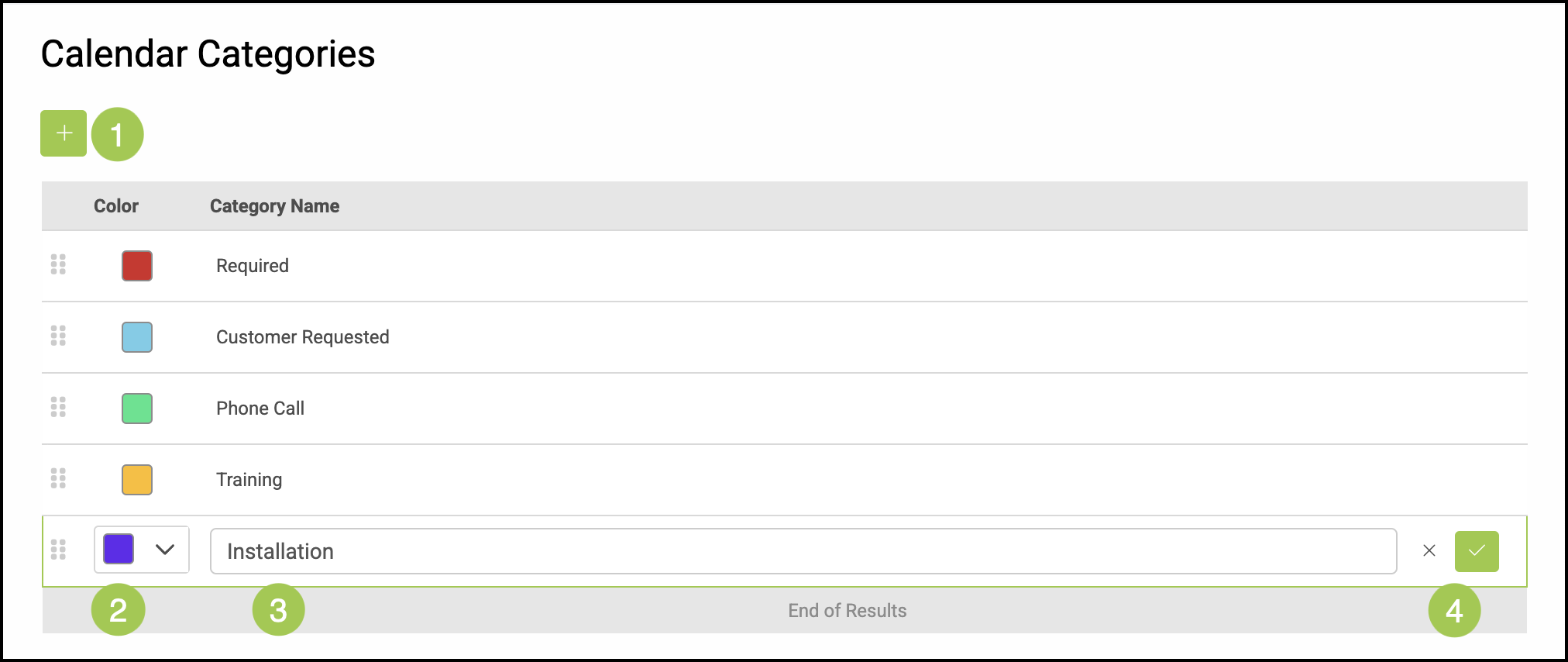
Navigate to Settings / System / Calendar Categories.
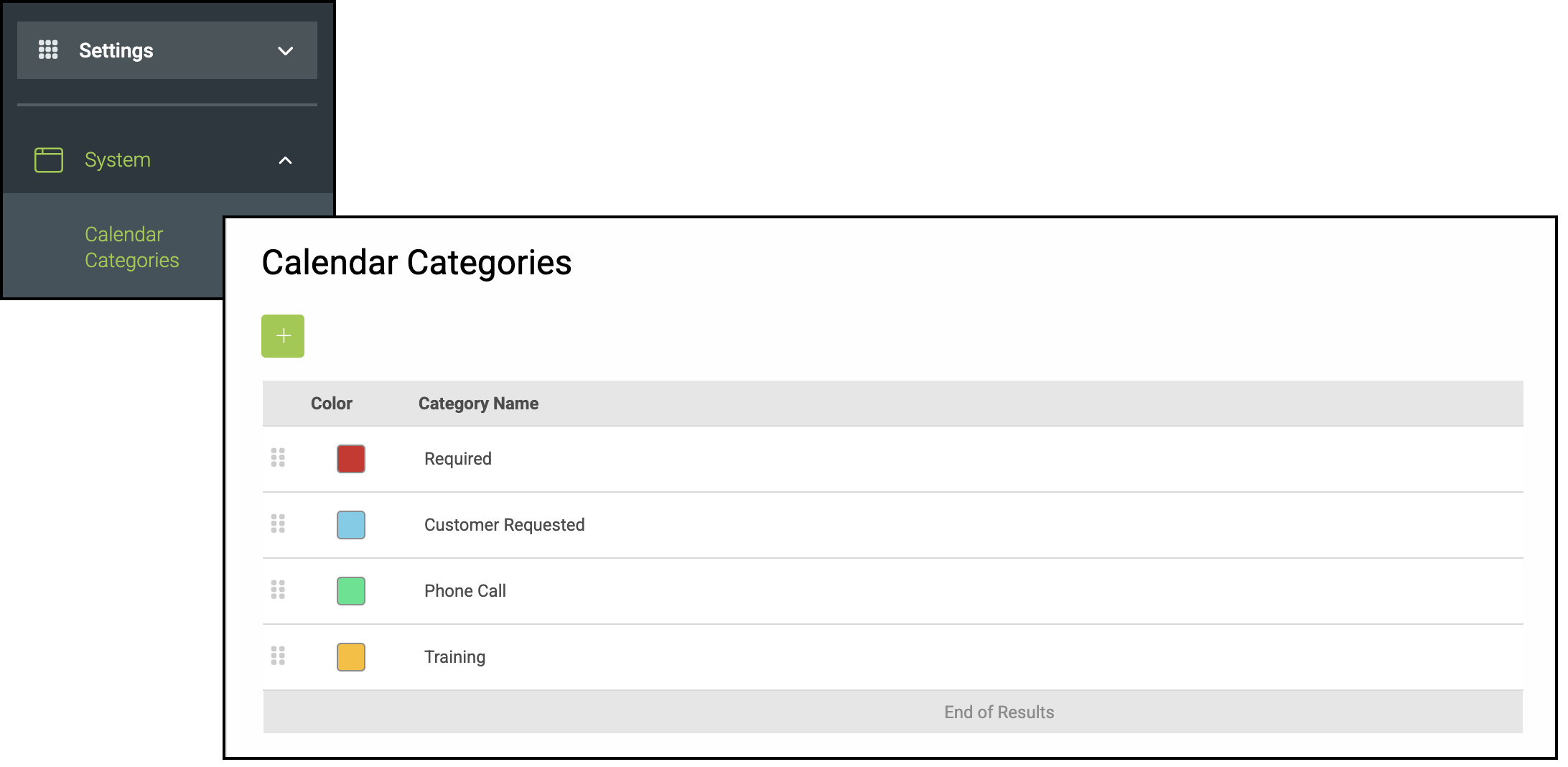
1. Click the Green Plus button.
2. Use the dropdown to select a color.
3. Type the name of this category.
4. Select the Green Checkmark to save, or the X to cancel.
Note: You can apply Calendar Categories when creating an event in either the Calendar or the Scheduling feature, or by editing the event at any time afterward.