
Setting up employee Access is an important part of getting your system up and running smoothly. Access helps define what an employee can see and do within the system.
For information about creating employees, please see Creating Employees.
Table of Contents
Setting up Employee System Access
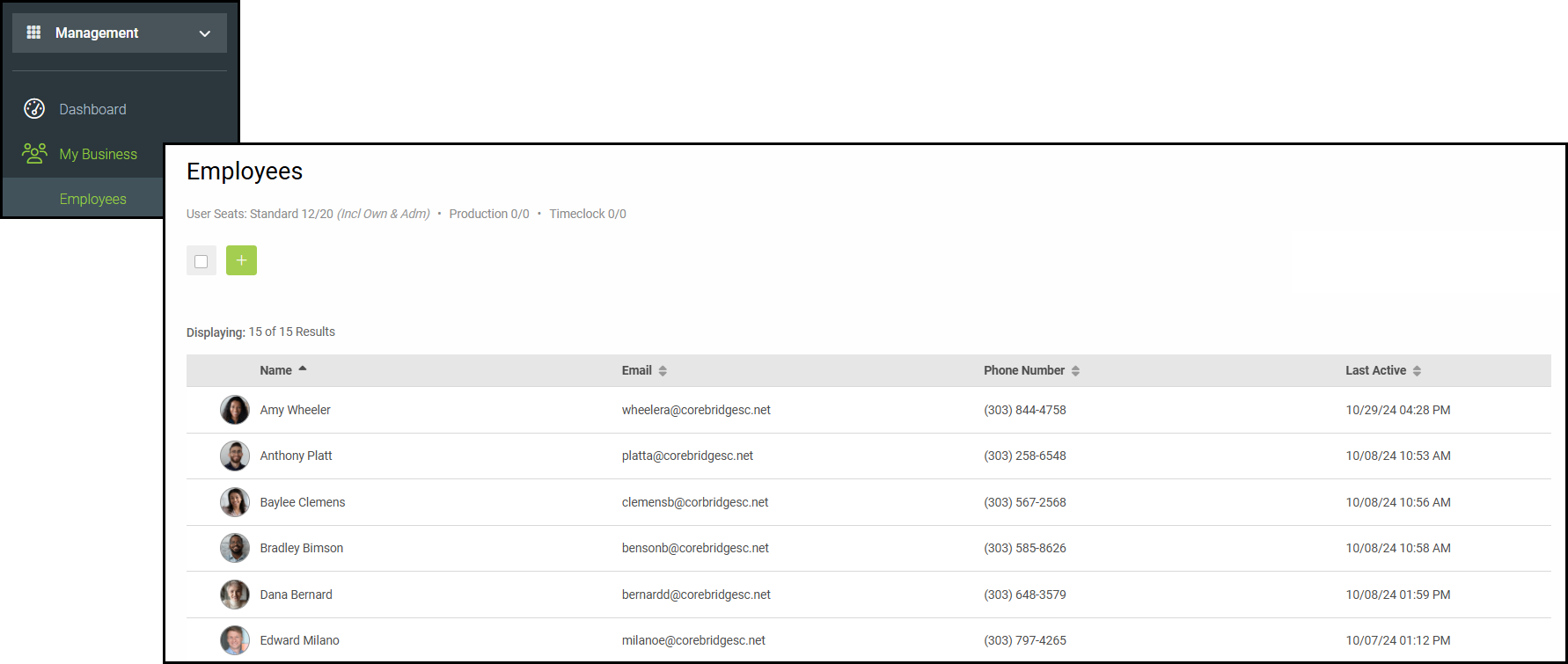
Navigate to Management / My Business / Employees.
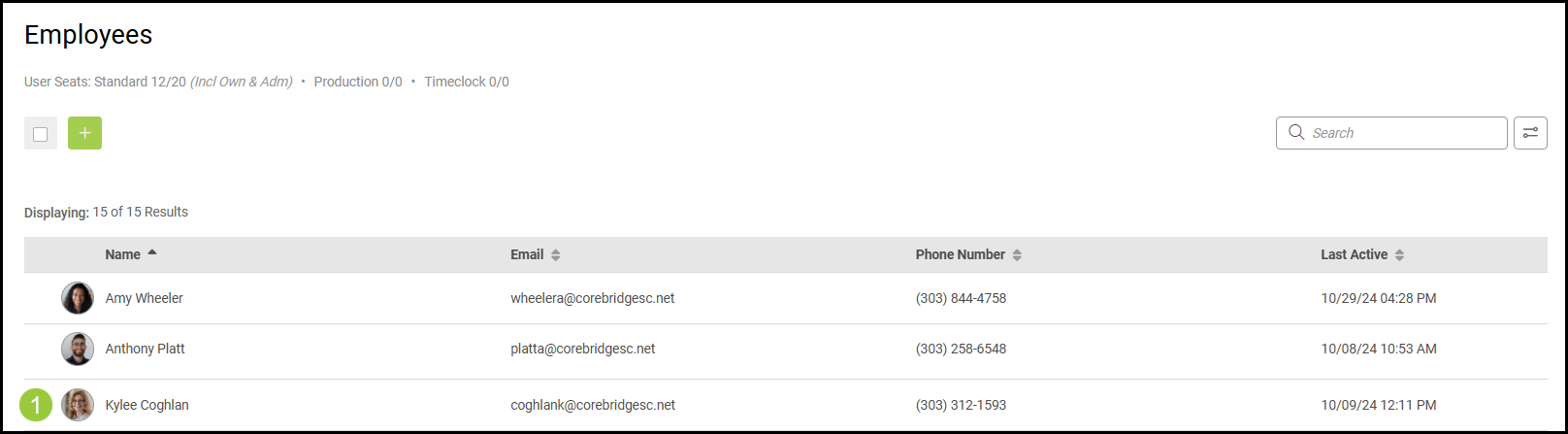
1. Select the name of the employee.
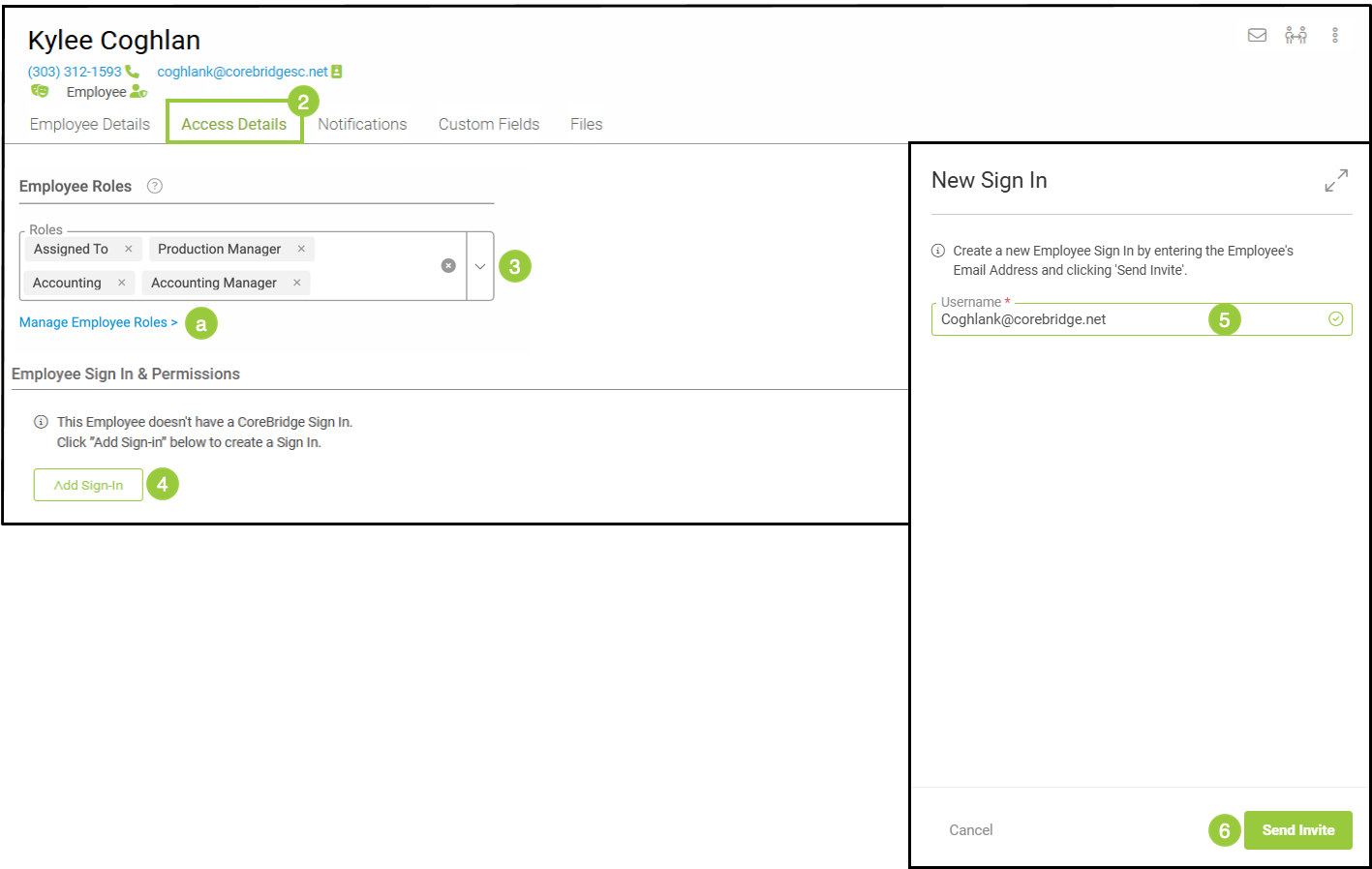
2. Select Access Details.
3. Select the Employee Roles for this employee.
Note: Selected roles will give the employee every permission for that role, individual areas within that role can not be revoked.
a. You can manage these roles as needed by clicking this link or by going to Settings / My Business / Employee Roles & Permissions. For more information, please see Employee Roles and Permissions.
4. Add Sign In - Create a new sign in for this employee.
5. Username - add the employee's email address they would like to use as their username when logging in.
6. Send Invite.
Note: The employee will need to use the Setup & Sign In link that has been sent to their email to create a password and access the system.
Related Articles
Employee Roles and Permissions in Settings