The Company Details tab contains the information you entered upon contact creation, as well as additional headings and fields. Providing detail here can help you tailor your business for the needs of this company.
Important Information
- For information on other tabs within a company, please see Additional Company Features.
- For more information on creating companies, please see Creating Companies.
Table of Contents
Accessing a Company
To find your Company Contacts, navigate to Sales / Customers / Companies.
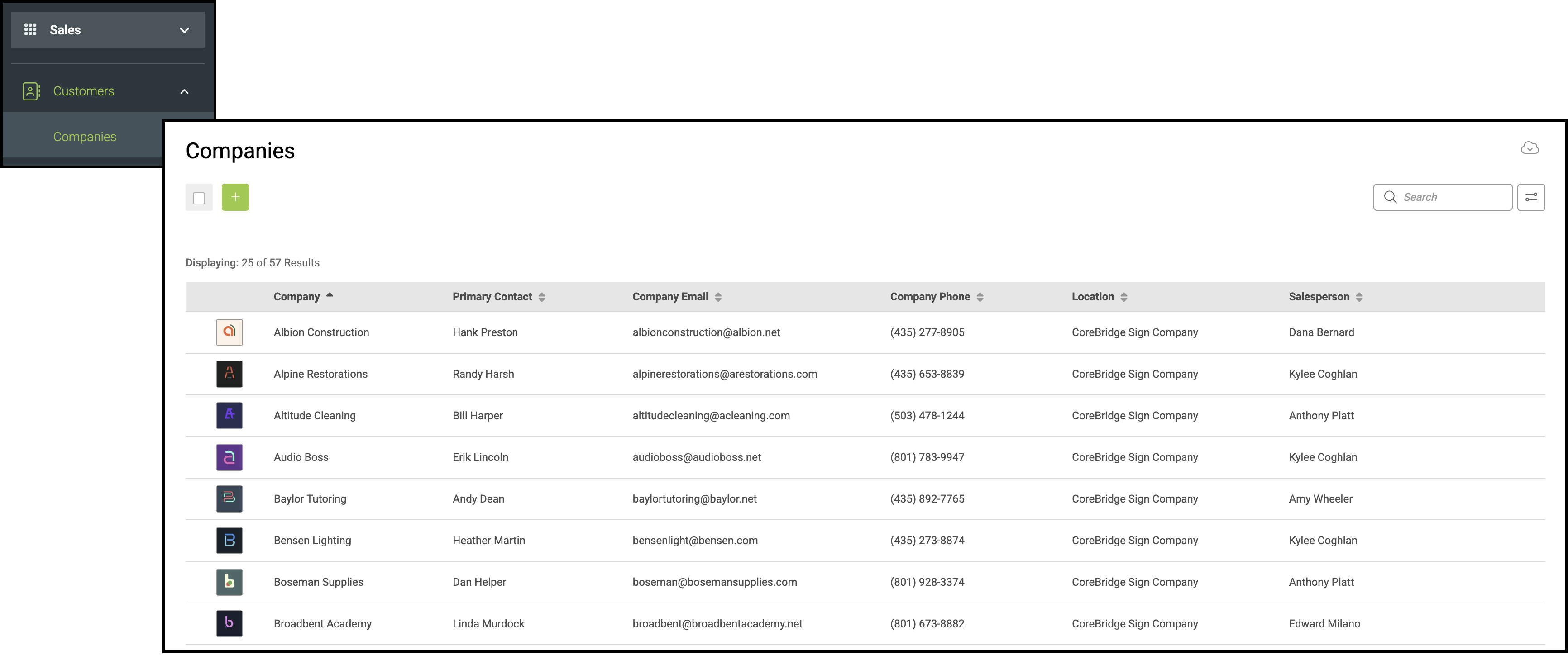
1. Select the Company you would like to view.
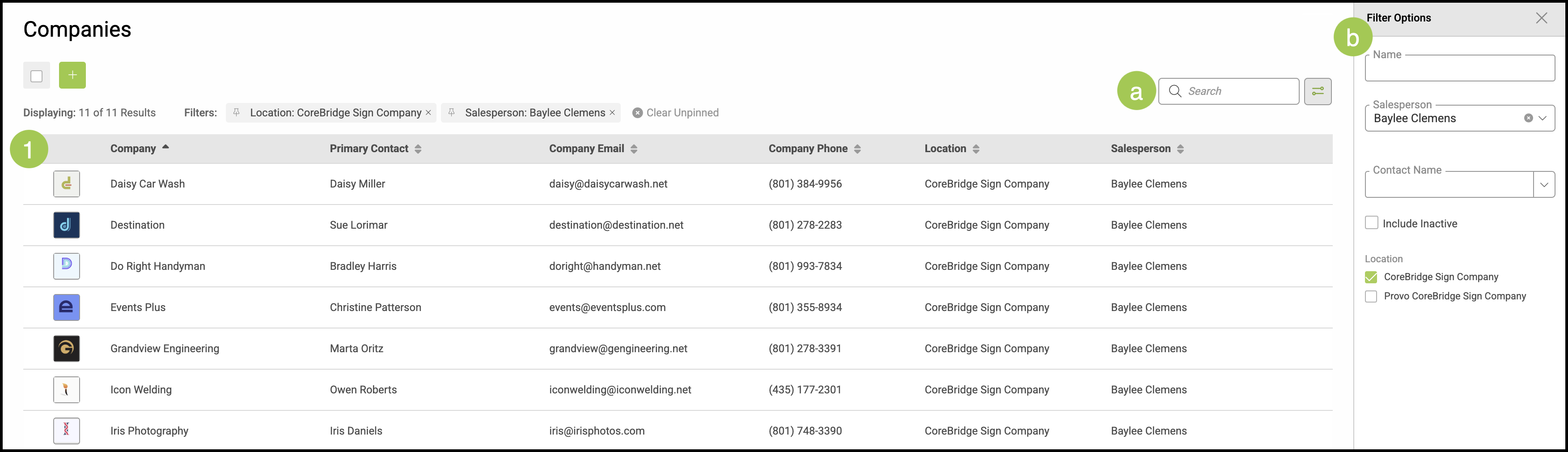
a. Companies can be found quickly utilizing the Search Bar.
b. Conveniently search your Company list by expanding the Filter Bar and selecting your filter guidelines.
Company Details Tab
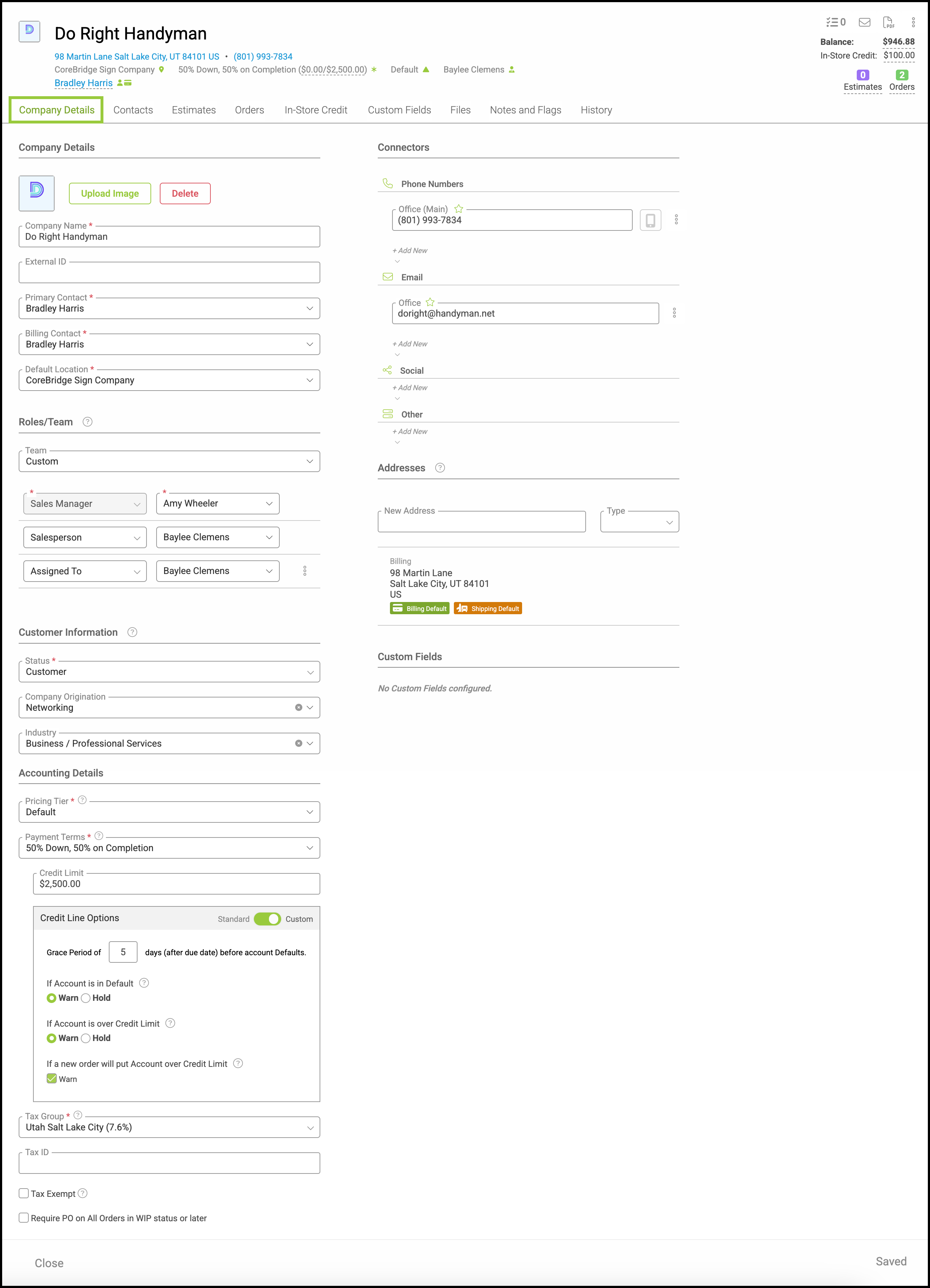
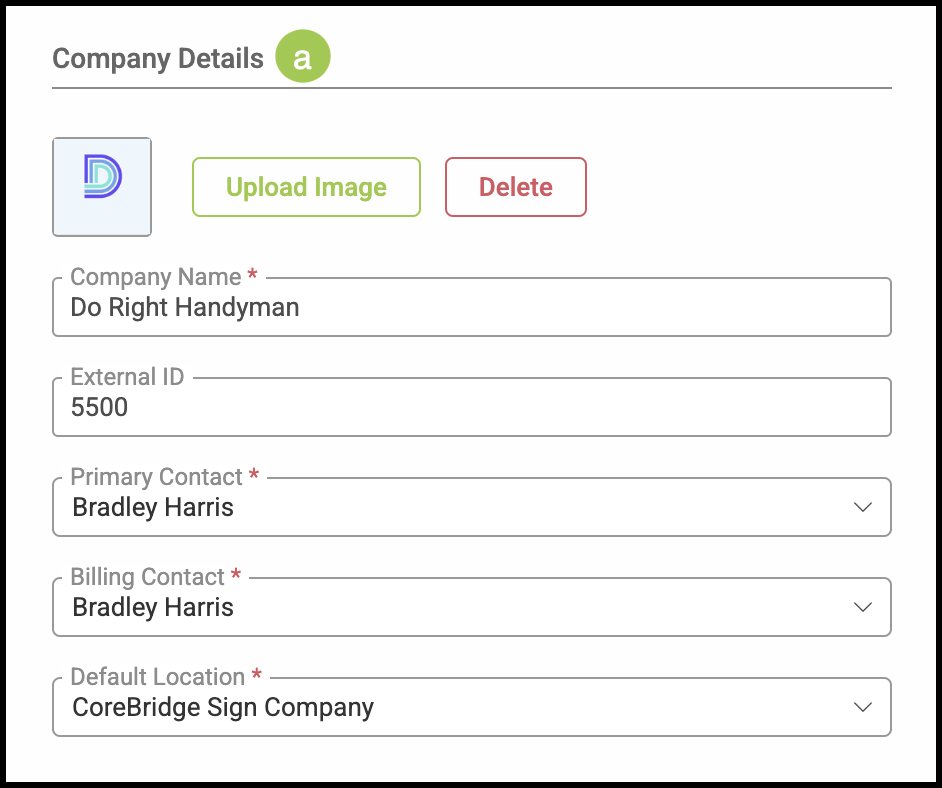
a. Company Details Heading - This includes the basic information for this company including the name on the company, as well as the Primary and Billing Contacts. The External ID is an optional way to reference this customer.
Note: The External ID field will not be visible unless it has been enabled. This can be managed in Settings / Sales / Company Options.
Note: The Default Location field will only be visible for those with multiple locations. To discuss adding locations, please contact sales@corbridge.net.
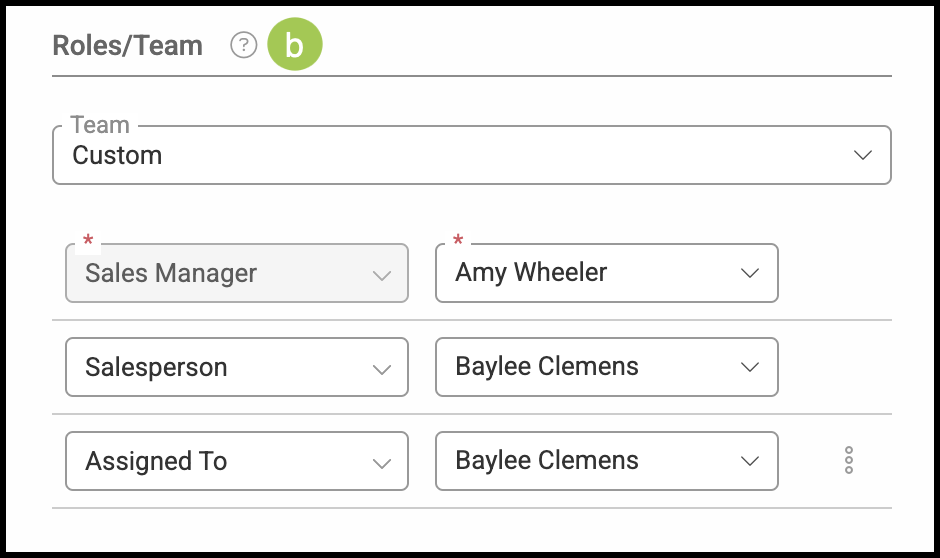
b. Roles / Team Heading - Set a specific team or individual employees to fulfill the selected roles for each estimate and order created for this company.
Note: For more information on Roles, please see Employee Roles and Permissions in Settings.
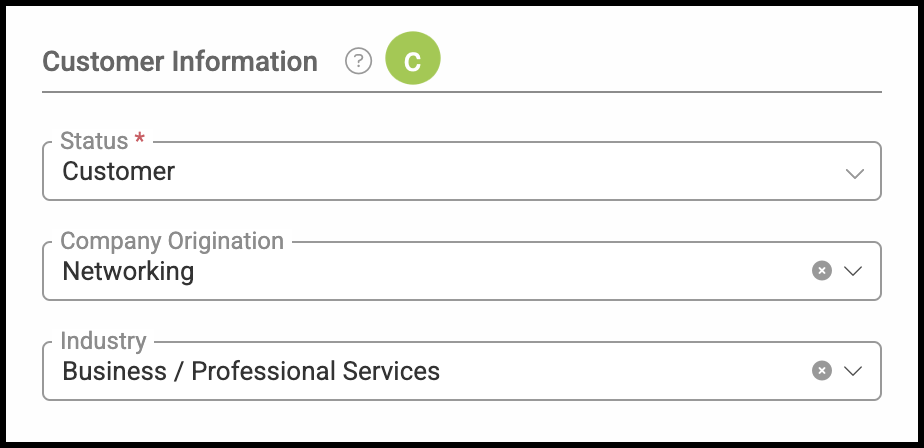
c. Customer Information Heading - The Status of a company will automatically update. When a company is created in your system it is set to Lead. Once an Estimate has been created for the company, the status becomes Prospect. After an Order has been placed the status becomes Customer.
Filling in the Company Origination and Industry can help you track where your customers are and how they found you. This information is helpful in determining marketing efforts.
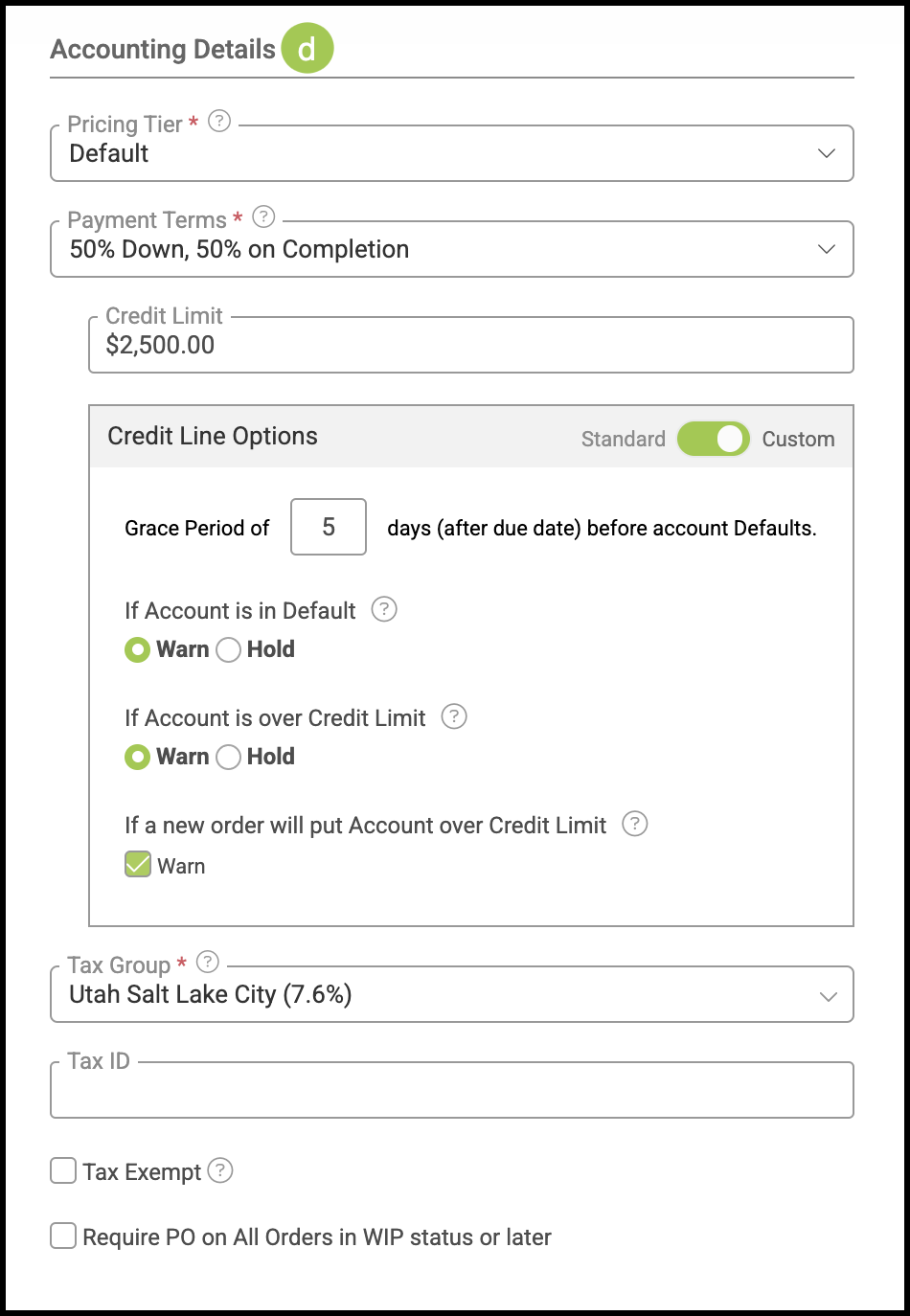
d. Accounting Details Heading - This information lets you know how to charge your customer and when they will be paying their bill.
Note: For Payment Terms that include a Credit Limit you will need to decide on the terms of the Credit Line. When this is set to Standard, the default options you have set for Credit Lines will be applied. If you would like to customize these options for a particular company, set this to Custom. For more information on Credit Line Options, please see
Note: If Tax Exempt is checked, you will need to provide a Tax Exempt Reason and an Expiration Date.
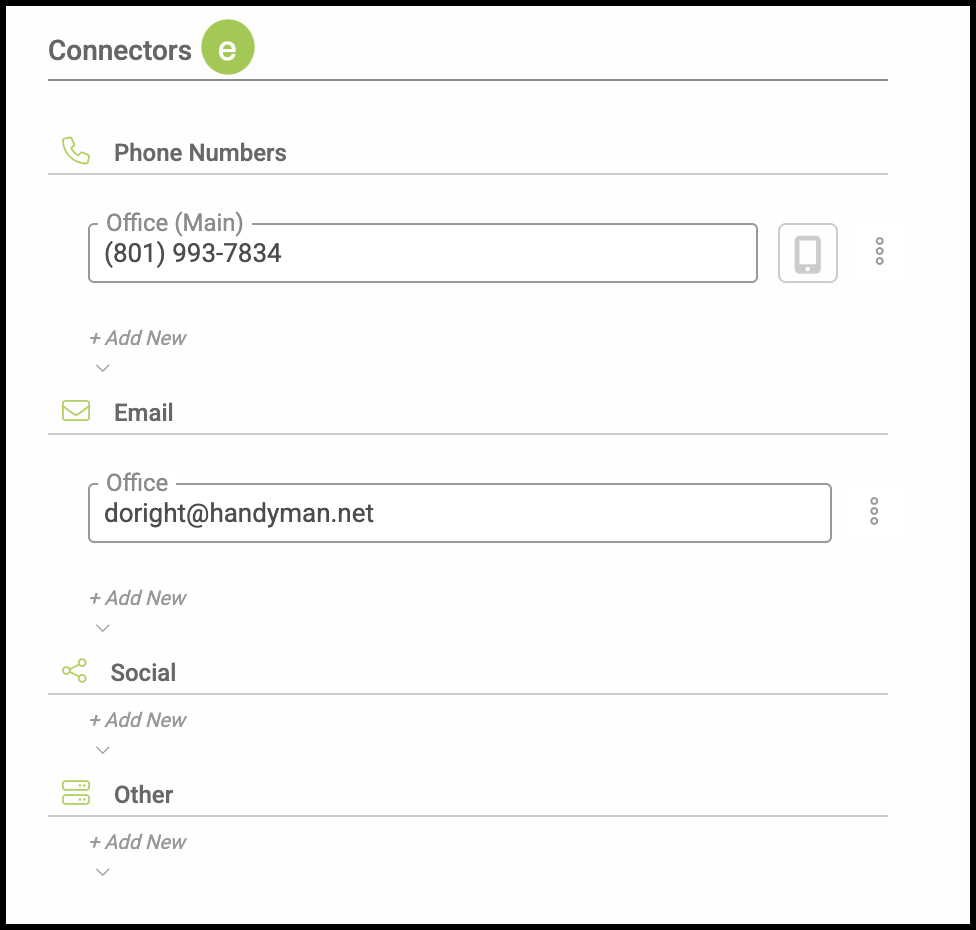
e. Connectors Heading - All of the ways you have to contact this company.
Note: When entering phone numbers, do not enter any parenthesis or dashes as this may cause errors. Only enter in the numbers and the system will format the number correctly. Click the Cell Phone Icon to indicate the number is a cellular device.
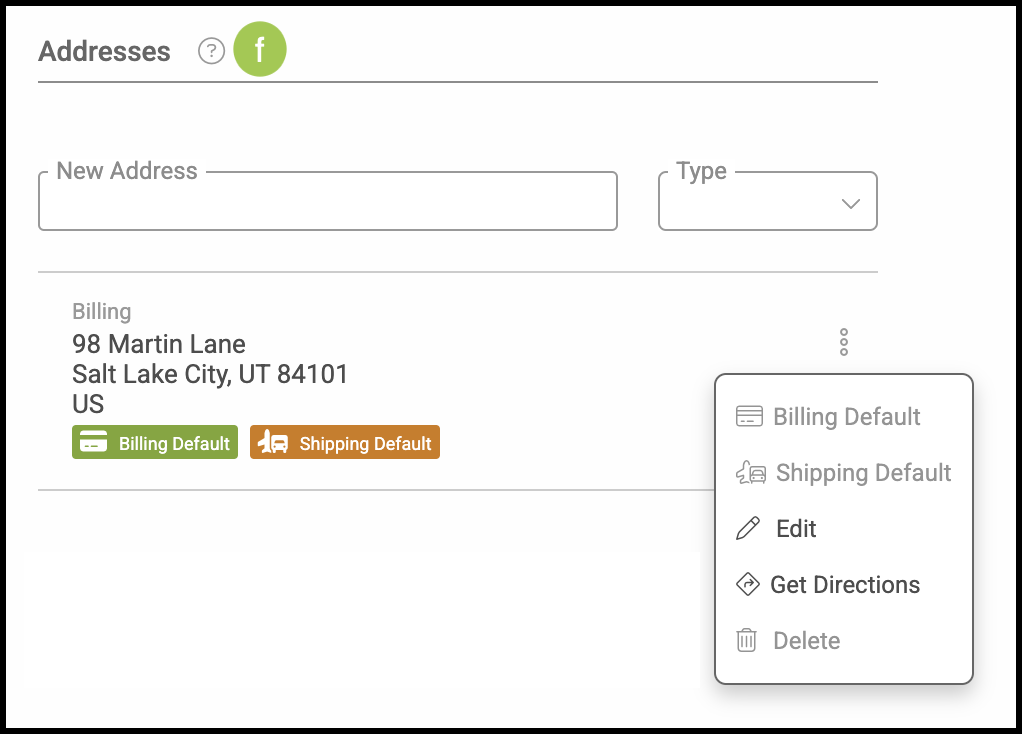
f. Addresses Heading - Additional addresses are easy to add at any time by filling in the New Address field and selecting a Type from the dropdown. Once saved, you can use the ellipsis to set an address as the Billing or Shipping Default. You can also Get Directions using the latest Google Maps information.
Note: Your system is equipped with Google Autocomplete that will automatically finish filling in addresses as you type them. To enable Google Autocomplete navigate to Settings / System / Localization and check the Enable Google Autocomplete box.