
Notifications are automated internal messages based on events that happen within your system. When a certain event happens, you can choose to trigger a notification. These can be edited at any time.
For more information on creating Notifications, please see Understanding and Creating Notifications.
Important Information
- Only notifications that are not being used can be deleted.
- If the deleted icon is not appearing under the ellipses, it must be set to inactive, and all orders or estimates using the notification must be completed.
Table of Contents
Managing Existing Notifications
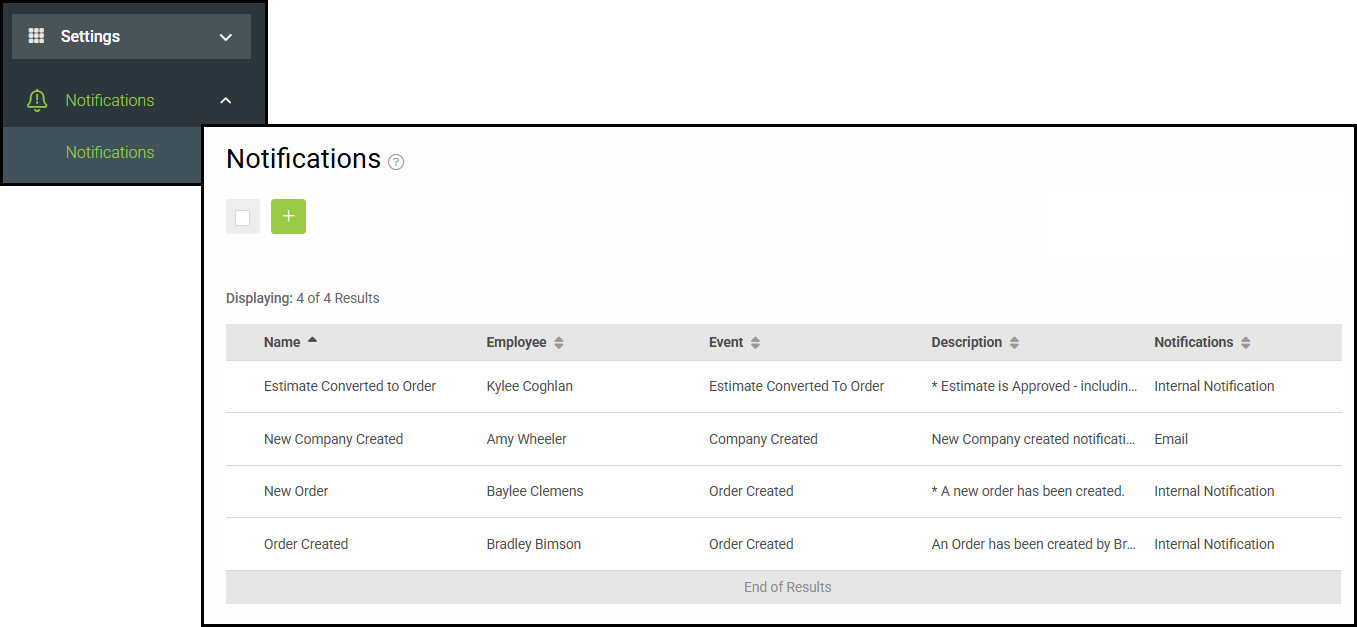
To manage notifications navigate to Settings / Notifications / Notifications and select the desired notification.
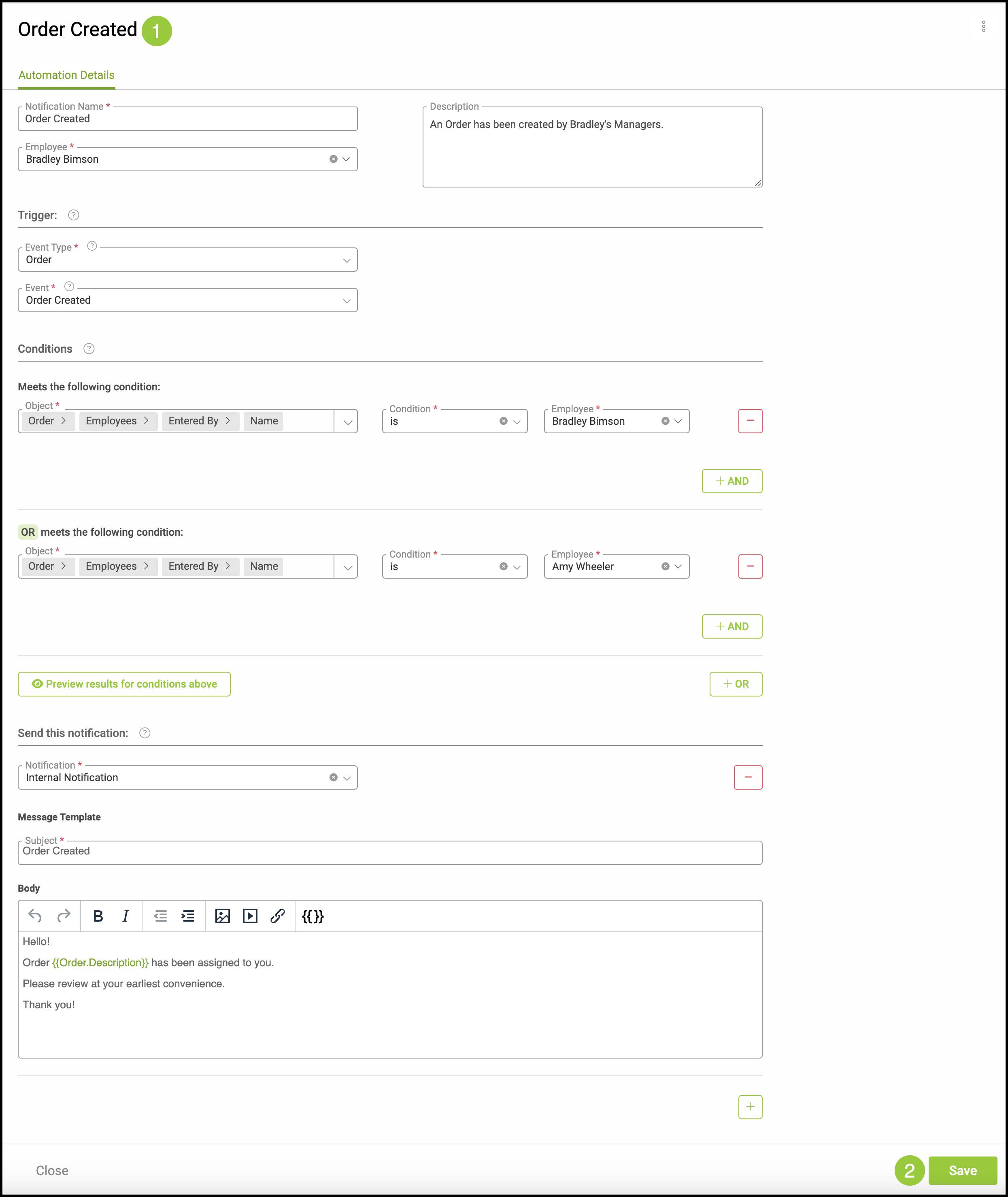
To edit an existing Notification
1. Edit any information.
2. Select Save.
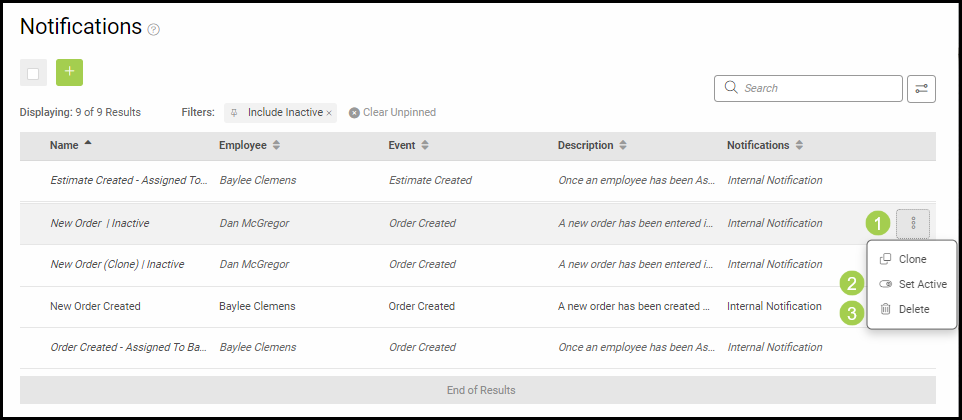
To Delete an Existing Notification
1. Select the Ellipses.
2. If not already completed, select Set Inactive.
Note: Only notifications that are not being used can be deleted. If the deleted icon is not appearing under the ellipses, it must be set to inactive, and all orders or estimates using the notification must be completed.
3. Select Delete.
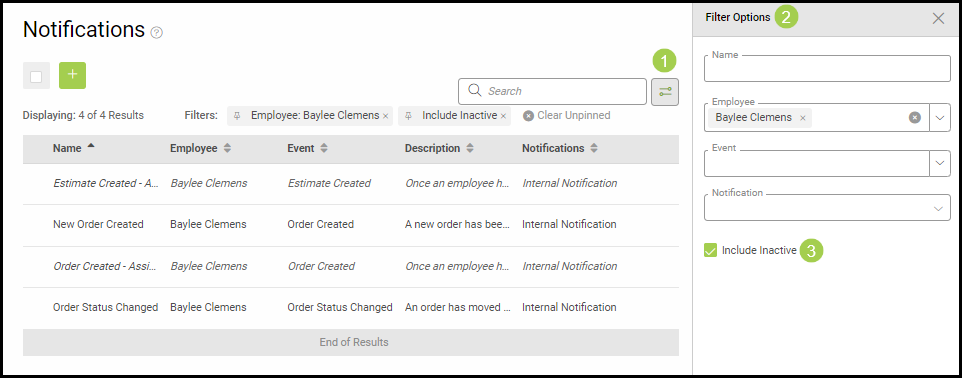
To Filter Notifications
1. Select the Filter icon.
2. Use the Filter fields.
3. Click the Include Inactive checkbox to view all notifications that are not being used.
To find and view all notifications that have been received internally, navigate to the Mail icon within the top right menu.
