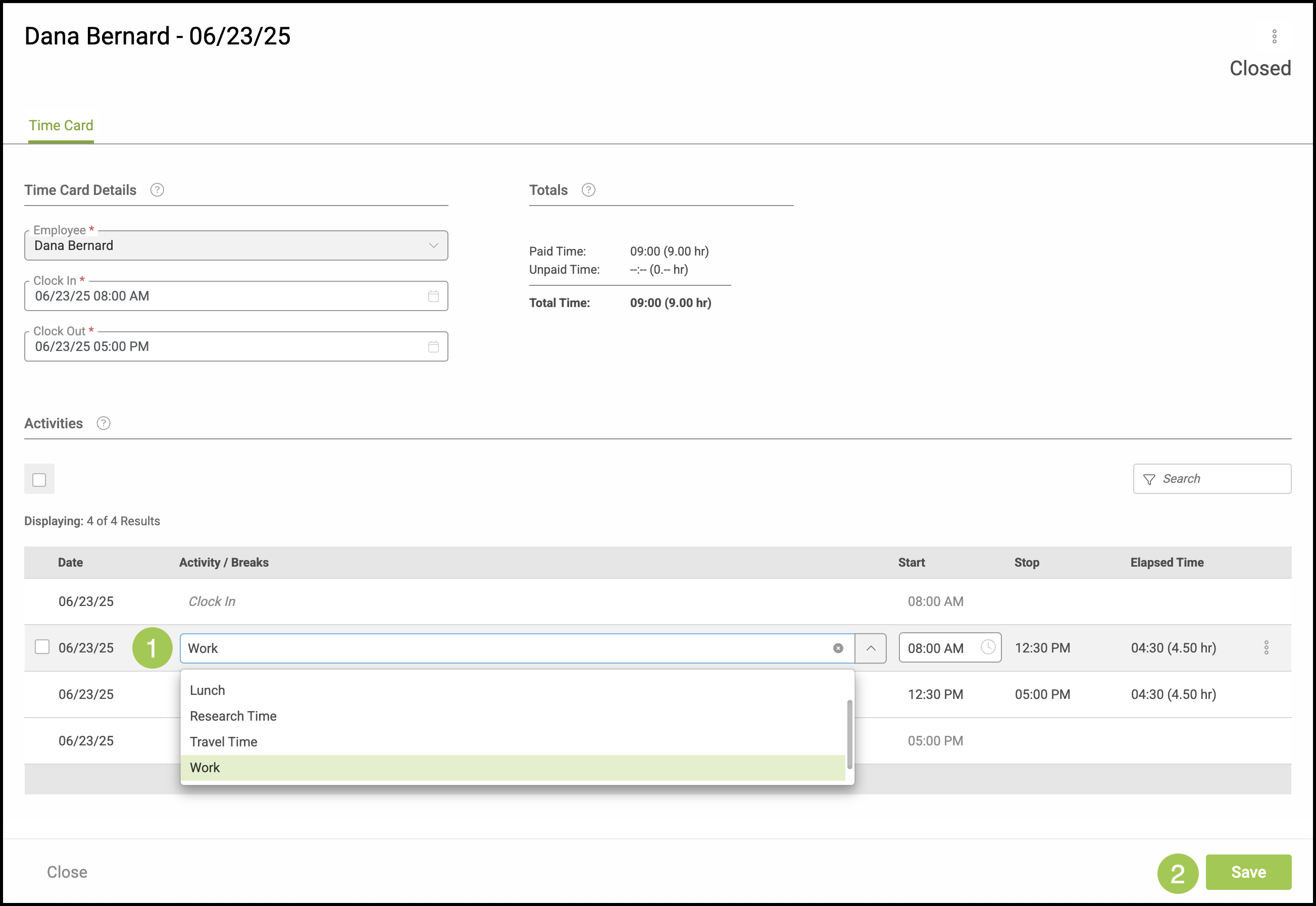
Editing timecards is a permission reserved for managers and owners. This keeps time records accurate and ensures that only authorized team members can adjust work hours or correct errors.
For information on setting up your Time Clock, please see Time Clock Settings.
Table of Contents
- Editing Time Clock Entries
- Adjusting Clock In or Out Times
- Splitting Activities
- Changing Activity Selection
- Related Articles
Editing Time Clock Entries
Navigate to Management / My Business / Time Tracking.
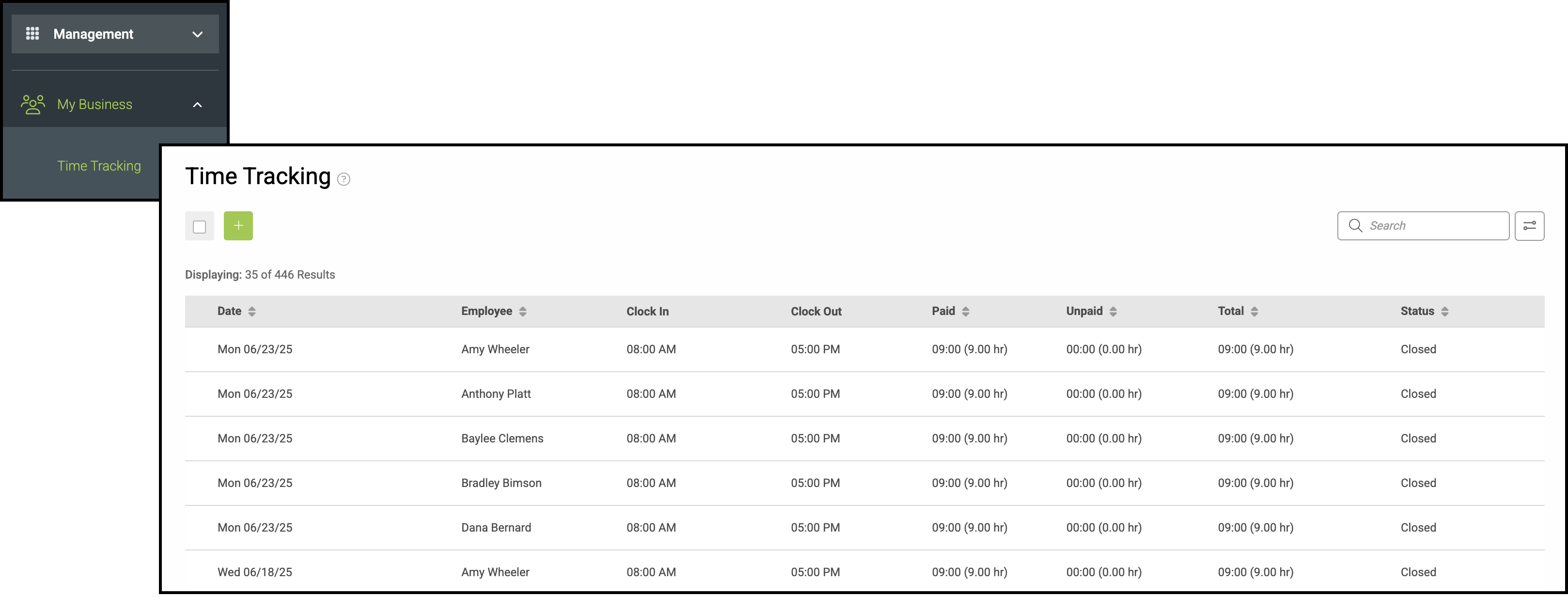
1. Select the entry that needs to be adjusted.
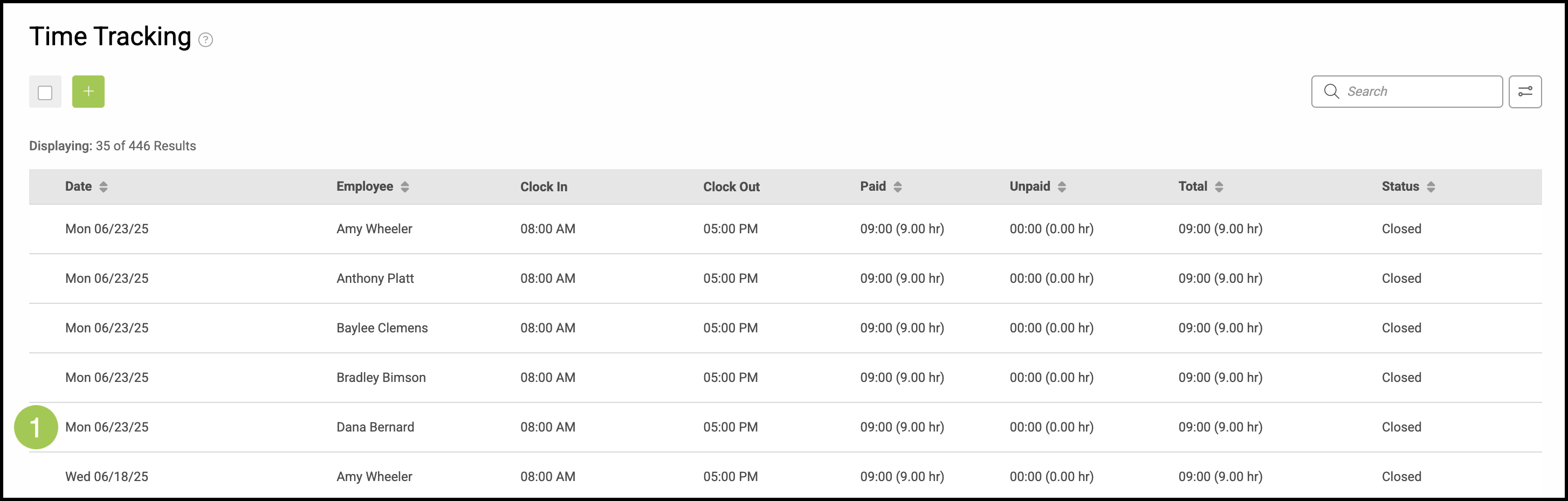
a. The Employee field shows which employee's time card you are reviewing. To change this you must go back to the previous screen and select a different entry.
b. To adjust Clock In or Clock Out times, use the dropdown menus shown here.
Note: More information is provided below.
c. This checkbox gives you the option to split recorded Activities into smaller sections, or delete.
Note: More information is provided below.
d. The Activity for the time period can be changed here.
Note: More information is provided below.
e. This ellipsis gives you the option to delete this time card entry.
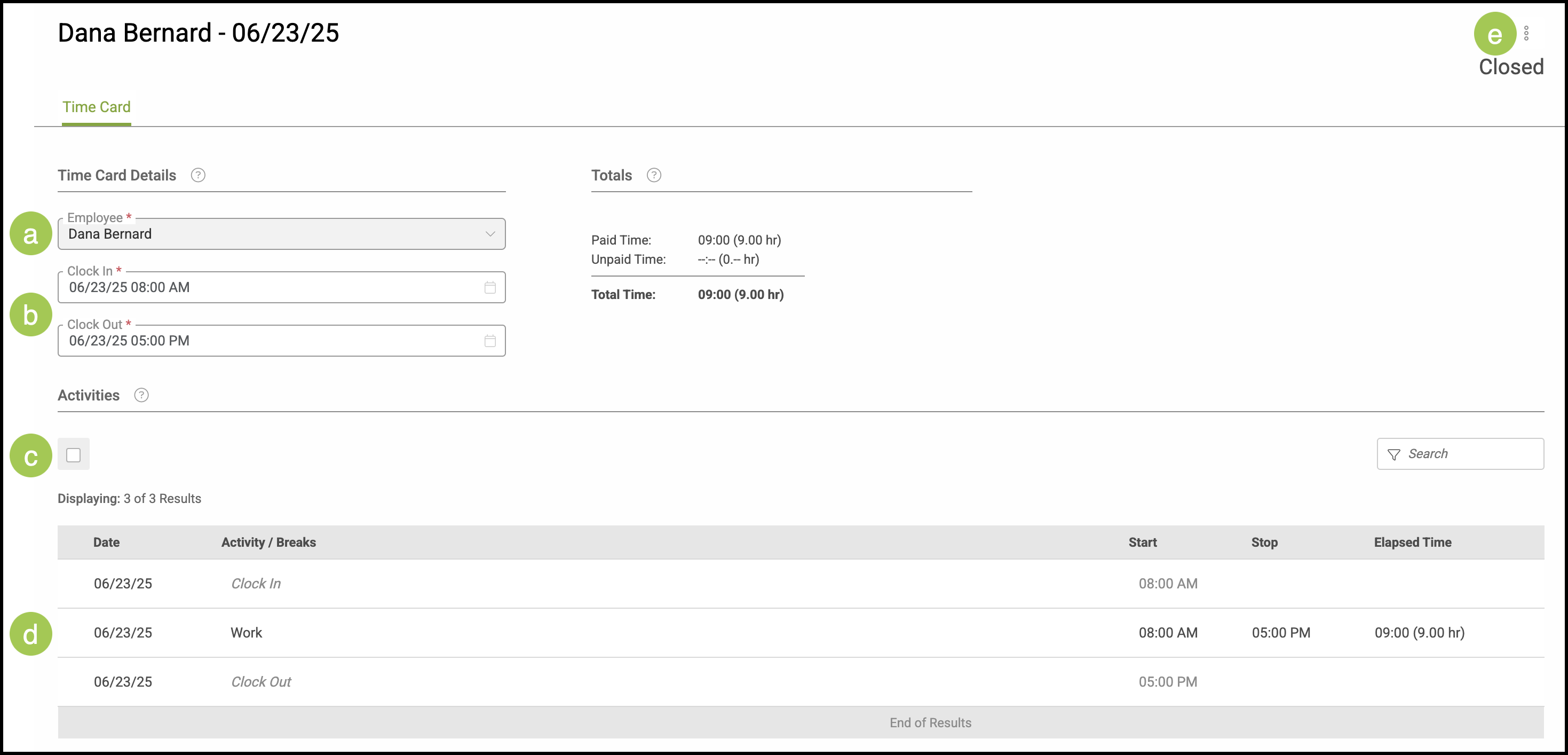
Adjusting Clock In or Out Times
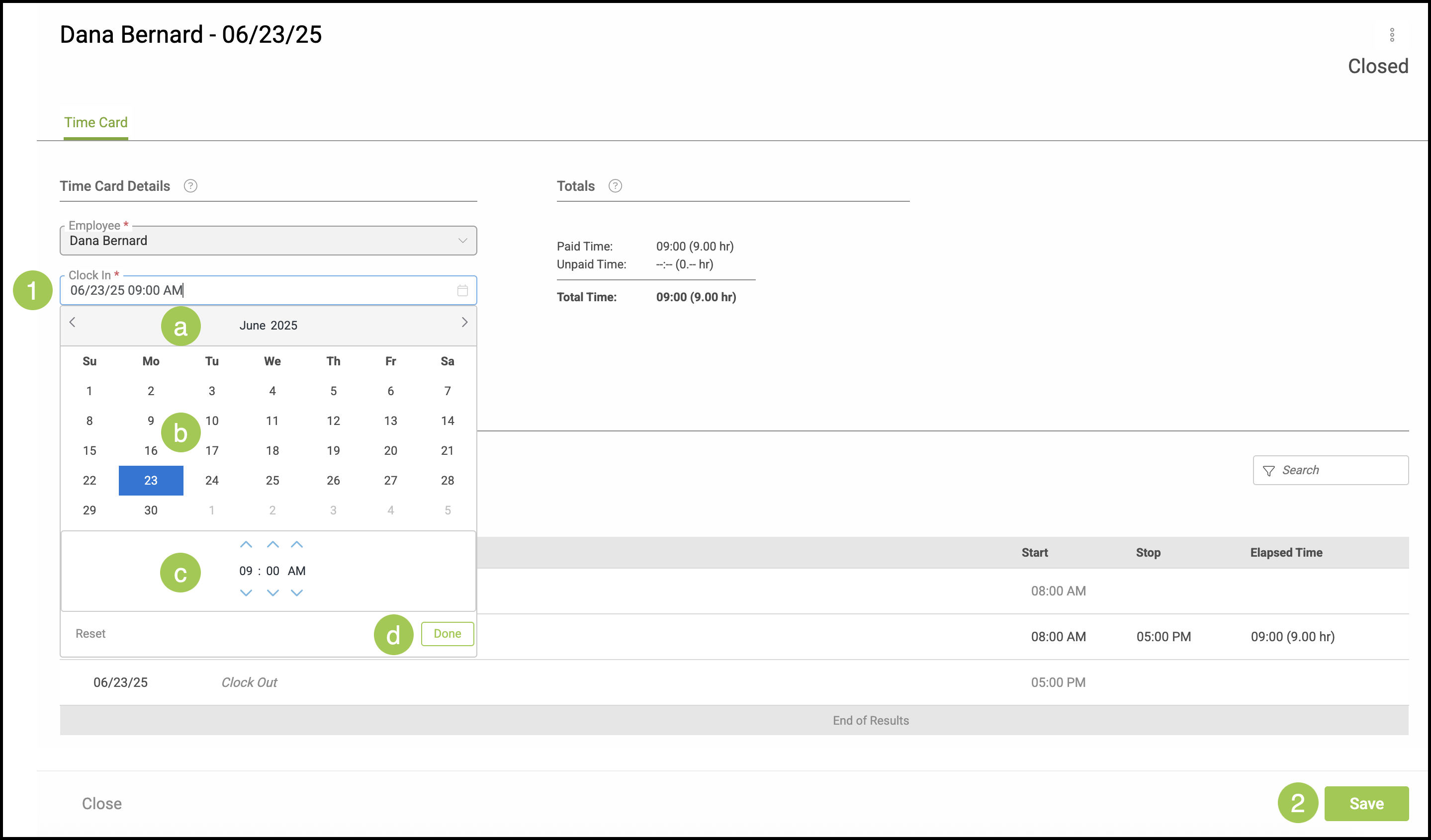
Once you select the time entry that needs adjustment from the Time Tracking menu, you can modify the Clock In and Clock Out times.
1. Select the appropriate dropdown menu for either the Clock In or Clock Out time.
a. The month bar allows you to scroll forward or back in time by month.
b. Another day may be selected for this time card punch by clicking on the desired day.
c. The up or down arrows allow you to change the hour, minute, or AM/PM.
d. Clicking Done or clicking outside this box will close the dropdown.
2. Click Save to retain changes.
Splitting Activities
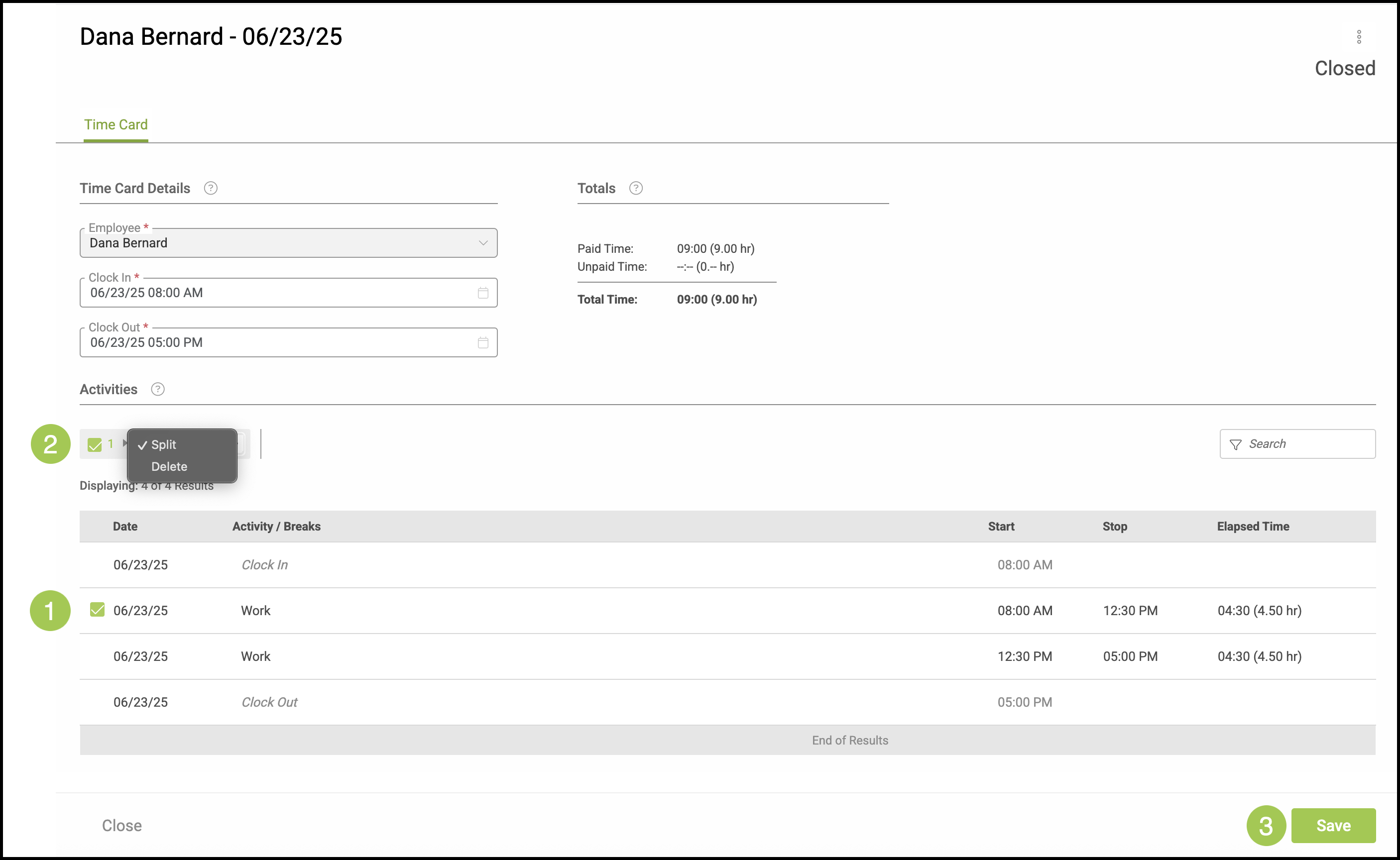
After selecting a specific time entry, you have the option to split the Activity listed on the time card.
1. Select the Activity entry you would like to edit using the checkmark.
2. Use the dropdown to select either Split or Delete.
Note: The option to Delete is only present if there are multiple activities listed.
3. Click Save.
Changing Activity Selection
Once inside a specific time card entry, you have the ability to change the Activity selected.
1. Click into the Activity field. This will open the dropdown menu, allowing you to select another Activity.
Note: Additional Activities can be created and managed in Settings / Workflow / Time Clock Settings.
2. Click Save.