
The Task list is an efficient way to organize specific jobs and assignments for all of your employees in one convenient location.
Table of Contents
Creating a Task
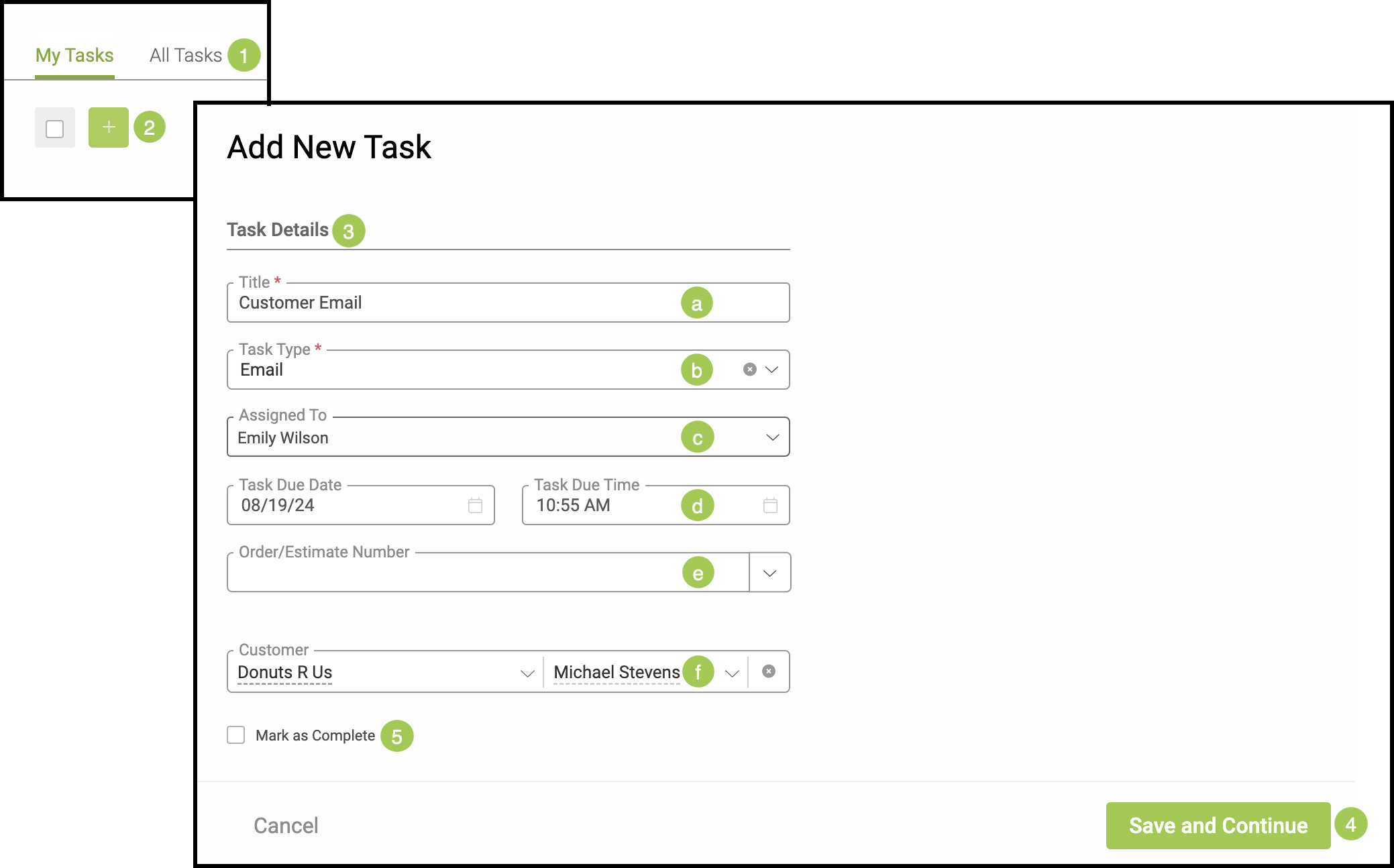
To create a task, navigate to My Profile / Tasks.

1. Select either My Tasks or All Tasks tab depending on if this task will be assigned to you or another employee.
Note: Owner and Administrative users can create tasks and assign them to anyone. Standard and Production users can create a task and assign it to themselves, the owner, or the house account, if that has been enabled.
2. Click the green Plus Icon.
3. Fill in all necessary Task Details.
Note: Only those fields marked with a red asterisk are required.
a. Title - Give the task a recognizable title. Often, this will be the same as the Task Type.
b. Task Type - Select the Task Type from the dropdown menu.
c. Assigned To - Use the dropdown to set the employee this task will be assigned to.
d. Task Due Date and Time - Select the calendar icons to open up options for a date and time the task will need to be completed by.
e. Order/Estimate Number - Use the dropdown to select either an order or estimate number this task is associated with.
f. Customer - Choose the name of the customer this task is associated with from the dropdown.
4. Click the Green Save Button in order to save this Task.
5. After completion, this Task can be marked as completed using the checkbox.
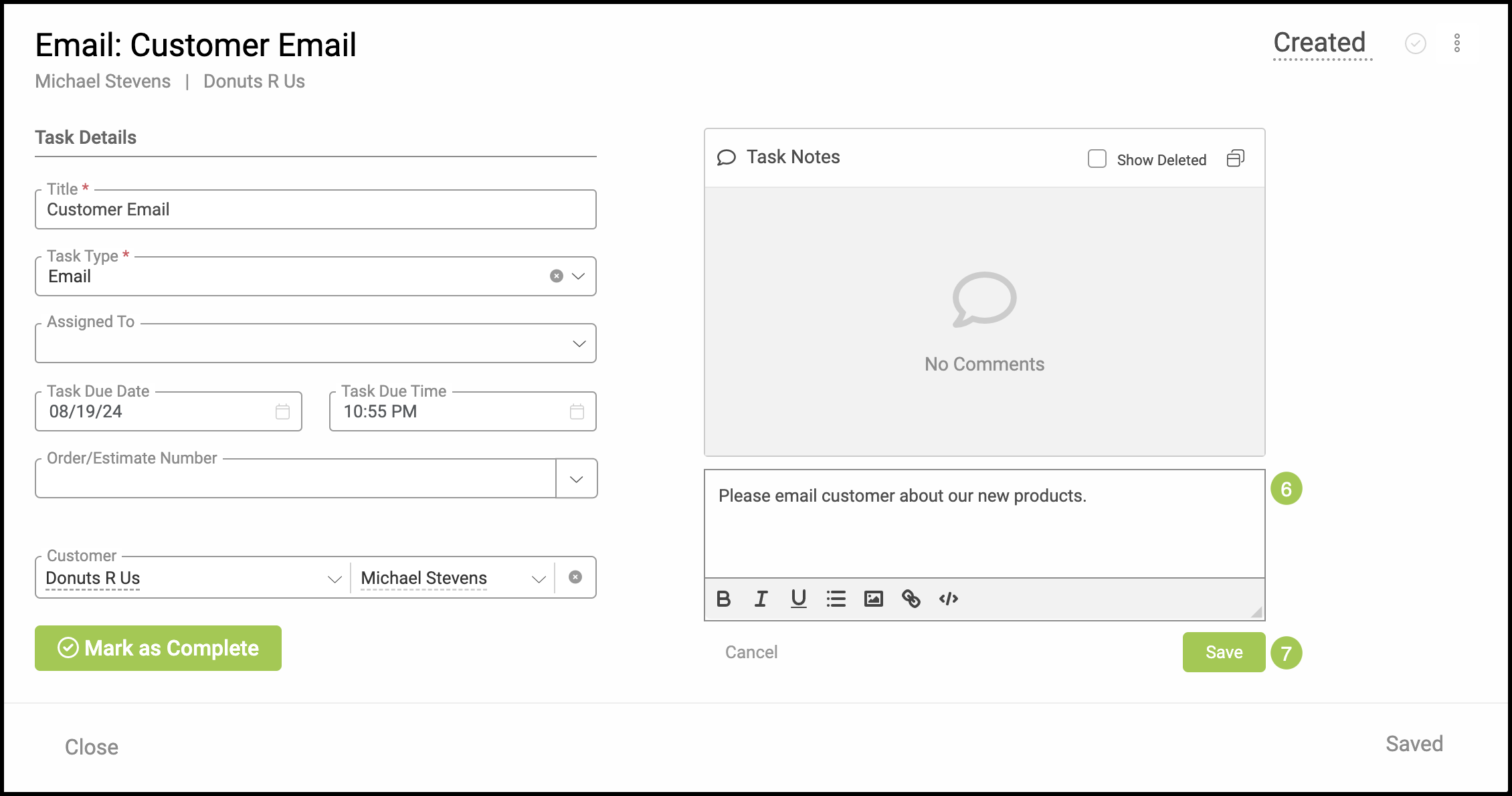
After a task has been saved, you will be given the option to add notes in the Task Notes section.
6. Type the pertinent information in the typing field.
7. Click Save. The text will then show in the comments box.
Related Articles
Accessing My Tasks Using the Navigation Bar