
Setting up employee Permissions is an important part of getting your system up and running smoothly. Permissions help define what an employee can see and do within the system, ensuring that access aligns with their job responsibilities.
Table of Contents
Updating and Customizing Employee Permissions
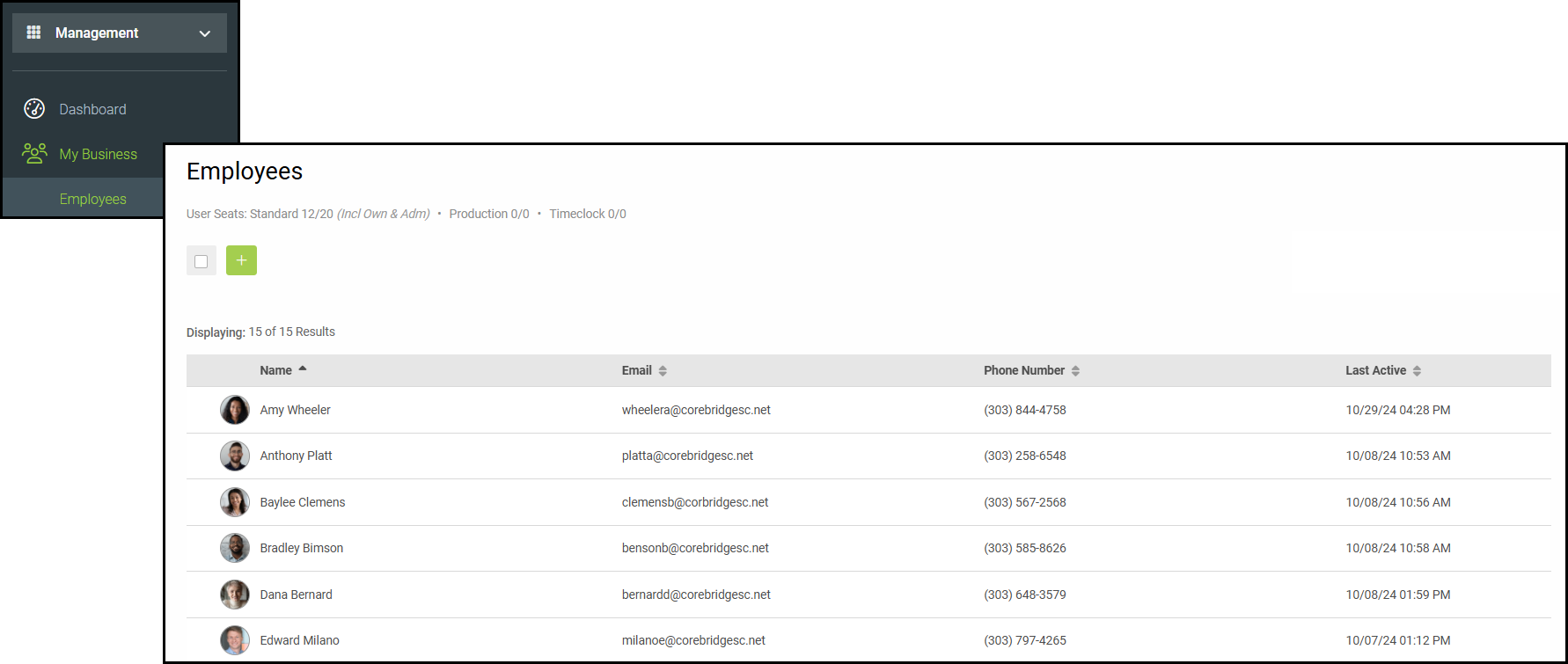
Navigate to Management / My Business / Employees.
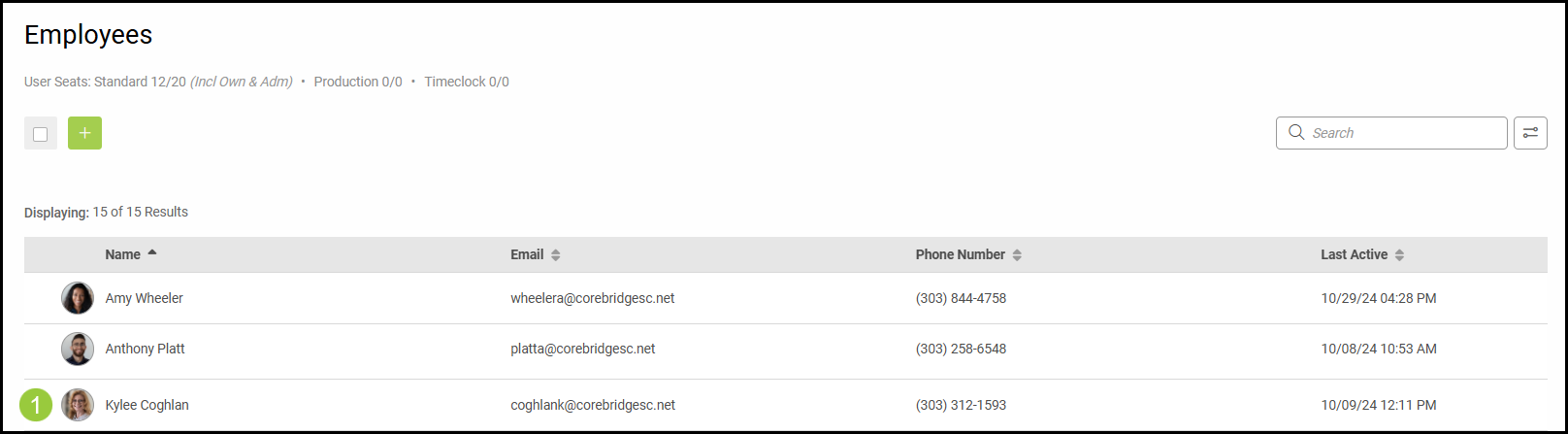
1. Select an employee.
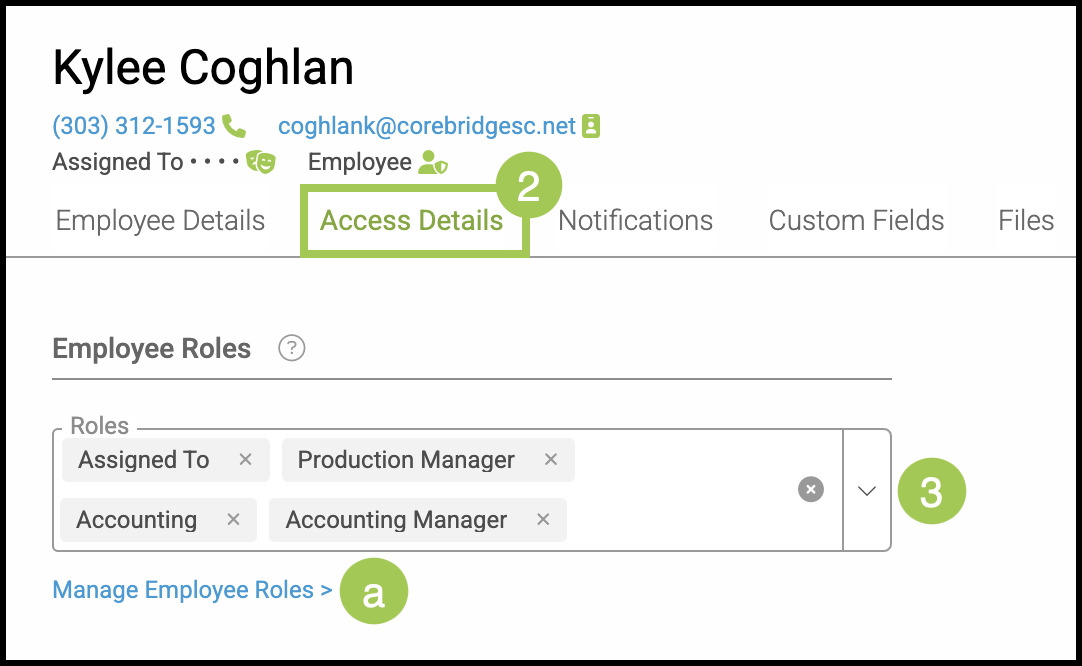
2. Click the Access Details tab.
3. Select the Employee Role(s) for this employee. This will give the employee all access and permission(s) that have been granted to the role.
Note: It is important to remember that all access granted to an employee via the roles assigned to them cannot be removed in the access selector below, you may only add additional permissions. We recommend setting up your employee roles with the least amount of access needed for the role, and adding additional permissions for individual employees when needed.
a. You can manage these roles as needed by clicking this link or by going to Settings / My Business / Employee Roles & Permissions. For more information, please see Employee Roles and Permissions.
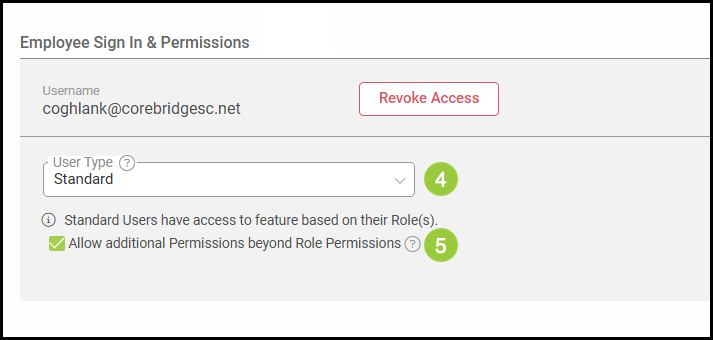
4. Determine the User Type for this employee using the dropdown menu.
5. Determine whether you would like to Allow additional Permissions beyond the Role Permissions.
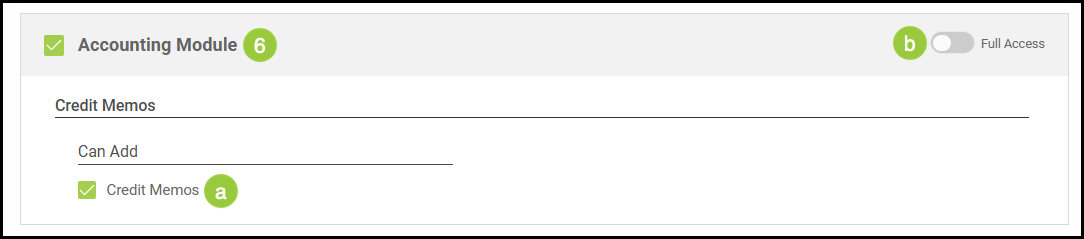
6. Review all additional permission options listed by module and check the module(s) you would like to add.
a. Select which individual permissions you would like the employee to have within the modules they have access to.
Note: Permissions granted by the employee role(s) selected cannot be removed.
b. Or, toggle the Full Access switch to allow full access to the module.
Related Articles
Employee Roles and Permissions in Settings