
All file types will within a tab are organized into one main folder, but can be further organized by creating additional folders.
For more information on Files and Folders, please see File and Folder Overview.
Table of Contents
Adding Files and Folders
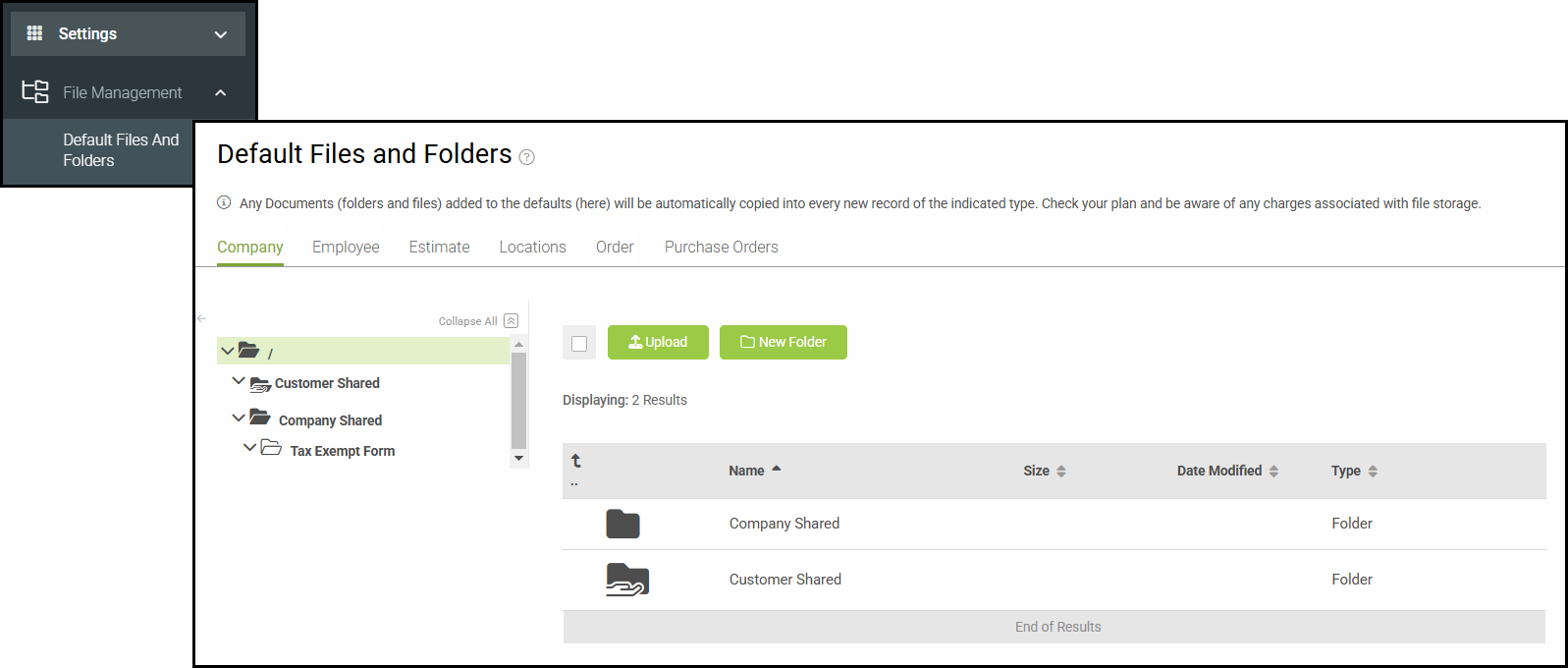
To begin, navigate to Settings / File Management / Default Files and Folders.
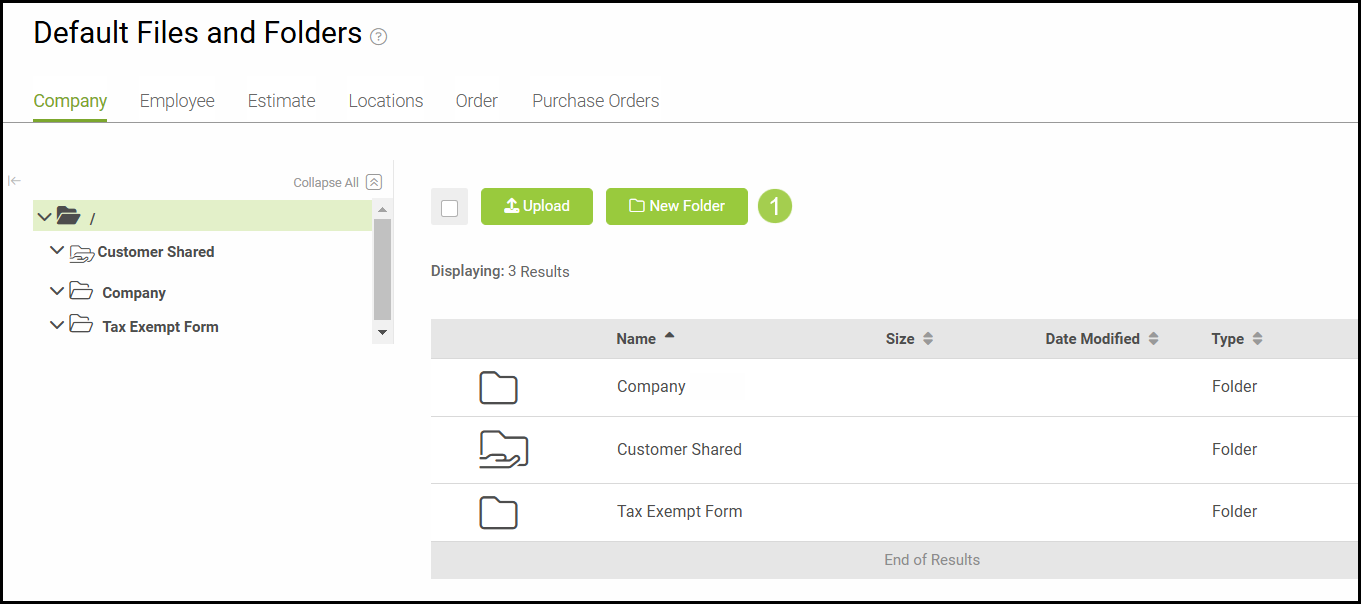
1. To create a new folder in any tab, select New Folder and enter a folder name.
Note: Only Regular Folders can be created.
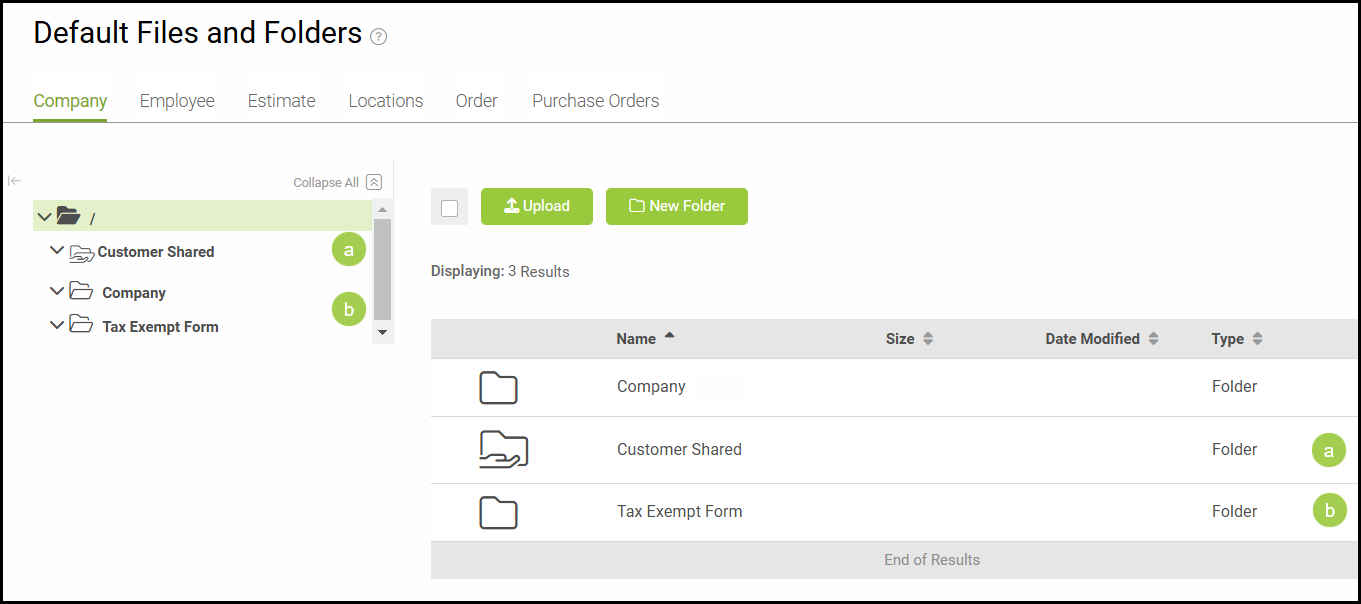
a. Shared Folders - These folders are visible to customers and can easily be distinguished from regular folders by the hand display at the bottom of the folder icon.
b. Regular Folders - These folders are for internal use only and only display the folder icon.
Note: If a new folder is created within a Shared Folder, the newly created folder will also be a Shared Folder. If a new folder is created within a Regular Folder, the newly created folder will also be a Regular Folder.
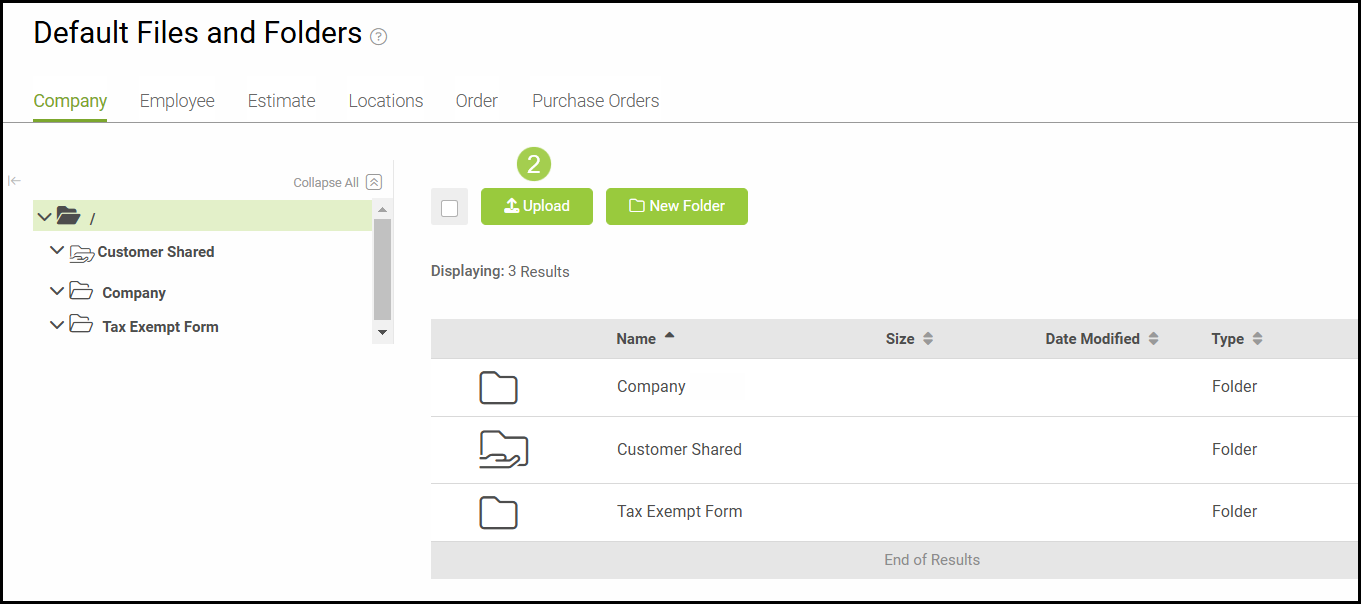
2. To upload any files to any folder, click Upload and select the file(s) you would like to upload.
Note: All new files and folders added here will automatically be copied when new records are created in companies, employees, estimates, locations, orders, and purchase orders.