
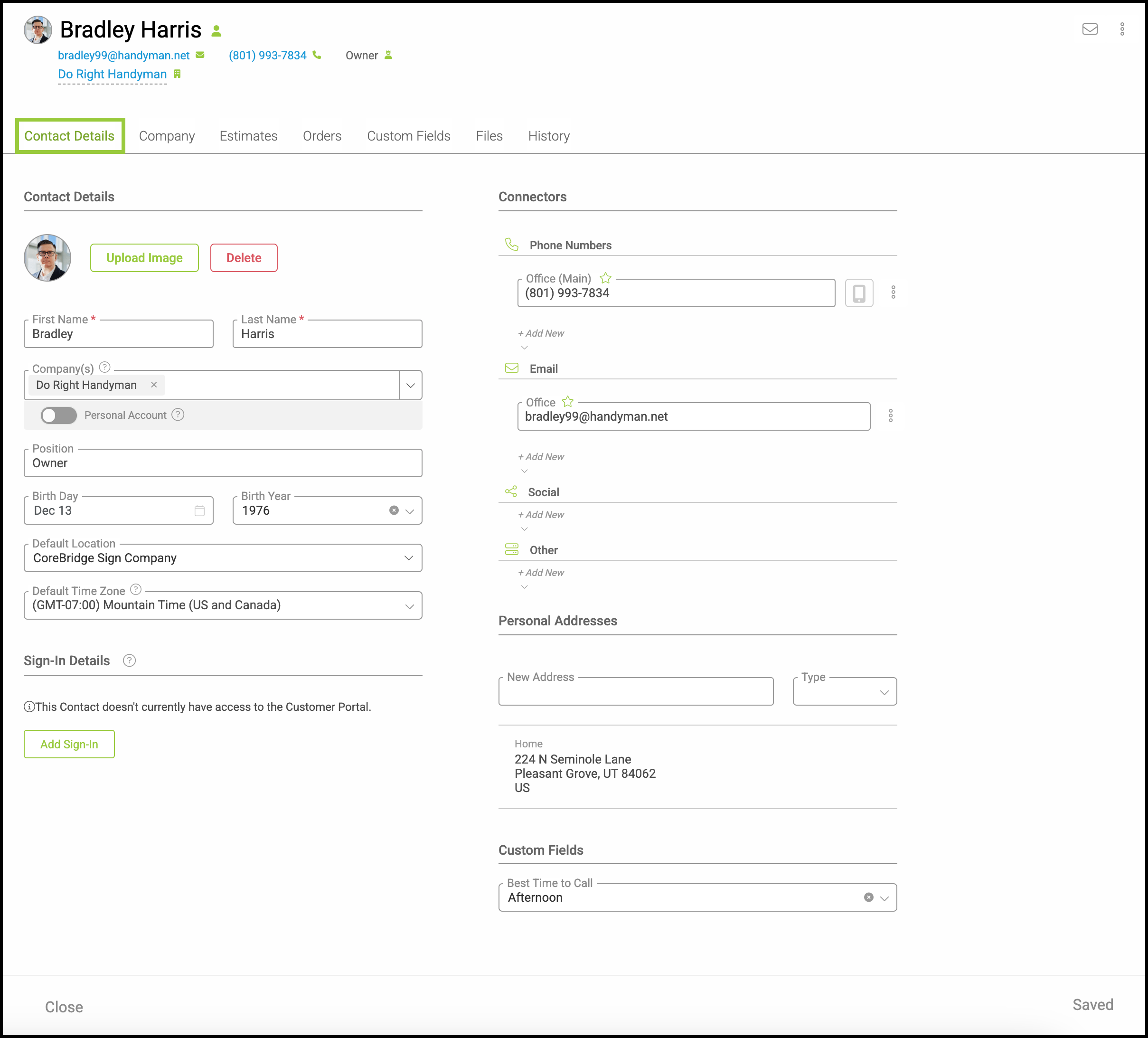
The Contact Details tab contains the information you entered upon contact creation, as well as additional headings and fields. Providing detail here can help you tailor your business for the needs of this contact.
Important Information
- For more information on other tabs within a customer record, please see Additional Contact Features.
- For more information on creating contacts, please see Creating Contacts.
Table of Contents
Accessing a Contact
To find your Contacts, navigate to Sales / Customers / Contacts.
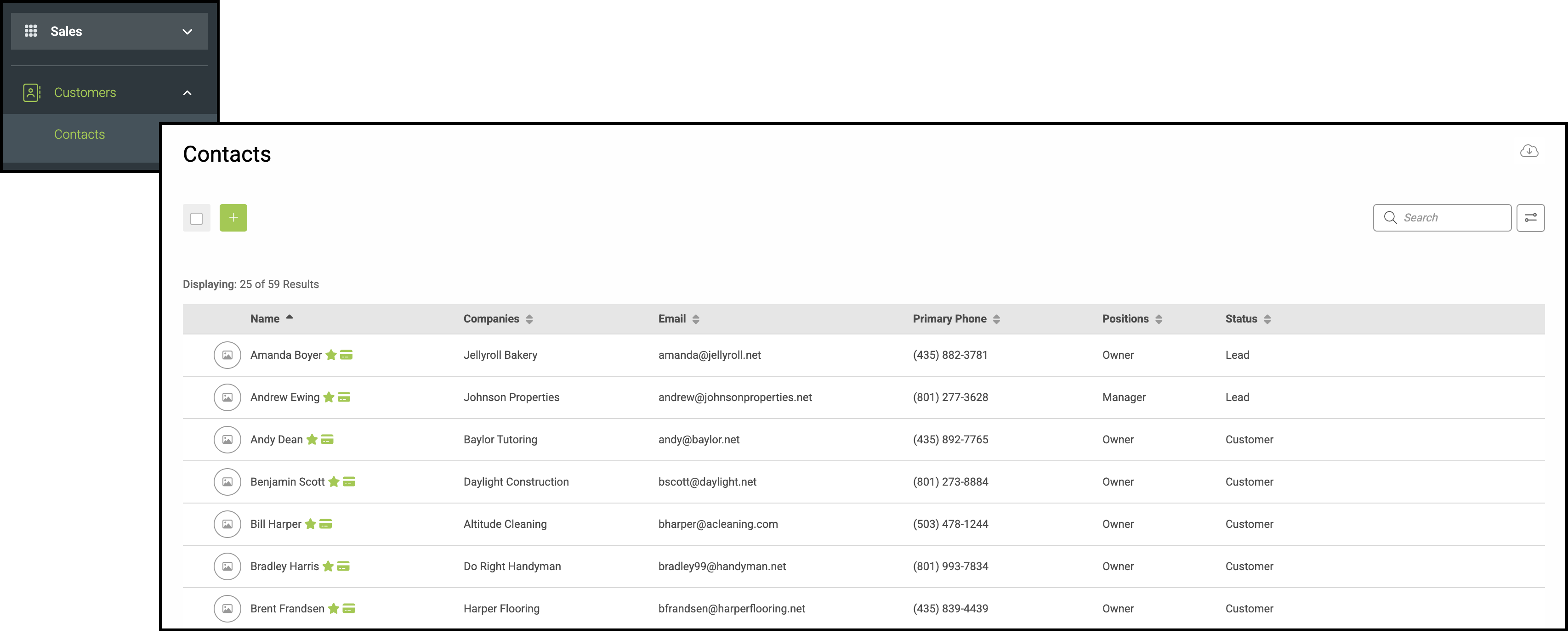
1. Select the Contact you would like to view.
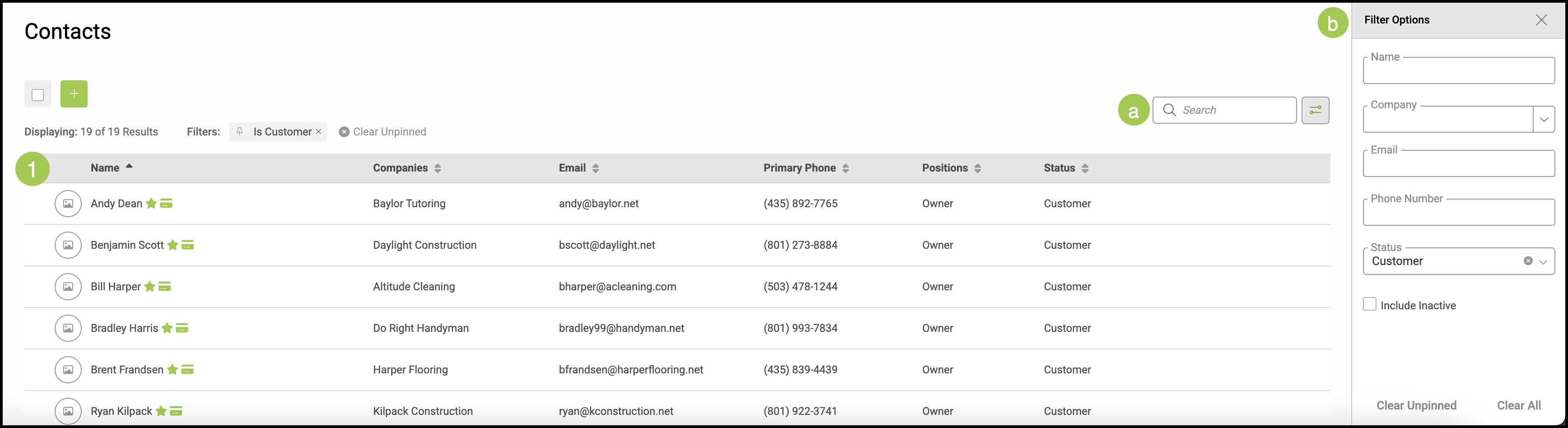
a. Contacts can be found quickly utilizing the Search Bar.
b. Conveniently search your Contact list by expanding the Filter Bar and selecting your filter guidelines.
Contact Details Tab
This contains the information you entered upon contact creation, as well as additional headings and fields. Providing detail here can help you tailor your business for the needs of this contact.
Note: For more information on creating contacts, please see Creating Contacts.
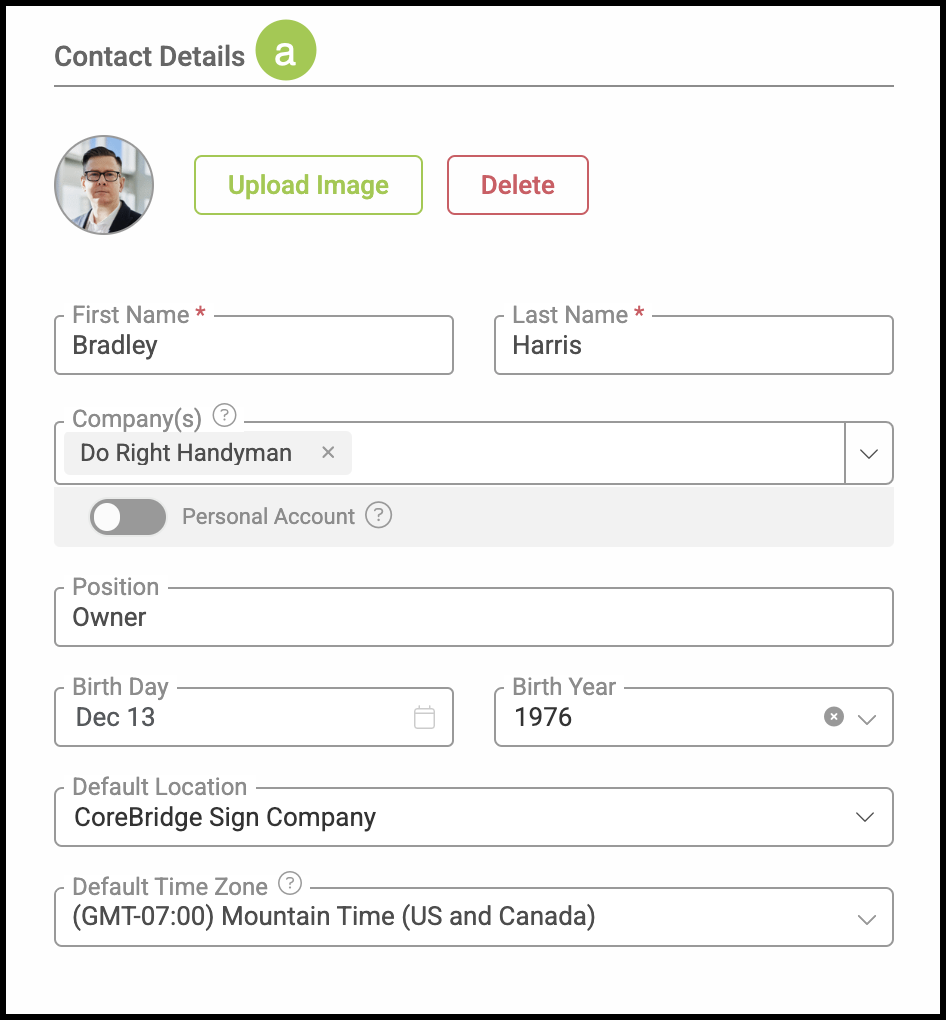
a. Contact Details Heading - This includes the basic information for this contact including the name of the company or companies the contact is associated with. For an account associated to an individual, the Personal Account toggle would be on.
Note: The Default Location field will only be visible for those with multiple locations. To discuss adding locations, please contact sales@corbridge.net.
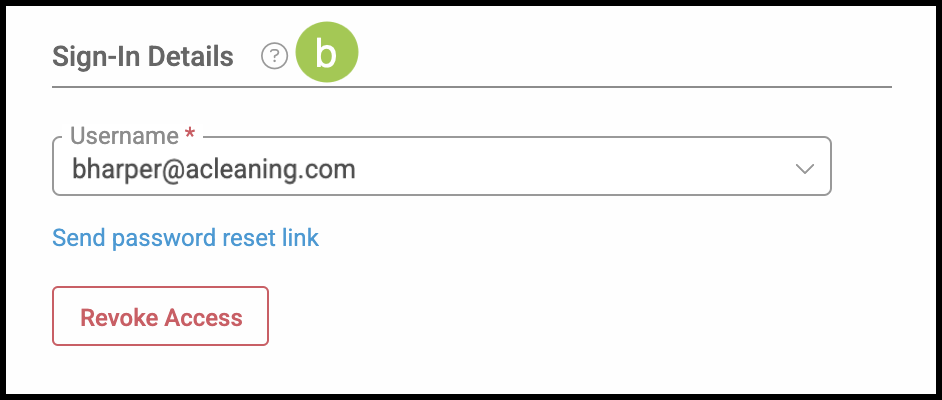
b. Sign-In Details Heading - This is where you would come to send your customer an invitation to the Customer Portal.
Note: For more information on inviting customers to view the customer portal, please see Inviting Customers to the Customer Portal.
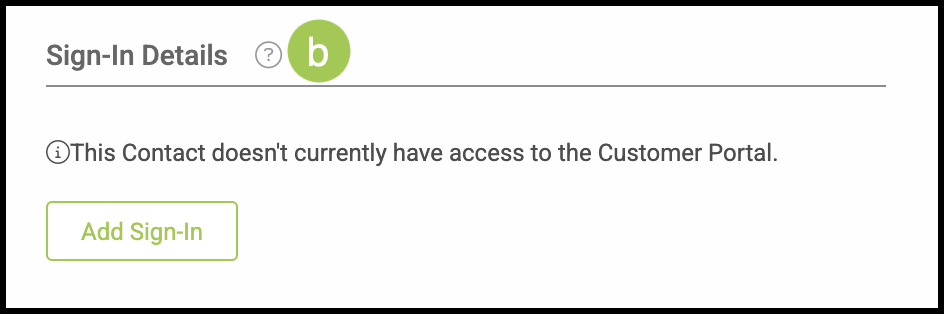
Note: If this customer already has access to the Customer Portal, the Sign-In Details Heading looks slightly different. Here, you would have the option of rescinding the invitation to the Customer Portal.
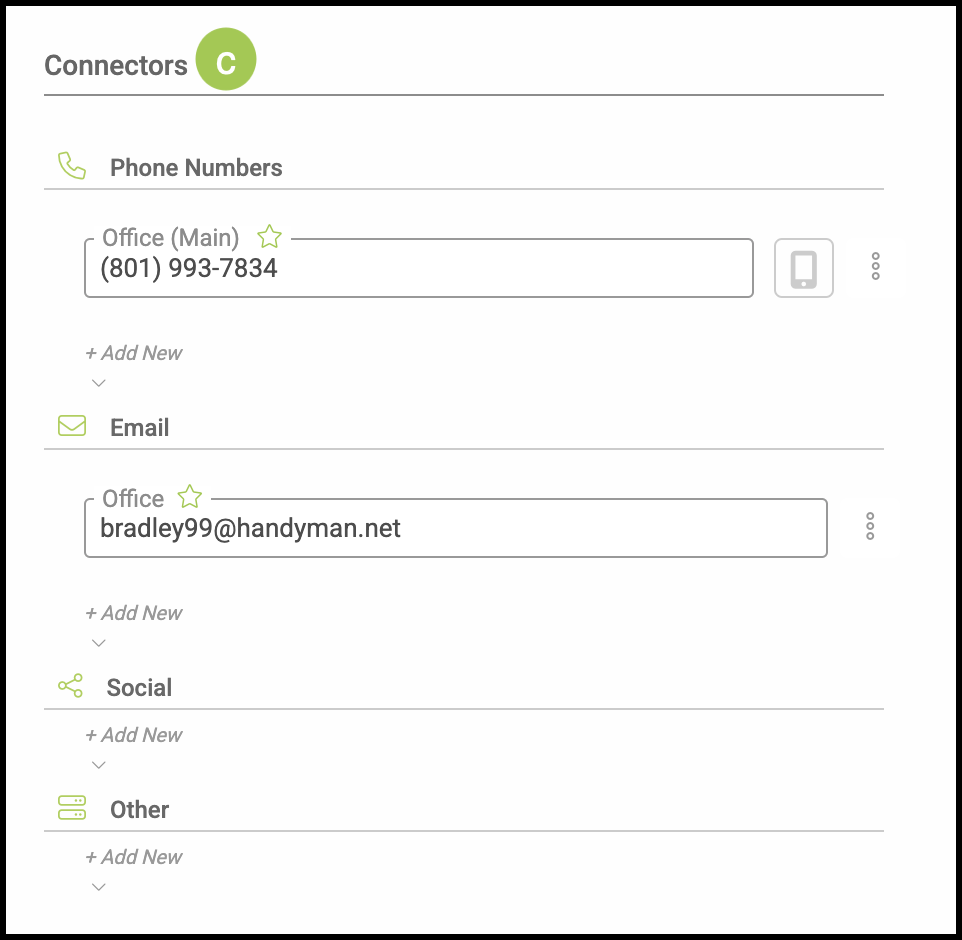
c. Connectors Heading - All of the ways you have to reach this contact.
Note: When entering phone numbers, do not enter any parenthesis or dashes as this may cause errors. Only enter in the numbers and the system will format the number correctly. Click the Cell Phone Icon to indicate the number is a cellular device.
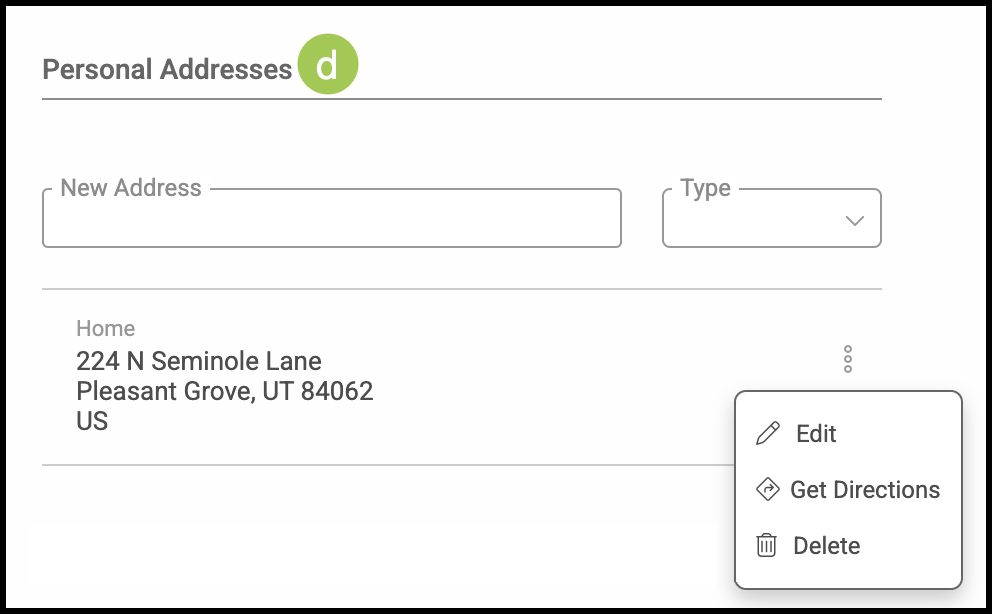
d. Personal Addresses Heading - Additional addresses are easy to add at any time by filling in the New Address field and selecting a Type from the dropdown. Once saved, you can use the ellipsis to Edit, Delete, and even Get Directions using the latest Google Maps information.
Note: Your system is equipped with Google Autocomplete that will automatically finish filling in addresses as you type them. To enable Google Autocomplete navigate to Settings / System / Localization and check the Enable Google Autocomplete box.
Note: If this is a Personal Account, the Address heading will be found under the Personal Account tab. For more information on Personal Accounts, please see Creating Contacts.
Related Articles
Inviting Customers to the Customer Portal