Within CoreBridge, Line Items represent individual items and products sold by your business. Adding and editing these items within your system can assist in checking Customers out quickly, delivering accurate Estimates, and creating effective Orders.
Important Information
- For more information on Orders, please see Orders Overview.
Table of Contents
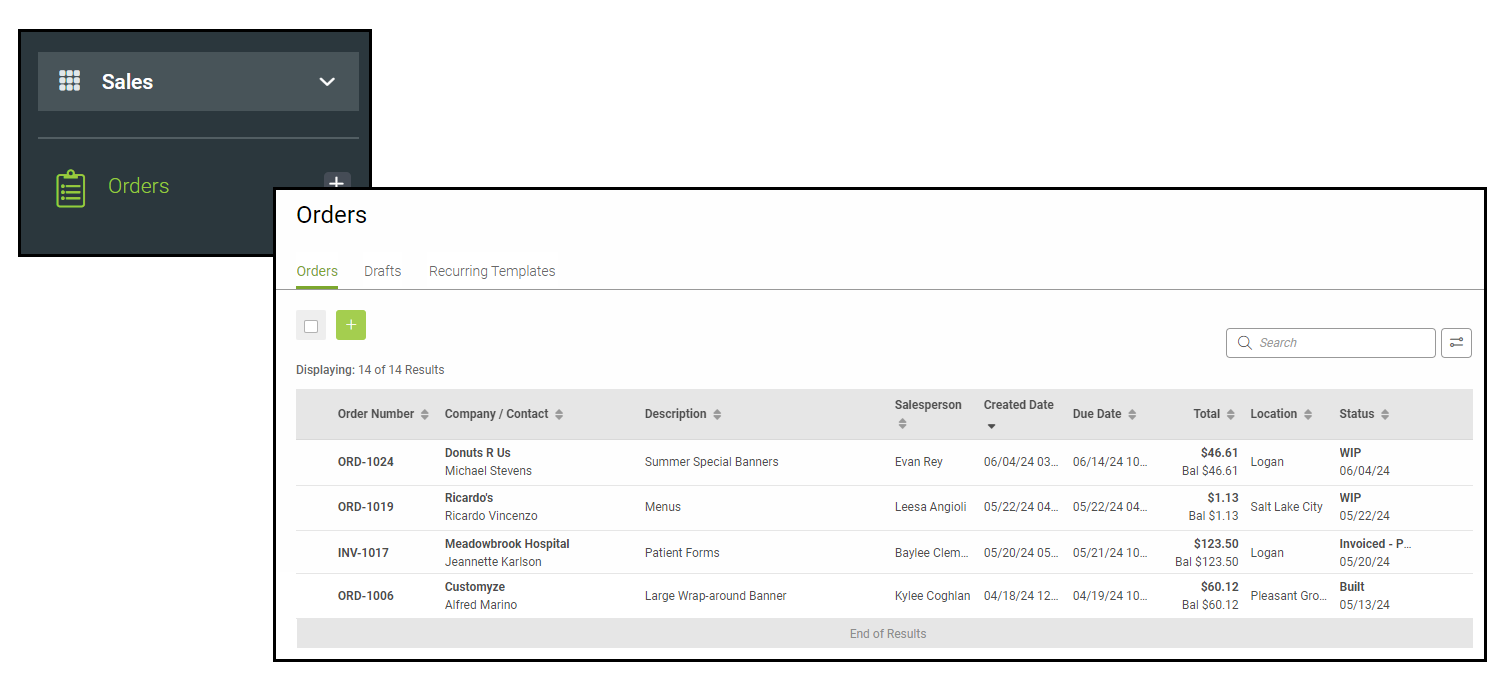
Navigate to Sales / Orders and select an Order.
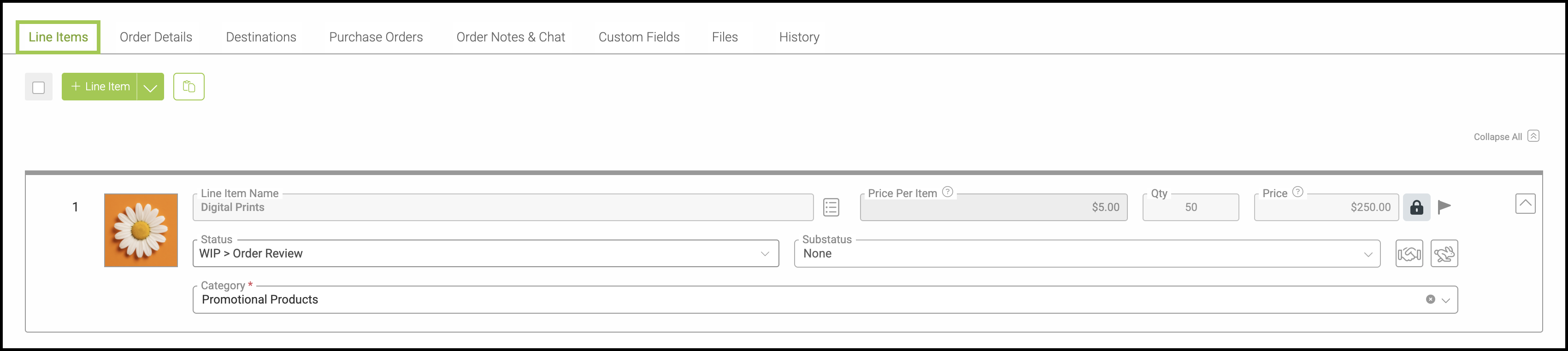
Line Items Tab
When creating an Order, there is a feature to add a Quick Product or a Line Item.
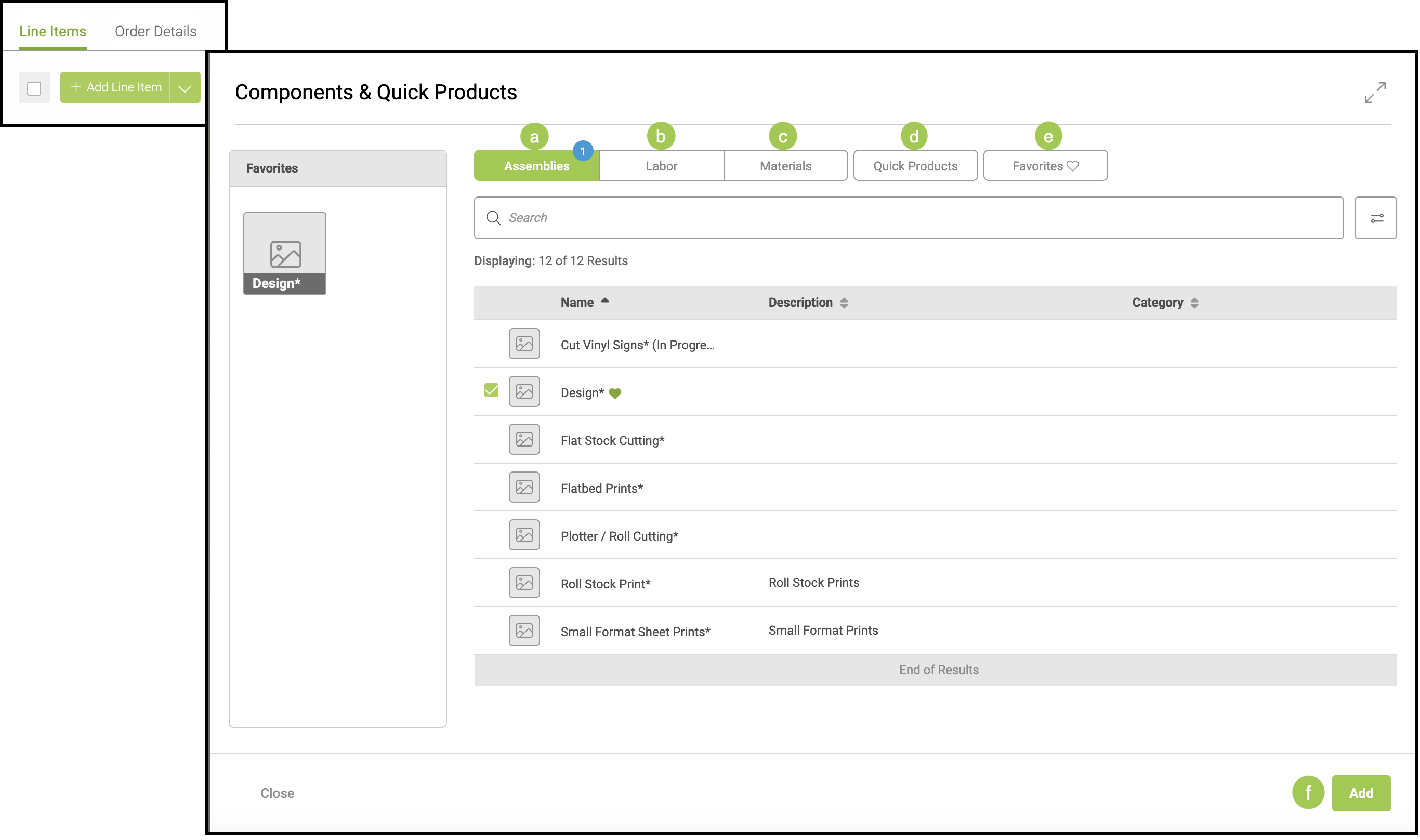
To add a Line Item, select + Add Line Item to open the tab with the following components:
a. Assemblies - a customized combination of Machines, Labors and Materials.
b. Labors - different labors needed for a product to be created.
c. Materials - physical products sold by the business, or that will be used to create a product for a customer order.
d. Quick Products - pre-created products to be used in orders.
e. Favorites - any of the above components that have been selected by you. These also appear in the favorite column on the left.
f. Select a component, chose the individual items, and click Add.
Note: For more information, please see Line Items Overview.
Note: Proofs can be uploaded through an individual Line Item under the Customer tab.
Adding Line Items from the Clipboard
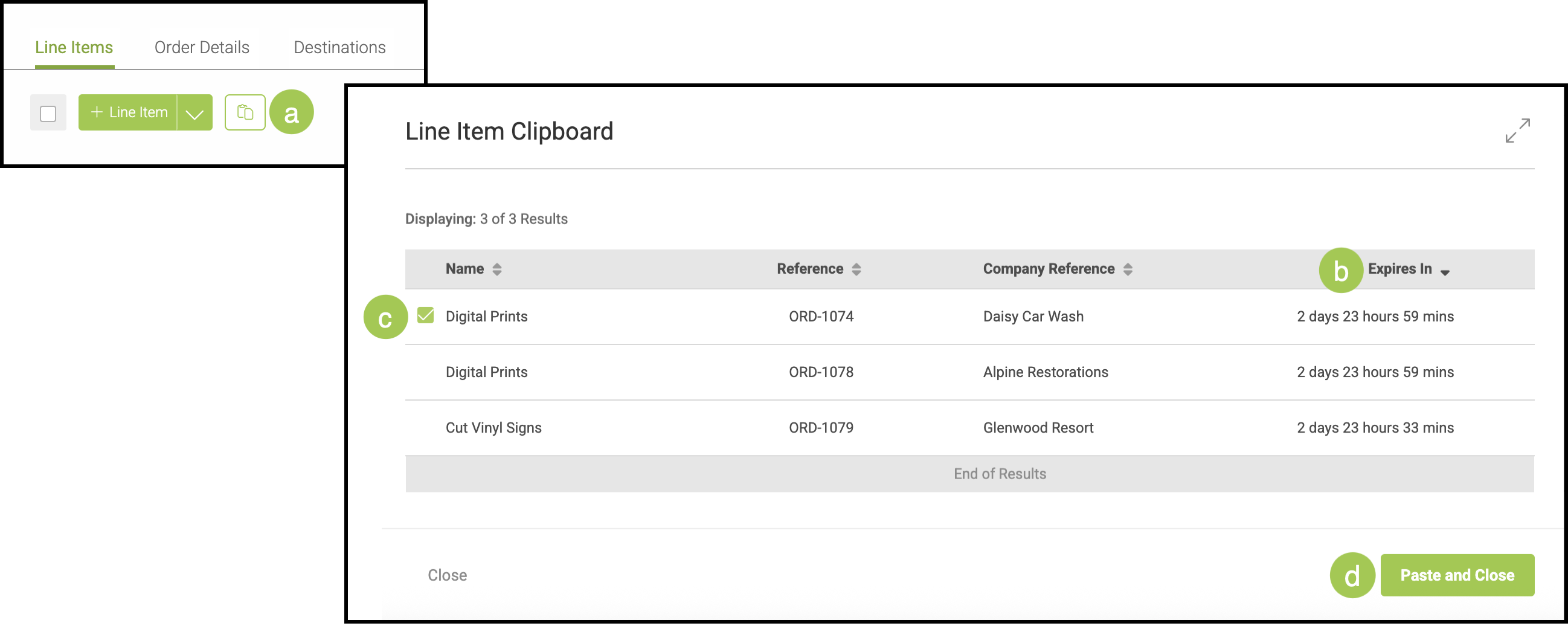
In the Line Items tab, you also have the option to paste in an existing Line Item from the Clipboard.
a. The Line Item Clipboard icon will bring up a popup with the clipped Line Items.
b. Each clipped item will remain on the Clipboard for three days.
c. You may check multiple Line Items to paste.
d. Clicking Paste and Close will add an exact copy of the selected Line Item(s) to your Order.
Note: For more information on the Clipboard, please see Clipboard Feature.