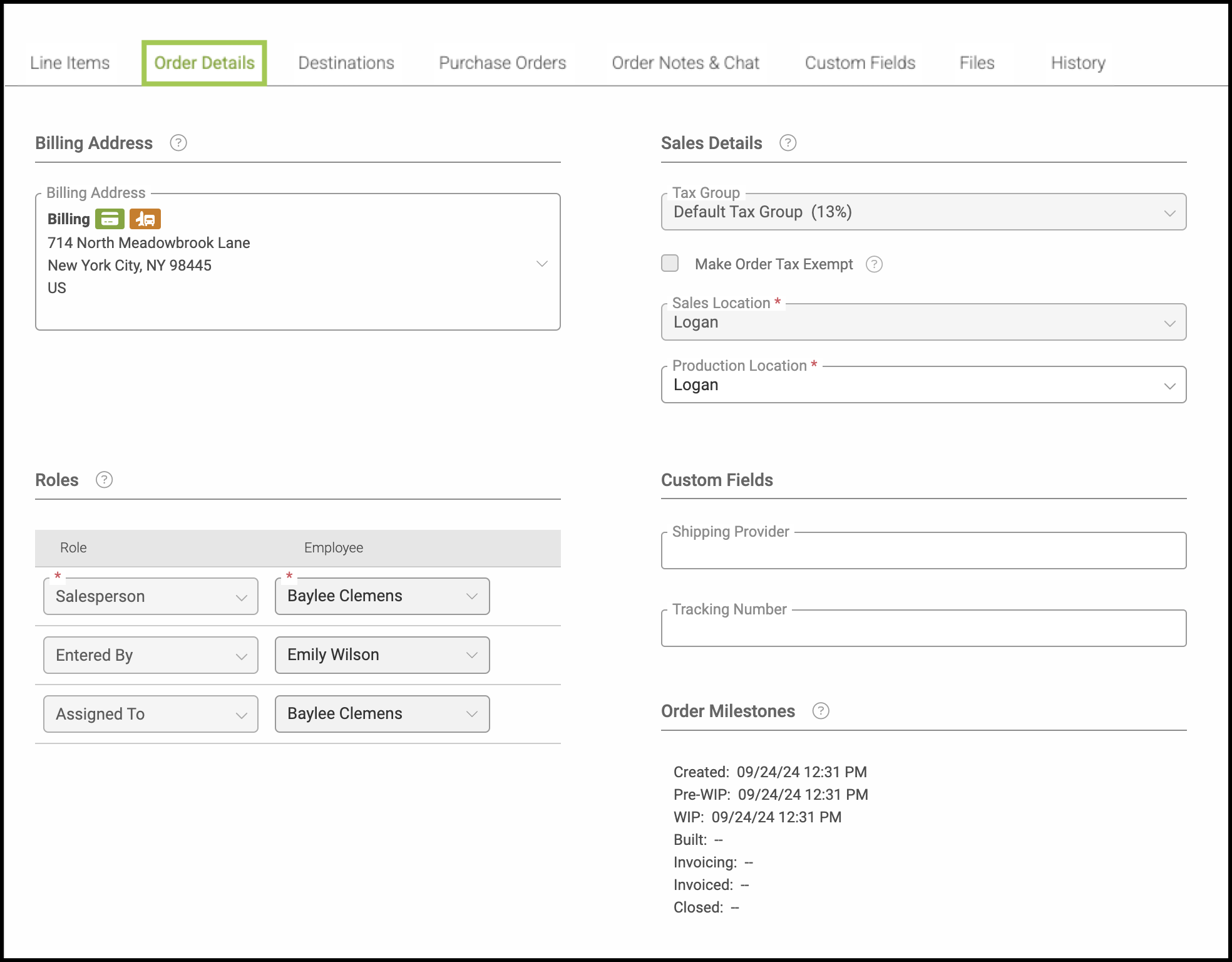
The Order Details tab contains the core information that defines an Order, including essential settings such as accounting details, assigned employees, and other foundational data.
Important Information
- For more information on Orders, please see Orders Overview.
- When the Order status is set to Invoiced or Closed, the fields will not be able to be edited.
- For more information on unlocking an order, please see Editing a Locked Order.
Table of Contents
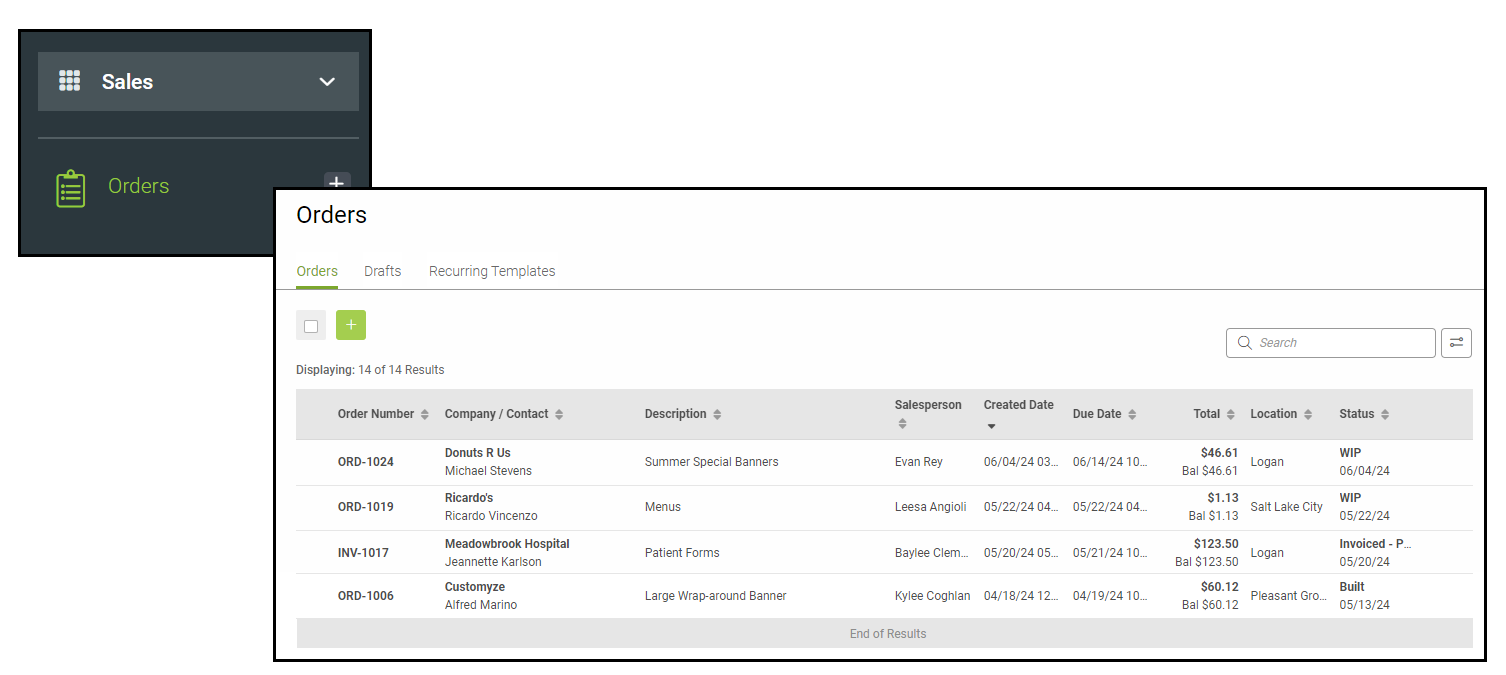
Navigate to Sales / Orders and select an Order.
Order Details Tab
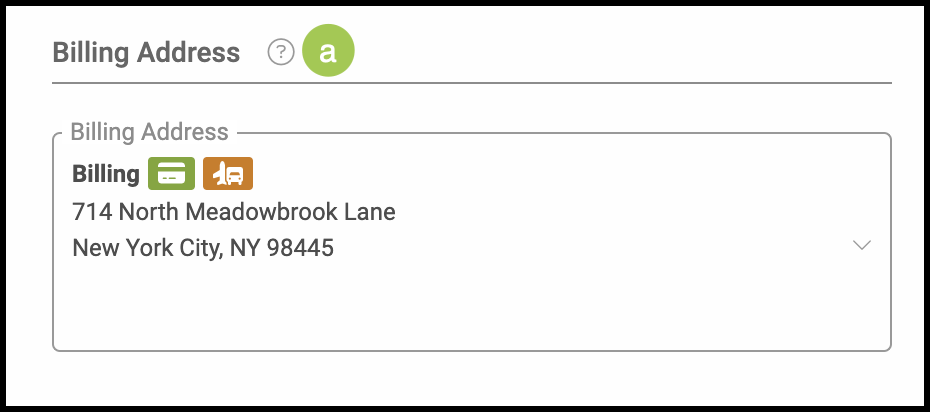
a. Billing Address - select the correct Address or select New Address from the drop-down menu.
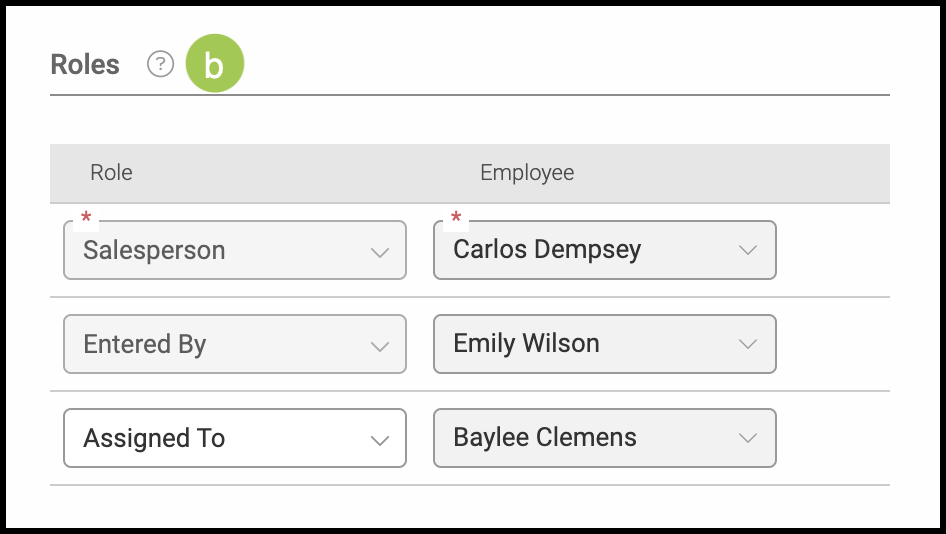
b. Roles - employees assigned to specific positions for this Order. Select Add New to add additional Roles. For more information, please see Employee Roles and Permissions.
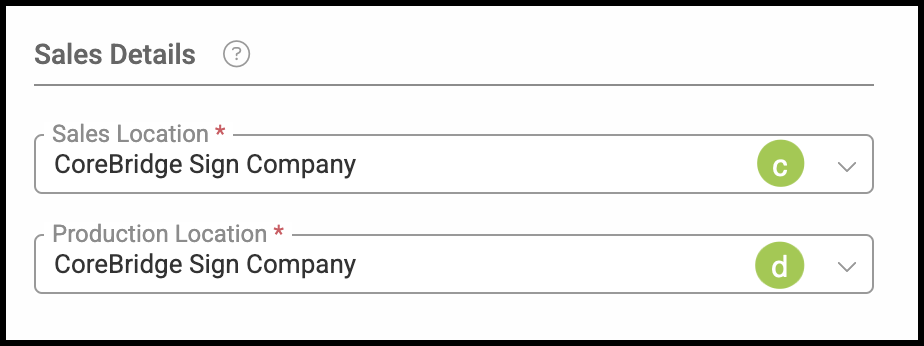
Sales Details - additional details about the Order including:
c. Sales Location - where the Order will be sold through.
d. Production Location - where the Order will be physically created.
Note: The Production Location and Sales Location may be different.
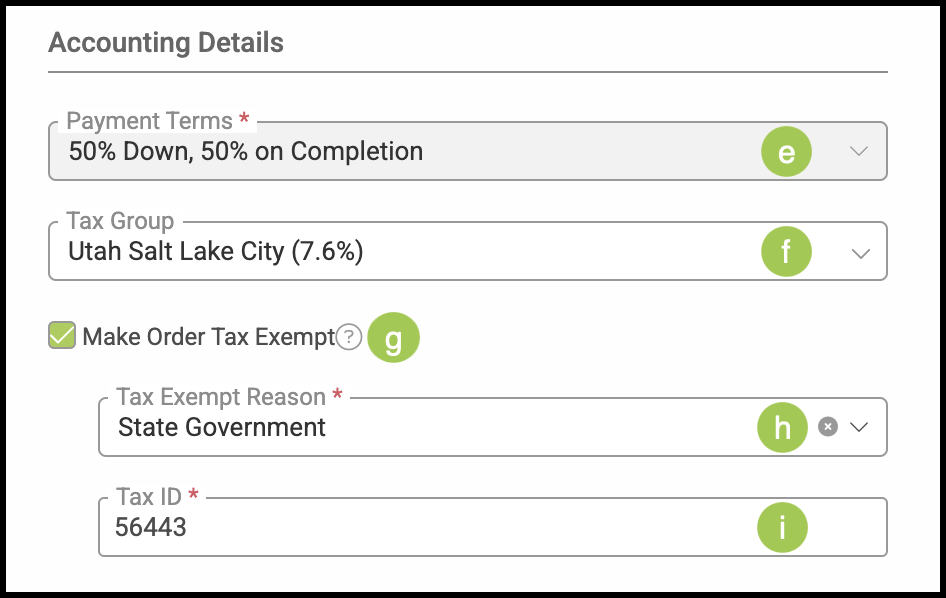
Accounting Details - details regarding tax information including:
e. Payment Terms - this shows the payment terms for this particular customer. These can be managed under the Accounting Details heading in Sales / Companies / Company Details.
f. Tax Group - how the Order will be taxed.
g. Make Order Tax Exempt - when this is checked, you will be required to input a Tax Exempt Reason and Tax ID.
h. Tax Exempt Reason - use the dropdown to select the reason this order will be tax exempt.
Note: Tax Exempt Reasons can be managed by navigating to Settings / Sales / Reason List / Tax Exempt.
i. Tax ID - identification number used by this company for tax purposes.
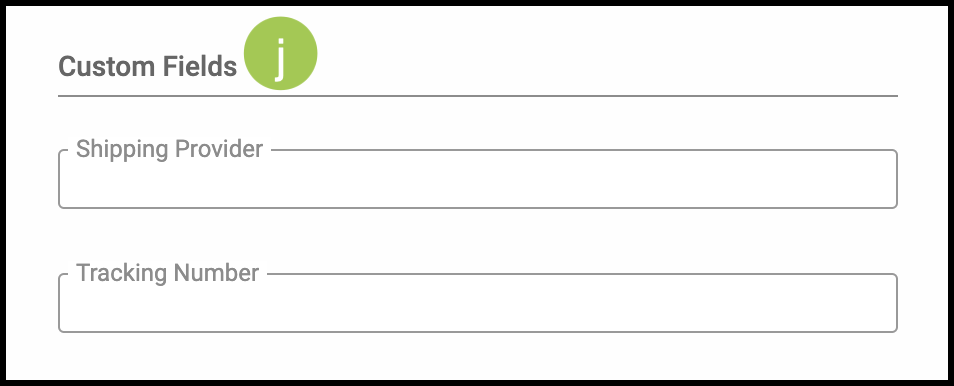
j. Custom Fields - this section can be customized for your specific needs. For more information on this, please see Custom Fields.
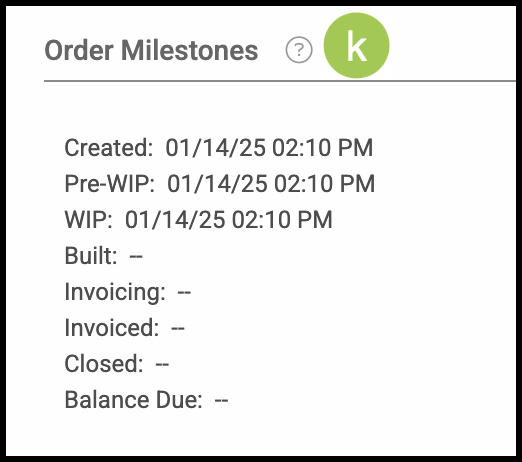
k. Order Milestones - dates and times for important Order events. These cannot be edited and will be automatically updated as progress is made.