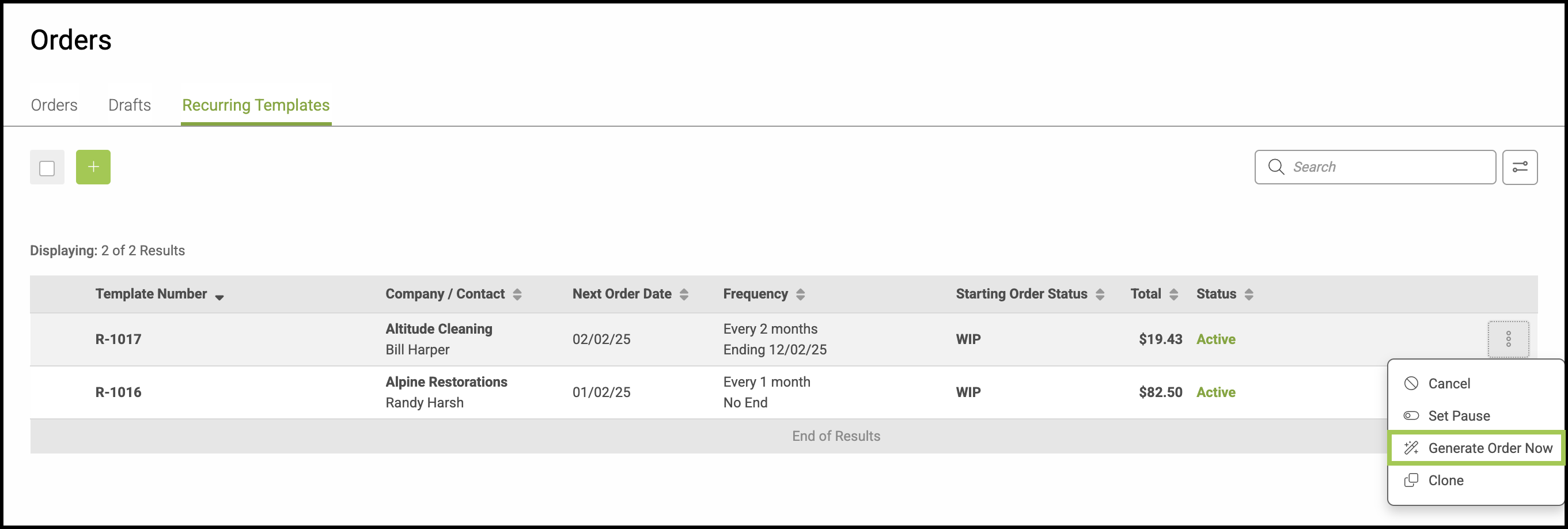
Recurring Templates allow you to create reusable Order templates for work that follows a consistent, repeatable pattern. They help streamline Order creation by predefining key details, reducing manual entry, and ensuring consistency for Orders that are generated on a recurring basis.
Important Information
- The Recurring Templates section is part of a specific system package. If you would like to upgrade your package to include Recurring Templates, please contact sales@corebridge.net.
- For more information on Orders, please see Orders Overview.
Table of Contents
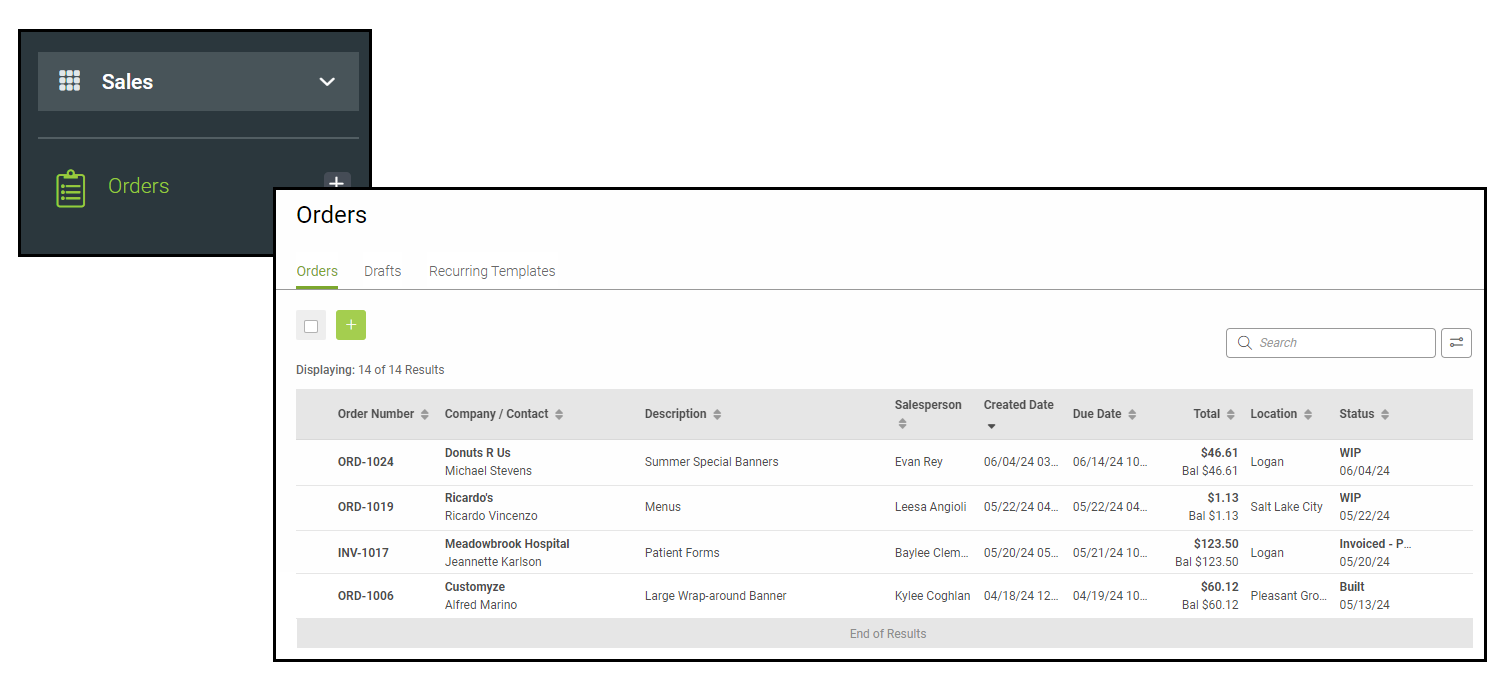
Navigate to Sales / Orders.
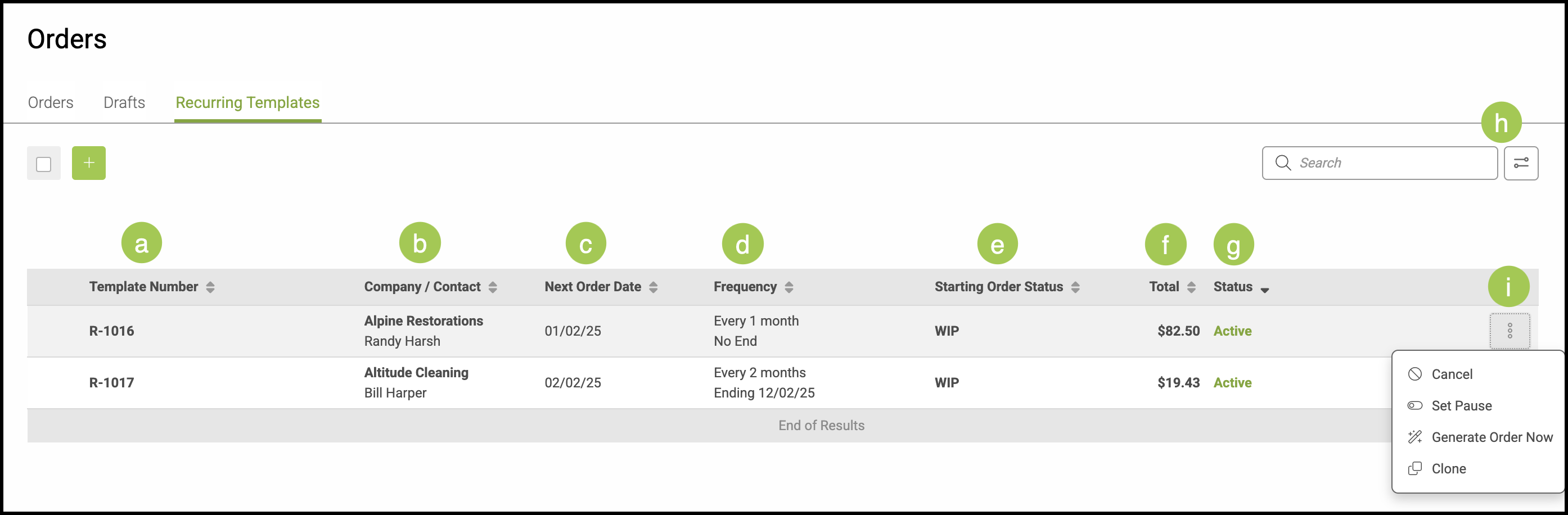
Recurring Templates Overview
a. Template Number - unique ID for the template.
b. Company/Contact - which business or personal account the Recurring Template is for.
C. Next Order Date - the next date on which you would like to generate this template into an Order.
d. Frequency - how often you would like this standing Order to be repeated.
e. Starting Order Status - quickly see the status the Order will be set to when it has been generated.
f. Total - total price for the Recurring Template.
g. Status - quickly see if the Recurring Template is Active or Paused.
h. The Search Bar and Filter Icon can be used from within the Recurring Templates tab as well.
i. Selecting the ellipsis brings up options to Cancel, Set Pause, Generate Order Now, and Clone.
Note: Options for Recurring Templates can be managed by navigating to Settings / Sales / Estimates and Orders Options under the Recurring Templates Tab.
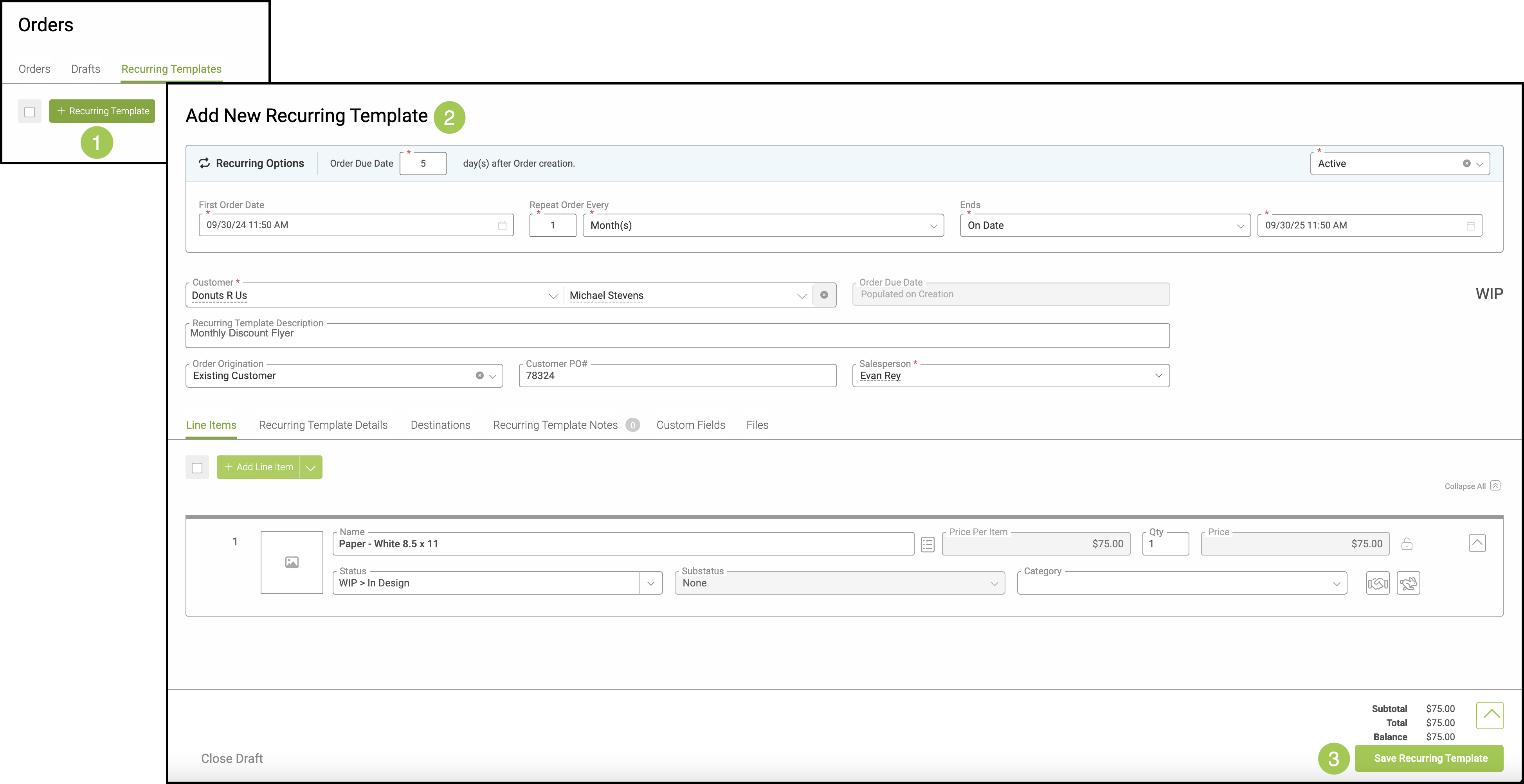
Creating a Recurring Template
1. Click the Green Plus icon under the Recurring Templates Tab.
Note: This will read +Recurring Template when hovered over.
2. Fill in all pertinent information.
3. Click Save Recurring Template.
Note: Recurring Templates follow the same basic structure as an Estimate or Order, including many of the same informational tabs. These are explained in detail below.
Note: Currently, Recurring Templates require you to select Generate Order Now under the ellipsis before an Order will be created in your system.