
To better organize Tasks in your list, you may want to use specific parameters, or Filter Options.
For more information on Tasks, please see Creating a Task.
Table of Contents
Filter Options in Tasks
To begin, navigate to My Profile / Tasks.
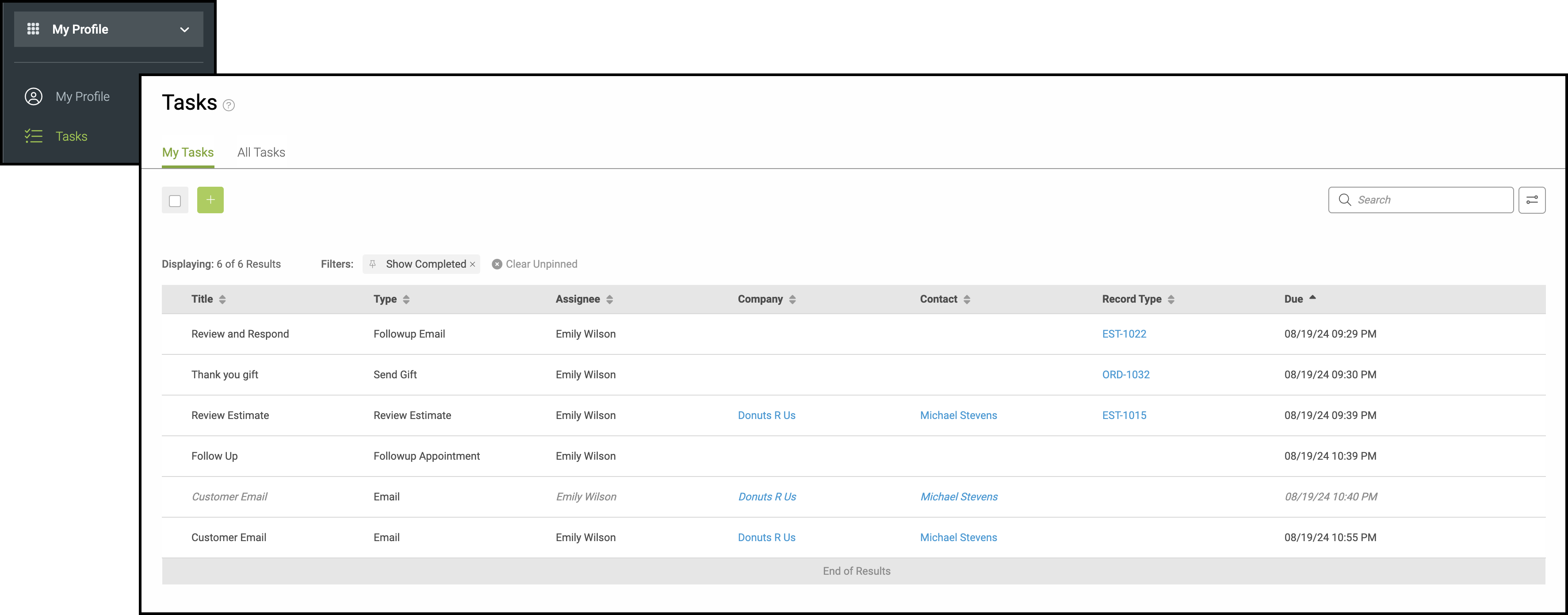
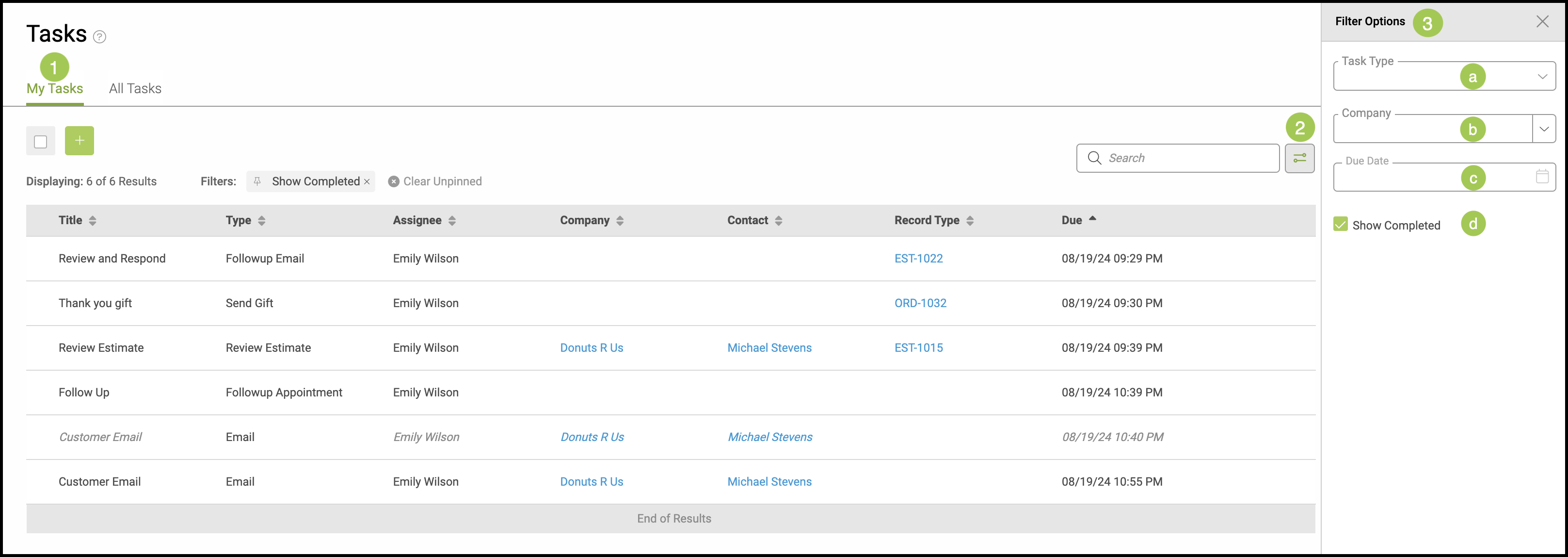
1. Select the My Tasks tab.
2. Click the Filter Button to open the Filter Options Menu.
3. Select the appropriate Filter Options.
a. Task Type - Select a Task Type from the dropdown menu.
b. Company - Use the dropdown to choose a company.
c. Due Date - Click on the calendar icon to choose a date.
d. Show Completed - Tasks that have already been marked as completed will show as an italicized item in your My Tasks list when this checkbox is selected.
Filter Options are helpful in narrowing a search when looking through the list for All Tasks.
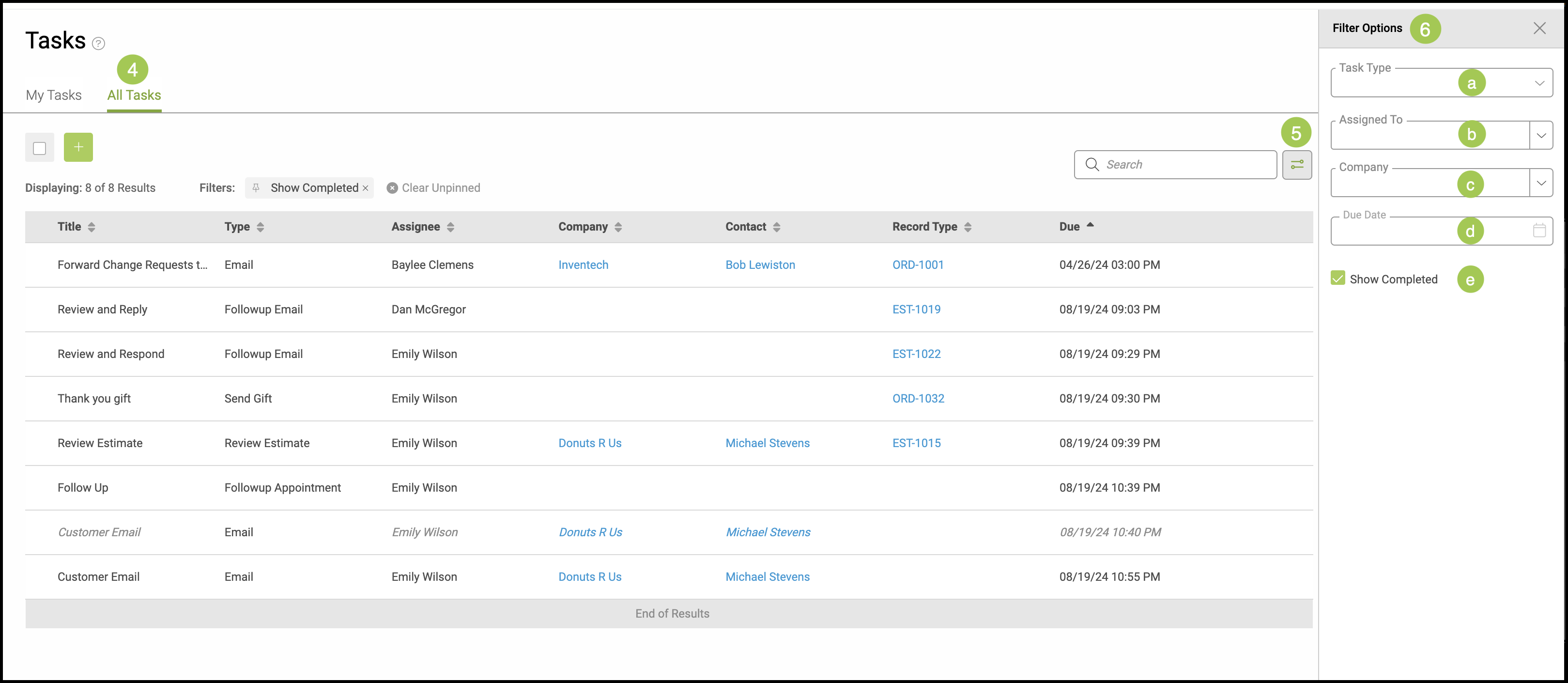
4. Select the All Tasks tab.
5. Click the Filter Button to open the Filter Options Menu.
6. Select the appropriate Filter Options
a. Task Type - Select a Task Type from the dropdown menu.
b. Assigned To - Filter by the assignee.
c. Company - Use the dropdown to choose a company.
d. Due Date - Click on the calendar icon to choose a date.
e. Show Completed - Tasks that have already been marked as completed will show as an italicized item in your My Tasks list when this checkbox is selected.
Related Articles
Accessing My Tasks Using the Navigation Bar