
The Task list is an efficient way to organize specific jobs and assignments for all of your employees in one convenient location. This article describes the ways in which you can mark as Task as Completed.
For more information on Tasks, please see Creating a Task.
There are multiple ways in which you can mark a Task as completed.
Table of Contents
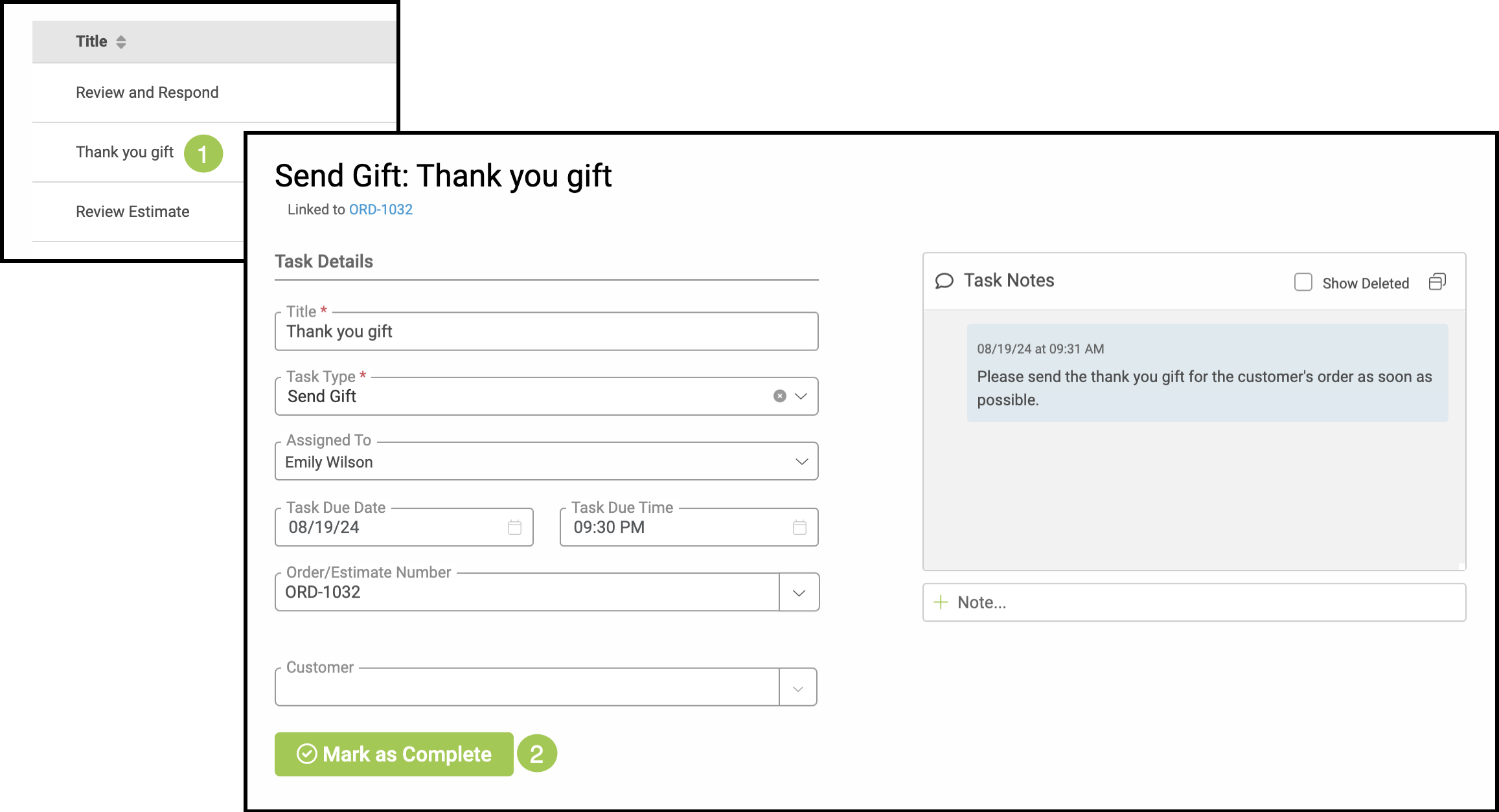
From Inside the Task
1. Select the Task from the Task List.
2. Click the green Mark as Complete button.
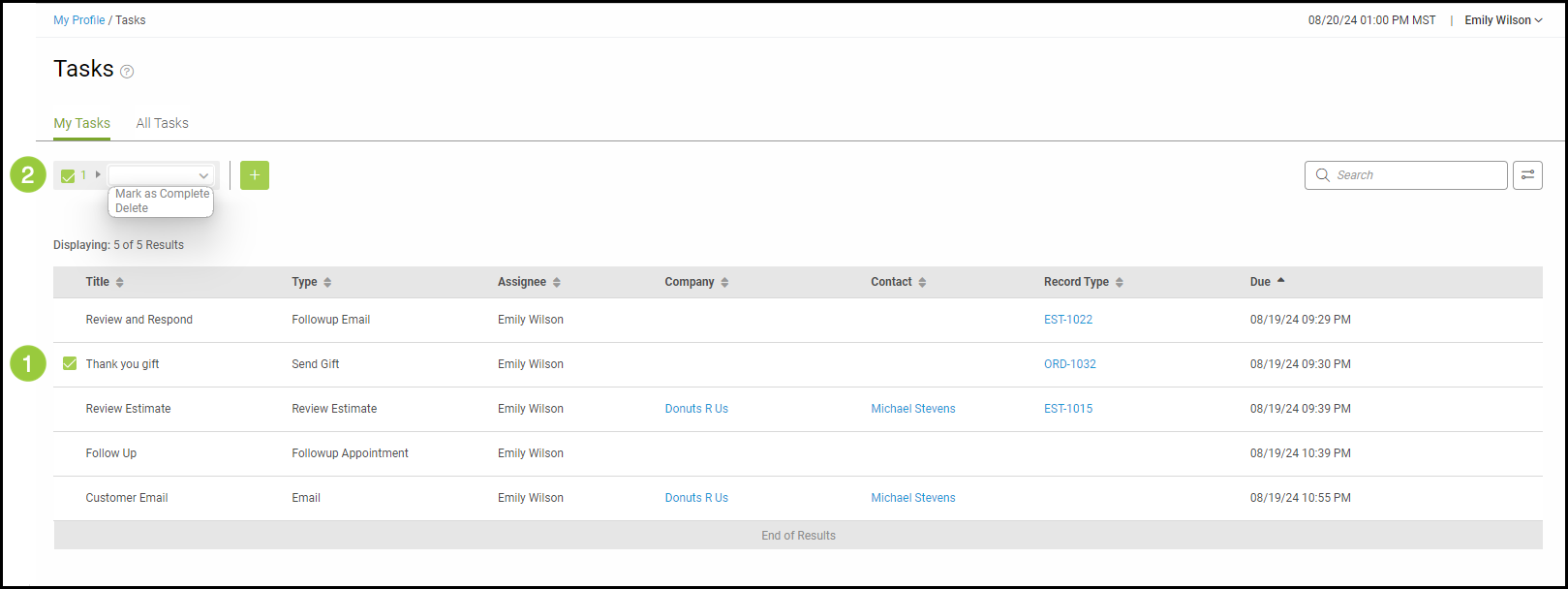
From the Task List
1. Select the checkmark next to the Task in the Task List.
2. Choose Mark as Complete from the dropdown.
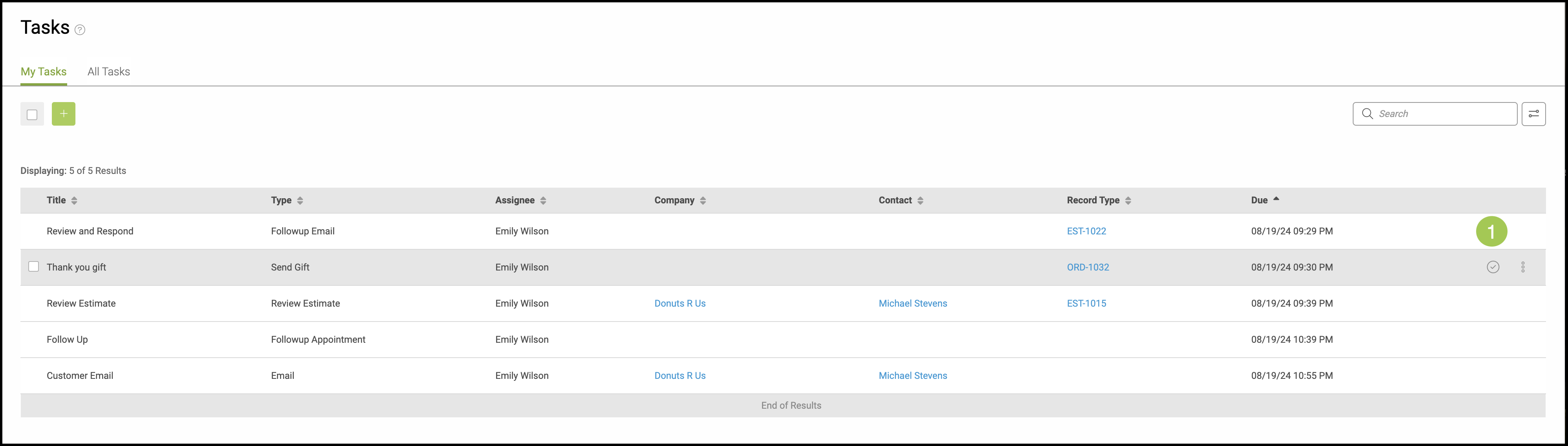
Or:
1. Select the Checkmark at the end of the row containing the Task you have completed.
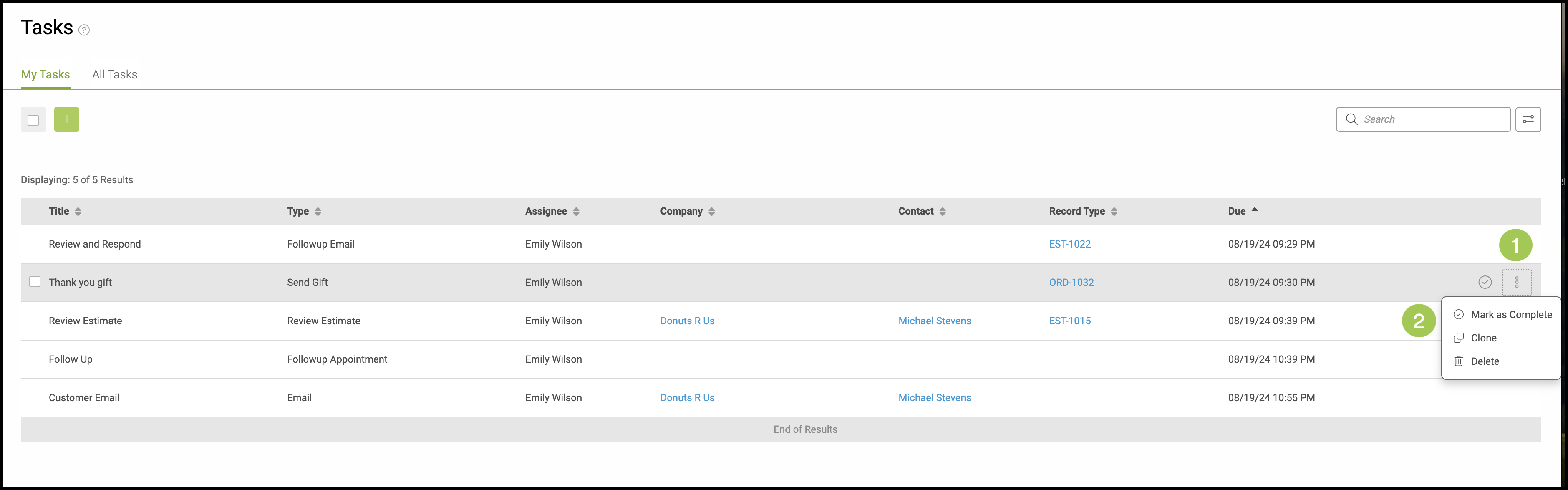
Or:
1. Select the ellipsis at the end of the row containing the Task you would like marked as complete.
2. Choose Mark as Complete.
Related Articles
Accessing My Tasks Using the Navigation Bar