
Calendars in CoreBridge provide a shared, centralized view designed for team collaboration and streamlined scheduling. This article explains how to add Calendars to your system.
Table of Contents
Adding Calendars
Navigate to Settings / System / Calendars.
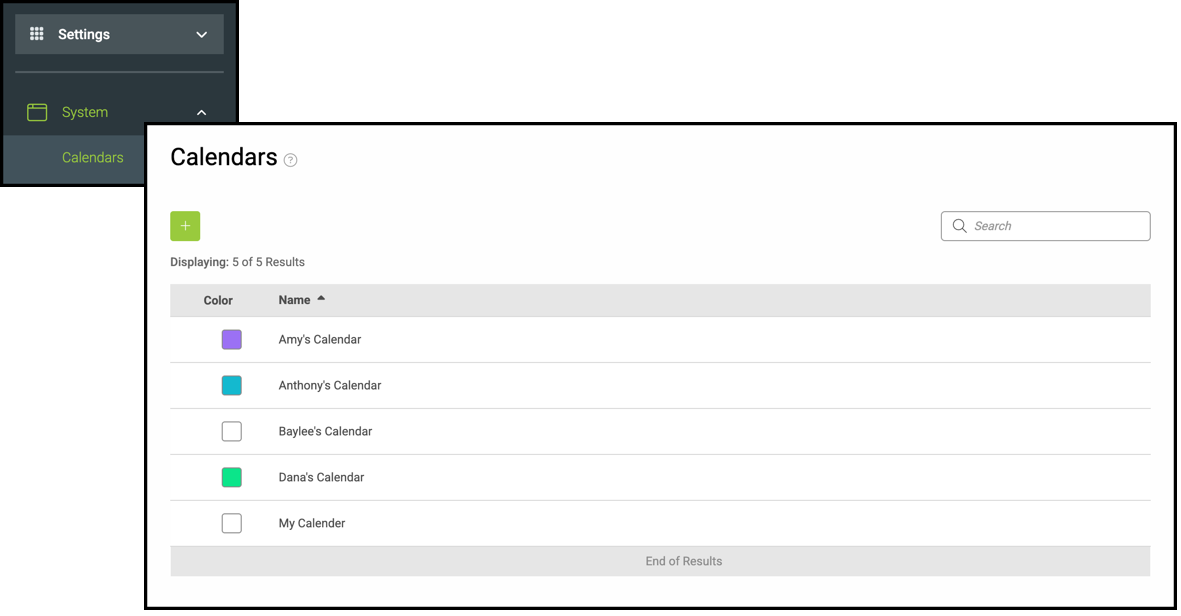
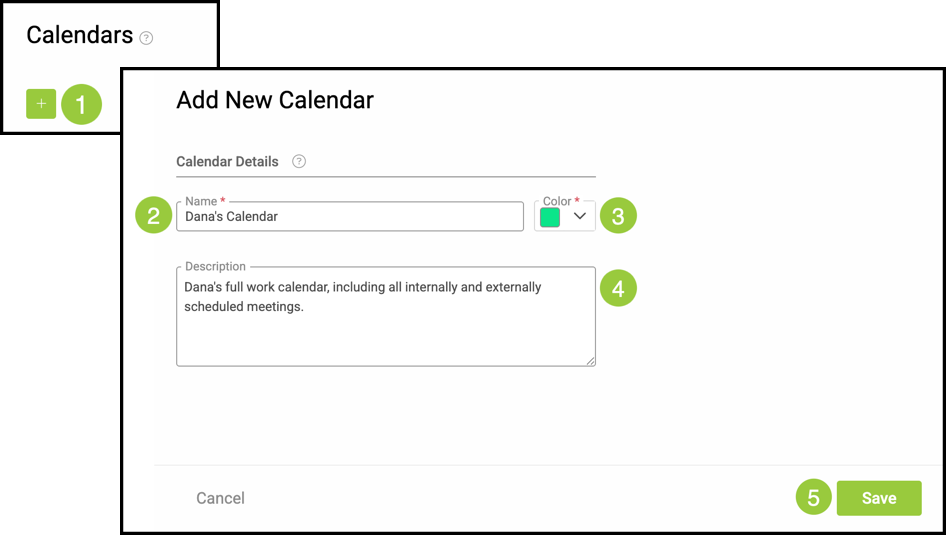
1. Click the Green Plus button.
2. Name - This name is visible to all users and should be used to differentiate between other calendars.
3. Choose a Color for this Calendar.
Note: This field is now required. For calendars created previously, you can go back and assign colors retroactively.
4. Description - This should explain clearly what the calendar will be used for.
5. Click Save.
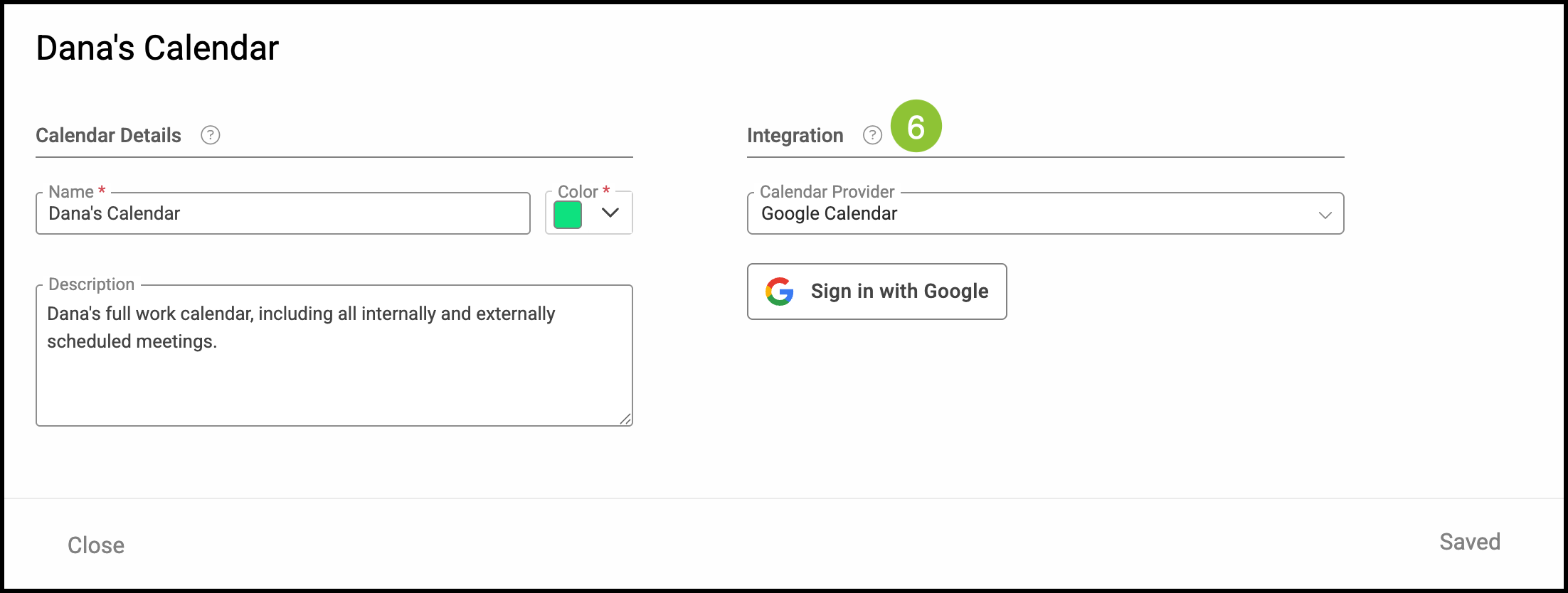
After clicking Save, the page will refresh with the option to use an integrated calendar if you have one installed in your system. For more information on Calendar Integrations, please see Google Calendar, or Microsoft Calendar.
6. Use the dropdown to select which Calendar Provider you would like to use and sign in to the appropriate integration as directed.
Related Articles
Adding Calendar Categories During Event Creation
Adding Calendar Categories in Settings
Adding Events from a Linked Calendar
Linking Estimates/Orders in Calendars