
Linking Estimates or Orders to an event is quick and easy, allowing you to see important details directly on the schedule.
Important Information
- This process is the same in either Calendars or the Scheduling Feature.
- This article uses Calendars as the example.
- For information on adding Events, please see Adding Events to a Calendar.
Table of Contents
Linking Estimates or Orders
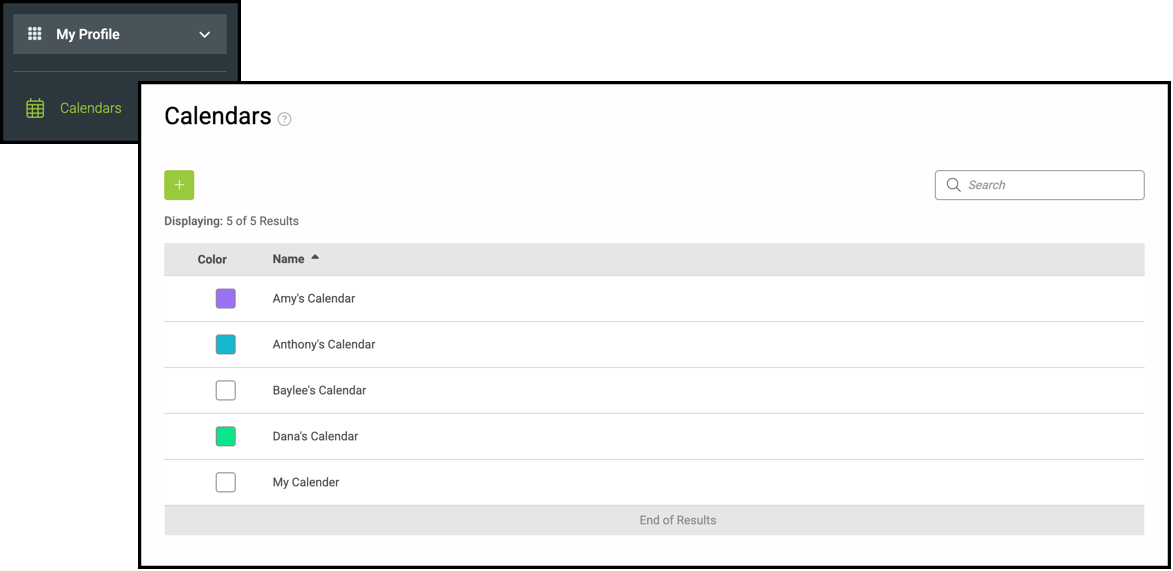
Navigate to My Profile / Calendars and click into the appropriate Calendar.
Within an existing or new Event:
1. In the Event Details tab, click Add Linked Record.
2. Use the dropdown to select the Estimate or Order.
Note: Utilize the Search Field to quickly find the necessary Estimate or Order.
3. Click Save.
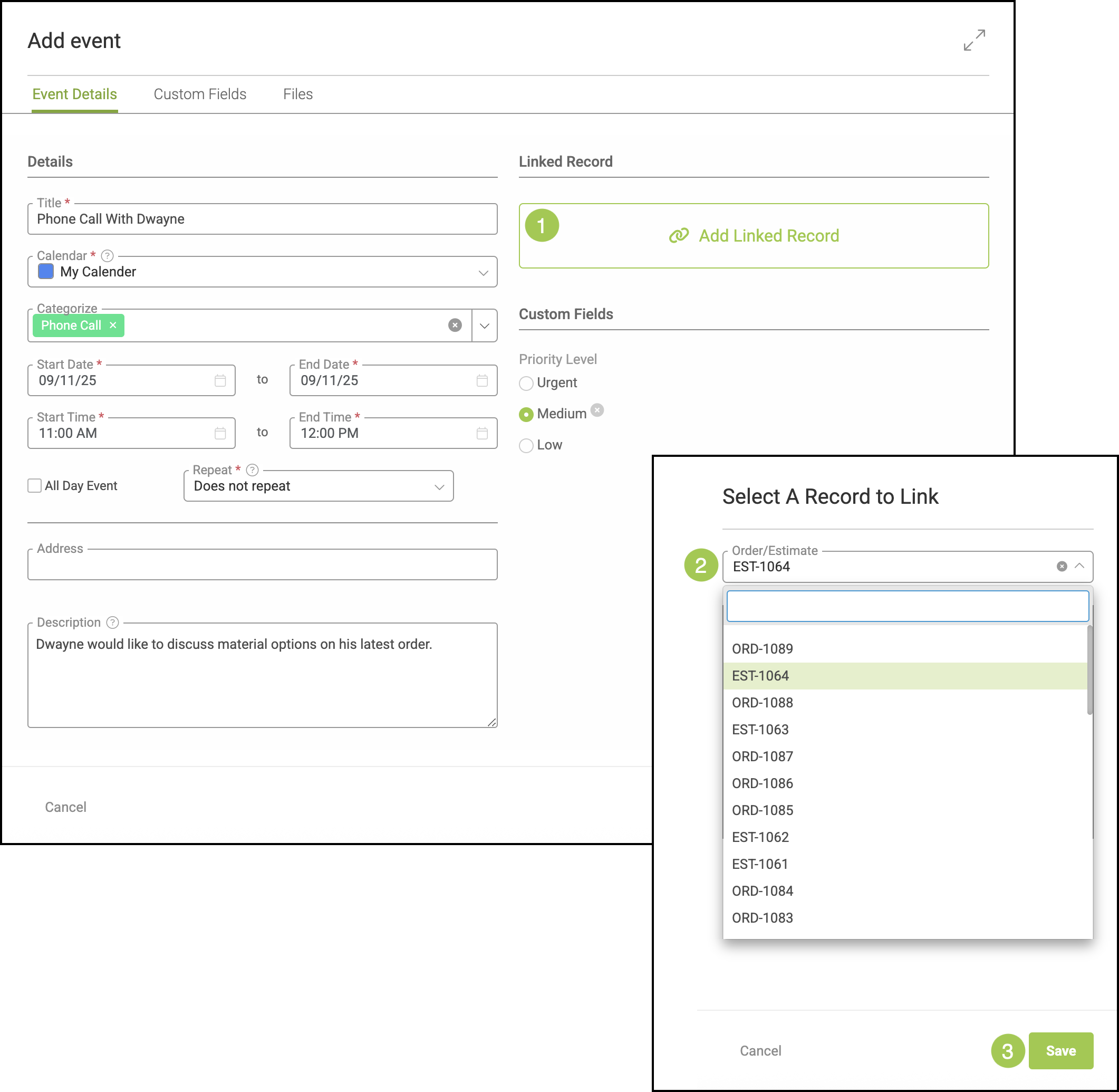
4. Select Save & Continue or Save & Close.
Note: Save & Continue will give you the option to add a Status and/or Substatus to this event. See example above.
Related Articles
Adding Calendar Categories During Event Creation
Adding Calendar Categories in Settings
Adding Events from a Linked Calendar
Record Shortcuts in Scheduling Overview
Using Record Shortcuts to Add Events in Scheduling
Viewing Calendars in Scheduling