
The Record Shortcuts feature provides a quick and convenient way to create calendar events. When used, it automatically links the event and the selected record, allowing you to schedule follow-ups, reminders, or tasks without leaving the page.
For more information on Record Shortcuts, please see Record Shortcuts in Scheduling Overview.
Table of Contents
Using Record Shortcuts to Add Event
Navigate to Sales / Scheduling and expand the Record Shortcuts bar on the left.
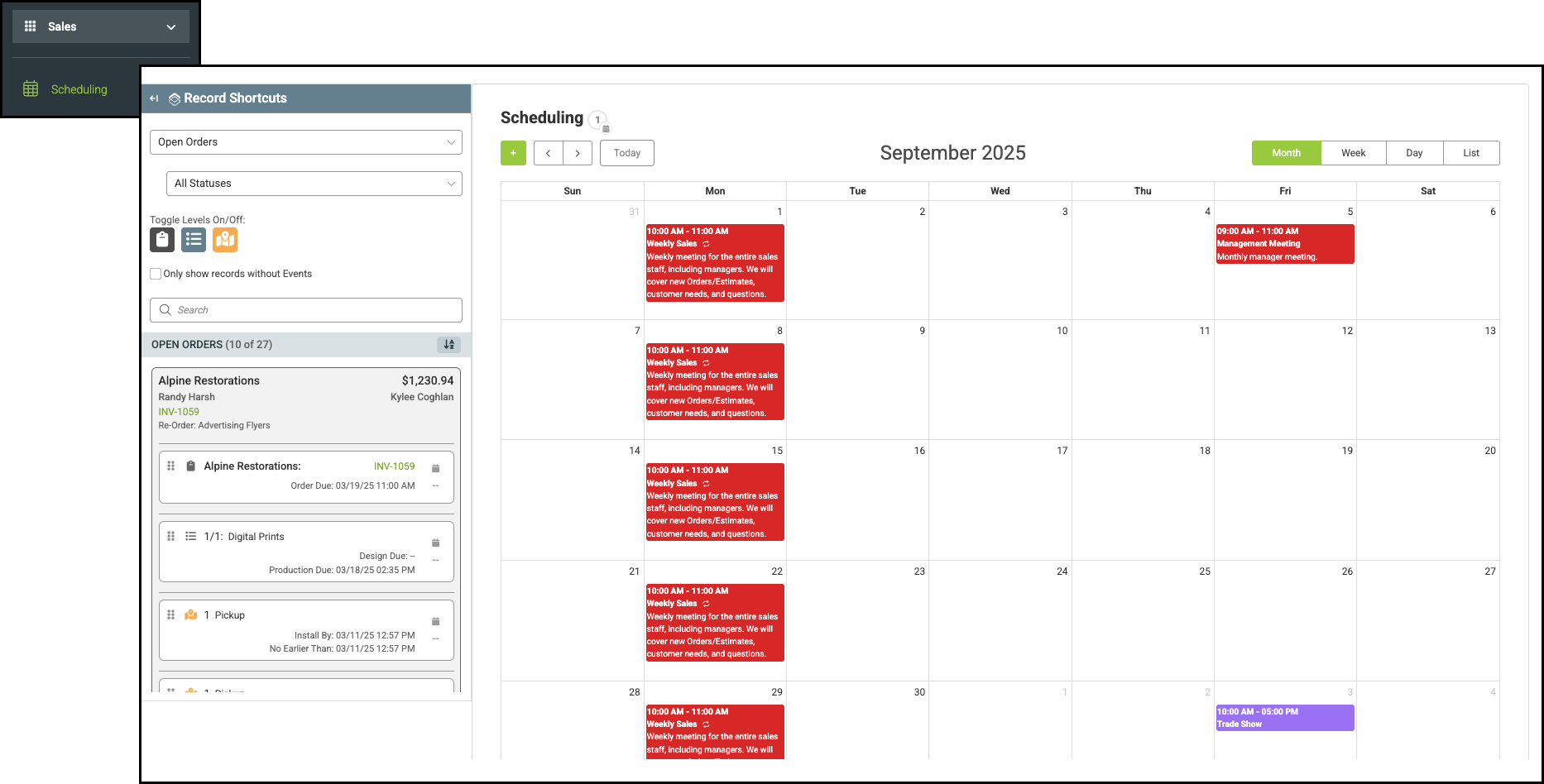
1. Click on the Move icon.
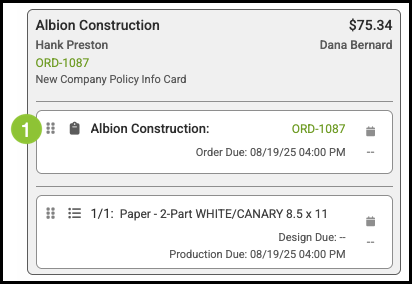
2. Drag record to the calendar and drop it on the appropriate day or time.
Note: When an event is dragged onto the Full Calendar view, it defaults to an all-day event. When placed on the Week or Day View, it defaults to a one-hour event at the selected time.
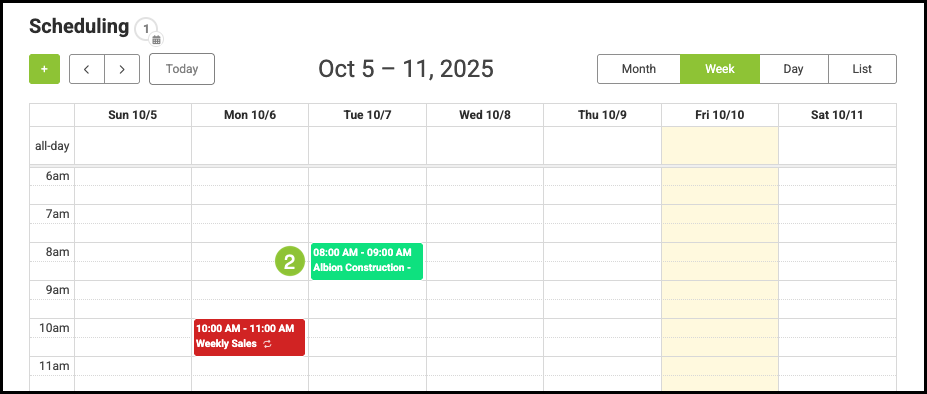
3. Add Event Details.
4. Click Save& Continue or Save & Close.
Note: For more information on Event Details and saving options, please see Adding Events above.
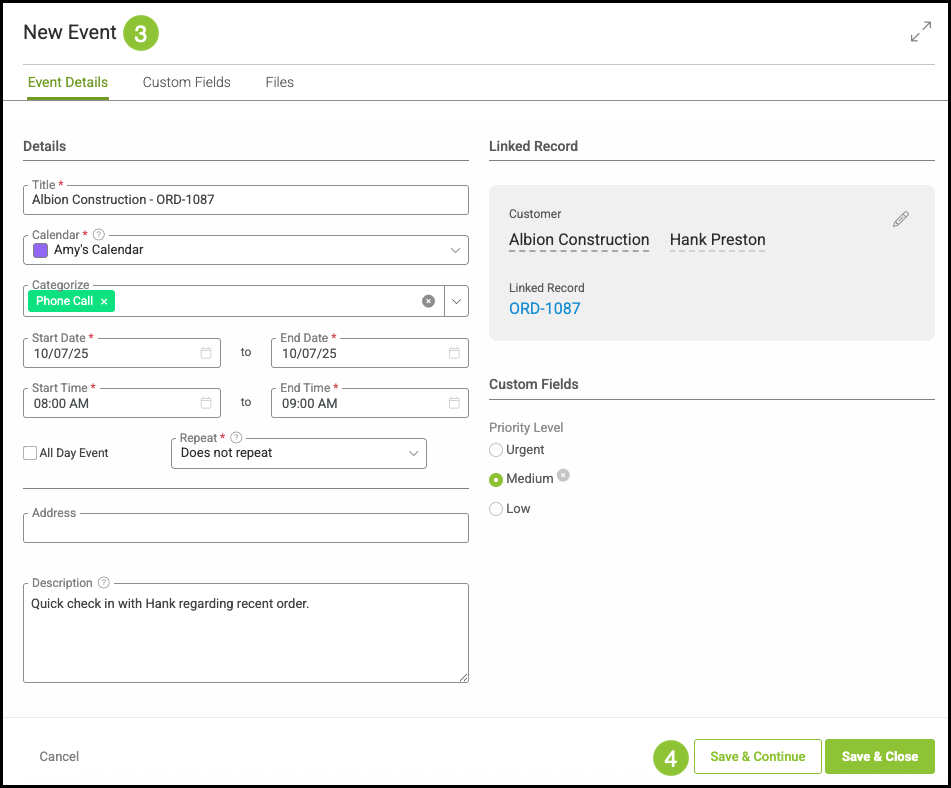
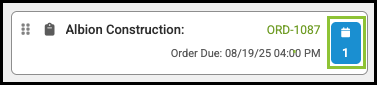
Note: After saving, an icon will appear on the record indicating that this record is linked to an event.
Related Articles
Record Shortcuts in Scheduling Overview
Viewing Calendars in Scheduling