
Calendar Categories are color-coded tags that let you assign custom categories to events. These Categories can be managed in two ways, either during Event Creation, or in Settings. This article explains the process of adding new Calendar Categories in Settings.
For information on adding a category during Event Creation, please see Adding Categories During Event Creation.
Table of Contents
Managing Calendar Categories in Settings
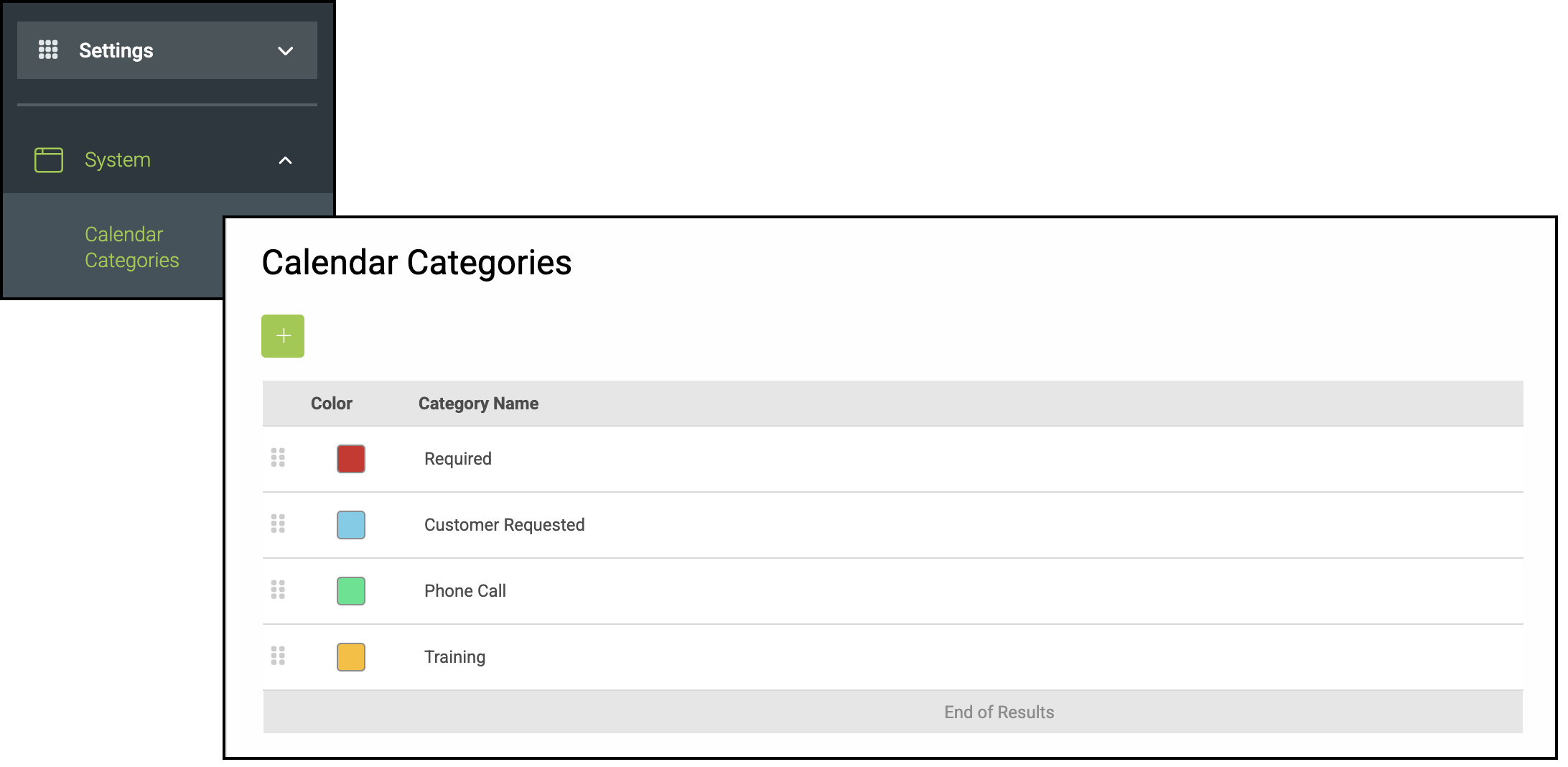
Navigate to Settings / System / Calendar Categories.
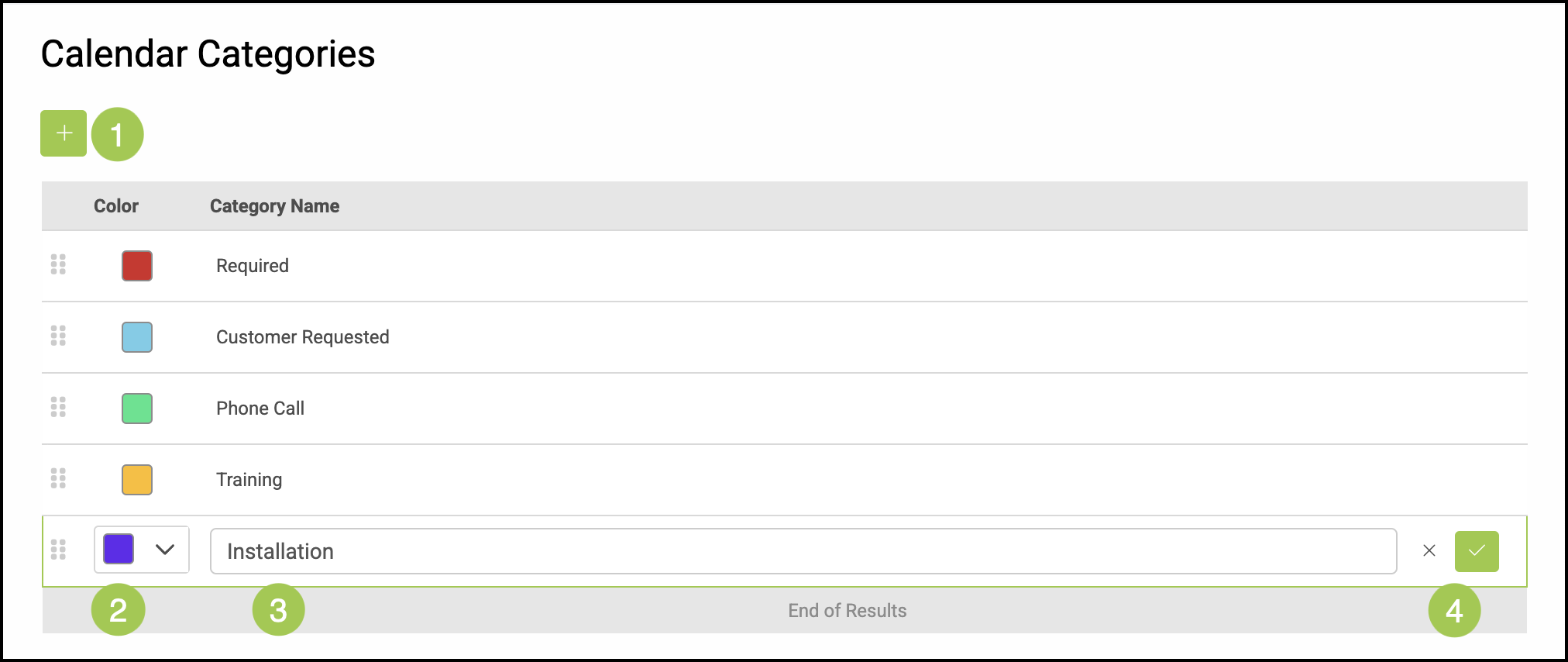
1. Click the Green Plus button.
2. Use the dropdown to select a color.
3. Type the name of this category.
4. Select the Green Checkmark to save, or the X to cancel.
Note: You can apply Calendar Categories when creating an event in either the Calendar or the Scheduling feature, or by editing the event at any time afterward.
Related Articles
Adding Calendar Categories During Event Creation
Adding Events from a Linked Calendar