
Calendars in CoreBridge provide a shared, centralized view designed for team collaboration and streamlined scheduling.
Important Information
- You can add events directly within the CoreBridge Calendar or through the Scheduling feature.
- For more information, please see Scheduling Overview.
- Any event created in CoreBridge will automatically sync to your linked calendar integrations, keeping everything up to date in one place.
- Event descriptions will appear in your linked calendars, but linked Estimates or Orders will not carry over.
Table of Contents
Adding an Event
Navigate to My Profile / Calendars.
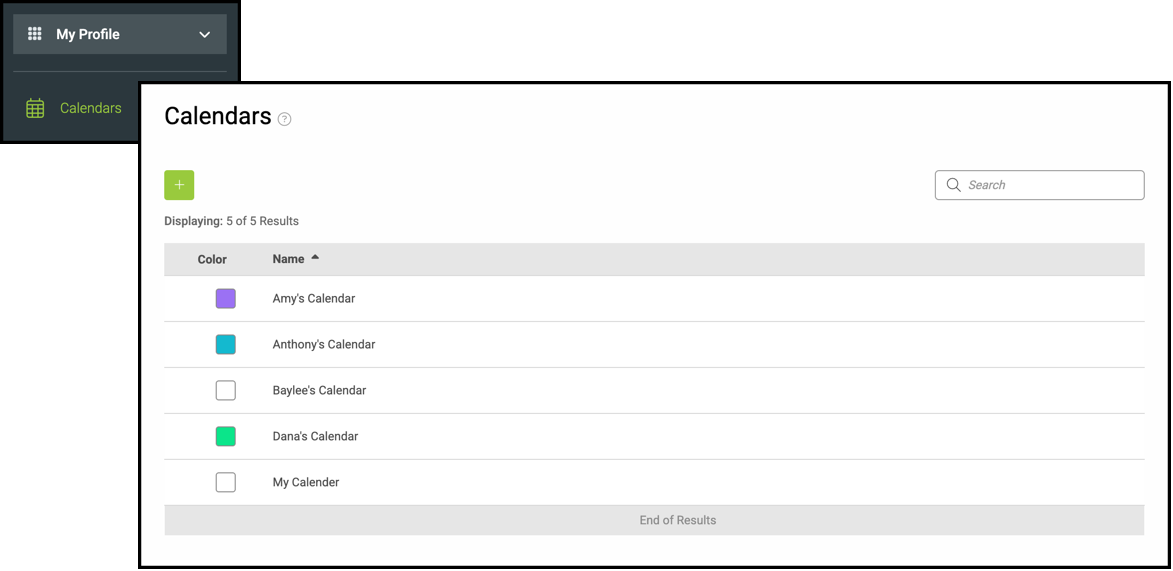
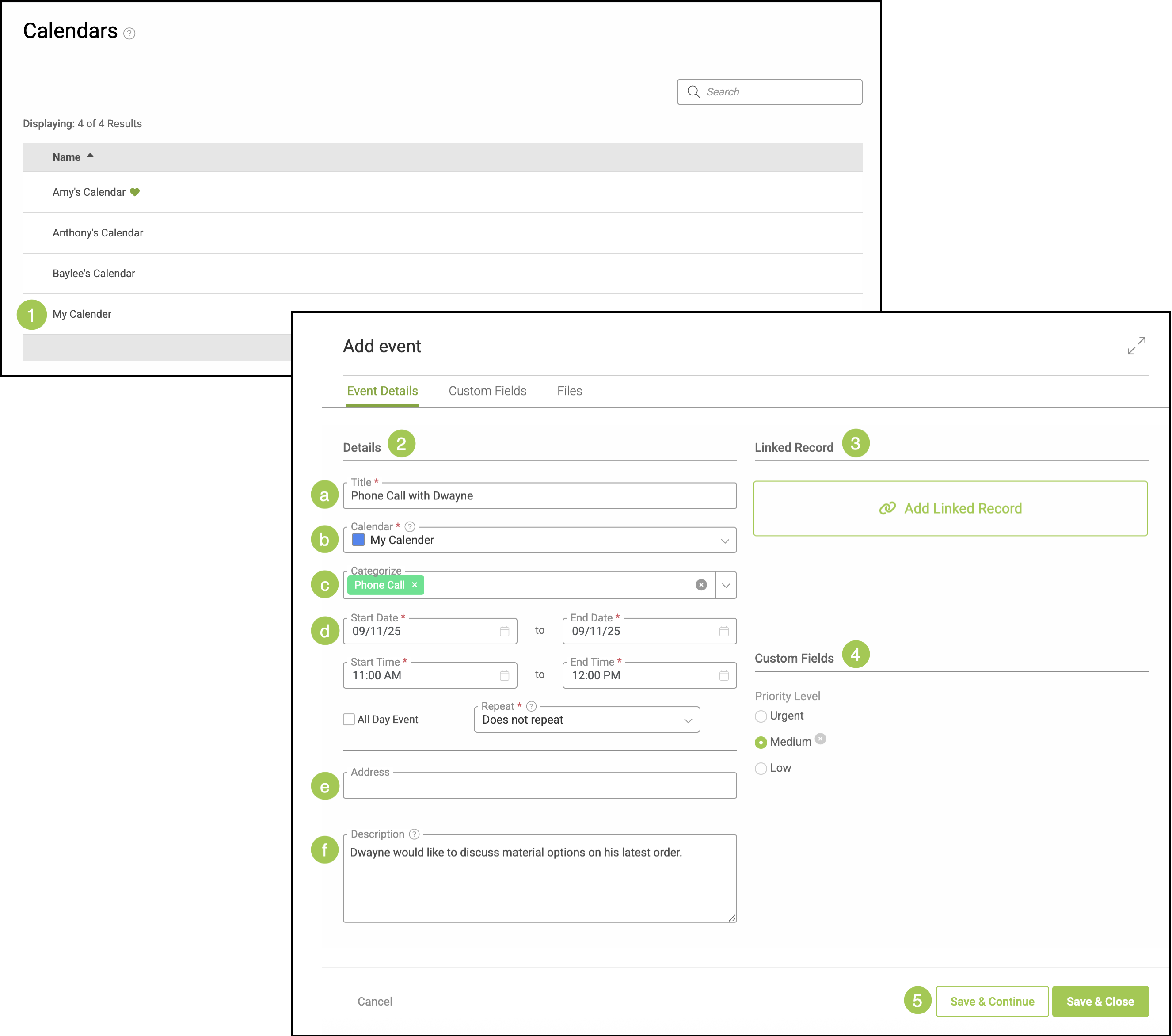
1. Click into the appropriate calendar.
2. Enter in the necessary Details.
a. Give this event a short, recognizable name.
b. Use the dropdown to select which linked Calendar this event belongs on.
c. Use the dropdown to select a Category.
Note: Categories can be managed in Settings / System / Calendar Categories. For more information, see Adding Calendar Categories During Event Creation, or Adding Calendar Categories in Settings.
d. Use the dropdown menus to populate the dates and times for the event, including whether this is an all day event and if it repeats in the future.
e. Provide an address, if applicable.
f. Provide a short description, if desired.
3. Click on Add Linked Record to link an Estimate or Order to this event.
Note: See below for more details.
4. Quick Custom Fields will show here. For more information on creating Custom Fields, please see Custom Fields.
5. Select either Save & Continue or Save & Close.
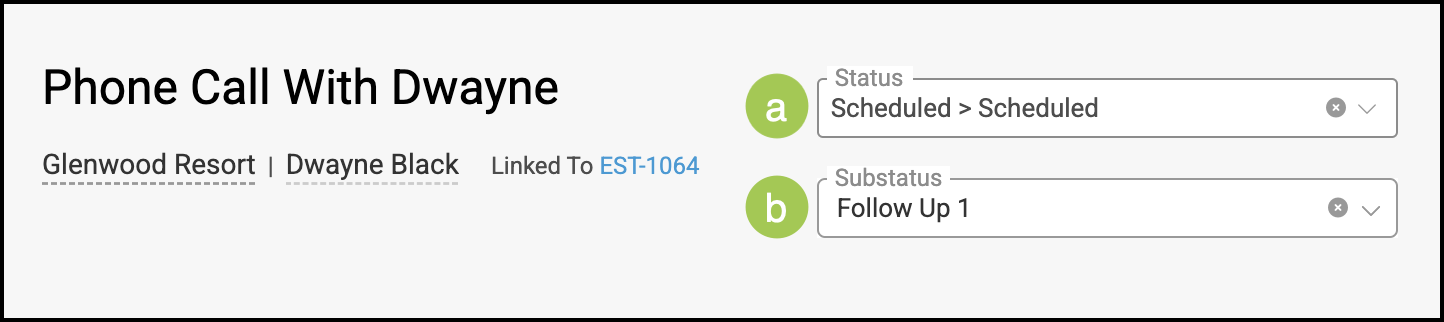
Note: Clicking Save & Continue will give you further options. For more information, see the example below.
Example:
a. Statuses can be managed in Settings / Workflow / Statuses / Calendar Events. Statuses added there will populate in this dropdown.
Note: To update an existing event’s Status, click Edit. A pop-up will appear where you can make changes.
b. Substatuses can be managed in Settings / Workflow / Substatuses. Substatuses must be linked to a Status in order to populate in this dropdown. For more information on this, please see Statuses Overview.
Related Articles
Adding Calendar Categories During Event Creation
Adding Calendar Categories in Settings
Adding Calendar Categories in Settings
Adding Events from a Linked Calendar