
Sorting controls the order in which data appears in charts and tables. Understanding how sorting works - especially when multiple sorts are applied - helps explain why data appears in a particular order and how to adjust it effectively.
Sorting behavior differs slightly between charts and tables, and available options depend on report configuration and permissions.
Table of Contents
- How Sorting Works in Charts
- How to Use Sorting in Charts
- How Sorting Works in Tables
- How to Use Main Sorting in Tables
- How to Use Column Sorting in Tables
- Default Sorting in Summary vs. Detail Tables
- Troubleshooting for Sorting
- Related Articles
How Sorting Works in Charts
Charts use predefined sorting logic based on what the chart is displaying.
Charts are sorted by the category (label) or the value (aggregate) shown.
Labels sort alphabetically.
Values sort numerically.
Sorting options are determined by the chart’s configuration.
Changing what the chart groups or measures may require access to report settings.
Sorting adjustments apply only to your current session unless saved.
Some charts support multiple sorting layers. For example, a line chart may have:
A single category (such as Month)
Multiple values (such as Revenue by Location)
In these cases, sorting may use helper fields - such as a numeric month value instead of a month name - to ensure logical ordering.
Example: January through December rather than alphabetical order.
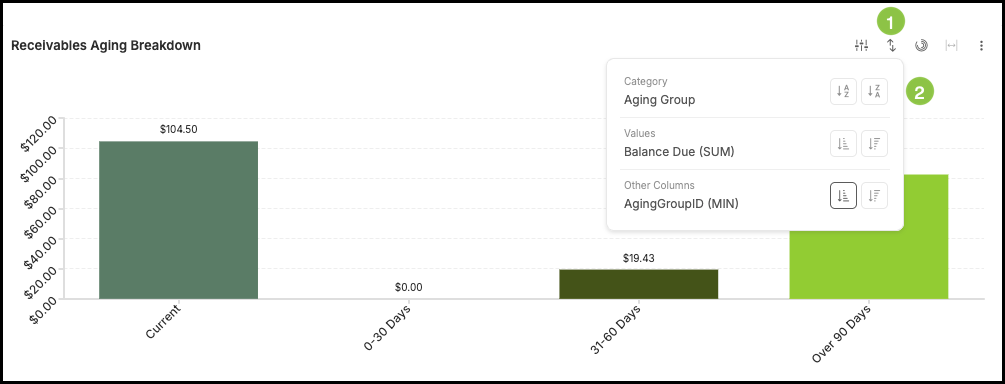
How to Use Sorting in Charts
1. Click on the Sorting icon.
2. Select your preferred sorting options.
How Sorting Works in Tables
Tables provide more flexibility and allow interactive sorting directly within the report, depending on permissions.
a. Main Sorting Menu
Tables include a primary sorting control where you can select one or more columns to sort by.
Available sorting options are limited to columns that make sense for the report context.
Columns displayed in the table are always available for sorting.
b. Preconfigured Sorting
Many summarized tables load with default sorting based on report groupings.
These default sorts reflect how the report is grouped
Example: Sales Location, Year, and Month.
You can remove or adjust these sorts during your session without changing the underlying report.
c. Sorting Is Hierarchical
Sorting is applied in layers, also known as levels.
The first sort applied is Level 1.
The second sort applied is Level 2.
Additional sorts continue building in sequence.
Note: If a new sort does not appear to change the data, it is often because it is being applied after existing sorts and does not conflict with them. A sort applied at a lower level cannot override earlier sorting rules.
To fully change how data is ordered, earlier sorting levels may need to be removed.
How to Use Main Sorting in Tables
1. Click the Sorting icon.
Note: This is the main sorting icon that controls the entire table.
a. Additional columns can be added using the dropdown menu.
b. Select the preferred sorting option here.
c. Columns can be deleted by clicking the the X.

How to Use Column Sorting in Tables
Table columns include a clickable sort icon that cycles through three states:
Off
Ascending
Descending
These column-level sorts work together with the main sorting menu. When a column sort is applied:
It becomes the next sorting level.
It does not override existing higher-level sorts.
Visual indicators show whether the column is actively sorted and in which direction.
1. Click the Column Sorting icon.
Note: Hovering over the icon reveals the current sort state.

Default Sorting in Summary vs. Detail Tables
Different table types behave differently when first loaded.
a. Summary tables
Typically load with predefined sorting logic.
Reflect report groupings and chart configuration.
Designed to present aggregated data in a meaningful order.
b. Detail tables
Often load without any sorting applied.
Sorting is built dynamically as you interact with columns.
Some exceptions exist for obvious cases.
Example: Alphabetical sorting for company lists.
Troubleshooting for Sorting
If sorting does not appear to change the data:
Check whether multiple sorting levels are already applied.
Review the main sorting menu to see what rules are taking precedence.
Remove earlier sorts if needed before applying a new one.
Remember that column sorting cannot override conflicting higher-level sorts.
Note: Understanding the layered nature of sorting resolves most confusion.