Location Settings allow you to customize the way your system recognizes your working week, time zone, and numbering preferences. This can be especially helpful when there are multiple locations in the system.
Table of Contents
Changing Business Hours
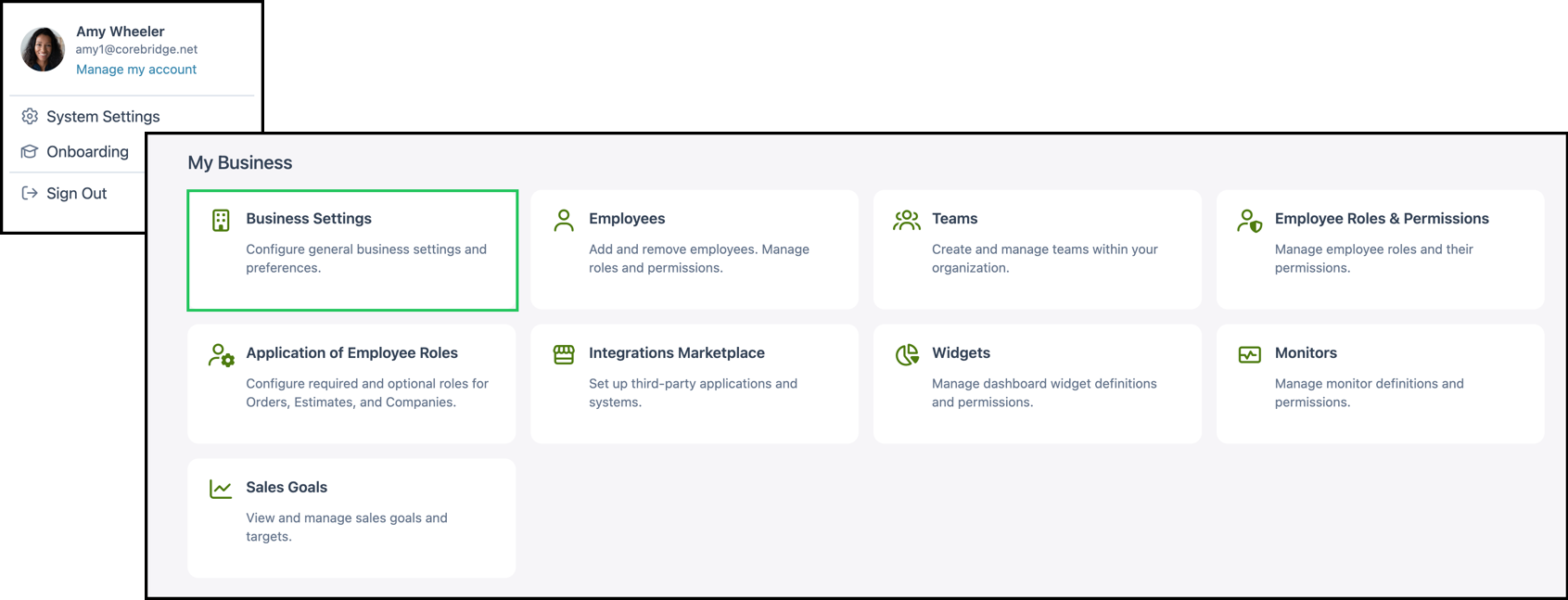
Navigate to System Settings / My Business / Business Settings.
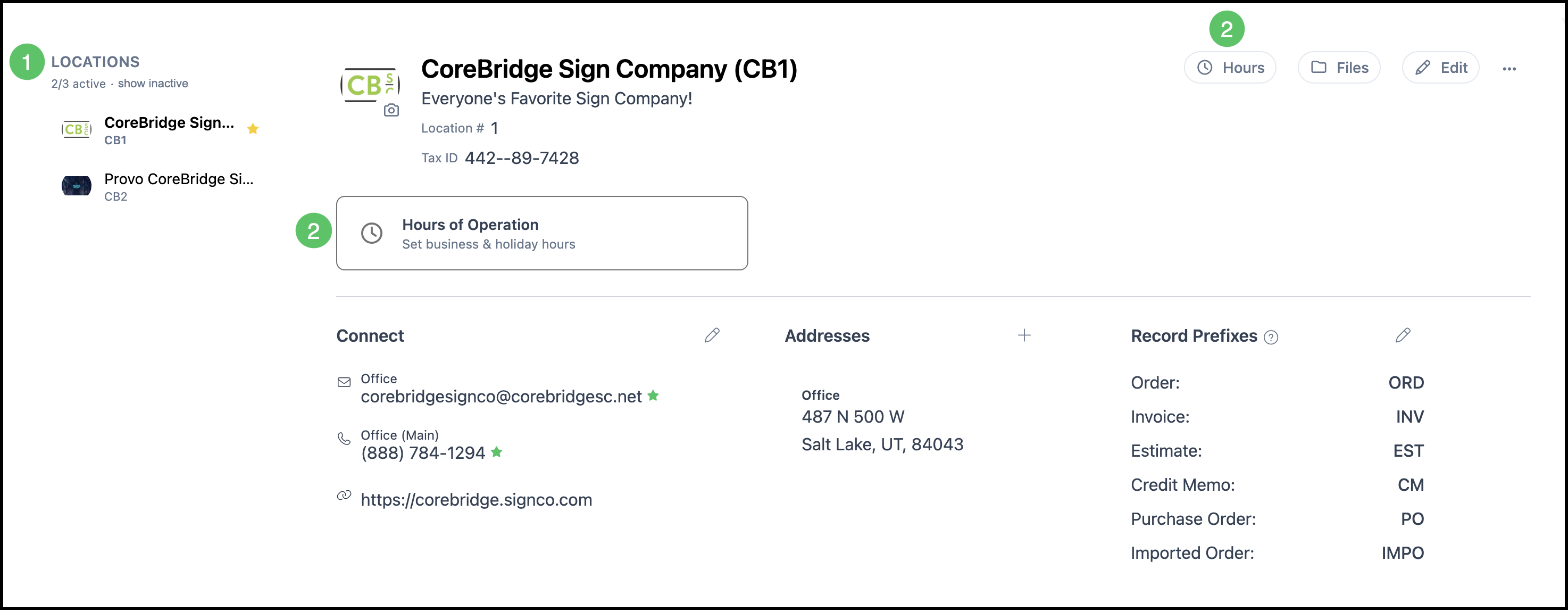
1. Select the Location, if applicable.
2. Click Hours of Operation (or Hours)
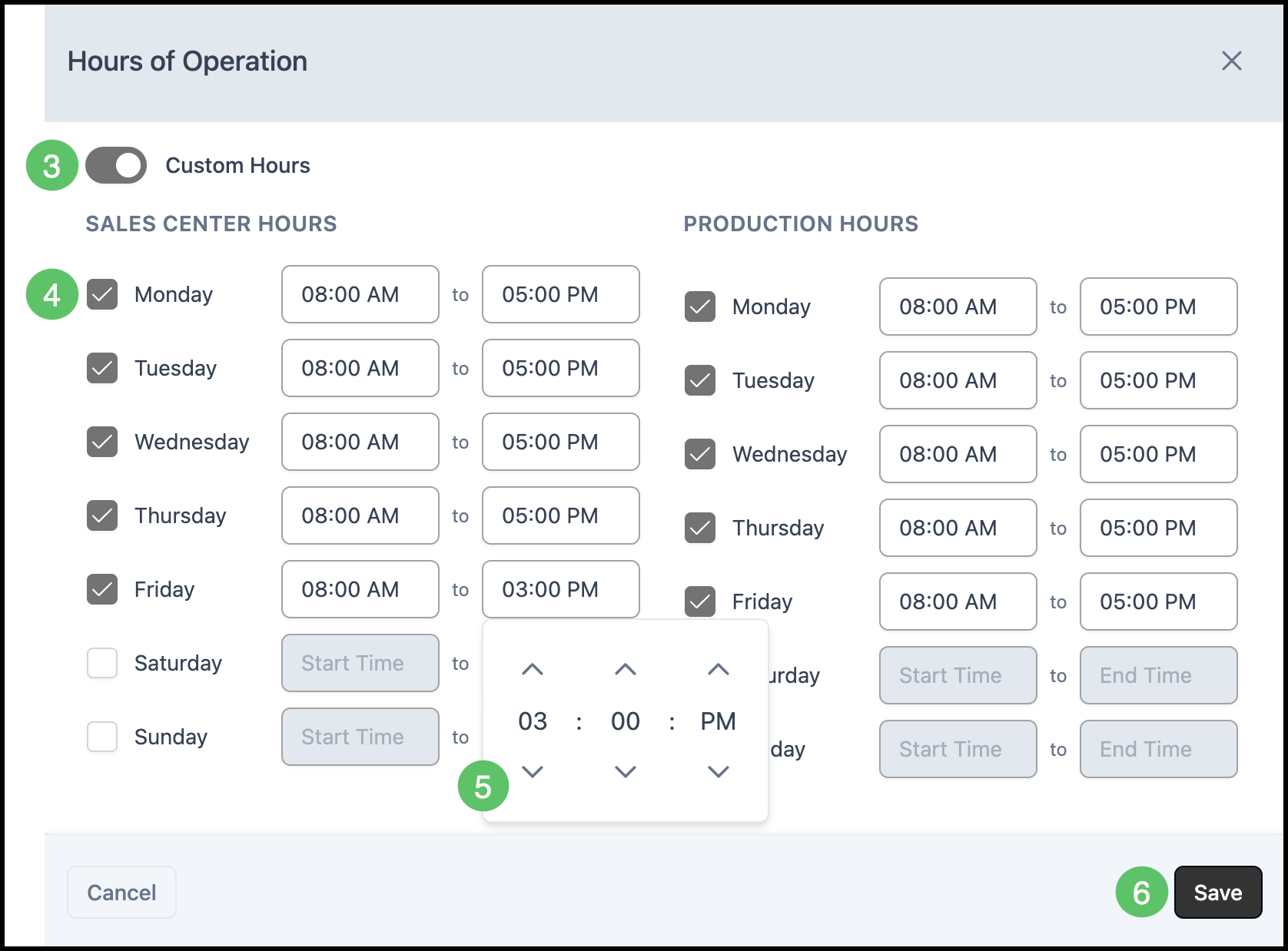
3. Use the toggle to select whether you would like your Hours of Operation to follow the system default, Monday through Friday from 8:00 AM to 5:00 PM, or if you would like to set your own Custom Hours.
4. Choose which days you will be operating by checking or unchecking the box next to the desired day.
Note: Days of Operation can be adjusted at any time regardless of if Default or Custom has been selected.
5. If you have set the toggle to Custom, you can adjust the hours by selecting the time box and increasing or decreasing the time using the up and down arrows. Once you have adjusted the hours, select whether you would like AM or PM.
6. Click Save.
Changing Numbering Options
- The recommended defaults typically start at 1000 and increase by 1 for new Estimates, Orders, and Invoices.
- CoreBridge can advance these numbers automatically, and you can change the next number manually when allowed.
- For separate numbering by Location, turn on Use unique numbers for each location on the Numbering Options page.
- To tell Locations apart on printed records, set different Record Prefixes on the Location. This can be managed in System Settings / My Business / Business Settings. For more information, please see Location Details.
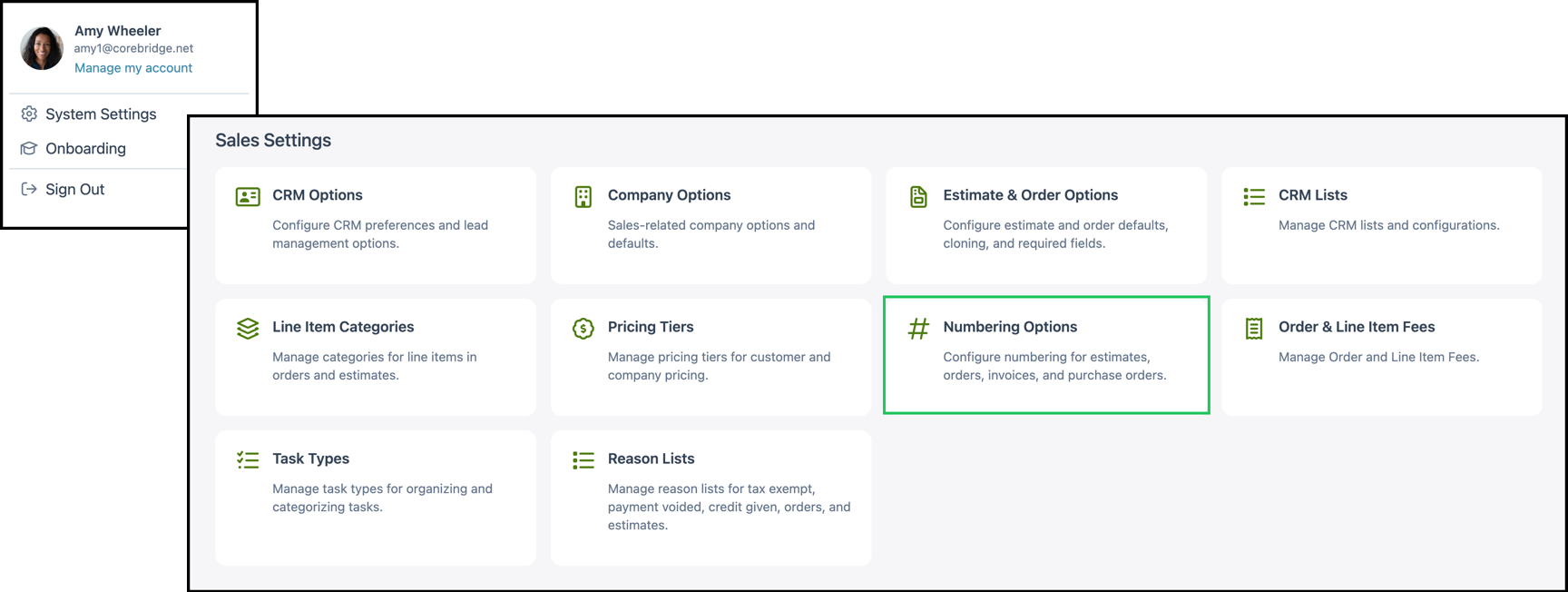
Navigate to System Settings / Sales Settings / Numbering Options.
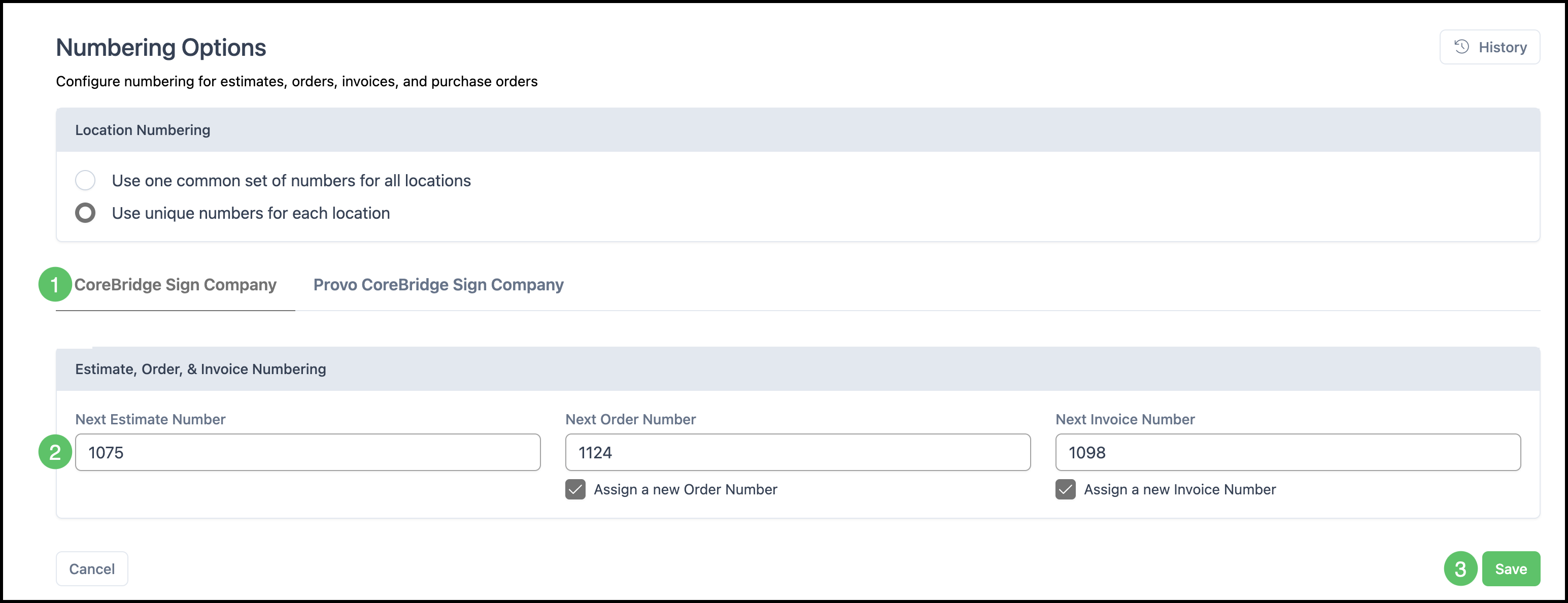
1. Select the Location to update, if applicable.
2. Enter the starting or next values you need for Estimates, Orders, and Invoices.
Note: By default, Order and Invoice numbering follow the same sequence. To use a different invoice number, use Assign a New Order/Invoice Number (or the equivalent) below the order or invoice number fields.
3. Click Save.
Changing Time Zones
- The default time zone for a Location is set in Location Defaults found in System Settings / My Business / Business Settings. For more information, please see Location Details.
- To set the time zone for an Employee, go to System Settings / My Business / Employees, open the Employee, and set the time zone in their details. For more information, please see Managing Employees.
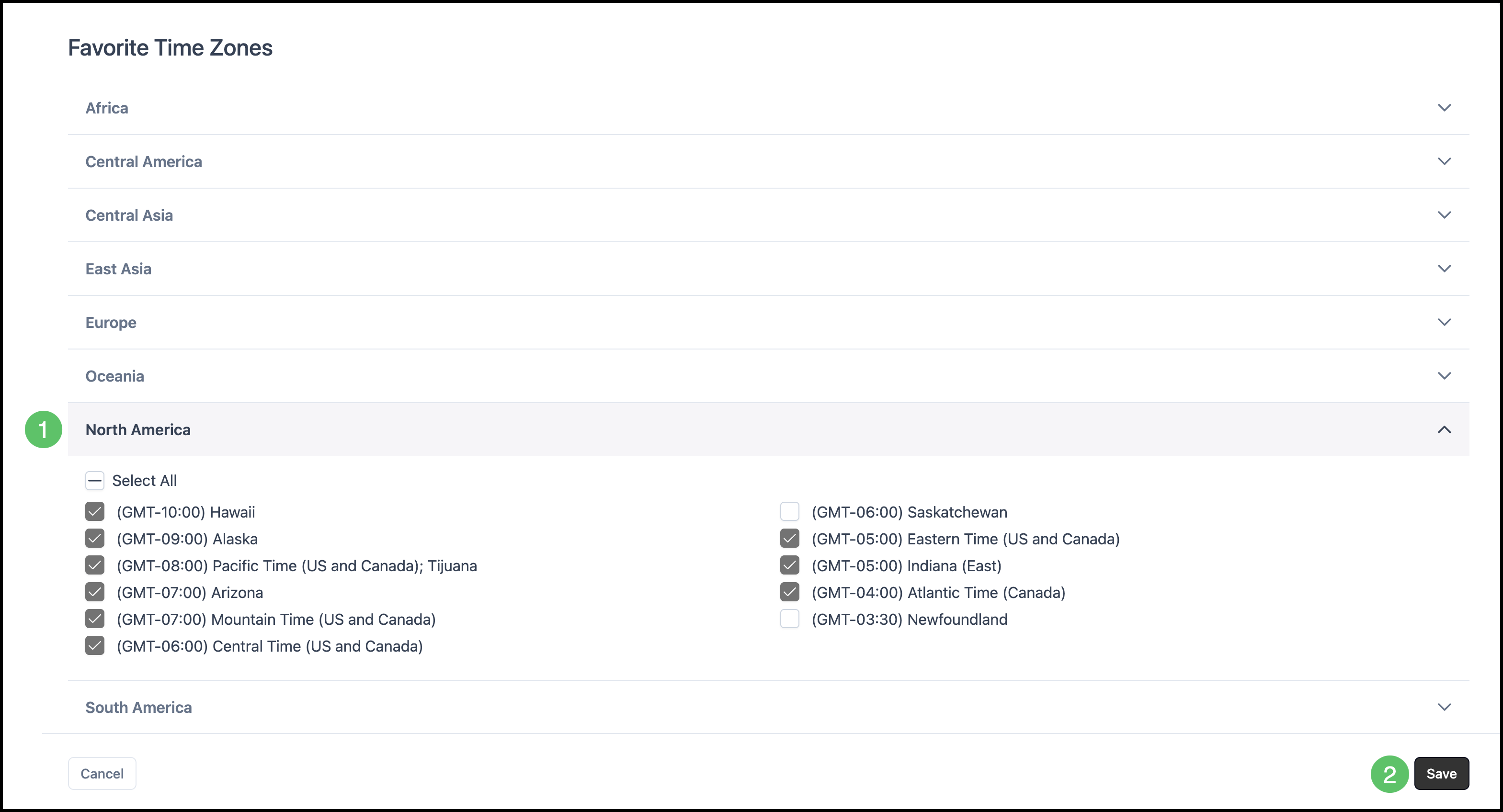
- Time Zones on the System group of All Settings only controls favorite time zones that appear at the top of time zone pick lists, not the Location or Employee default.
Navigate to System Settings / System / Time Zones.
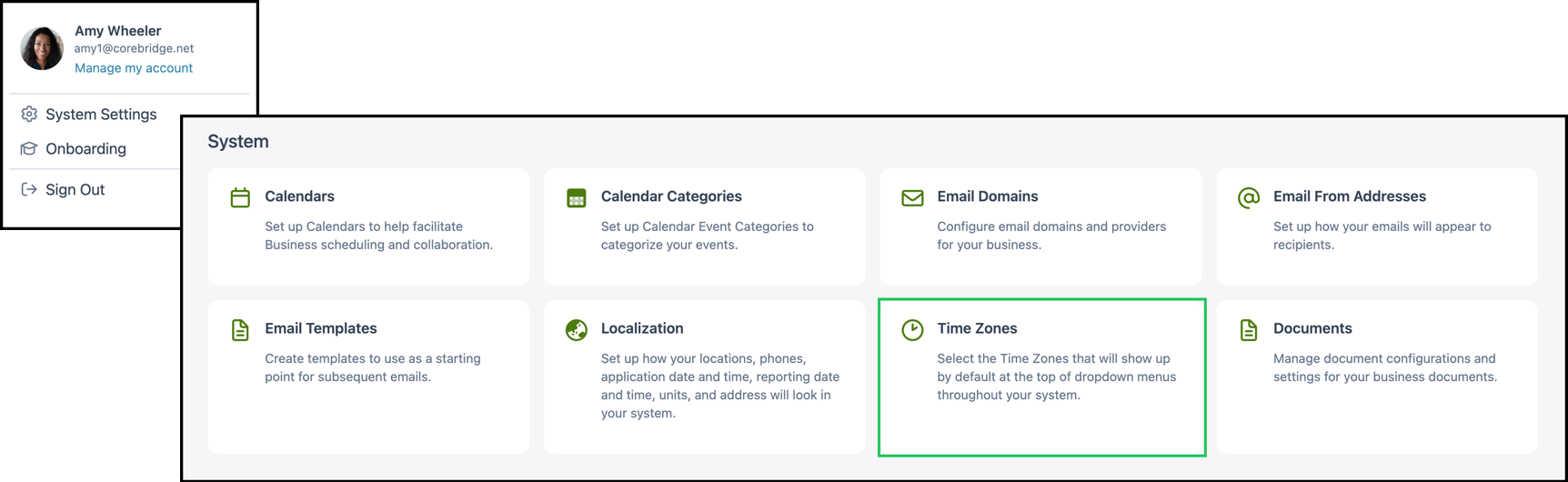
1. Select the time zones you want to show first in time zone pick lists throughout the system.
2. Click Save.