
Markup and Margin Pricing tables let you define different rates based on a variable such as total area. Instead of a single fixed rate, the table adjusts pricing automatically based on job size or customer type. Discount tables work in a similar way, allowing discounts to be applied automatically based on defined criteria.
Table of Contents
Markup and Margin Pricing Tables
Markup and Margin Pricing Tables provide a flexible way to manage pricing rates. By defining ranges and corresponding rates, pricing can be adjusted automatically based on the criteria you configure.
Navigate to System Settings / Components / Products & Modifiers.
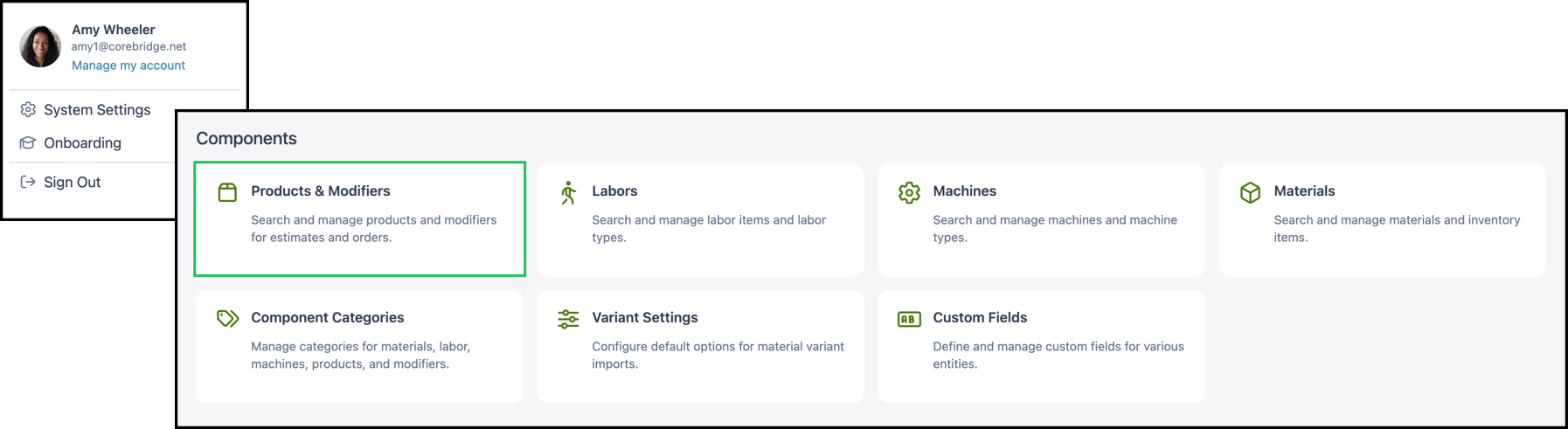
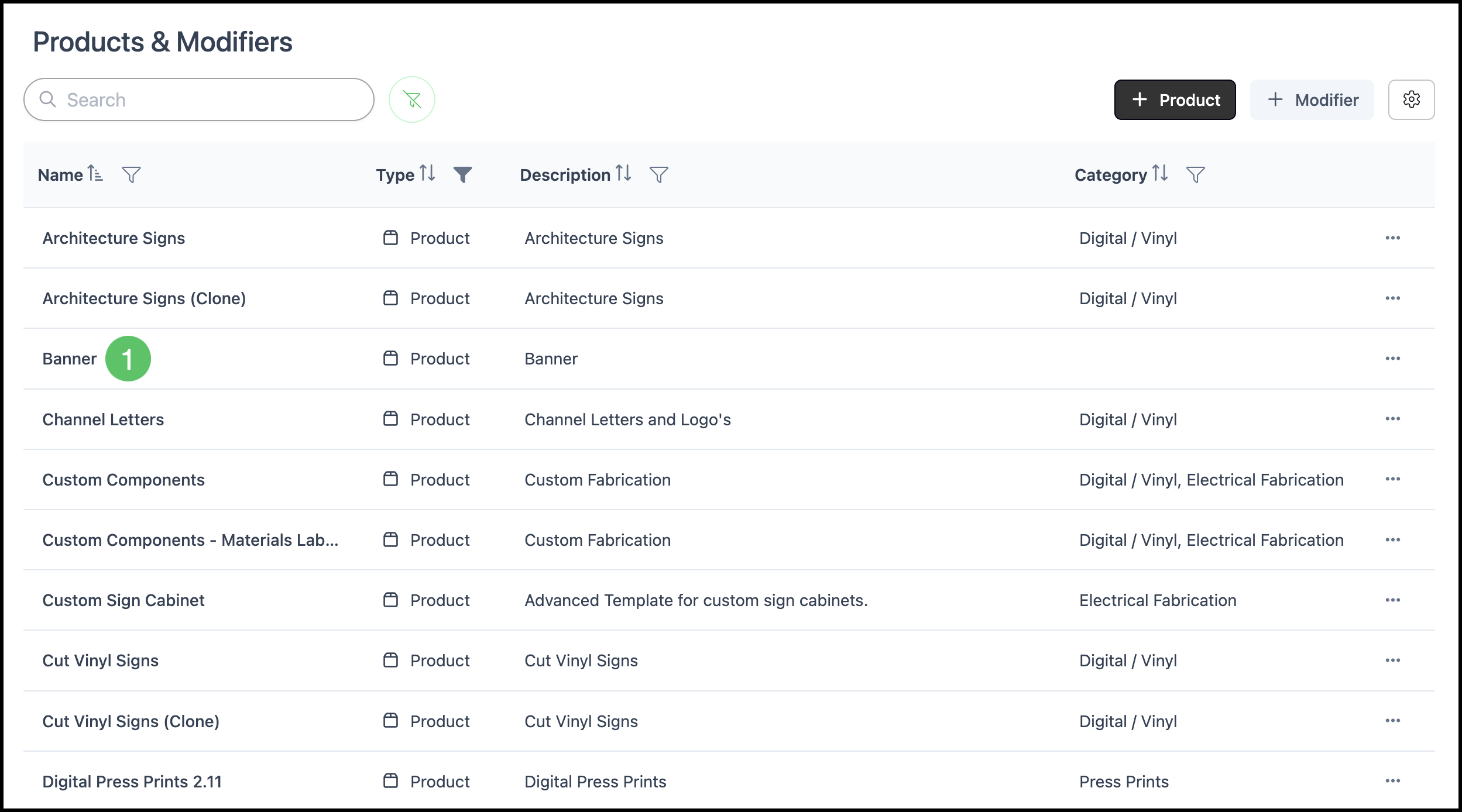
1. Select the Product you want to update.
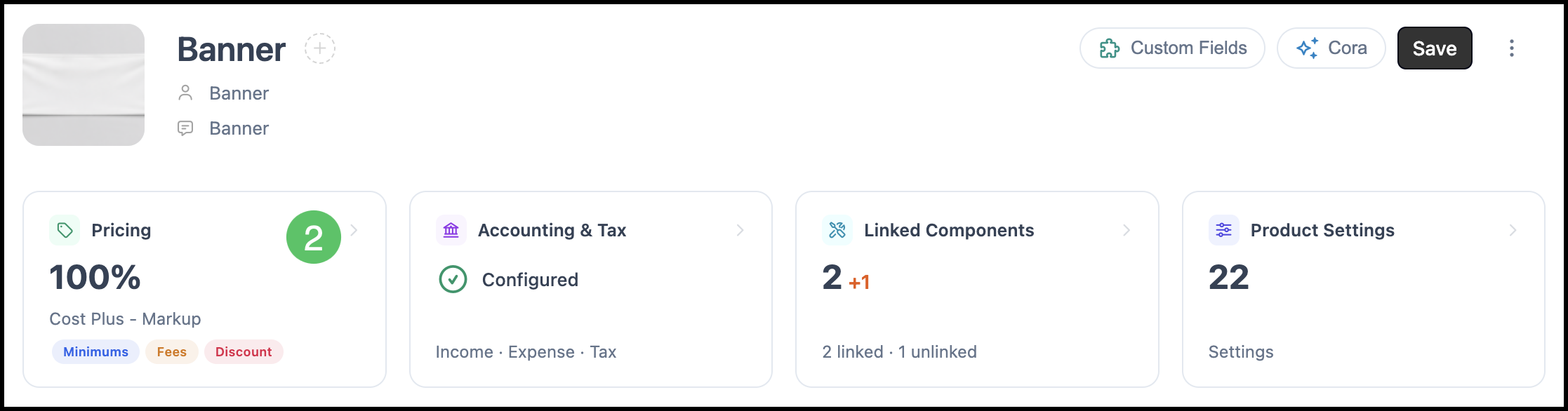
2. Click the Pricing card.
3. Enable the Use Table toggle.
Note: When enabled, CoreBridge uses the rates defined in the table instead of a single fixed margin or markup percentage.
4. Click Edit Table.
Note: The table name changes based on the pricing method being used, but the available functionality remains the same.
- Cost Plus - Margin : Edit Margin Table.
- Cost Plus - Markup : Edit Markup Table.
- Market - Product : Edit Unit Price Table.
- Custom : Edit Unit Price Table.
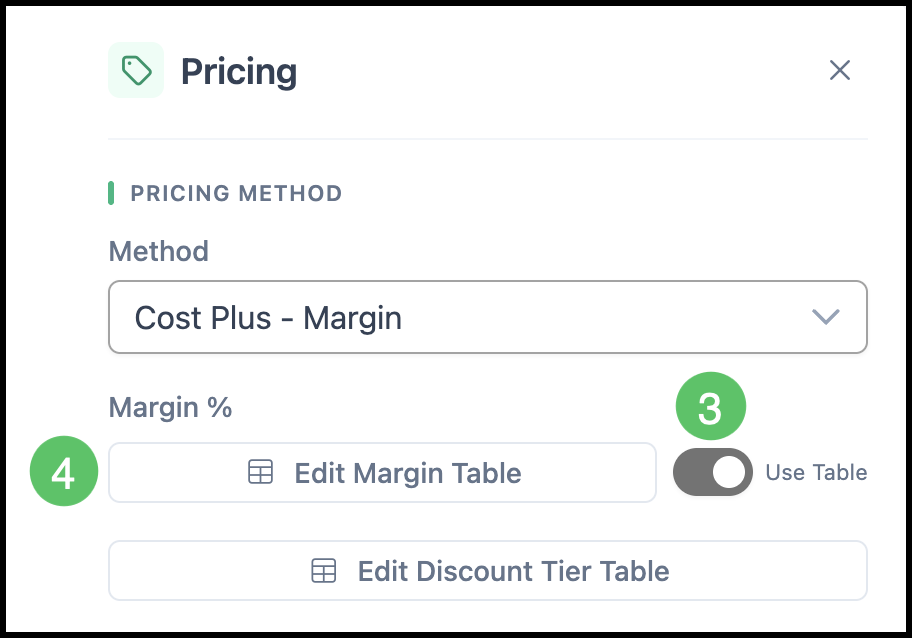
Note: This button is only available after the table has been enabled. Please see Enabling Table-Based Pricing above for more information.
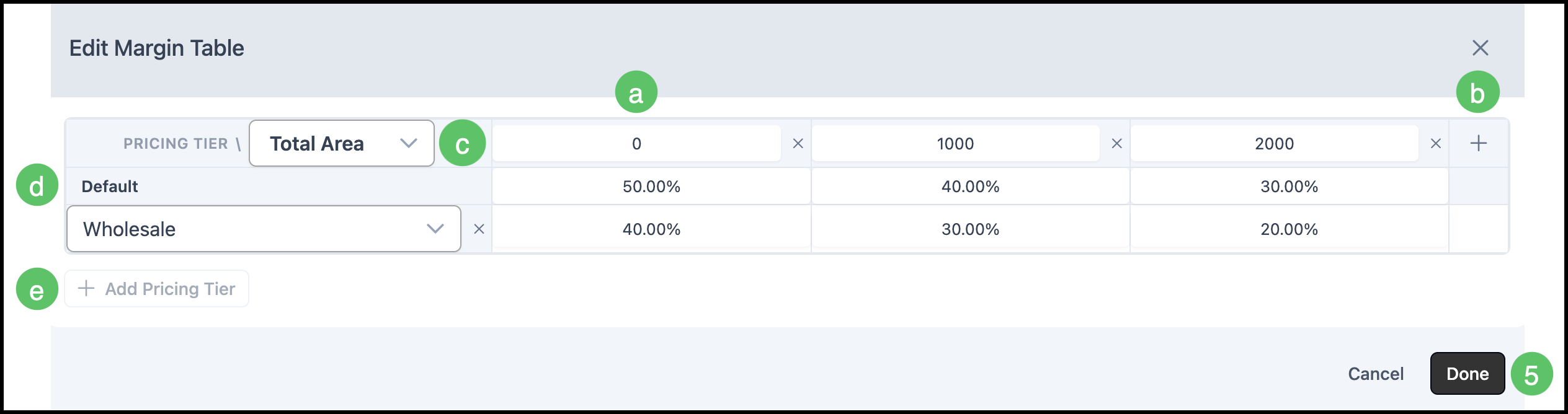
The table is organized by two dimensions: columns represent thresholds for a pricing variable (such as total area), and rows represent pricing tiers.
a. Columns - Each column represents a threshold value for the pricing variable. CoreBridge applies the rate from the column that matches the current value of that variable.
b. The Plus icon allows you to add a new threshold.
c. Discount Variable - Defines the product attribute used for the table columns. Available options include values such as Item Height, Roll Length Used, Total Area, and Total Sheets, allowing the table to be configured for the selected product.
d. Rows - Each row represents a pricing tier. The Default tier applies to all Orders unless otherwise specified.
e. The Add Pricing Tier button allows you to add a new tier such as a wholesale or custom rate.
Note: Tables are built on a default pricing tier. Additional tiers, such as Wholesale, can be added at System Settings / Sales Settings / Pricing Tiers.
f. Cells - Each cell contains the margin or markup percentage CoreBridge applies when the corresponding threshold and tier conditions are met. Click a cell to enter or update the rate.
5. Click Done.
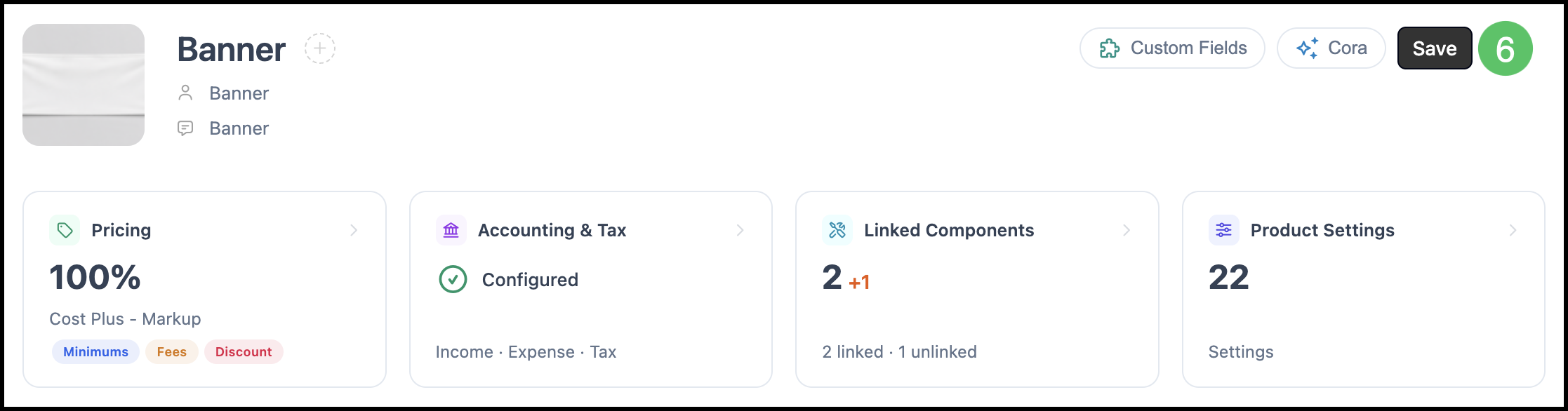
6. Click Save.
Discount Tables
Discount Tables allow you to apply discounts based on defined criteria, such as total area or customer type. Instead of entering a single discount amount, the table automatically applies the appropriate discount based on the values you configure.
Navigate to Settings / Components / Products & Modifiers.
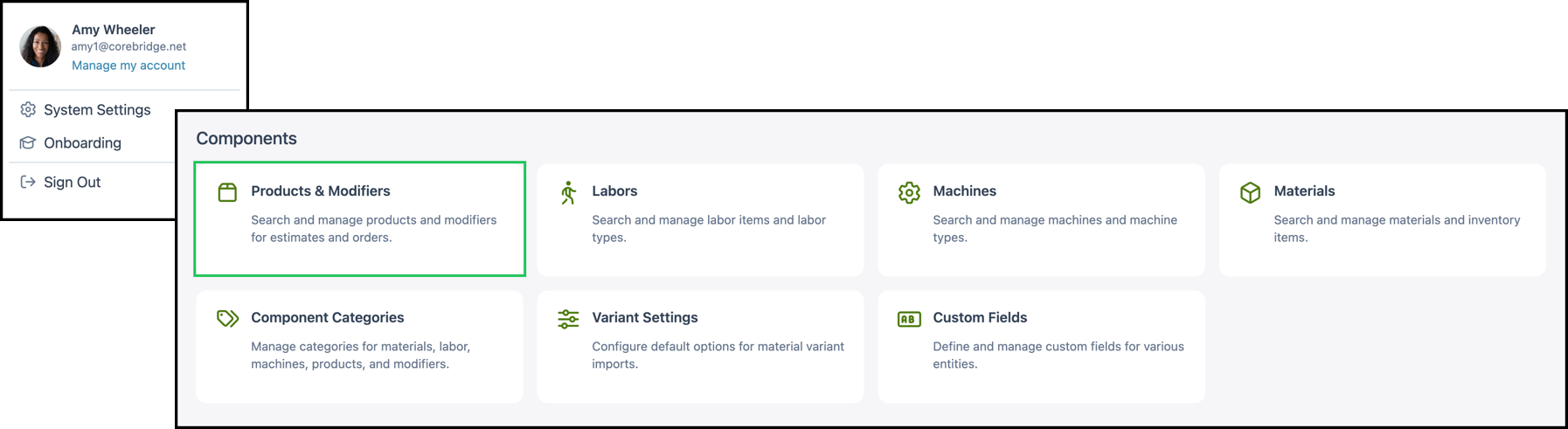
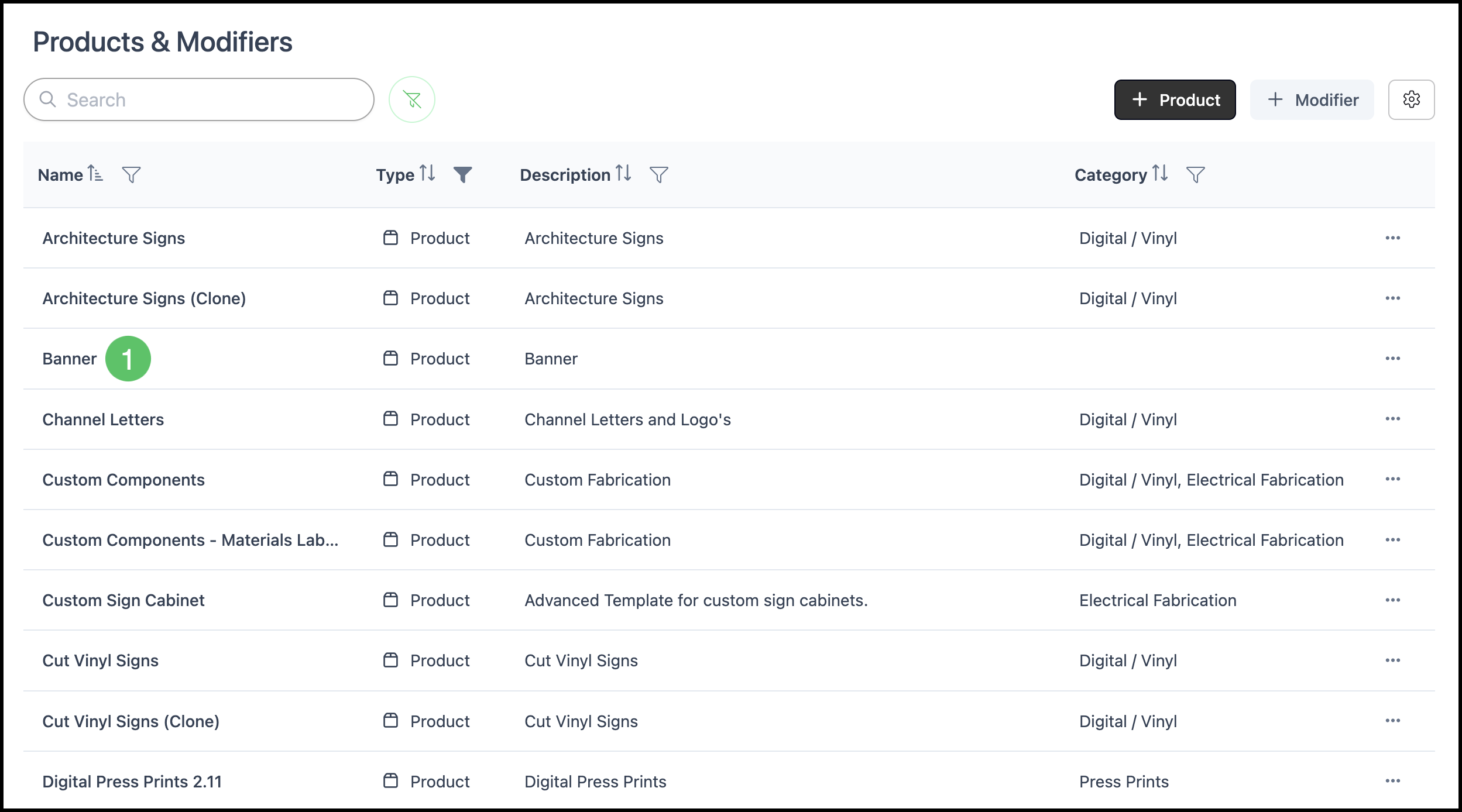
1. Select the Product you want to update.
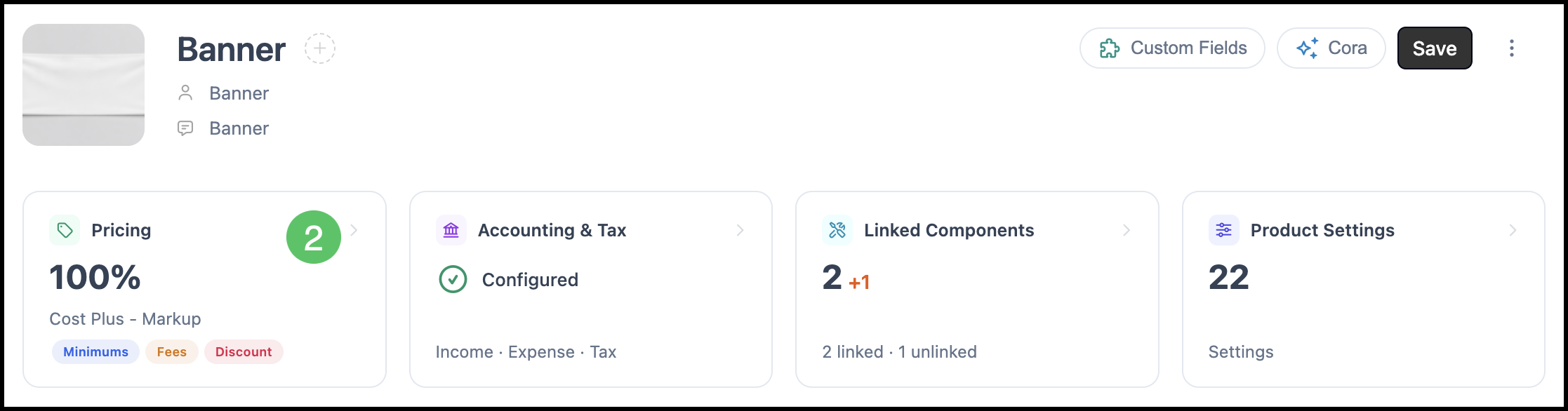
2. Click the Pricing card.
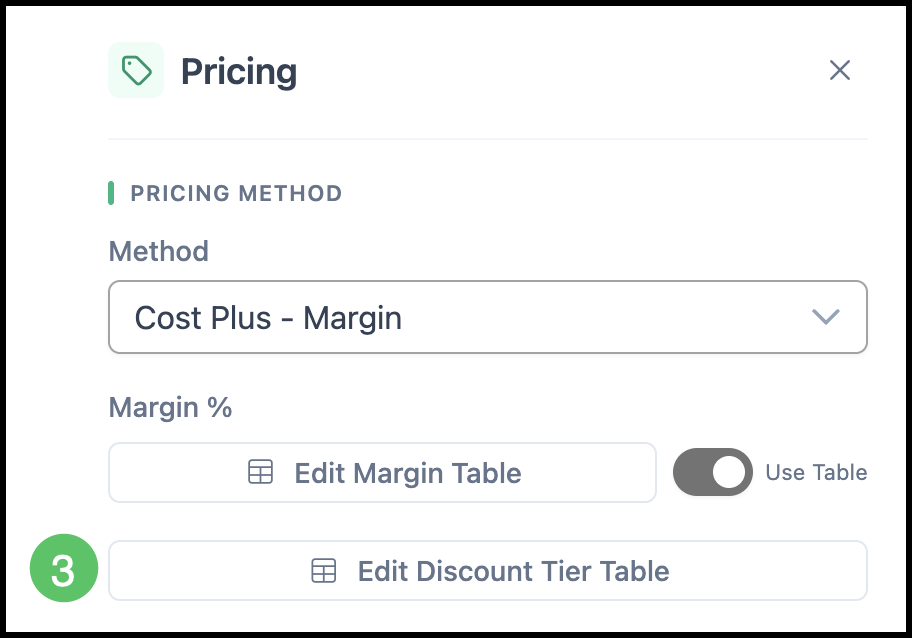
3. Click Edit Discount Tier Table.
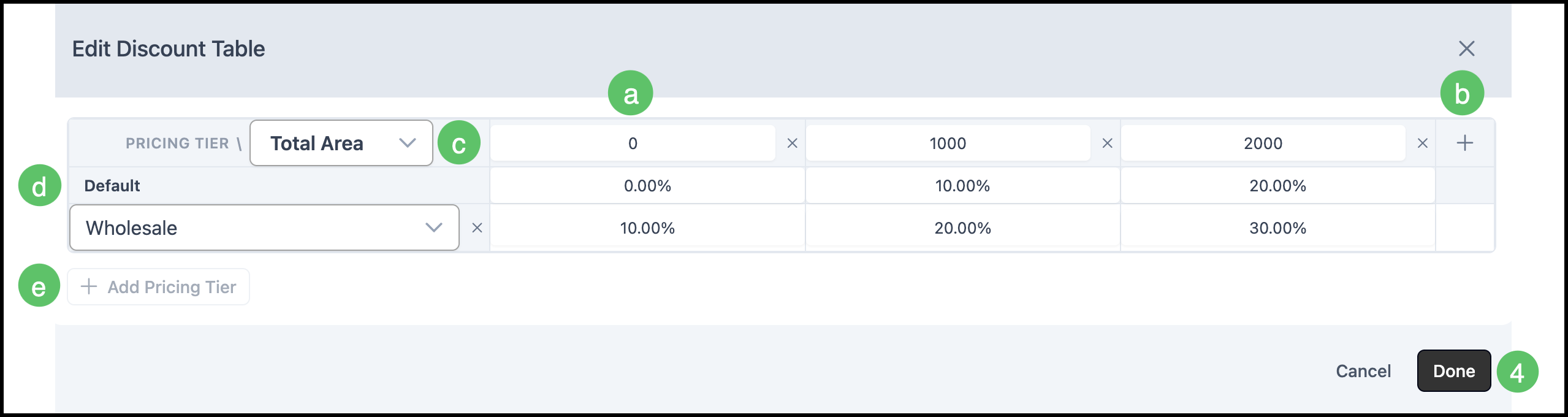
a. Columns - Each column represents a threshold value for the discount variable. CoreBridge applies the discount from the column that matches the current value of that variable.
b. The Plus icon allows you to add a new threshold.
c. Discount Variable - Defines the product attribute used for the table columns. Available options include values such as Item Height, Roll Length Used, Total Area, and Total Sheets, allowing the table to be configured for the selected product.
d. Rows - Each row represents a discount tier. The Default tier applies to all Orders unless otherwise specified.
e. The Add Discount Tier button allows you to add a new tier with a different discount structure.
Note: Additional tiers, such as Wholesale, can be added at System Settings / Sales Settings / Pricing Tiers.
f. Cells - Each cell contains the discount percentage CoreBridge applies when the corresponding threshold and tier conditions are met. Click a cell to enter or update the discount.
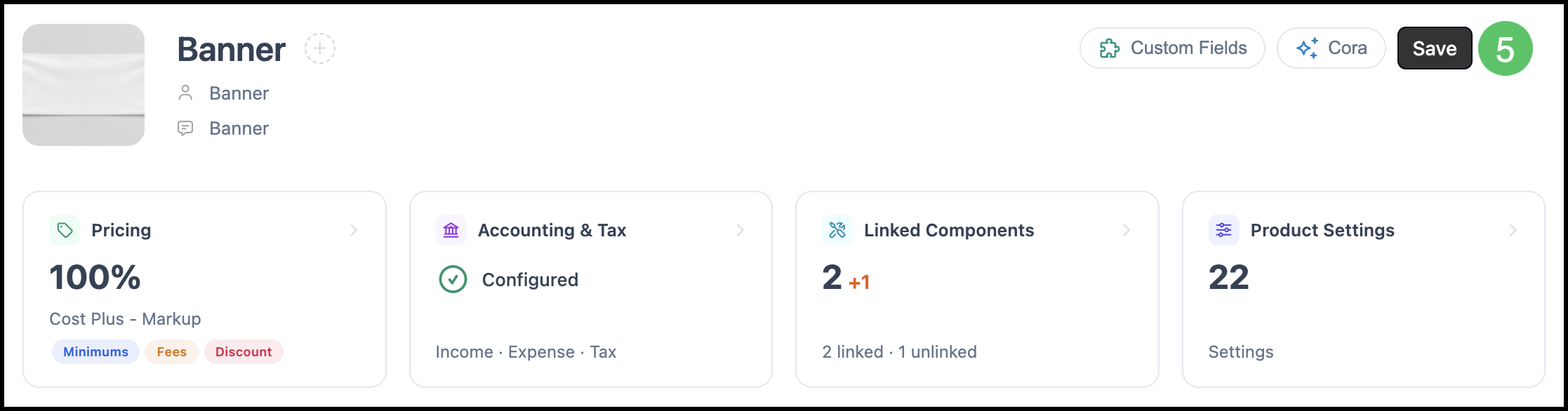
4. Click Save.
5. Click Save.
Related Articles
Understanding Cost-Plus vs. Market Based Pricing