
Shared Elements are reusable field definitions that keep the same properties consistent across components. You create a Shared Element once, then use it on Products and Modifiers so the field stays standardized wherever that component is used.
This article walks you through creating a Number Shared Element. For an overview of the Shared Elements screen and types, see Shared Elements Overview.
Table of Contents
- Important Information
- Creating a Shared Element
- Completing Shared Element Settings
- Frequently Asked Questions
- Related Articles
Important Information
Keep these points in mind when you create a Shared Element:
- Accessing Shared Elements requires permission to Component Settings. For more information, see Employee Roles and Permissions in Settings.
- The Variable Name is generated from the Label. You can rename it before you save. After you save, the Variable Name cannot be changed.
- A default formula cannot include the Shared Element's own Variable Name.
- Available settings vary by Element Type. Number Shared Elements require Unit type, Display format, and Default unit before you can save.
Creating a Shared Element
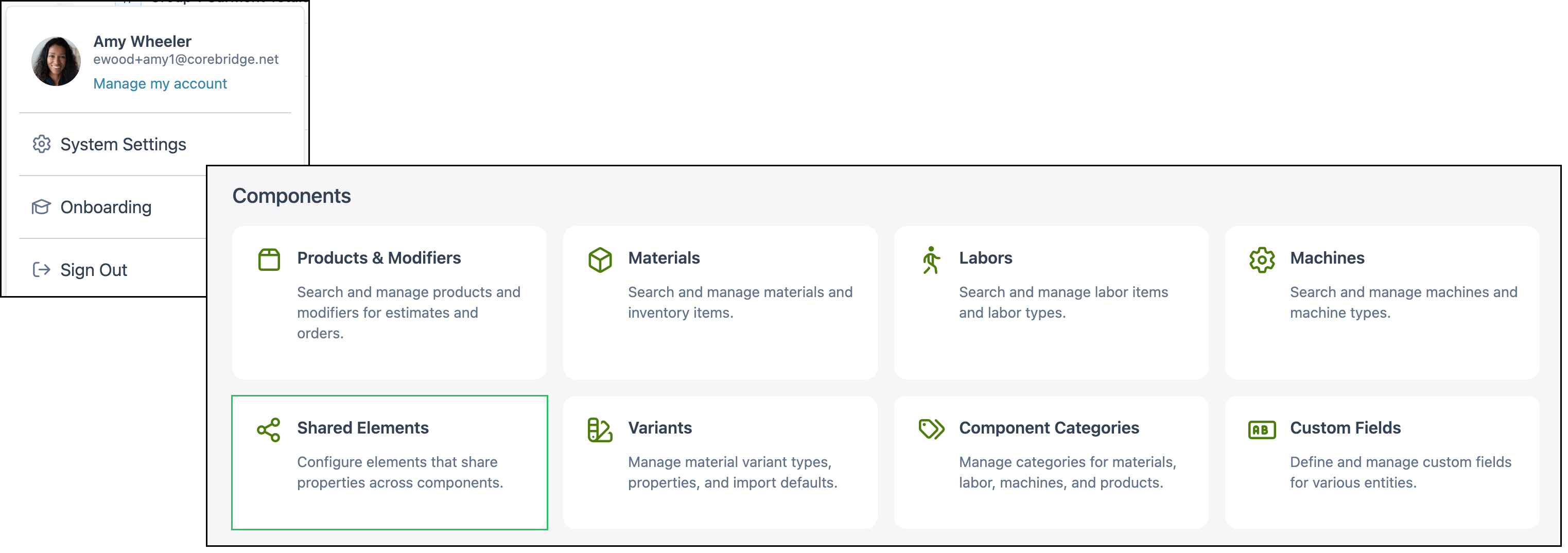
Navigate to System Settings / Components / Shared Elements.
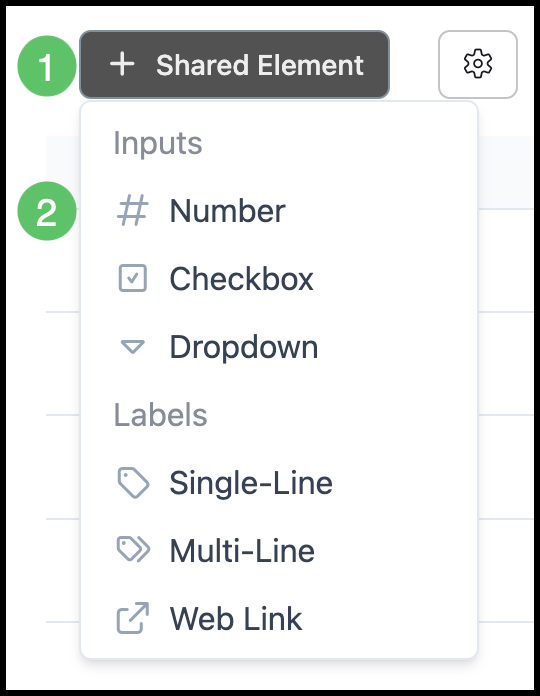
1. Click Shared Element.
2. Select Type. Types are grouped as Inputs and Labels.
Note: Inputs include Number, Checkbox, and Dropdown. Labels include Single-Line, Multi-Line, and Web Link. On the list, Number appears as Number Input and Dropdown appears as Drop-Down.
Completing Shared Element Settings
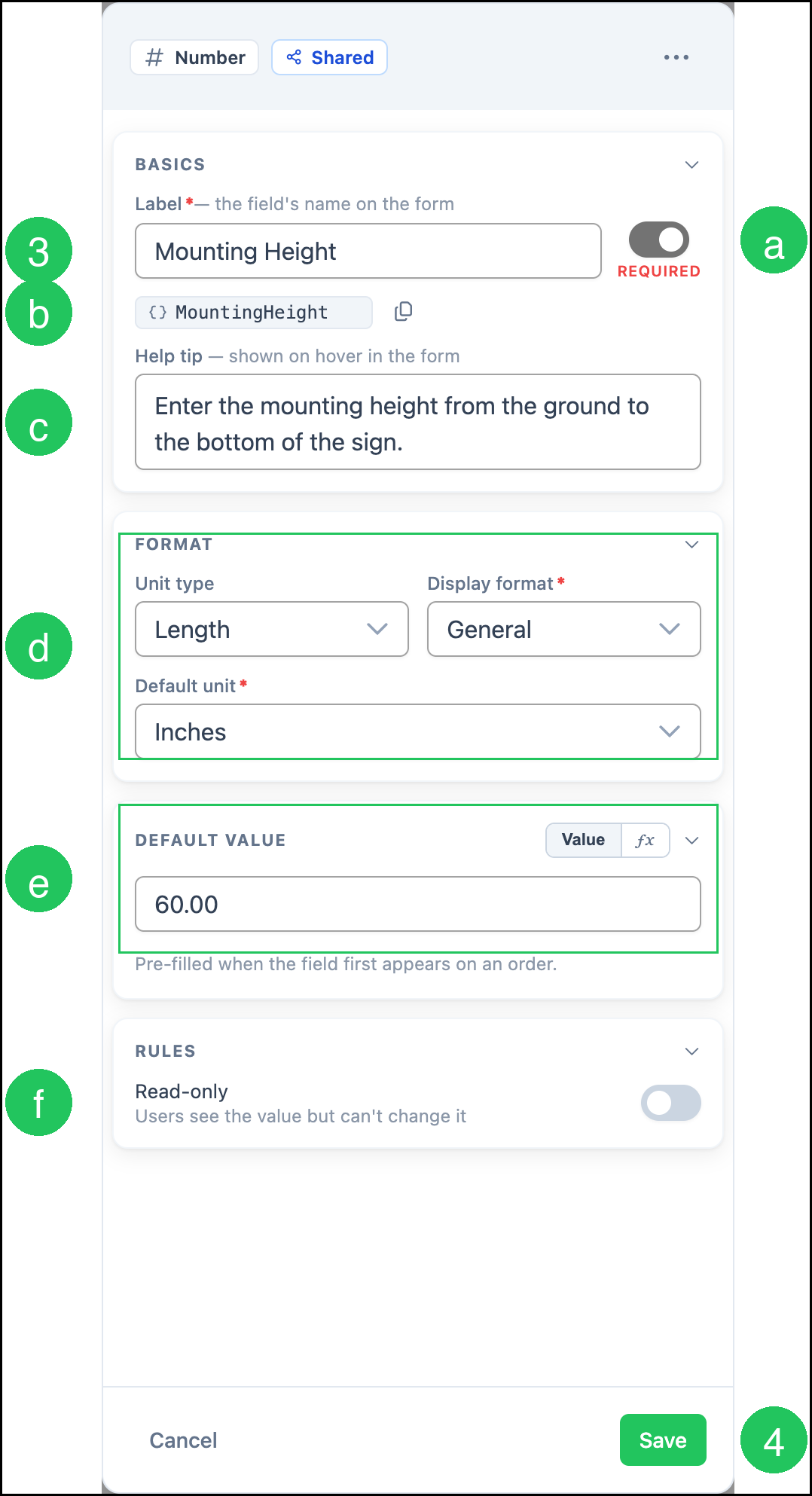
The create dialog opens for the type you selected. The example below uses a Number Shared Element named Mounting Height.
Note: Fields in the create dialog will vary depending on the type of Shared Element selected.
3. Enter the Label. The Label is the field name shown on the form.
a. Required marks the field as required when it appears on a form.
b. The Variable Name is the unique identifier used in formulas. It updates from the Label as you type. Click the Variable Name to rename it before you save. Use Copy variable name to clipboard when you need the name.
c. Help tip is optional text shown when someone hovers over the field on the form.
d. Format settings control how a Number Shared Element is displayed, including Unit type, Display format, and Default unit.
e. Default Value is pre-filled when the field first appears on an Order. Use Value for a fixed amount, or the formula option to calculate the default.
f. Read-only controls whether users can change the value on the form. When it is on, users see the value but cannot change it.
4. Click Save.
Note: Click Cancel to close without saving. After Unit type is selected, Default unit appears and is required.
Note: Dropdown Shared Elements include a list of options instead of Format settings. Label types do not use Required, Format, or Default Value in the same way.
Frequently Asked Questions
1. Can I change the Variable Name after I save a Shared Element?
Answer: No. You can rename the Variable Name only while you are creating the Shared Element. After you save, the Variable Name is locked. You can still edit the Label and other settings.
2. What is required to save a Number Shared Element?
Answer: A Number Shared Element requires a Label, Unit type, Display format, and Default unit. Default unit appears after you select a Unit type.
3. Do other Element Types use the same create steps?
Answer: Yes. Click Shared Element, select the type, complete the settings for that type, then click Save. The fields in the dialog change based on the type you select.
4. Where do I use a Shared Element after I create it?
Answer: You use Shared Elements when you design Products and Modifiers so the same field definition stays consistent across components.
Related Articles
Components Overview
Custom Fields
Employee Roles and Permissions in Settings
Introduction to Products
Linked Components
Products vs. Modifiers
Shared Elements Overview