
Layout Manager shows how finished items sit on Material and how that placement affects Material usage, waste, and Machine calculations. You open it from a Product that includes a Machine. The dialog provides a visual layout plus Print Area, waste, and related values that feed the Bill of Materials. Layout Manager does not set selling price by itself.
Table of Contents
- Important Information
- Opening Layout Manager
- Layout Manager
- Machine Values and Machine Properties
- Frequently Asked Questions
- Related Articles
Important Information
- Select Use Layout Manager on the Machine Profile used for the Product. For more information, see Machine Profiles.
- Layout Manager is available on Products that include a Machine, from Estimates, Orders, and Quick Price.
- When Use Layout Manager is selected, waste is calculated from the layout, including Machine margins, nesting, bleed, gutter, and unused stock.
- If you do not want scrap calculated, uncheck Use Layout Manager on the Profile and set Default Waste Percentage to 0. For more information, see Machine Profiles.
- Enter an accurate Material width so roll and sheet calculations match production.
Opening Layout Manager
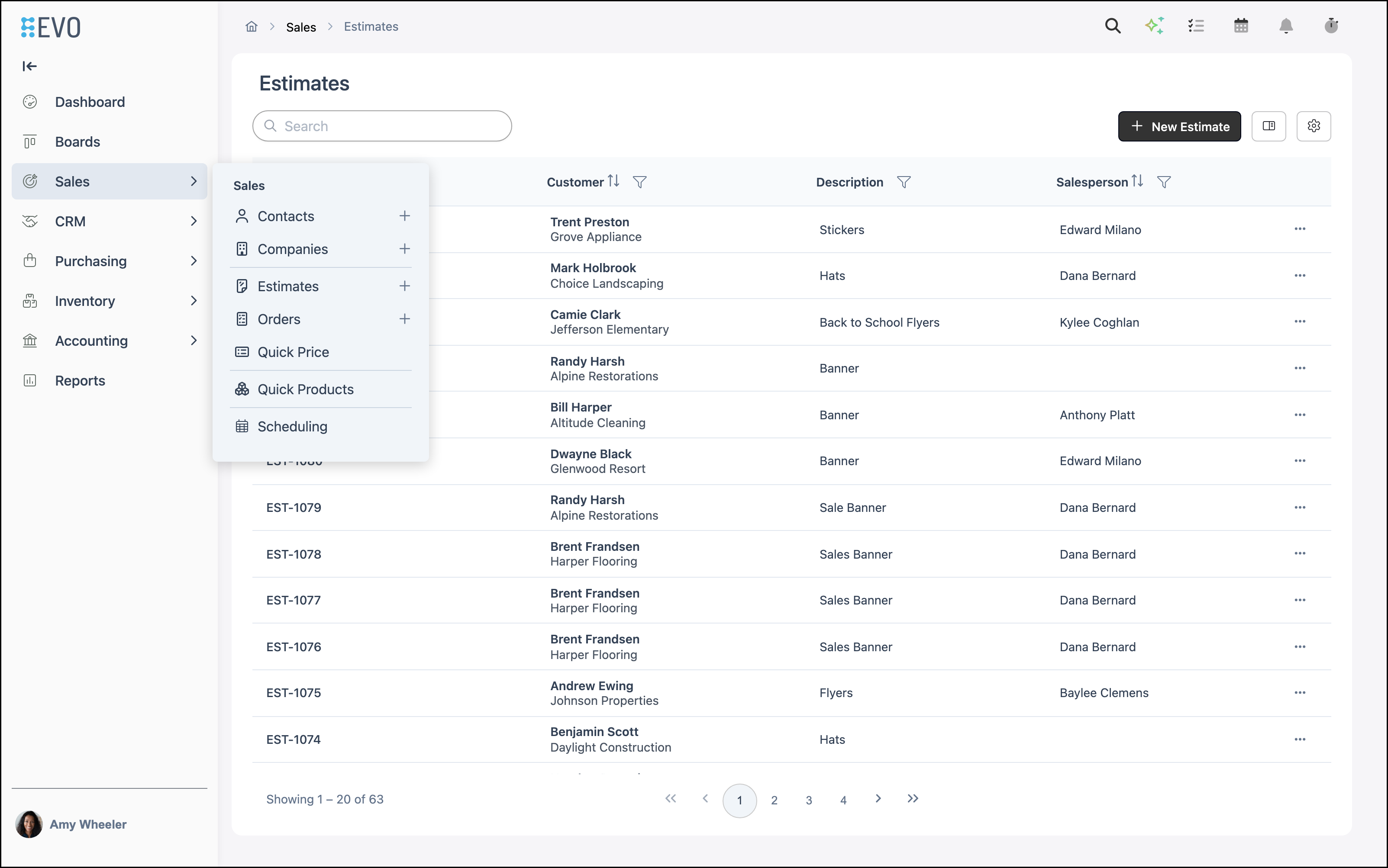
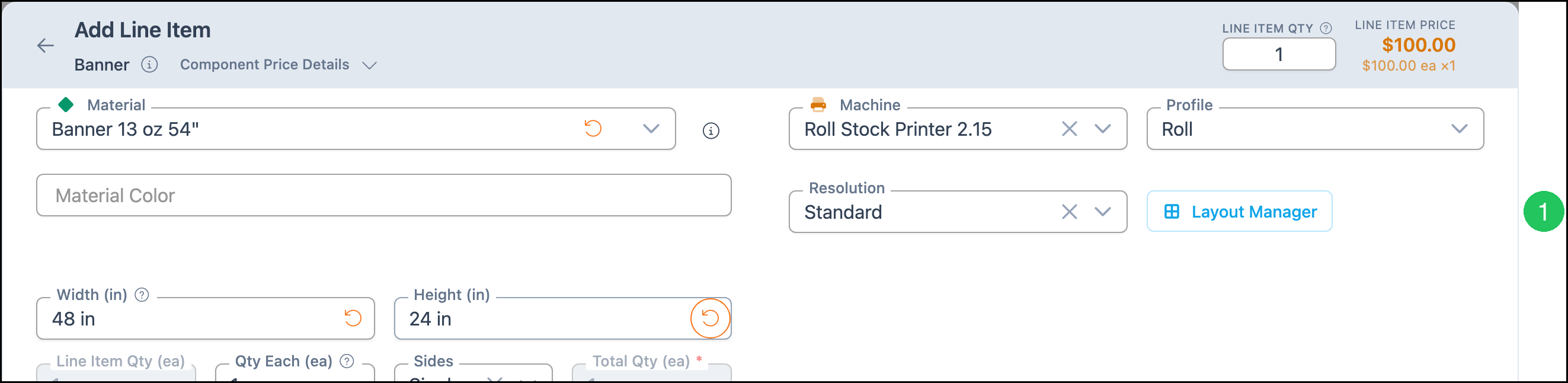
Navigate to Sales / Estimates and open an Estimate, then open a Line Item Product that includes a Machine (for example, a Banner).
Note: Layout Manager is also available on Orders and Quick Price. Products that include cutting can show a second Layout Manager for the cutter Machine.
1. Click Layout Manager.
Layout Manager
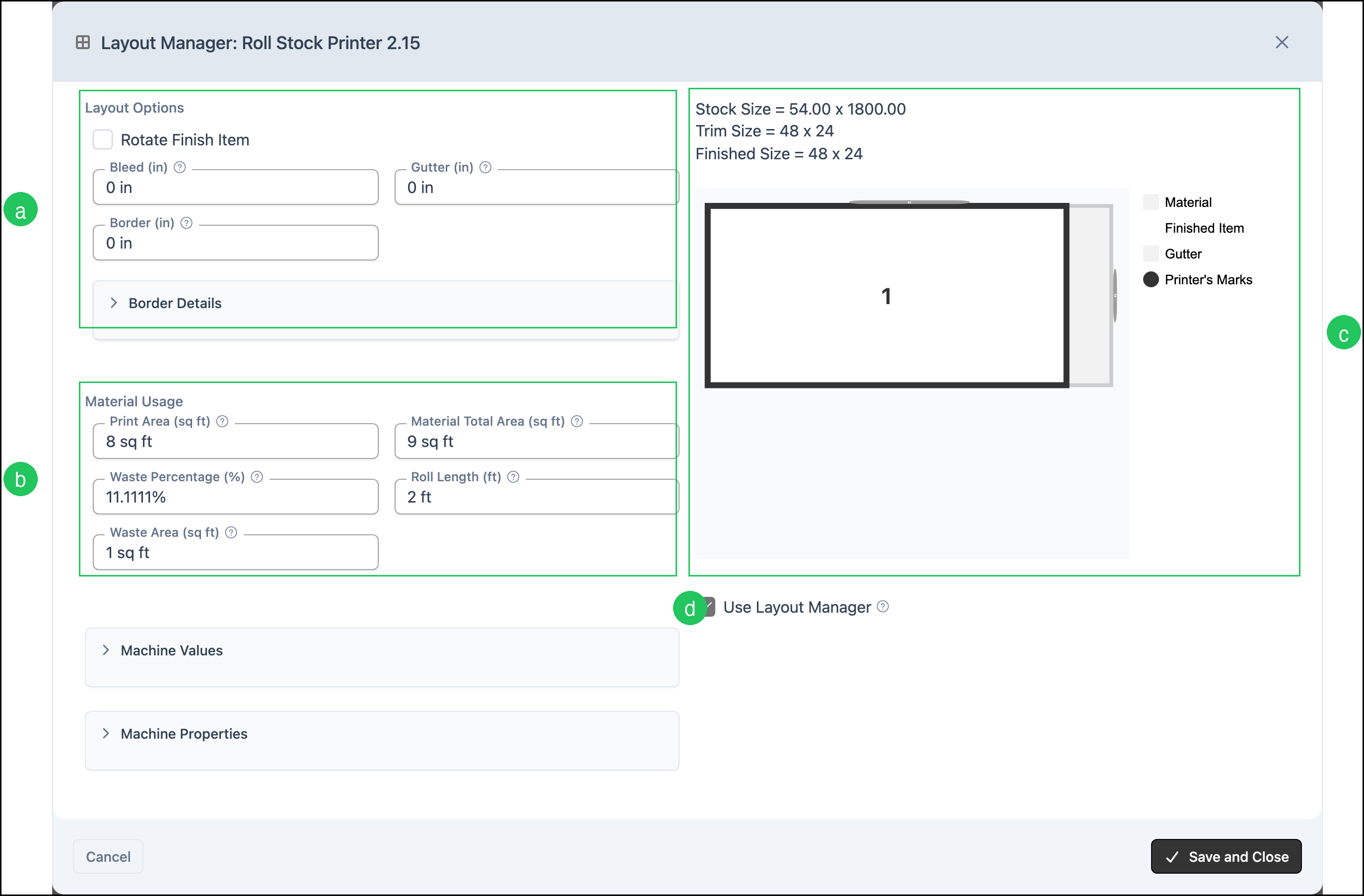
The Layout Manager dialog opens. The title includes the Machine name (for example, Layout Manager: Roll Stock Printer 2.15).
a. Layout Options controls how finished items are placed on the Material.
- Rotate Finish Item - Rotates the finished item on the Material when rotation allows more pieces to fit.
- Bleed (in) - Printing that extends beyond the finished edge and is typically trimmed.
- Border (in) - Extra Material beyond the finished item that is not trimmed.
- Gutter (in) - Space between finished items. The minimum gutter equals the sum of the two corresponding bleed values.
b. Material Usage shows calculated area and waste for the layout.
- Print Area (sq ft) - Finished Height × Finished Width × Total Quantity.
- Waste Percentage (%) - Calculated from the layout when Use Layout Manager is selected.
- Waste Area (sq ft) - Unused Material counted as waste.
- Material Total Area (sq ft) - Print Area plus Waste Area.
- Roll Length (ft) - Total length of roll Material, including waste. This field appears for roll layouts.
c. The visual layout shows Stock Size, Trim Size, and Finished Size. The legend includes Material, Finished Item, Gutter, and Printer's Marks.
d. Use Layout Manager provides a graphical representation of the finished size and quantity against the Material and calculates Material waste.
Note: Click Save and Close to keep layout changes, or click Cancel to close without saving.
Machine Values and Machine Properties
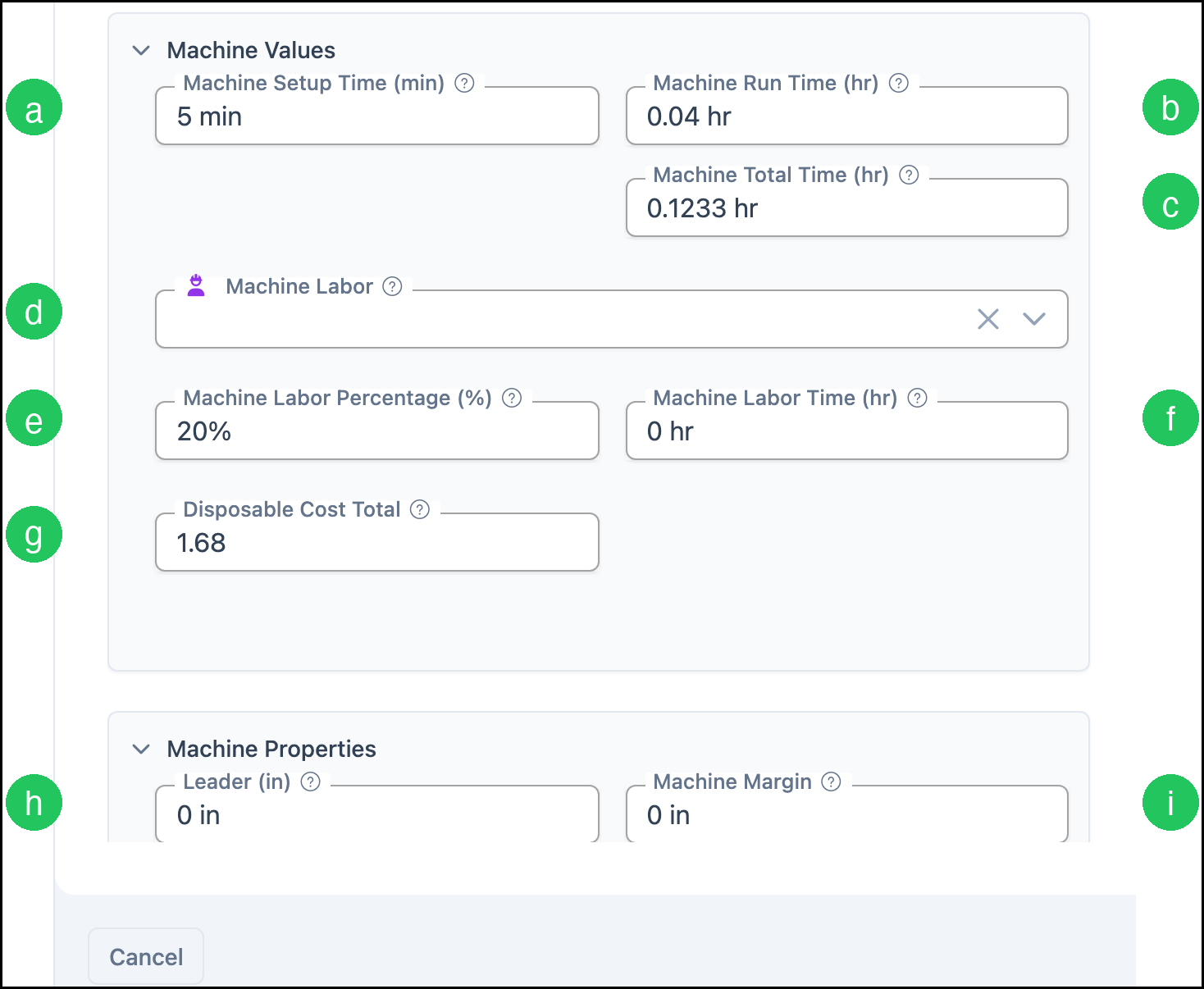
The Machine Values and Machine Properties sections expand to show calculated production values from the layout.
a. Machine Setup Time (min) - Setup time applied to this layout.
b. Machine Run Time (hr) - Run time calculated from the layout and the Profile run speed.
c. Machine Total Time (hr) - Combined setup and run time.
d. Machine Labor - Labor associated with the Machine for this layout.
e. Machine Labor Percentage (%) - Percentage of Machine time that includes an operator, from the Profile.
f. Machine Labor Time (hr) - Labor time calculated from Machine time and the labor percentage.
g. Disposable Cost Total - Disposable cost calculated for this layout, such as ink.
h. Leader (in) - Extra Material added at the start of a roll layout, from the Profile.
i. Machine Margin - Unprintable edge of the Material reserved by the Machine, from the Profile.
Frequently Asked Questions
1. Why is Waste Percentage higher than expected?
Answer: Waste includes unused stock, Machine margins, Leader, bleed, gutter, and nesting. A finished item that does not fill the Material width (for example, a 48 inch Banner on 54 inch roll stock) includes unused width as waste.
2. How do I stop Layout Manager from calculating scrap?
Answer: On the Machine Profile, uncheck Use Layout Manager and set Default Waste Percentage to 0. For more information, see Machine Profiles.
3. Does Layout Manager change the selling price?
Answer: Layout Manager does not set selling price by itself. It updates Material usage, waste, and Machine values that feed the Bill of Materials. Pricing still follows the Product's pricing method.
4. Why do I not see Layout Manager on a Product?
Answer: Layout Manager appears on Products that include a Machine whose Profile has Use Layout Manager selected. Confirm the Product includes a Machine, then confirm the Profile setting. For more information, see Machine Profiles.
5. Can I open Layout Manager from Quick Price?
Answer: Yes. Layout Manager is available on Estimates, Orders, and Quick Price when the Product includes a Machine.
Related Articles
Adding Machines
Line Items Overview
Machine Profiles
Machines Overview
Materials Overview