The CoreBridge Tax Lookup integration automates the calculation of sales taxes for Orders directly within the CoreBridge platform. This integration applies accurate tax rates based on customer location and product type, helping you stay compliant with tax regulations. It simplifies tax management, minimizes manual errors, and keeps tax rates current across regions.
Table of Contents
- Benefits of Integrating with CoreBridge Tax Lookup
- How to Integrate with CoreBridge Tax Lookup
- Setting CoreBridge Tax Lookup as the Default Tax Option
- Applying CoreBridge Tax Lookup to an Individual Order
- Related Articles
Benefits of Integrating with CoreBridge Tax Lookup
Connecting CoreBridge Tax Lookup streamlines tax compliance and reduces manual effort across your transactions.
- Automated tax calculation. Applies accurate tax rates based on customer location and product type, minimizing manual errors and helping ensure compliance.
- Efficient tax management. Simplifies tax management and streamlines sales operations by automating tax calculations.
- Customizable tax regions. Offers flexibility in determining taxable locations, including options for all regions, location-based regions, or custom regions.
- When tax is calculated. Realtime updates tax when the Order or Estimate is saved. On Demand calculates tax when you click Compute Taxes, or when the Order is invoiced.
How to Integrate with CoreBridge Tax Lookup
CoreBridge Tax Lookup uses a Tax Compute Mode and Nexus settings. Tax Compute Mode controls when tax is calculated. Nexus controls where tax is calculated.
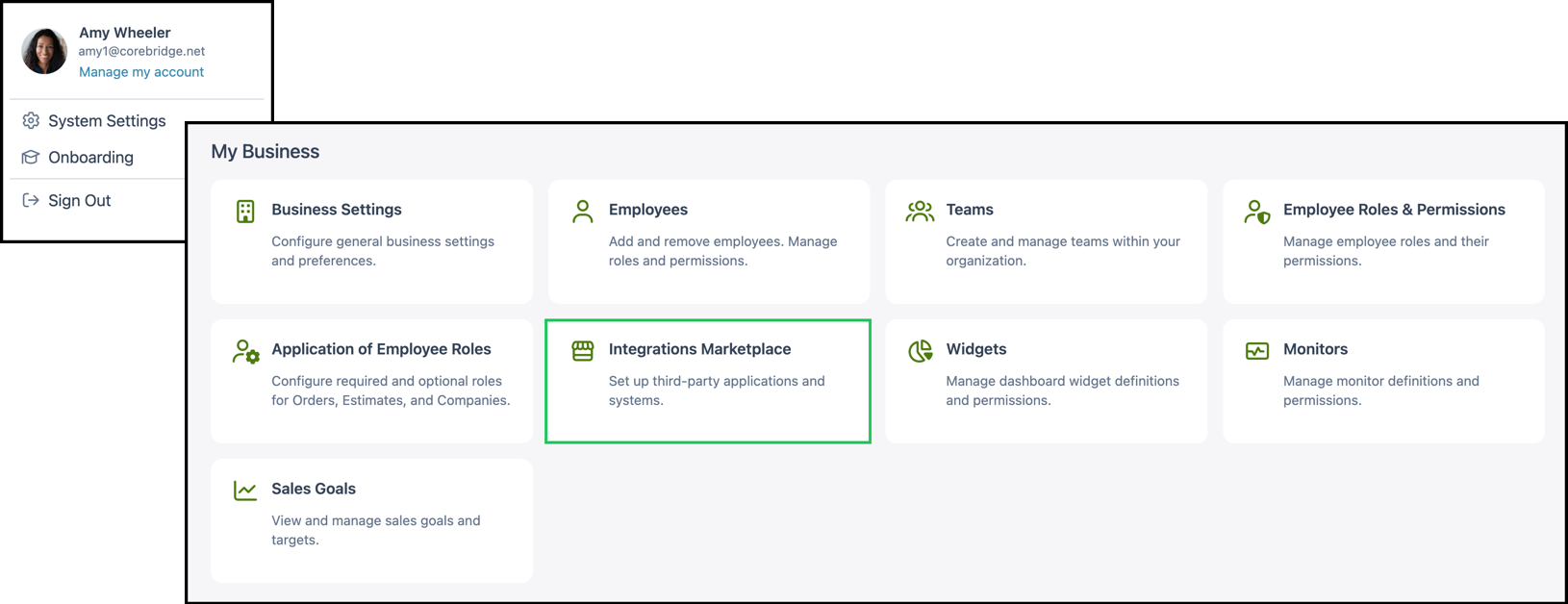
Navigate to Settings / My Business / Integrations Marketplace.
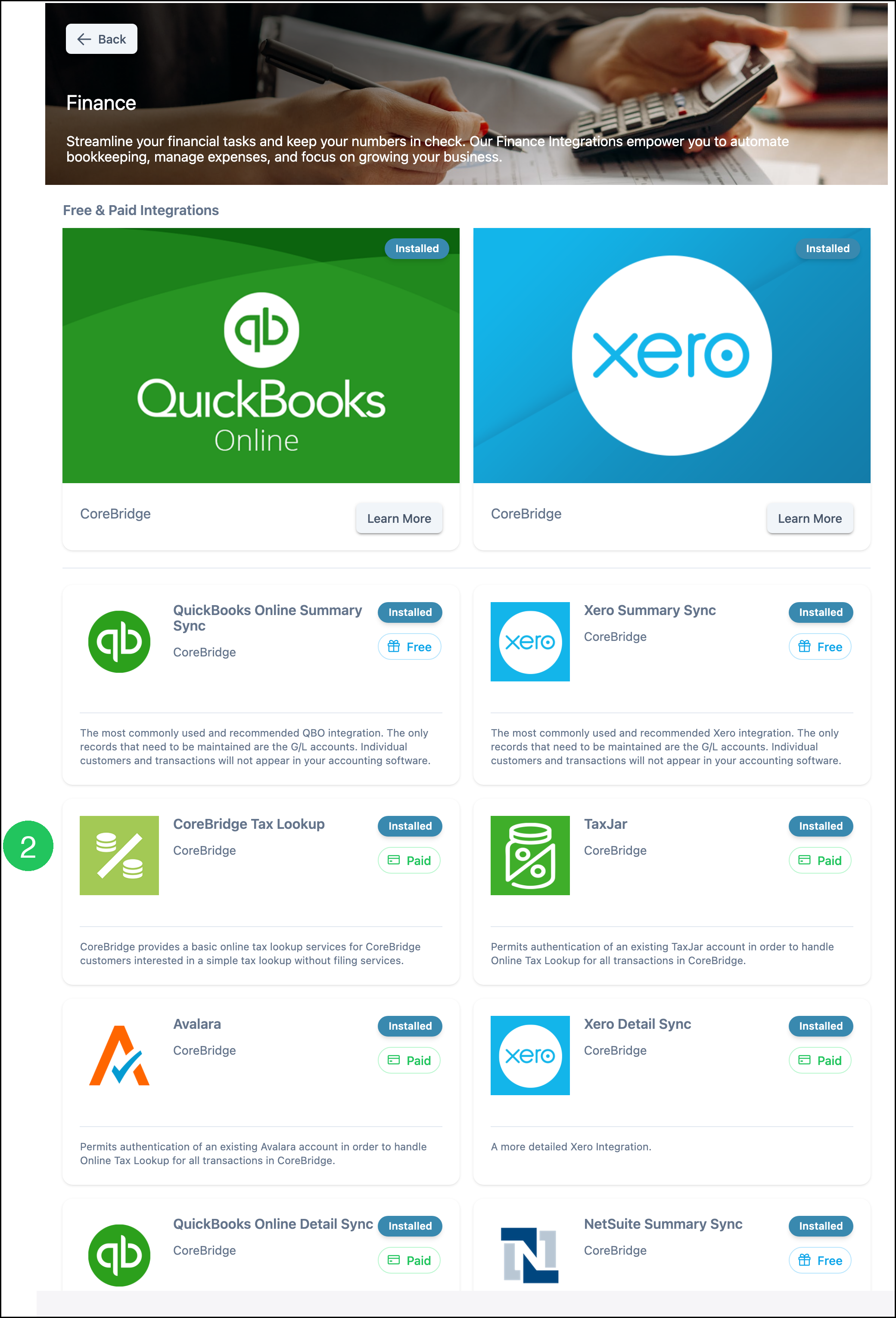
1. Select the Finance category.
Note: You can also find CoreBridge Tax Lookup using the Search bar or looking in All Categories.

2. Select the CoreBridge Tax Lookup card.
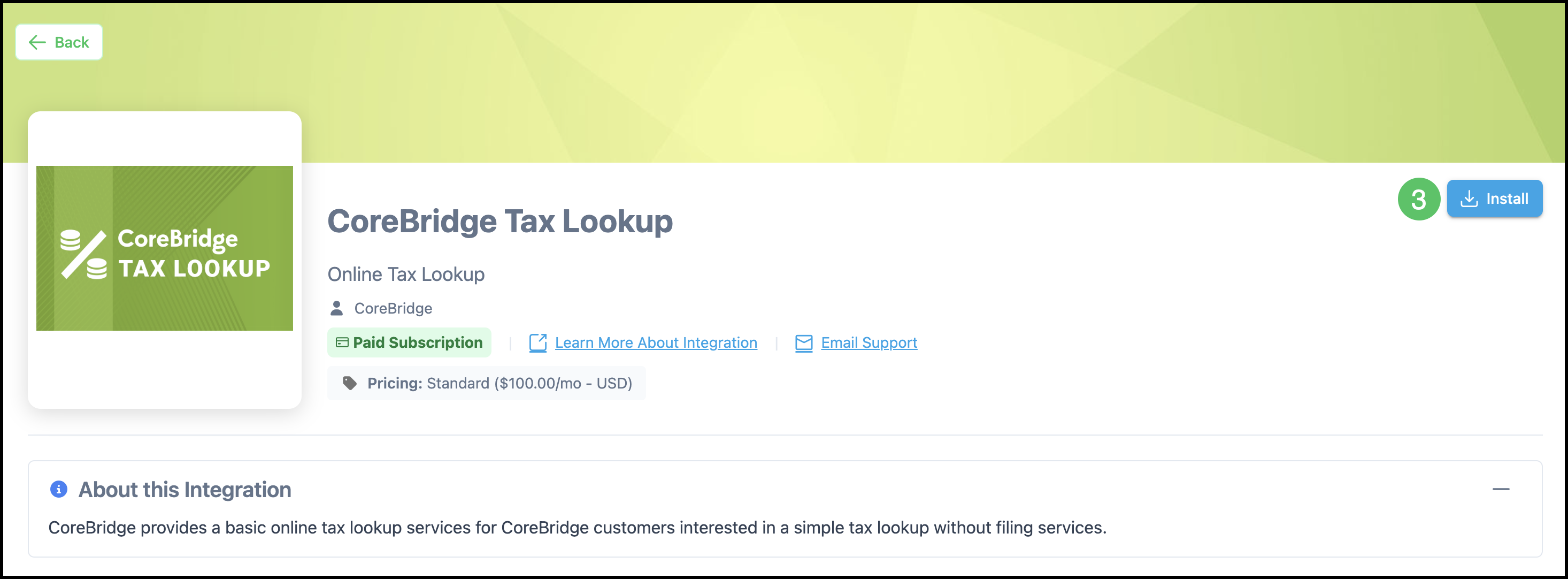
3. Click Install.
Note: Only one tax integration can be active at a time. If another tax provider is currently active, you'll need to uninstall or deactivate it before installing CoreBridge Tax Lookup.
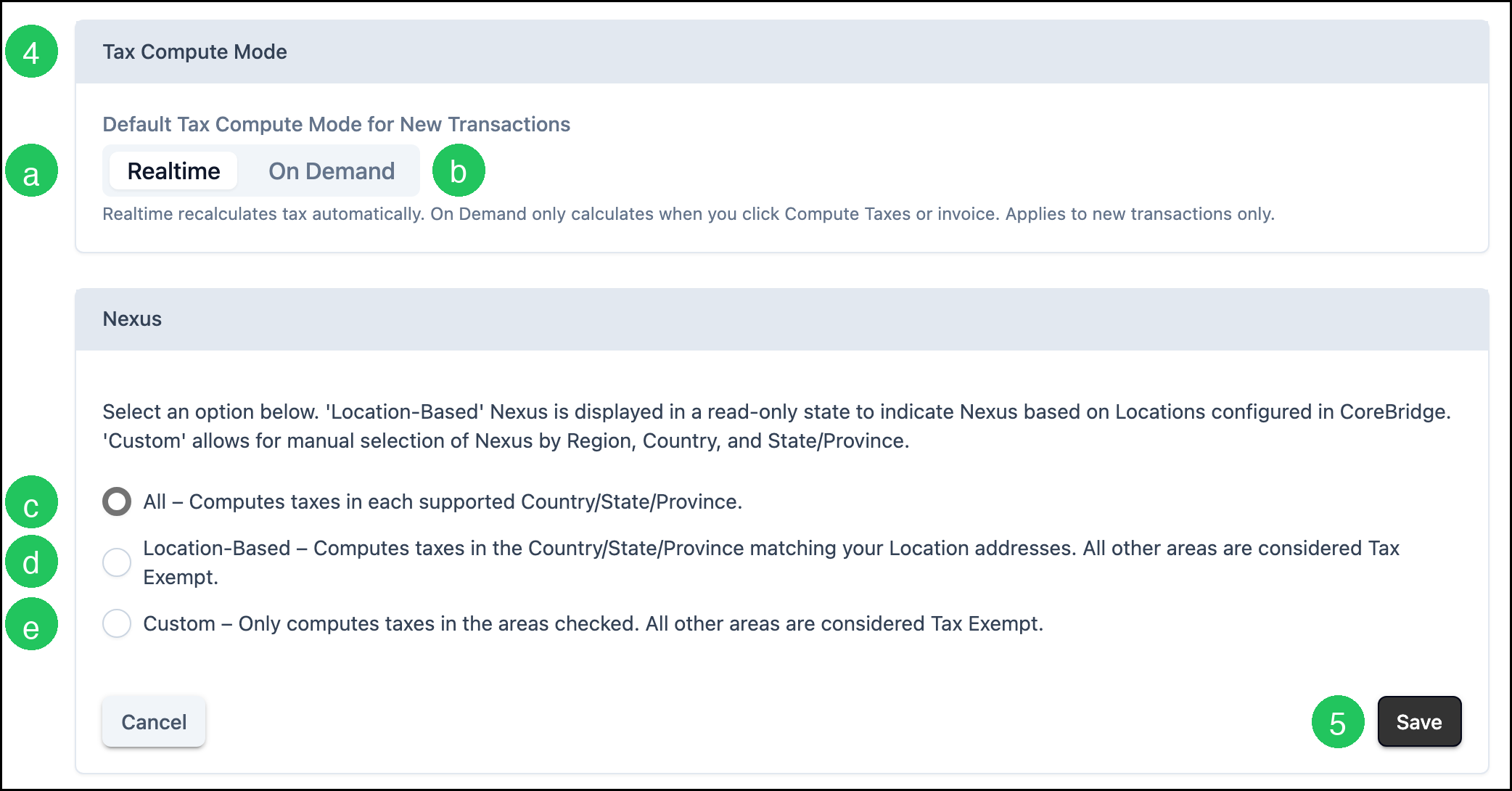
4. Select a Default Tax Compute Mode for New Transactions, then select how you want the Nexus to be applied. Nexus is the connection between a seller and a state that requires the seller to collect and remit tax on sales made there.
a. Realtime recalculates tax automatically when the Order or Estimate is saved.
b. On Demand calculates tax when you click Compute Taxes, or when the Order is invoiced.
Note: This default applies to new transactions only. You can choose a different Tax Compute Mode on an individual Order or Estimate.
c. All - Calculates taxes in all supported countries, states, and provinces.
d. Location-Based - Only calculates taxes in the locations that match your addresses; other areas are tax exempt.
e. Custom - Lets you select specific regions for tax computation; other areas are tax exempt.
5. Click Save.
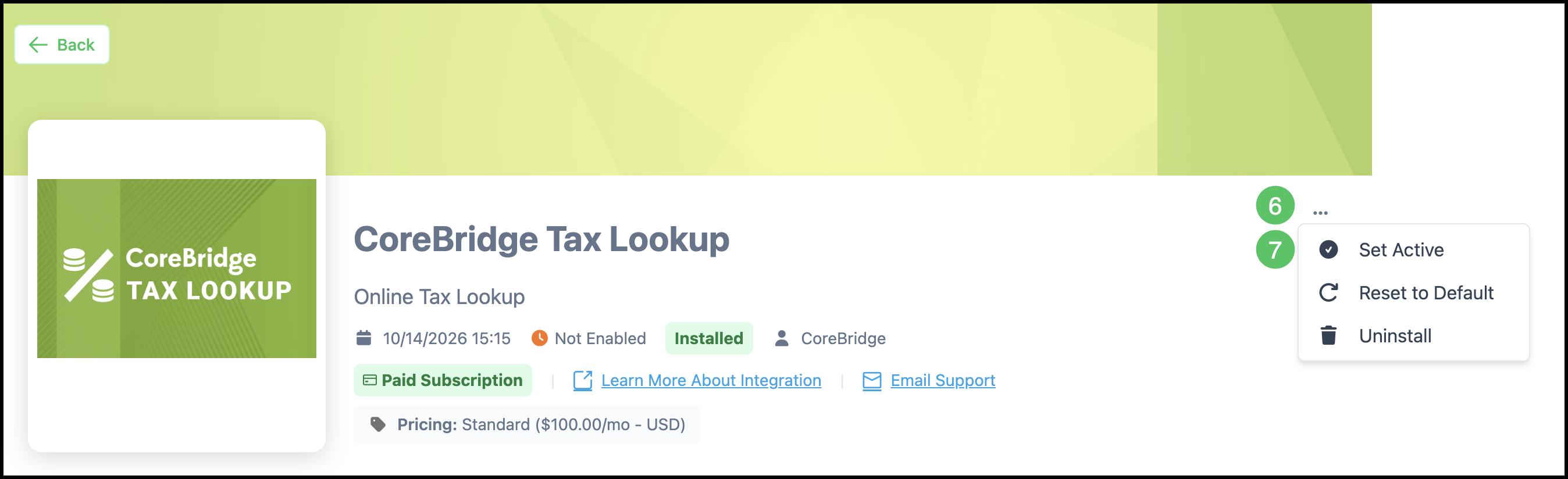
6. Click the More Actions menu.
7. Select Set Active.
Note: Once activated, CoreBridge Tax Lookup shows as Online.
Setting CoreBridge Tax Lookup as the Default Tax Option
Once CoreBridge Tax Lookup is configured as the active online tax provider, any Company assigned to the Online Tax Lookup automatically uses it without requiring additional updates. New Orders and Estimates use the Default Tax Compute Mode for New Transactions set on the CoreBridge Tax Lookup integration.
Navigate to Sales / Companies and select the appropriate Company.
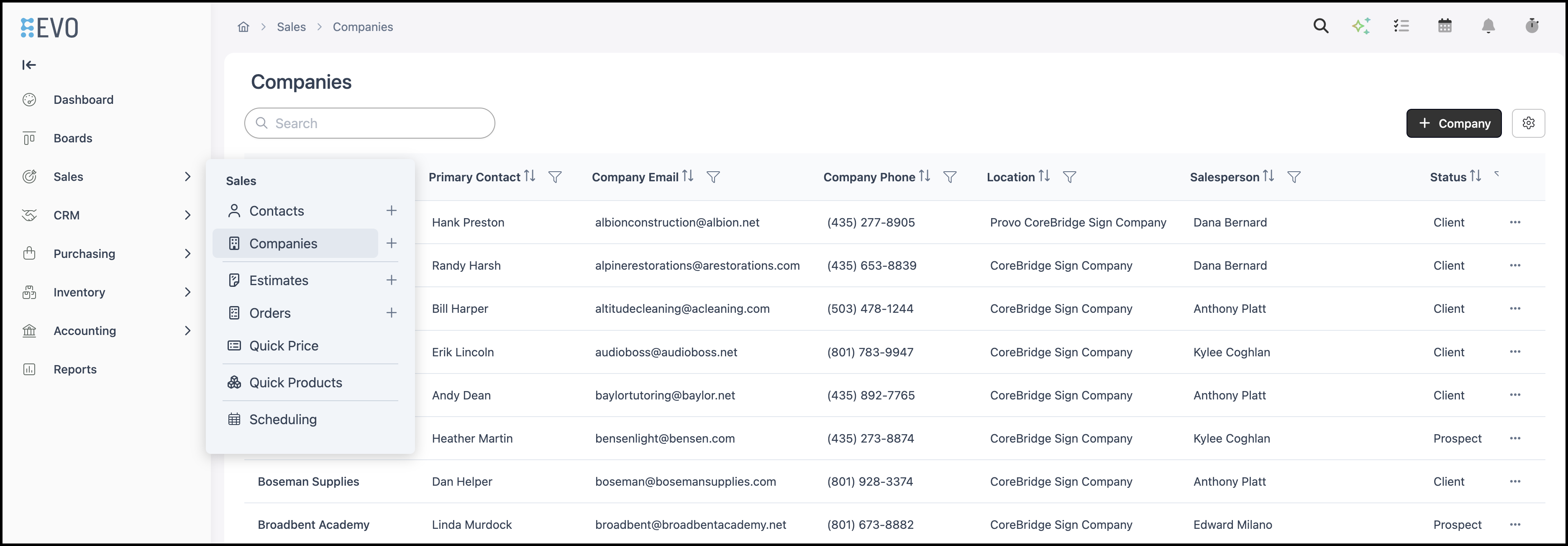
1. Select Edit.

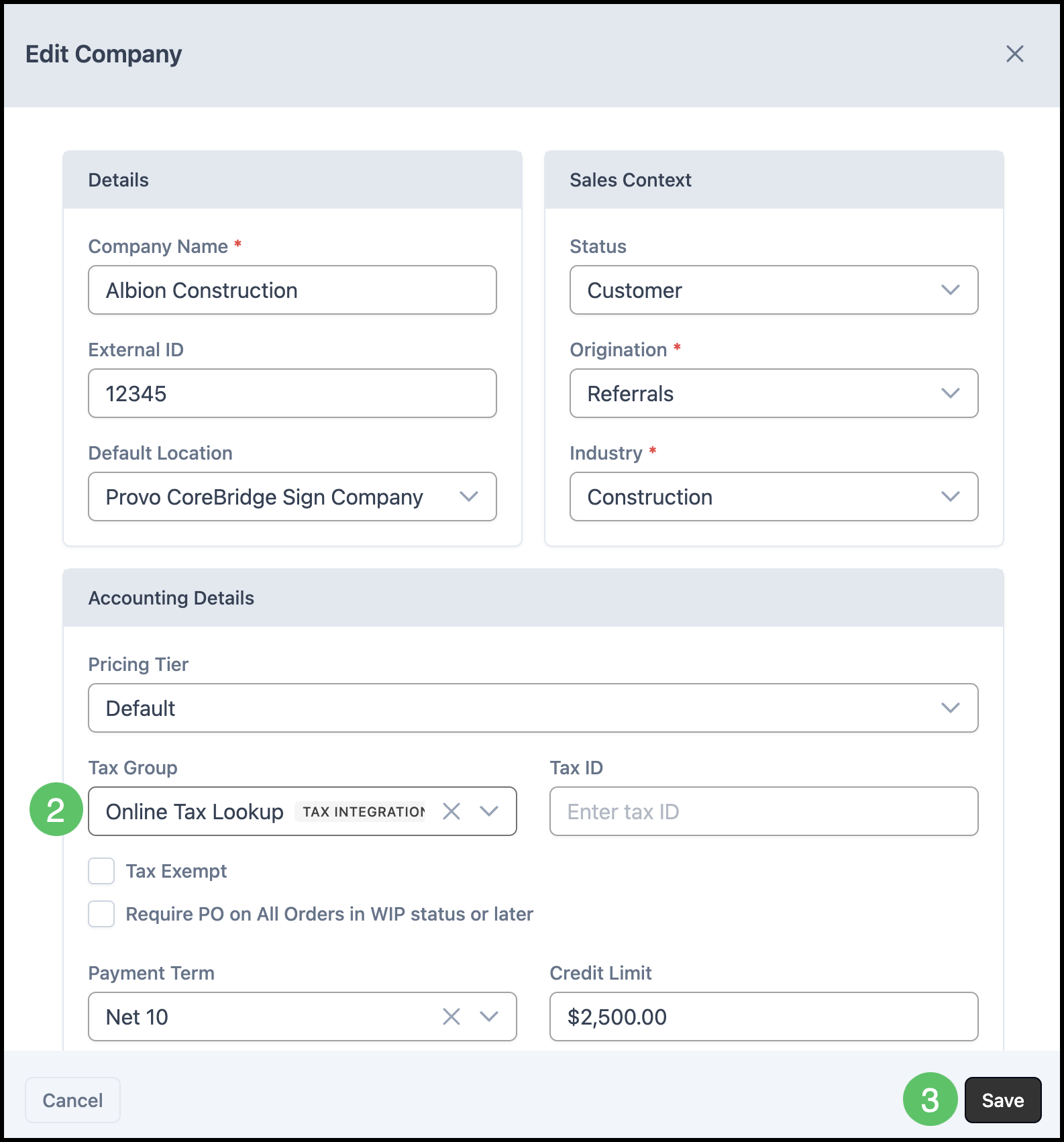
2. Under the Accounting Details section, use the Tax Group dropdown to select Online Tax Lookup.
3. Click Save.
Applying CoreBridge Tax Lookup to an Individual Order
If CoreBridge Tax Lookup is not set as the default, you can apply it directly to a specific Order, Estimate, Credit Memo, or Purchase Order.
Note: This article uses an Order as the example.
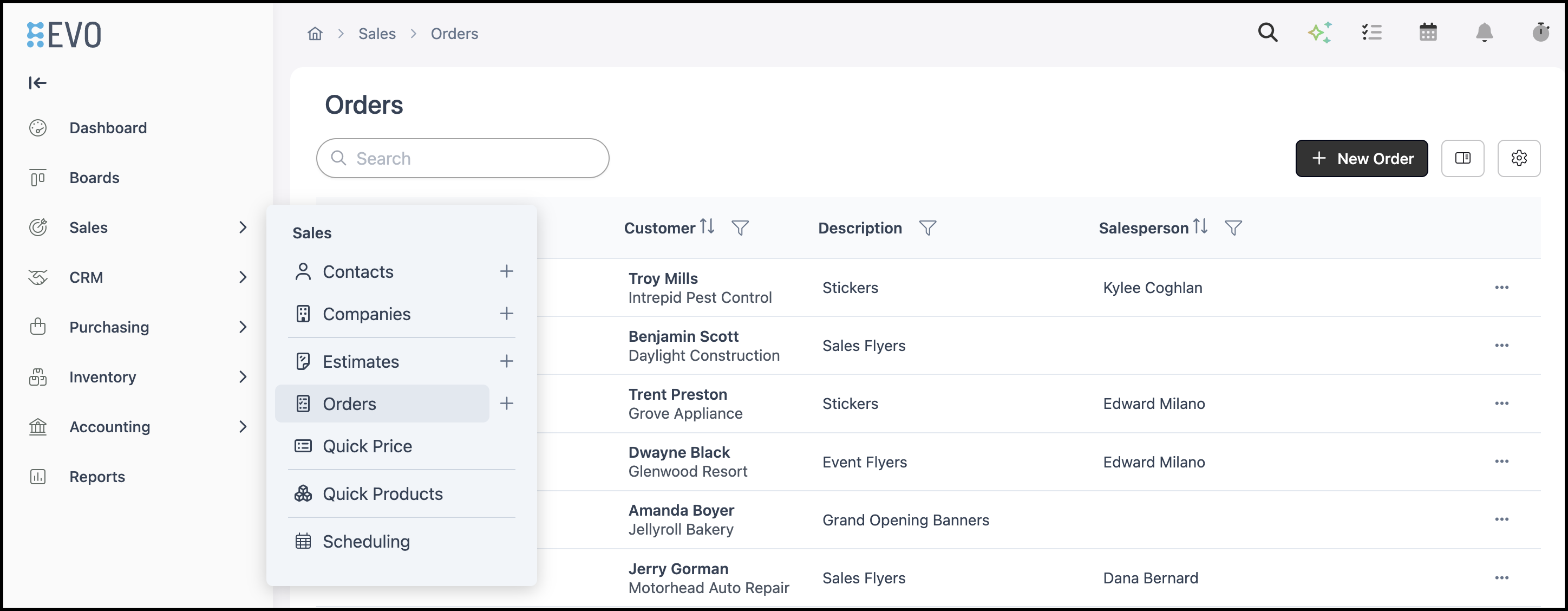
Navigate to Sales / Orders and select the appropriate Order.
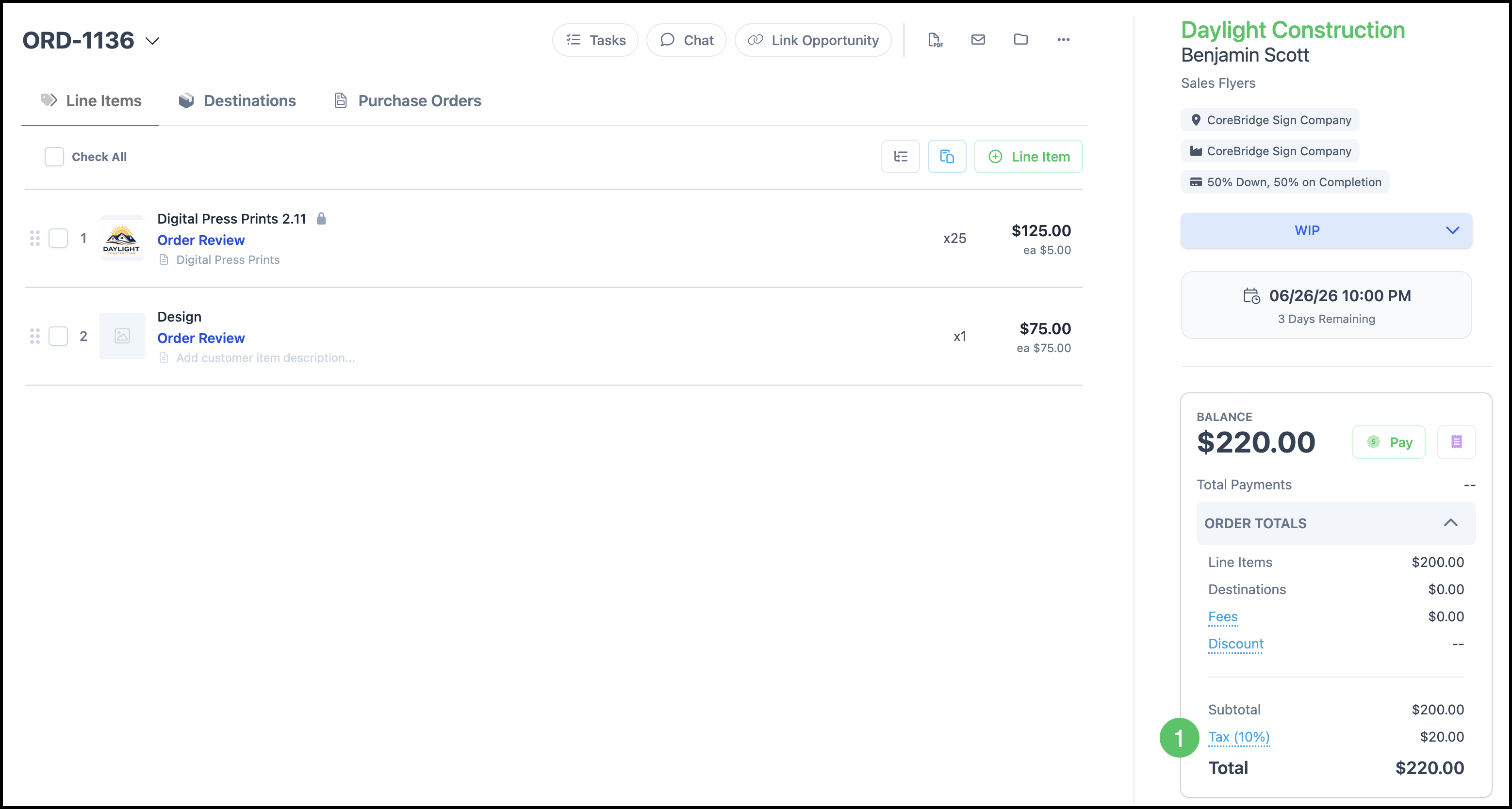
1. In the Order Totals panel, select the Tax amount link.
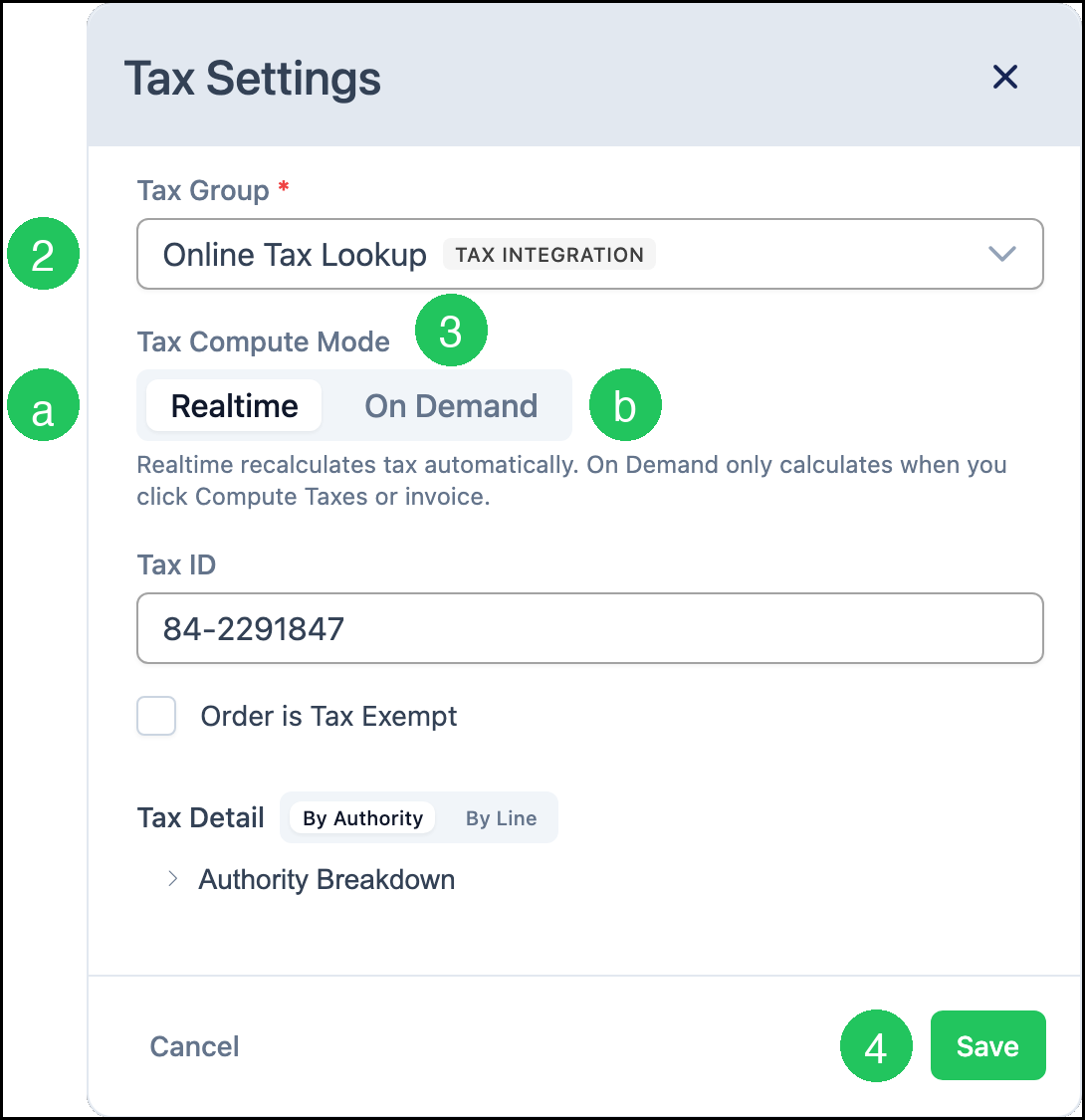
2. In the Tax Settings dialog, use the Tax Group dropdown to select Online Tax Lookup.
3. Select a Tax Compute Mode.
a. Realtime recalculates tax automatically when the Order is saved.
b. On Demand calculates tax when you click Compute Taxes, or when the Order is invoiced.
4. Click Save.
Note: With Realtime selected, tax is recalculated when the Order is saved. With On Demand selected, tax is calculated when you click Compute Taxes, or when the Order is invoiced.