
Progressive Billing bills a large Order in stages as work moves forward. Cost allocation and optional retainage are set on the Progressive Billing page. On the Order, the Progress Billing tab records each billing event when you click Save Changes.
Table of Contents
- Important Information
- Progressive Billing Settings
- Retainage
- Record a Billing Event
- Billing History
- Bill by Line Item
- Frequently Asked Questions
- Related Articles
Important Information
- Progressive Billing is a licensed add-on. If the settings page says Progressive Billing is not enabled on your license, contact support at supportdesk@corebridge.net.
- The Progress Billing tab is on the Order.
- Whole Order bills one cumulative percent for the entire Order. By Line Item bills a percent or a quantity on each line.
- After the first billing event is saved, the other billing mode locks for that Order.
- Each Save Changes adds one row to Billing History. Earlier billing events stay in the list.
- % Complete is the cumulative percent billed so far.
Progressive Billing Settings
Navigate to System Settings / Accounting / Progressive Billing.
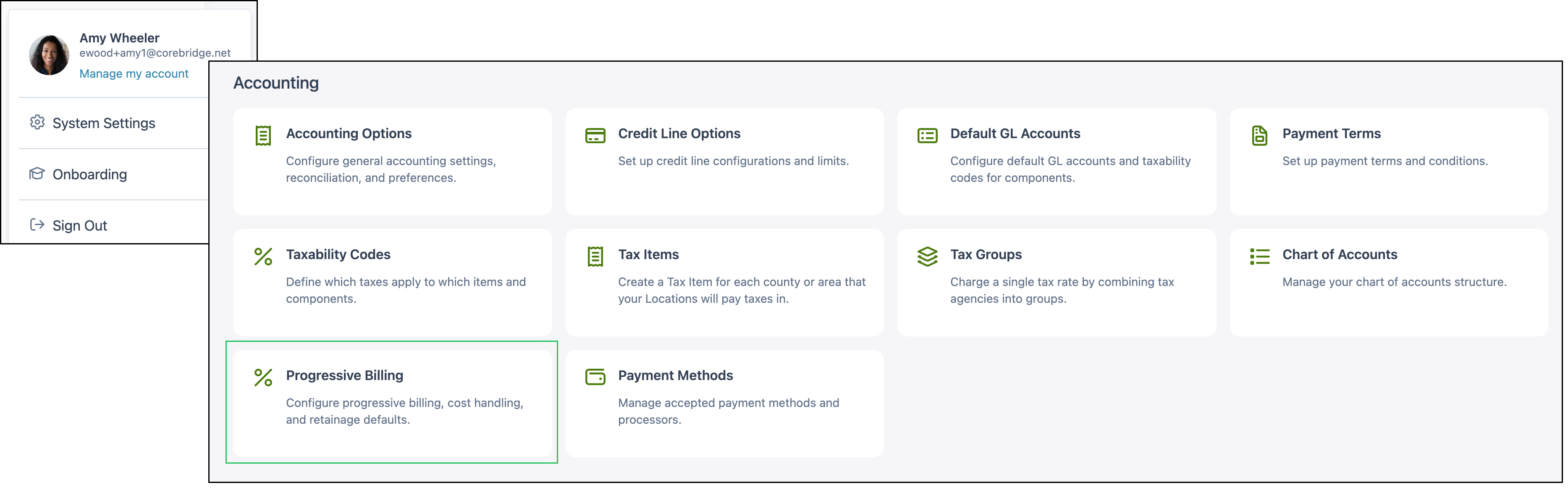
a. Enable Progressive Billing turns billing events on for the account. The status shows Enabled when the switch is on.
b. Cost allocation method controls when costs post with billing events.
Allocate costs proportionally with income spreads costs across billing events as income is recognized.
Allocate all costs at job end (by invoiced date) holds costs until the job is invoiced.
c. Enable Retainage withholds a percentage of each billing event. Leave the switch off when each event should bill its full amount.
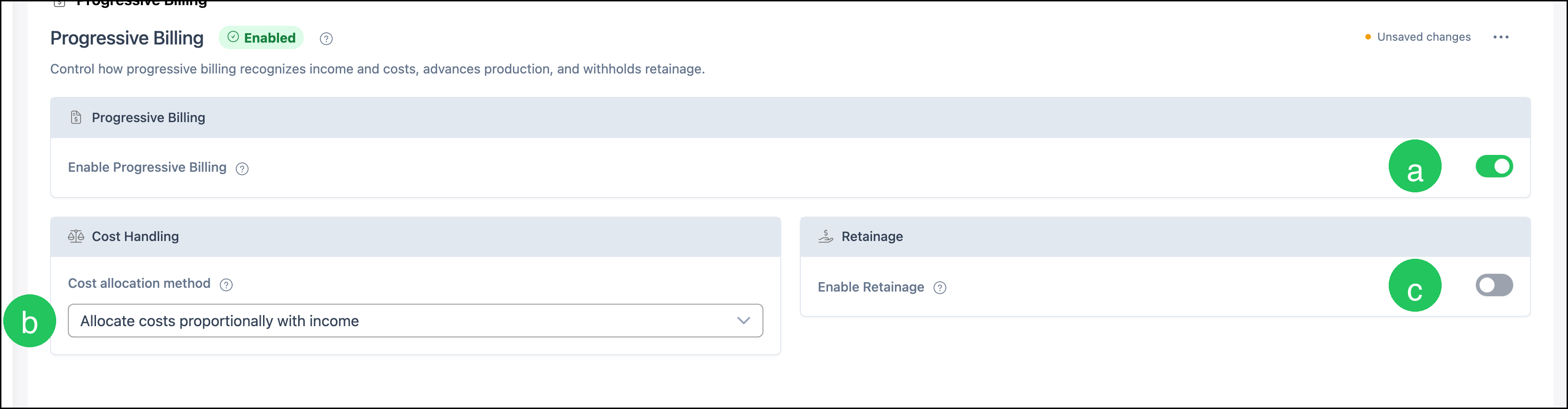
Note: Save at the bottom of the Progressive Billing page stores these settings.
Retainage
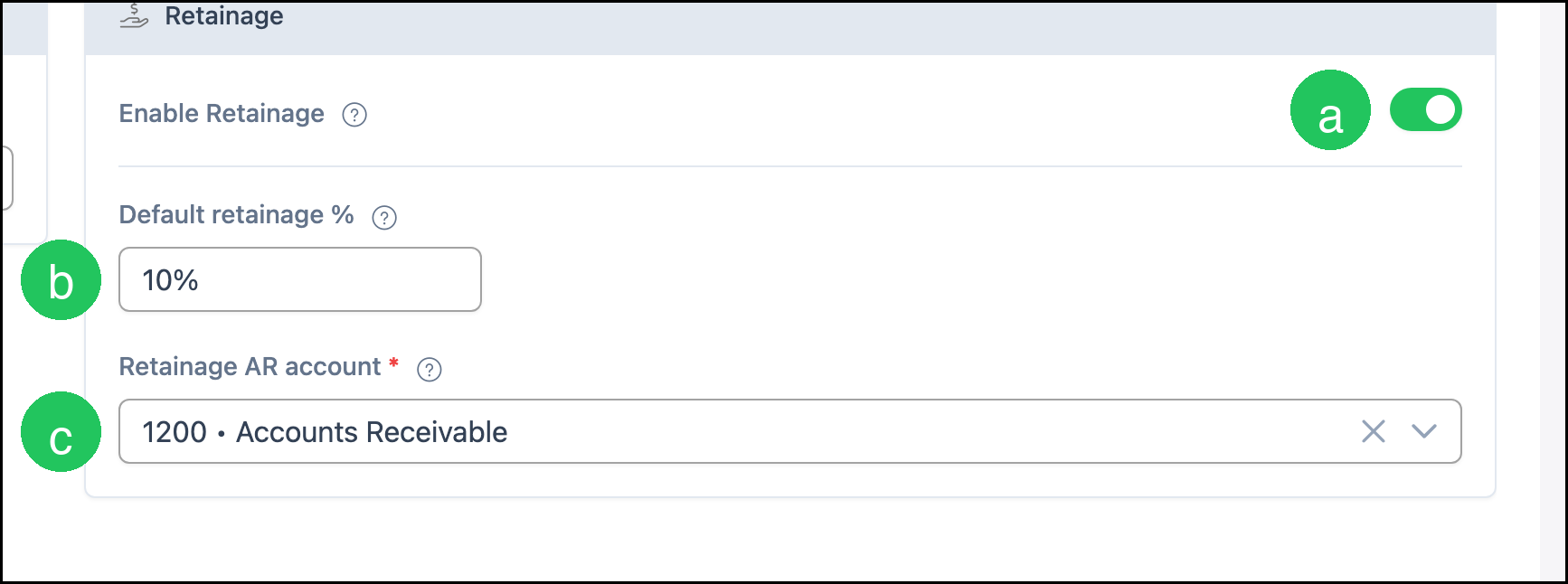
When Enable Retainage is on, set the default percent and the account that holds the withheld amount.
a. Enable Retainage turns withholding on.
b. Default retainage % is the percent withheld from billing events.
c. Retainage AR account is required. Choose the accounts receivable account that holds retainage.
Record a Billing Event
Navigate to Sales / Orders.
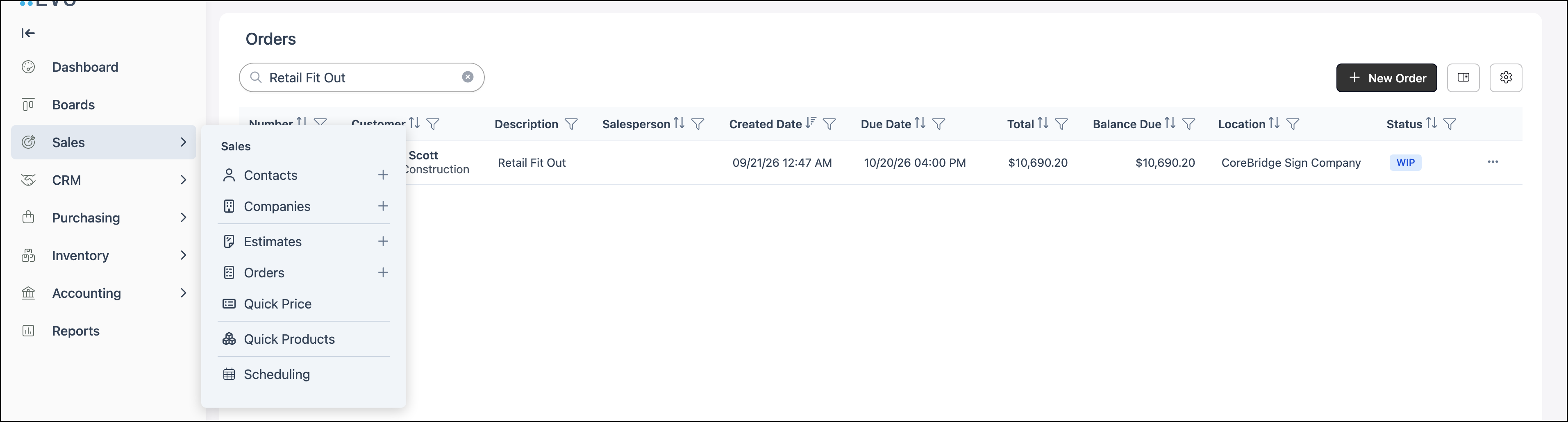
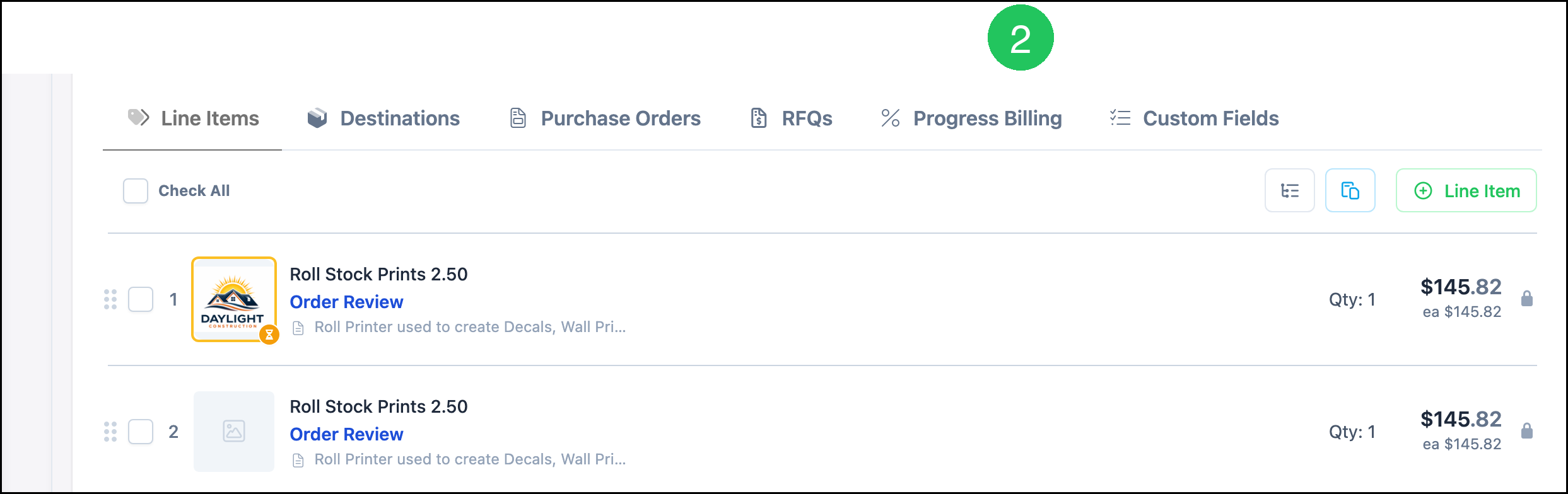
1. Open the Order.

2. Click Progress Billing.
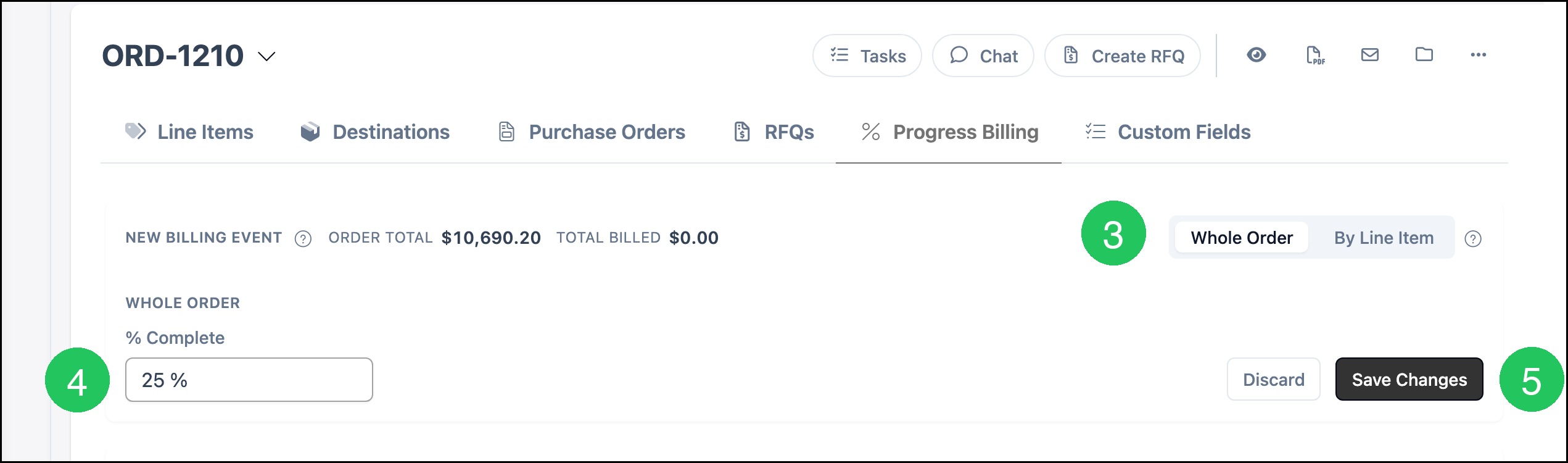
3. Select Whole Order.
4. Enter the cumulative % Complete. For example, 25 bills a quarter of the Order total.
5. Click Save Changes.
Billing History
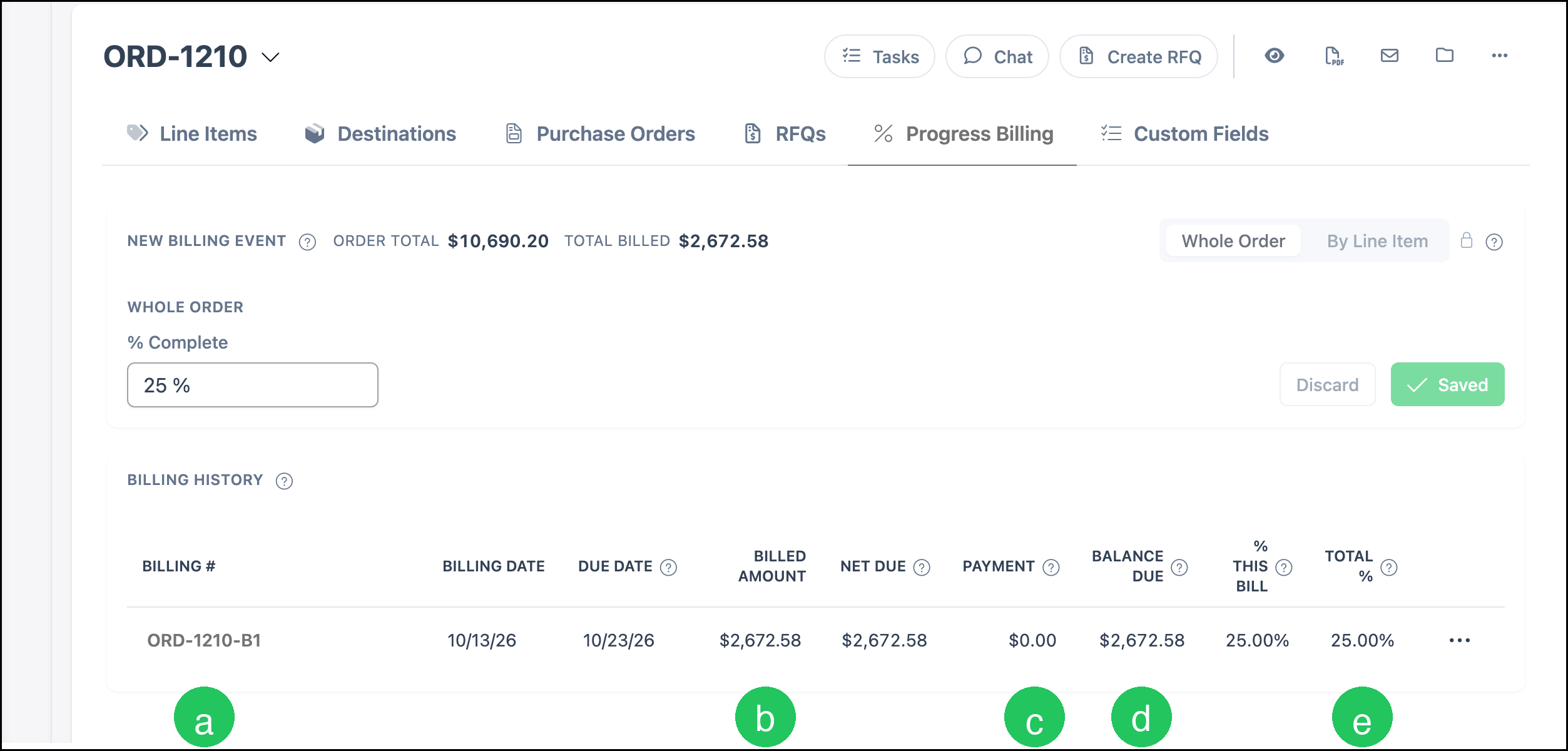
After you save, the event appears under Billing History. Total Billed shows the amount recorded so far. The Order Balance on the side of the Order stays the full Order total until a payment is recorded.
a. Billing # identifies the event. Billing Date and Due Date sit beside it.
b. Billed Amount is the amount of that event. Net Due matches Billed Amount when retainage is off.
c. Payment is what has been paid on that event. $0.00 means the event is unpaid.
d. Balance Due is the unpaid amount of that event.
e. Total % is the cumulative percent after that event. % This Bill is the percent added by that event.
Bill by Line Item
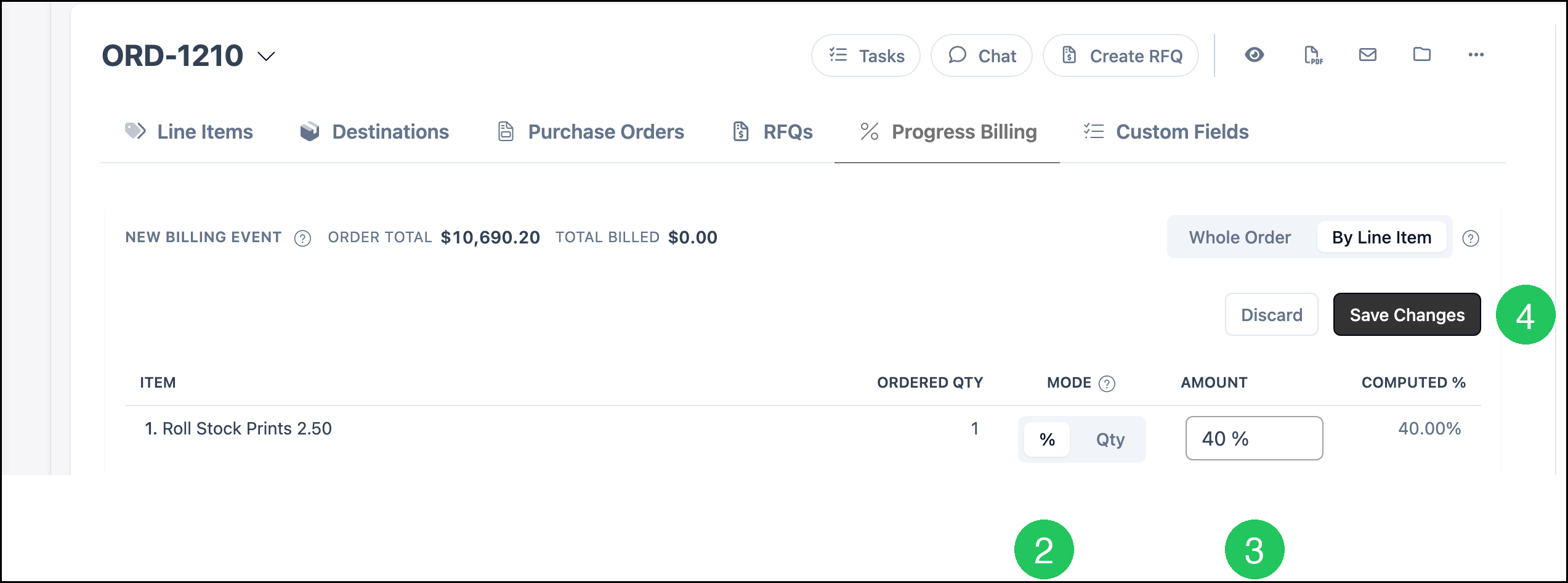
By Line Item bills each line on its own percent or quantity. Choose it before you save the first billing event. After a Whole Order event is saved, By Line Item locks.
1. Click By Line Item.

2. Select % to bill by percent, or Qty to bill by quantity.
3. Enter the cumulative percent or quantity in Amount.
4. Click Save Changes.
Frequently Asked Questions
1. Why does Settings say Progressive Billing and the Order tab say Progress Billing?
Answer: The settings page is named Progressive Billing. The tab on the Order is named Progress Billing. Both refer to this feature.
2. Is % Complete the new bill or the total billed so far?
Answer: % Complete is cumulative. It is the percent of the Order billed through the current event. % This Bill in Billing History is the portion added by that one event.
3. Can I switch from Whole Order to By Line Item after I save?
Answer: The first saved billing event sets the mode for that Order. The other option locks.
4. What does Payment $0.00 mean in Billing History?
Answer: Payment is the amount already paid on that billing event. $0.00 means the event has not been paid. Record the payment from the Order or from Accounting. For more information, see Taking Payments.