
A Custom Table provides lookup values on a Product or Modifier, such as a setup fee by quantity or a price by size. Custom Tables are created on the Pricing card, in Tables. Each table uses a field on that Product or Modifier, and formulas can read the value the table returns.
Table of Contents
- Important Information
- Create a Custom Table
- Enter Table Values
- Edit Table Settings
- Frequently Asked Questions
- Related Articles
Important Information
- A Custom Table is separate from Use Table. Use Table applies a system pricing table, such as a margin, markup, or discount table. Custom Tables are created under Tables, in Custom. For system pricing tables, see Markup and Margin Pricing Tables.
- The same steps work on a Modifier. On a Modifier, the wizard refers to that modifier, and you save the modifier when you are finished.
- After you create a table, the variable name, the lookup shape, and the value type stay as they were set. You can still change the table name, the description, the lookup field, how a value between rows is handled, and the unit type and display format.
- The table is kept when you save the Product or Modifier.
Create a Custom Table
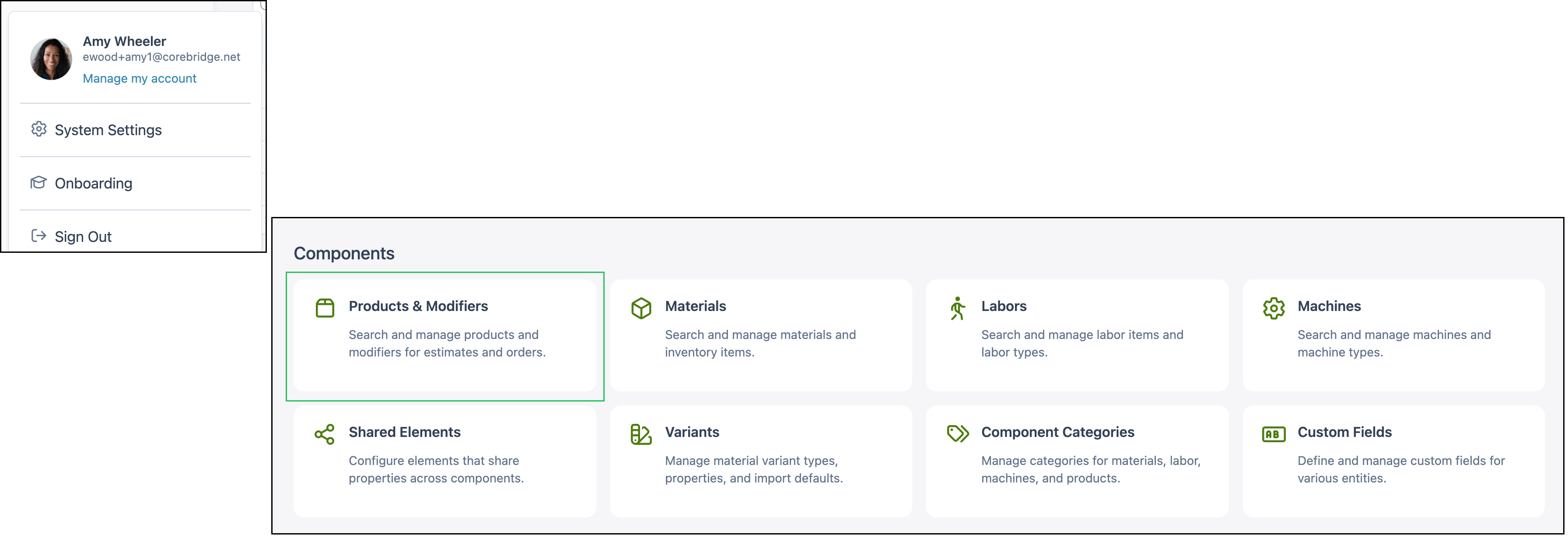
Navigate to System Settings / Components / Products & Modifiers.
1. Select the Product. This example uses Architecture Signs.

2. Click Pricing.

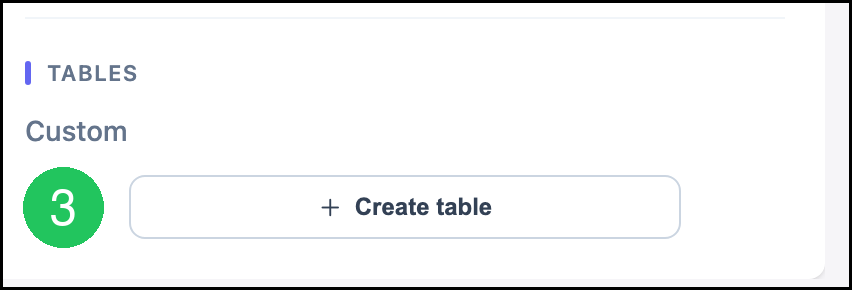
3. Under Tables, in Custom, click Create table.
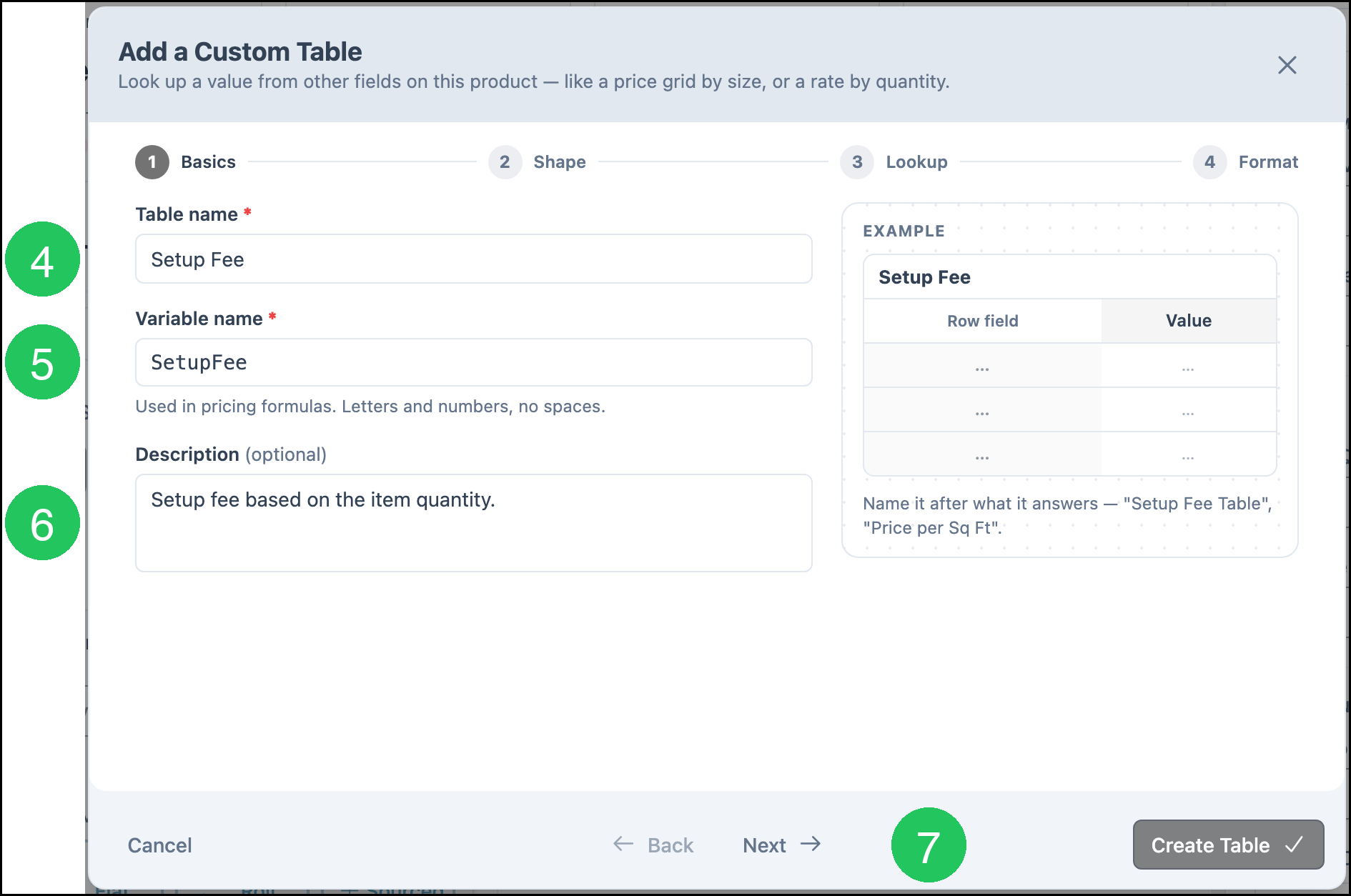
4. Enter a name in Table name. This example uses Setup Fee.
5. Confirm Variable name. It fills in from the table name. This example uses SetupFee. Formulas use this name.
6. Enter a Description.
7. Click Next.
8. Select Simple list. One field picks the row, and the table returns that row's value.
9. Select Numbers.
10. Click Next.
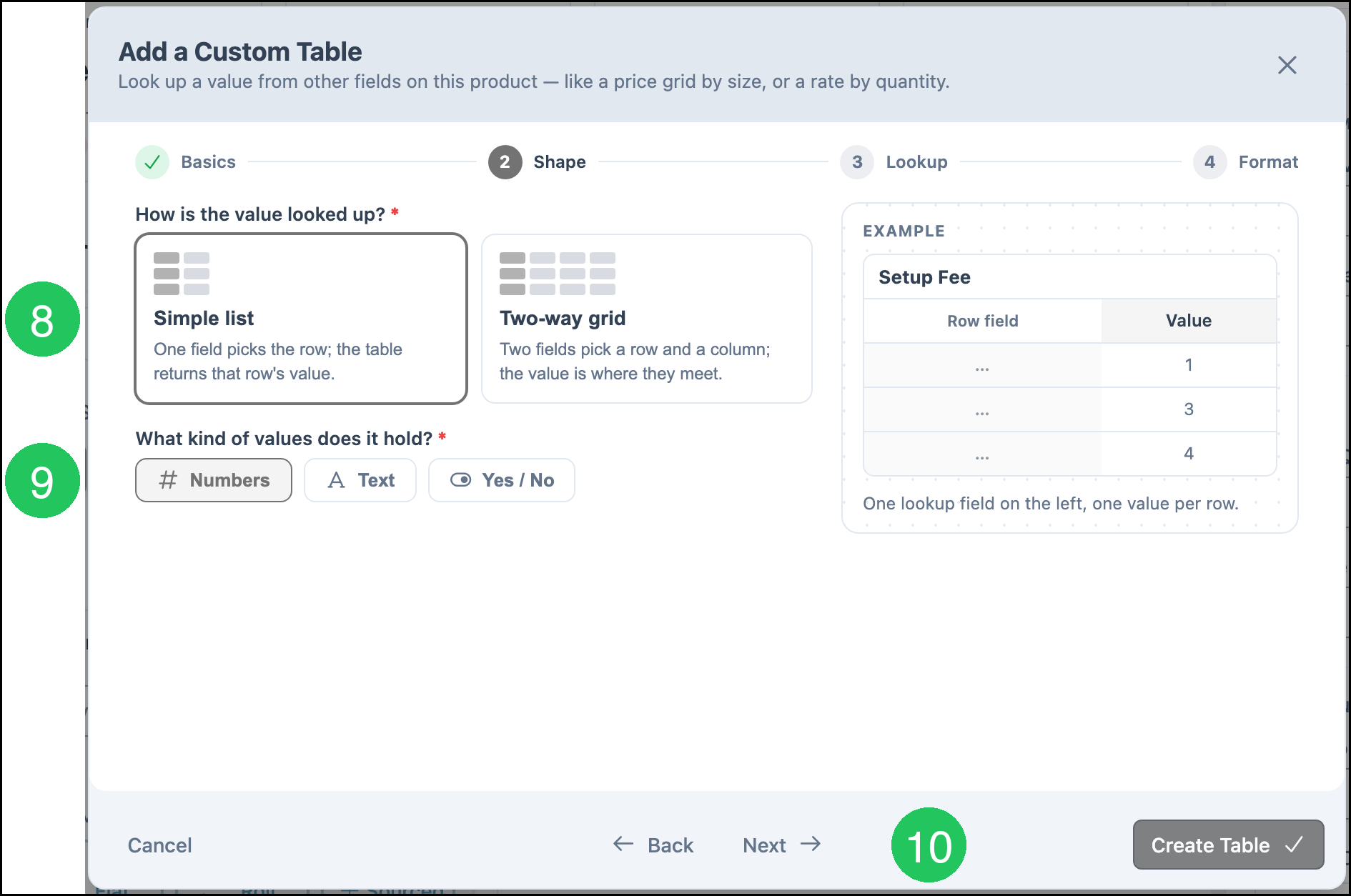
Two-way grid uses two fields. One field selects the row and the other selects the column. The value is where they meet.
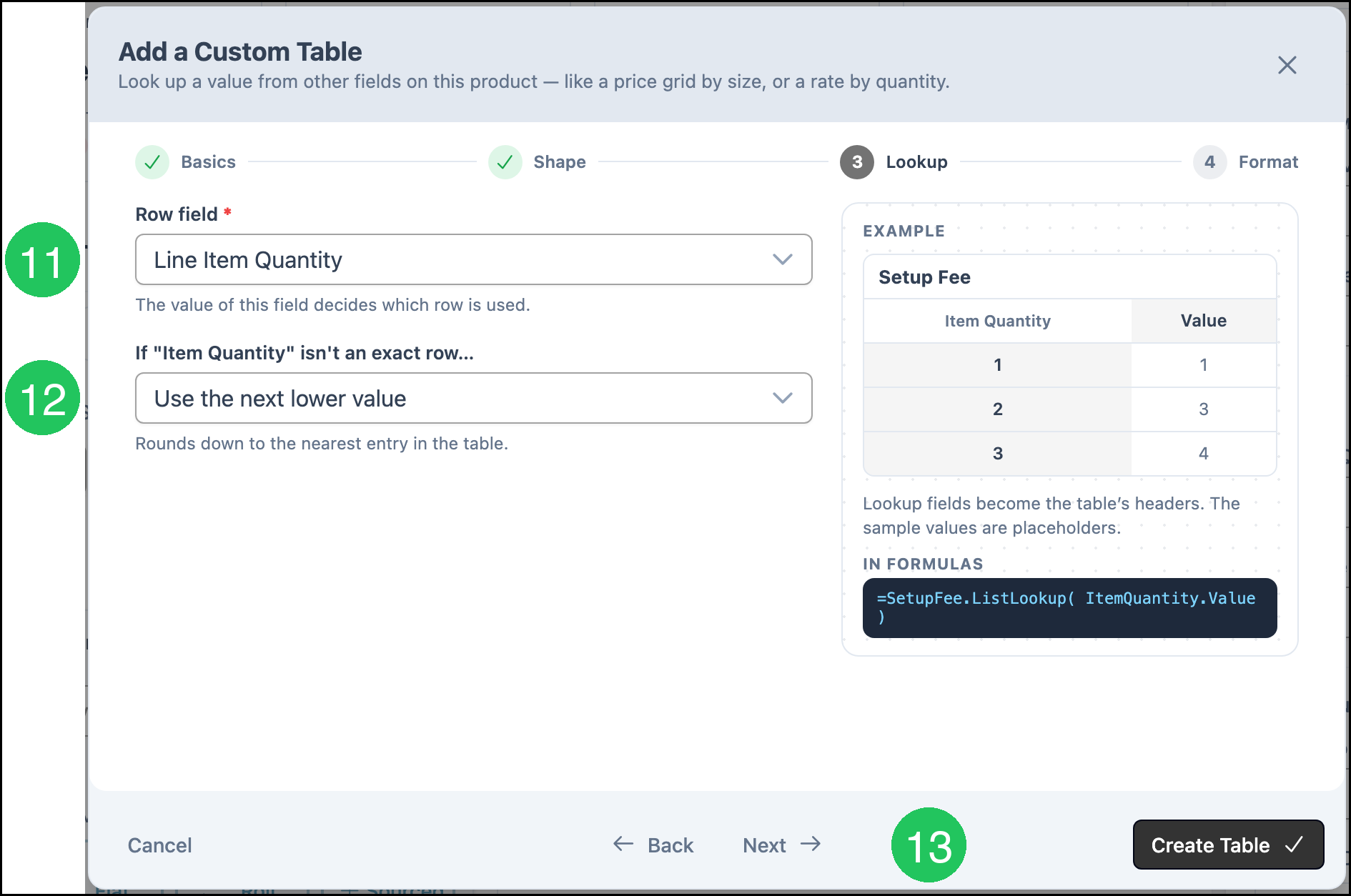
11. Select Line Item Quantity in Row field. If more than one Line Item Quantity is listed, select the one whose variable is ItemQuantity. The table header uses Item Quantity.
12. Select Use the next lower value. When the quantity is not an exact row, this rounds down to the nearest row. The other choices are Return blank, Use the next higher value, and Calculate between values.
13. Click Next.
14. Select Currency for Unit type. Display format can stay General.
15. Click Create Table.
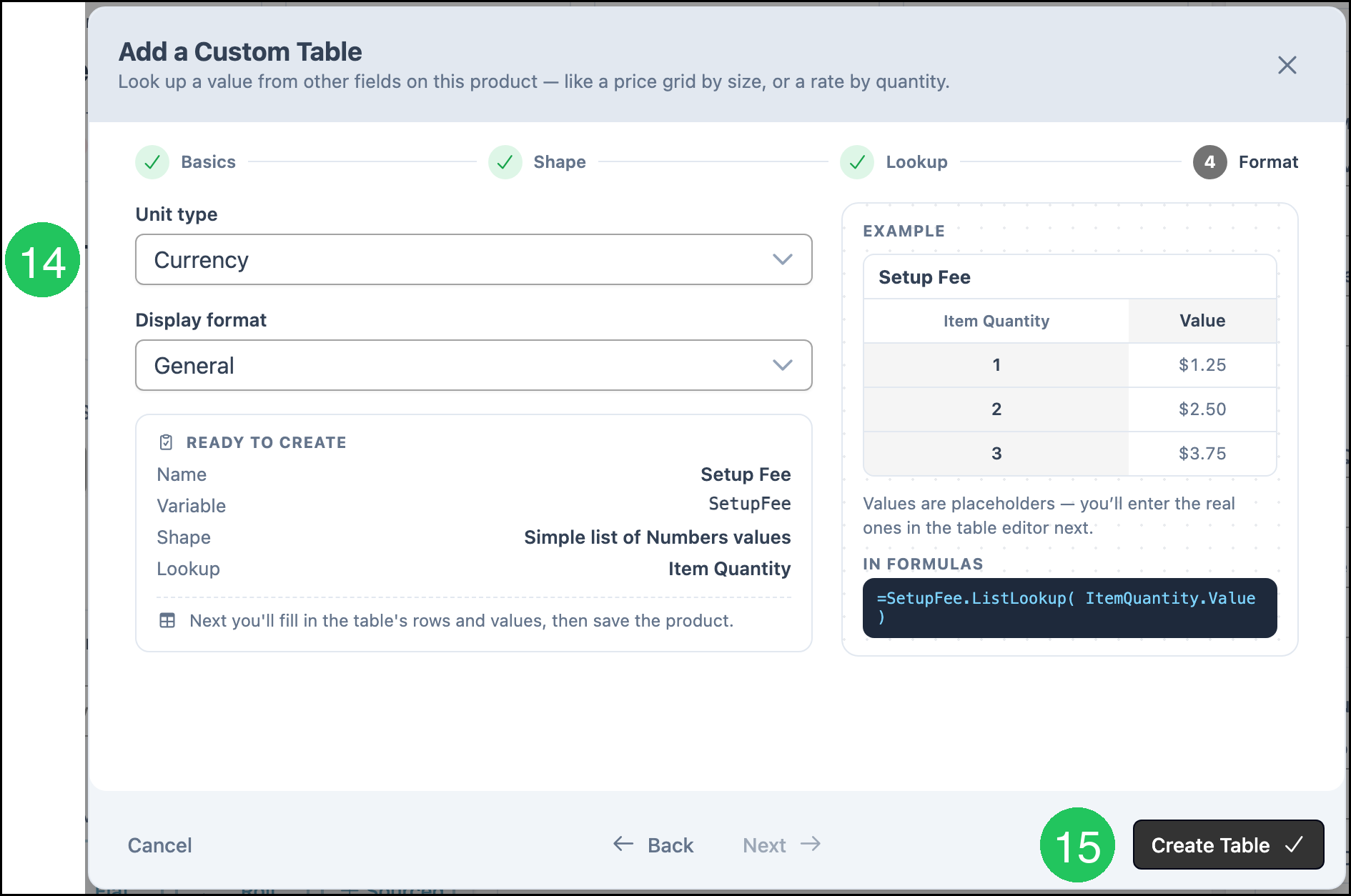
Formulas read the table with the variable name. For this example, the formula is:
=SetupFee.ListLookup( ItemQuantity.Value ).
Enter Table Values
The editor title adds the word Table to the name. Setup Fee opens as Setup Fee Table.
1. Enter the quantity in Item Quantity. This example uses 1, 10, and 25.
2. Enter the fee in Value. This example uses 75.00, 50.00, and 35.00.
3. Click Add Row for each additional quantity.
4. Click Done.
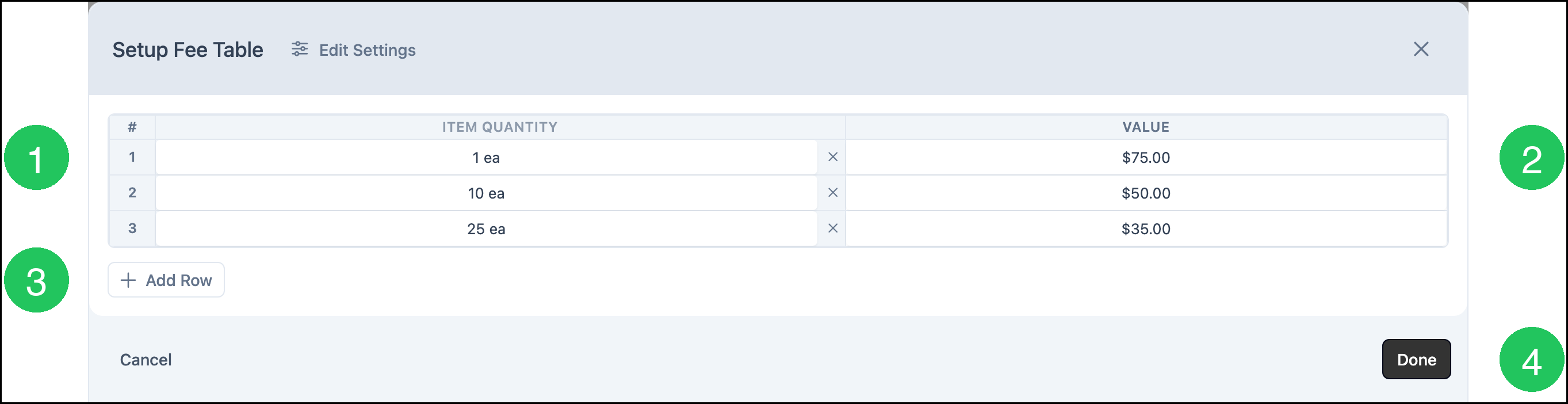
5. Click Save.

Edit Table Settings
1. Under Custom, click the table name. This example is Setup Fee.
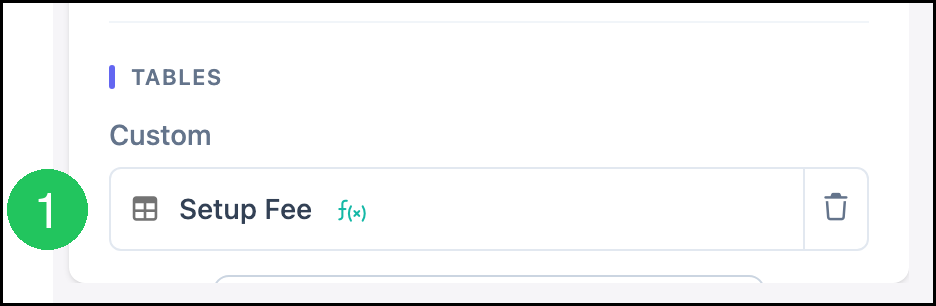
2. Click Edit Settings.

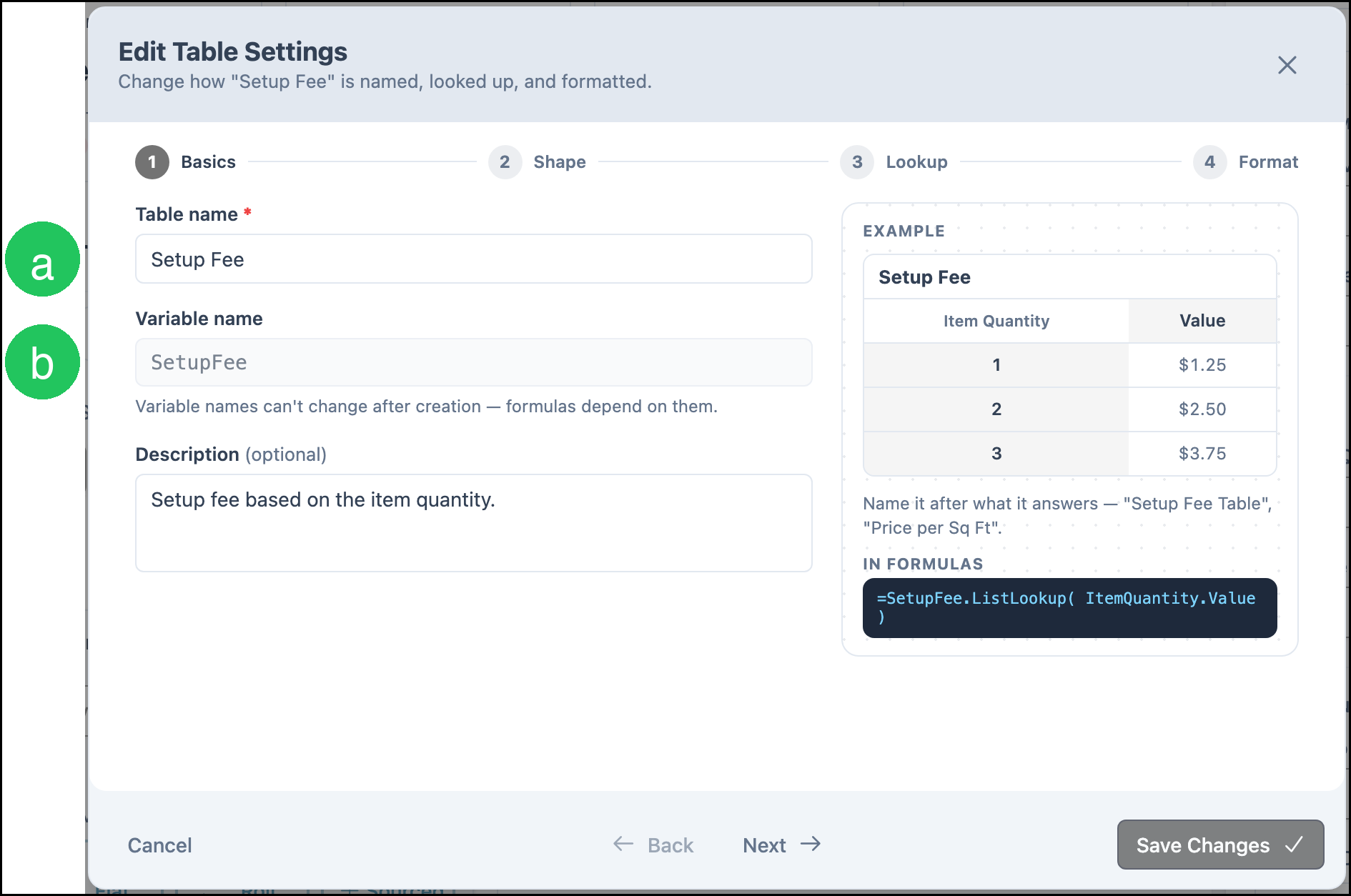
a. Table name and the description can change.
b. Variable name cannot change after the table is created. Formulas use that name.
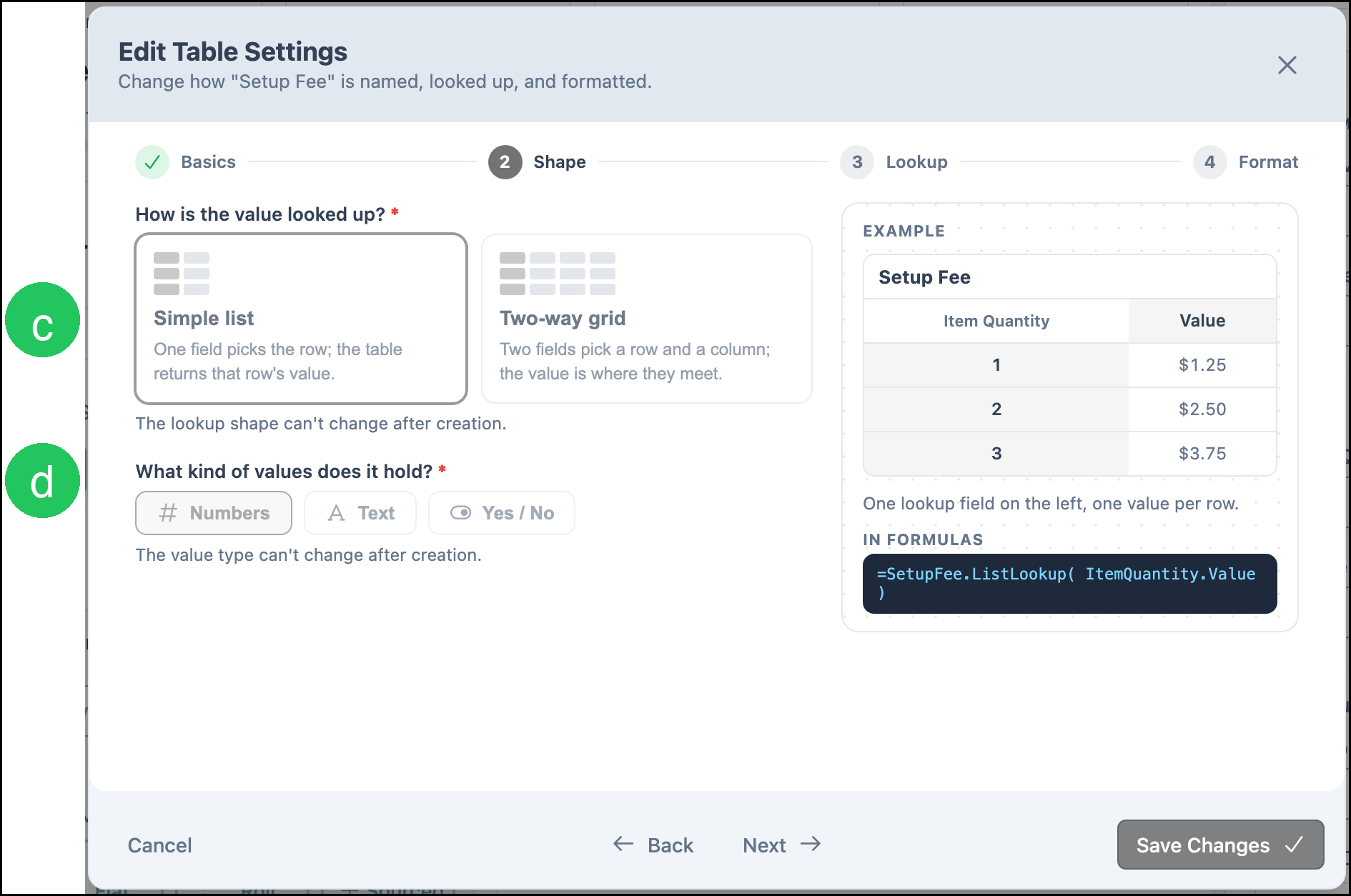
Shape shows the lookup shape and the value type. Neither one can change after the table is created.
c. The lookup shape stays as it was set. This example is Simple list.
d. The value type stays as it was set. This example is Numbers.
Frequently Asked Questions
1. How is a Custom Table different from Use Table?
Answer: Use Table applies a system pricing table, such as a margin, markup, or discount table. A Custom Table is a lookup you create under Tables, in Custom, on the Pricing card.
2. Can the variable name, lookup shape, or value type change after the table is created?
Answer: No. The variable name, the lookup shape, and the value type stay as they were set. You can still change the table name, the description, the lookup field, how a value between rows is handled, and the unit type and display format.
3. Do Modifiers use Custom Tables?
Answer: Yes. Open the Modifier, click Pricing, and use Create table. The wizard refers to the modifier, and you save the modifier when you are finished.
Related Articles
Introduction to Products
Markup and Margin Pricing Tables
Products vs. Modifiers