
The Sales Form is the form shown when a Product or Modifier is added to an Estimate or Order. It is configured on the Product or Modifier. Preview shows the form as it appears during order entry. Edit opens the form editor. Layout chooses Standard, Invoice, or Work Order.
Table of Contents
- Important Information
- Opening the Sales Form
- Sales Form Controls
- Choosing a Layout
- Opening the Form Editor
- Form Editor
- Frequently Asked Questions
- Related Articles
Important Information
Editing a Product or Modifier, including the Sales Form, follows the permissions on the employee's role. For more information, see Employee Roles and Permissions in Settings.
Each layout is separate. Standard is the form used during Estimate and Order entry. Invoice and Work Order control those documents. A change on one layout does not change the others. For more information, see Work Order and Invoice Details.
Preview shows the selected layout. Edit opens the form editor for that same layout.
Materials, labor, machines, and modifiers are placed from COMPONENTS. For more information, see Linked Components.
A Shared Element is a field that can be reused on more than one Product or Modifier. For more information, see Shared Elements Overview and Creating Shared Elements.
Optional modifiers that are added during Estimate or Order entry use a Dynamic Group. For more information, see Dynamic Component Groups in the Product Designer.
Opening the Sales Form
Navigate to System Settings / Components / Products & Modifiers.
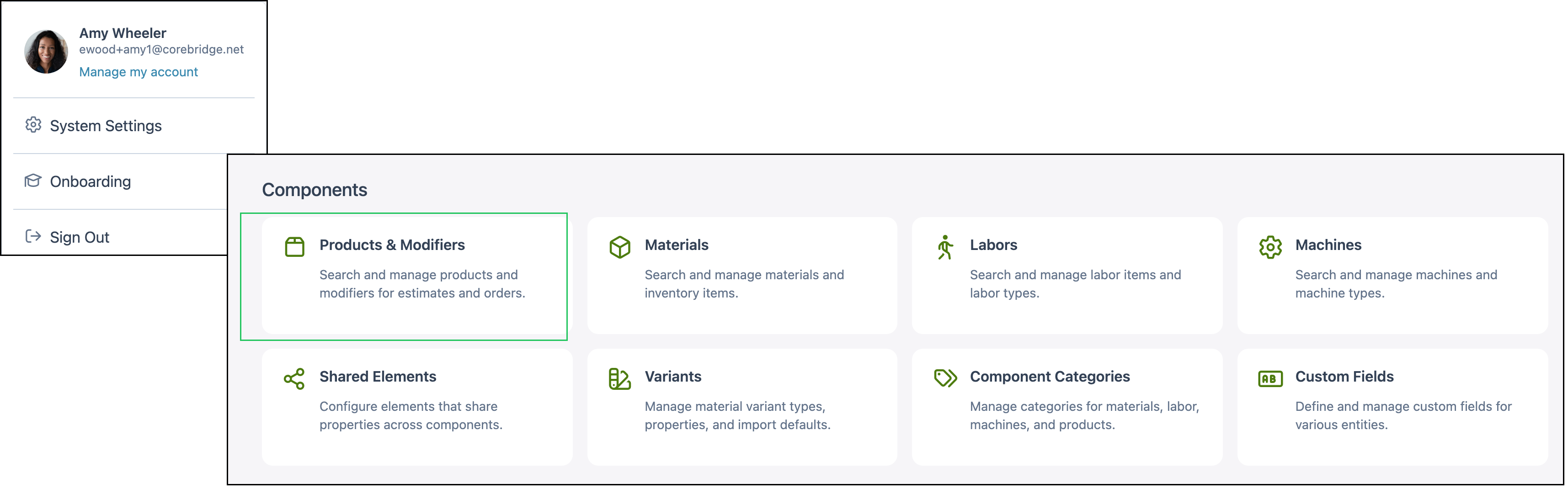
1. Select the Product or Modifier.

Sales Form Controls
On the Product or Modifier, Sales Form includes these controls:
a. Preview shows the form for the selected layout as it appears during order entry.
b. Edit opens the form editor for the selected layout.
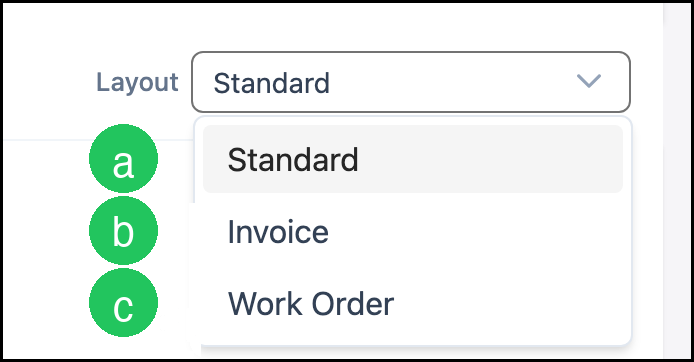
c. Layout chooses Standard, Invoice, or Work Order.

Choosing a Layout
1. Click the Layout dropdown.

a. Standard is the form used when the Product or Modifier is added to an Estimate or Order.
b. Invoice controls the Invoice document.
c. Work Order controls the Work Order document.
Opening the Form Editor
1. Click Edit.

The form editor opens for the layout shown in Layout.
Form Editor
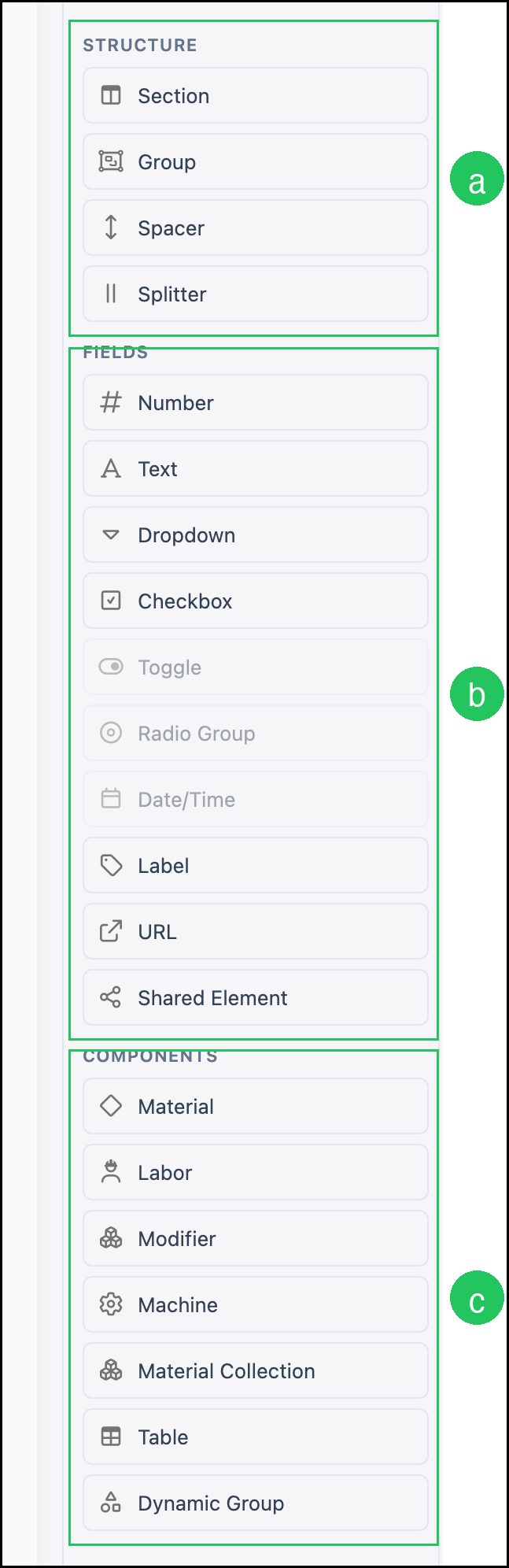
The form editor lists the pieces used to build the selected layout.
a. STRUCTURE includes Section, Group, Spacer, and Splitter.
b. FIELDS includes Number, Text, Dropdown, Checkbox, Toggle, Radio Group, Date/Time, Label, URL, and Shared Element.
c. COMPONENTS includes Material, Labor, Modifier, Machine, Material Collection, Table, and Dynamic Group.
Frequently Asked Questions
1. Which layout is used on an Estimate or Order?
Answer: Standard. Invoice and Work Order control those documents.
2. Does a change on Standard update Invoice and Work Order?
Answer: No. Each layout is separate. Repeat the change on each layout that should show it.
3. What is the difference between Preview and Edit?
Answer: Preview shows the form for the selected layout. Edit opens the form editor so that layout can be changed.
4. Where are materials and modifiers added?
Answer: Materials, labor, machines, and modifiers are placed from COMPONENTS. See Linked Components. Optional modifiers that are added during Estimate or Order entry use a Dynamic Group.
5. Can the same field be used on more than one Product?
Answer: Yes. Create a Shared Element, then add it from FIELDS. See Shared Elements Overview.
Related Articles
Creating Shared Elements
Dynamic Component Groups in the Product Designer
Employee Roles and Permissions in Settings
Introduction to Products
Linked Components
Product Details
Products vs. Modifiers
Shared Elements Overview
Work Order and Invoice Details