A Product combines Materials, Machines, Labor, and Modifiers with pricing, accounting, and settings that control how it is calculated on Estimates and Orders.
Table of Contents
- Products & Modifiers List
- Product Screen Overview
- Pricing
- Accounting & Tax
- Linked Components
- Product Settings
- Sales Form
- Related Articles
Products & Modifiers List
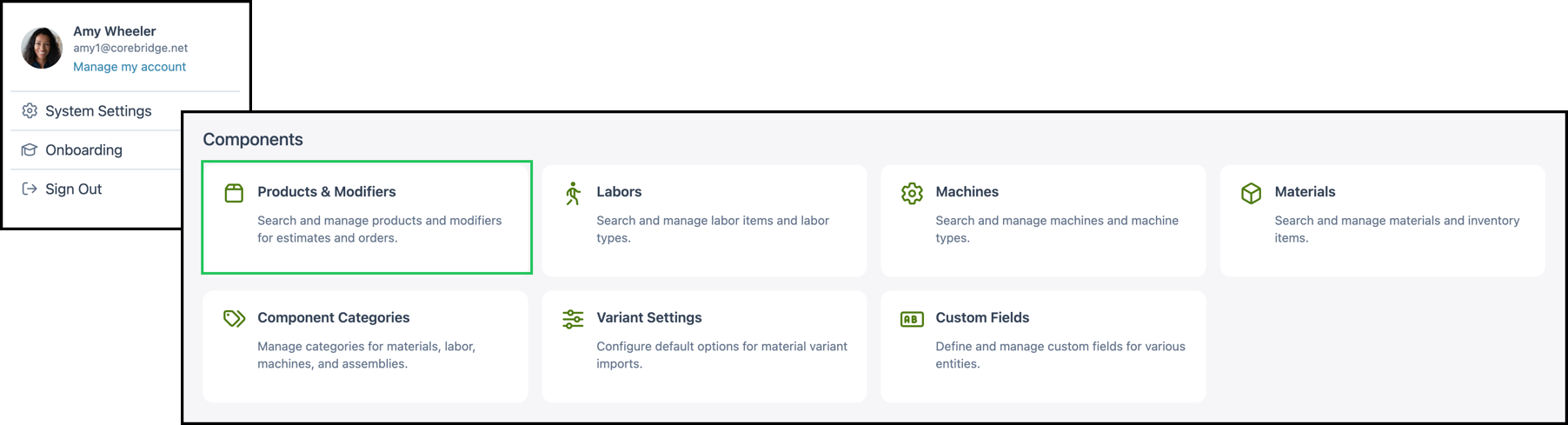
Navigate to System Settings / Components / Products & Modifiers.
a. Search finds a Product or Modifier by name.
b. + Product and + Modifier add a new Product or Modifier.
Note: CoreBridge includes example Products and Modifiers. Clone a similar Product or Modifier, then update the details.
c. Search Settings chooses which columns are displayed and whether inactive records are included.
Note: Include the Description column so Products and Modifiers are easy to tell apart.
d. Columns can be reordered and resized.
e. Each column header has an Order icon that sorts ascending or descending.
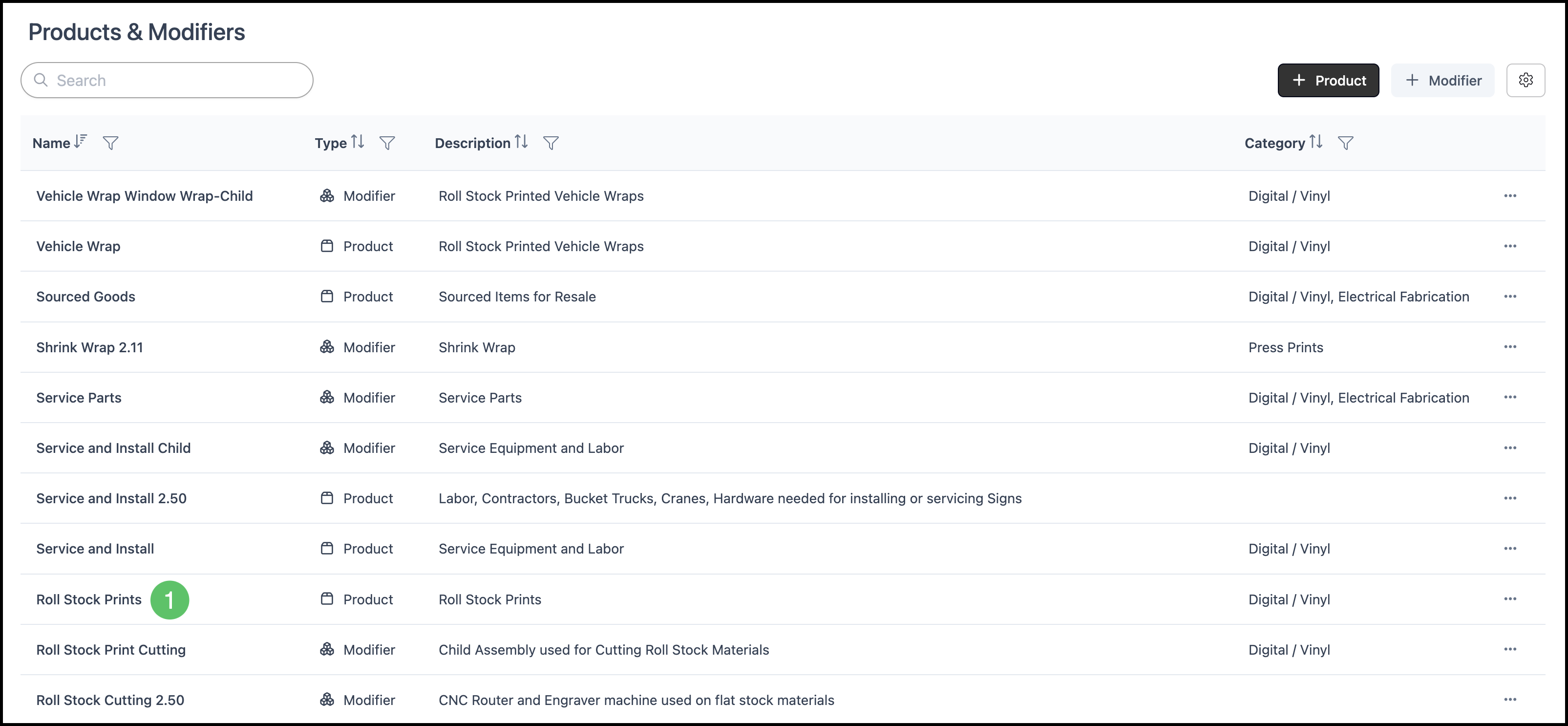
f. Each column header has a Filter icon that limits the list. The example below shows a filter.
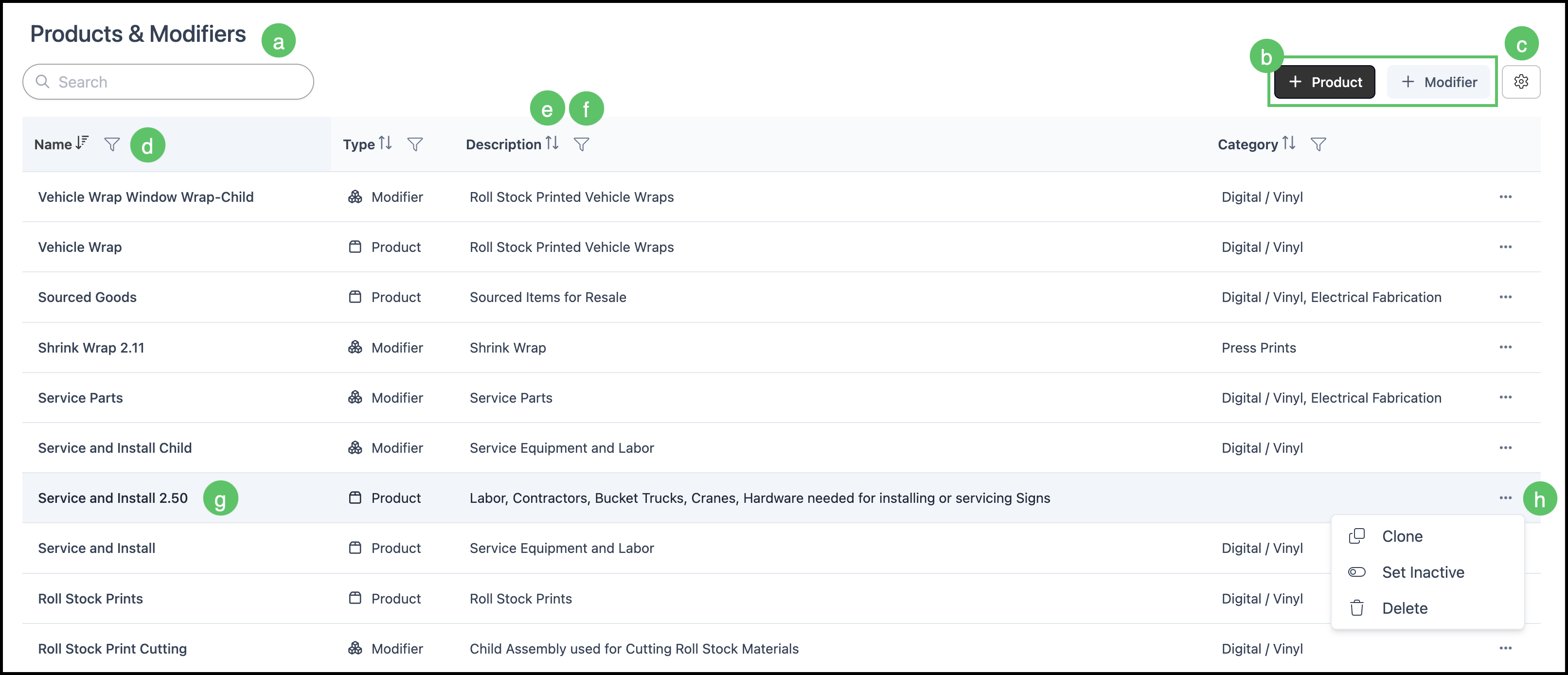
g. Click a row to open that Product or Modifier.
h. More Actions on a row includes Clone, Set Inactive, and Delete.
Note: Delete is unavailable for a Product or Modifier that is in use.
Product Screen Overview
The Product page shows the name, categories, and actions for the selected Product.
1. Select a Product.
a. The product image is at the top left. Click it to upload or change the image.
b. Product name is the name at the top of the page. Click it to edit.
c. Name on customer documents is the name on Invoices, Work Orders, and other customer documents. Click it to edit.
d. Description is for your team. Click it to edit.
e. Category tags sit next to the product name. Click + to add a category, or x to remove one.
f. Click Custom Fields to view or edit Custom Fields on this Product.
g. Click Save to keep changes on the Product page.
h. More Actions includes Variables & Formulas, Clone, Export, Convert to Modifier, Set Inactive, History, and Delete.

Pricing
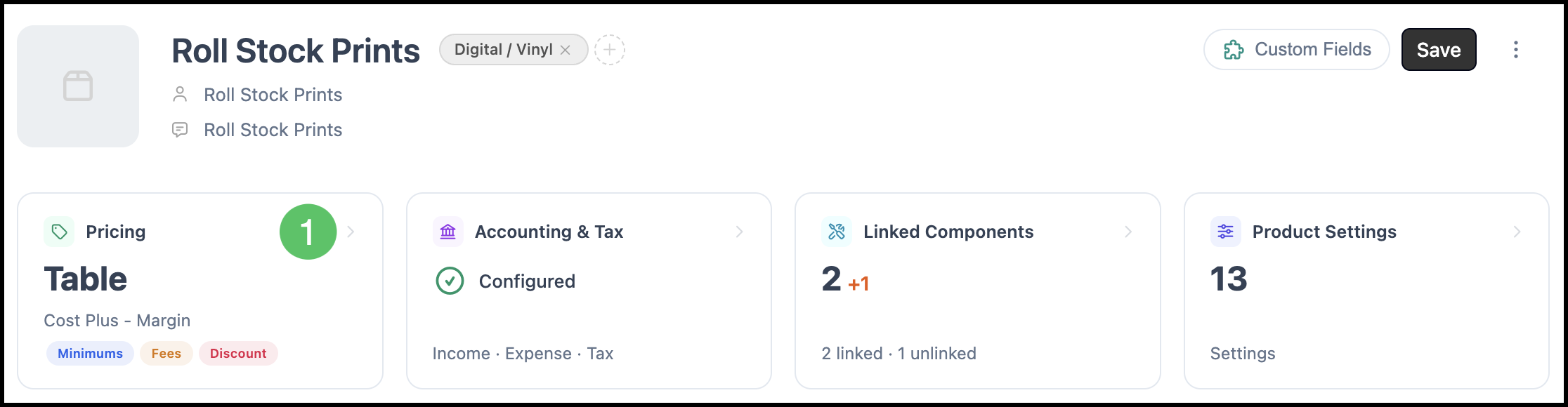
The Pricing card shows the current pricing method for this Product.
1. Click the Pricing card.
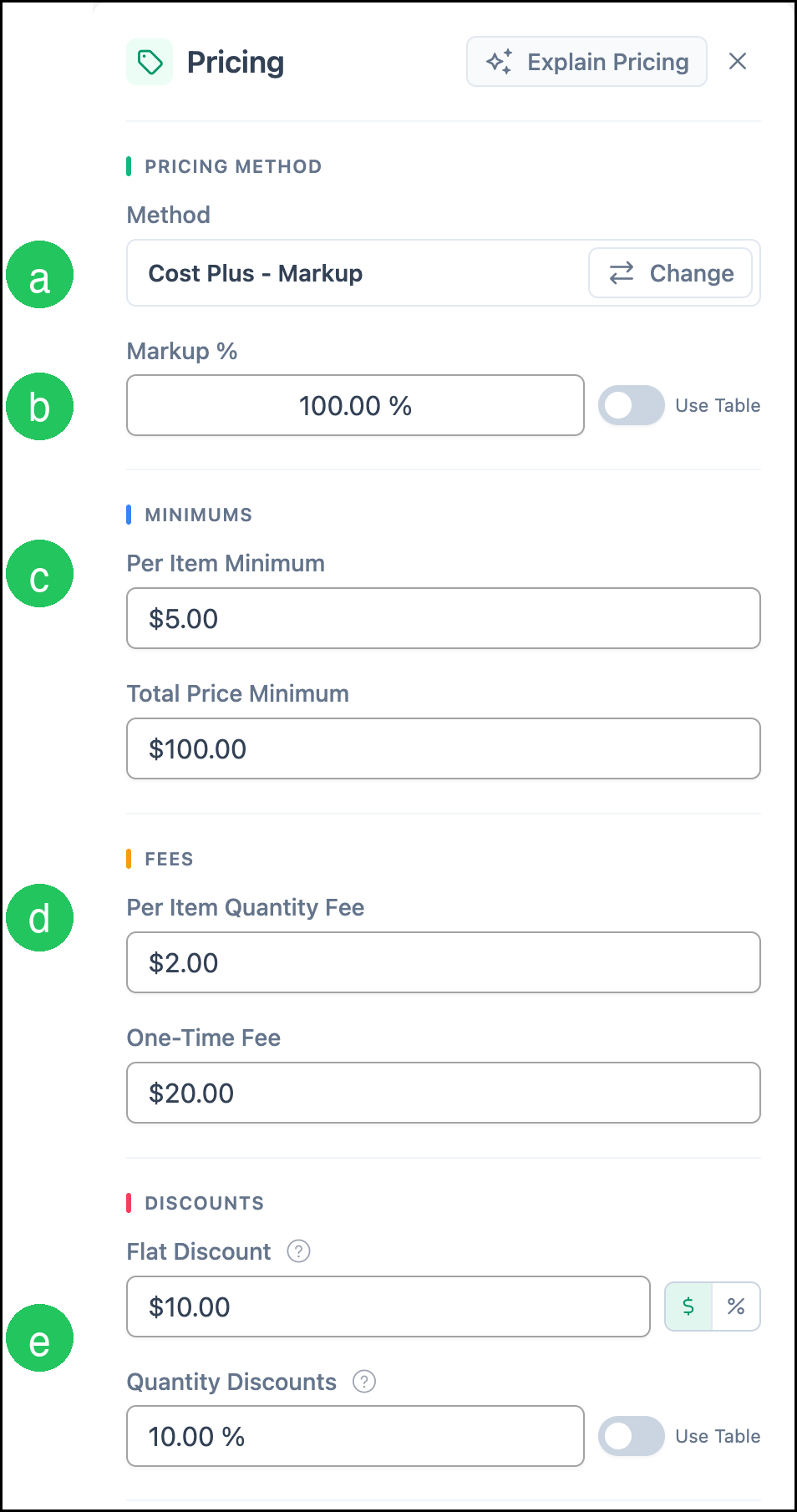
a. Method shows the current method. Click Change to open Choose a Pricing Method. The methods are Cost Plus - Margin, Cost Plus - Markup, Market - Product, Market - Component, and Custom.
Note: Cost Plus - Margin and Cost Plus - Markup are the recommended methods when production costs change. See Understanding Market-Based vs. Cost-Plus Pricing.
b. Enter the margin, markup, or unit price for the method, or turn on Use Table and edit the table.
c. Under Minimums, Per Item Minimum and Total Price Minimum set pricing floors for this Product.
d. Under Fees, Per Item Quantity Fee and One-Time Fee add charges on top of the calculated price.
e. Under Discounts, Flat Discount applies a percentage or a dollar amount. Quantity Discounts can use a threshold, or Use Table.
Accounting & Tax
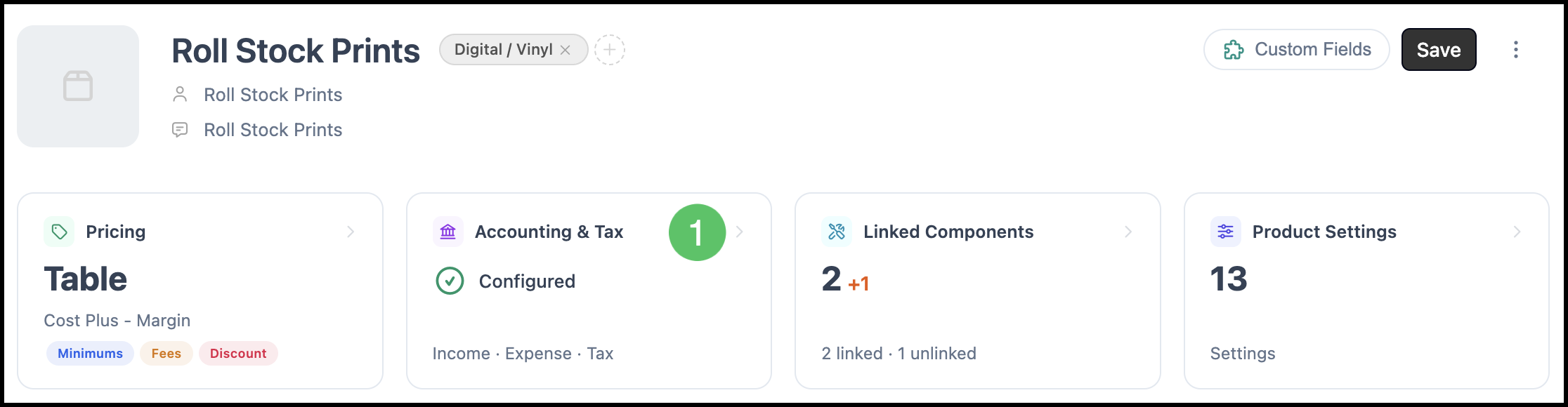
The Accounting & Tax card shows whether income, expense, and tax are set for this Product.
1. Click the Accounting & Tax card.
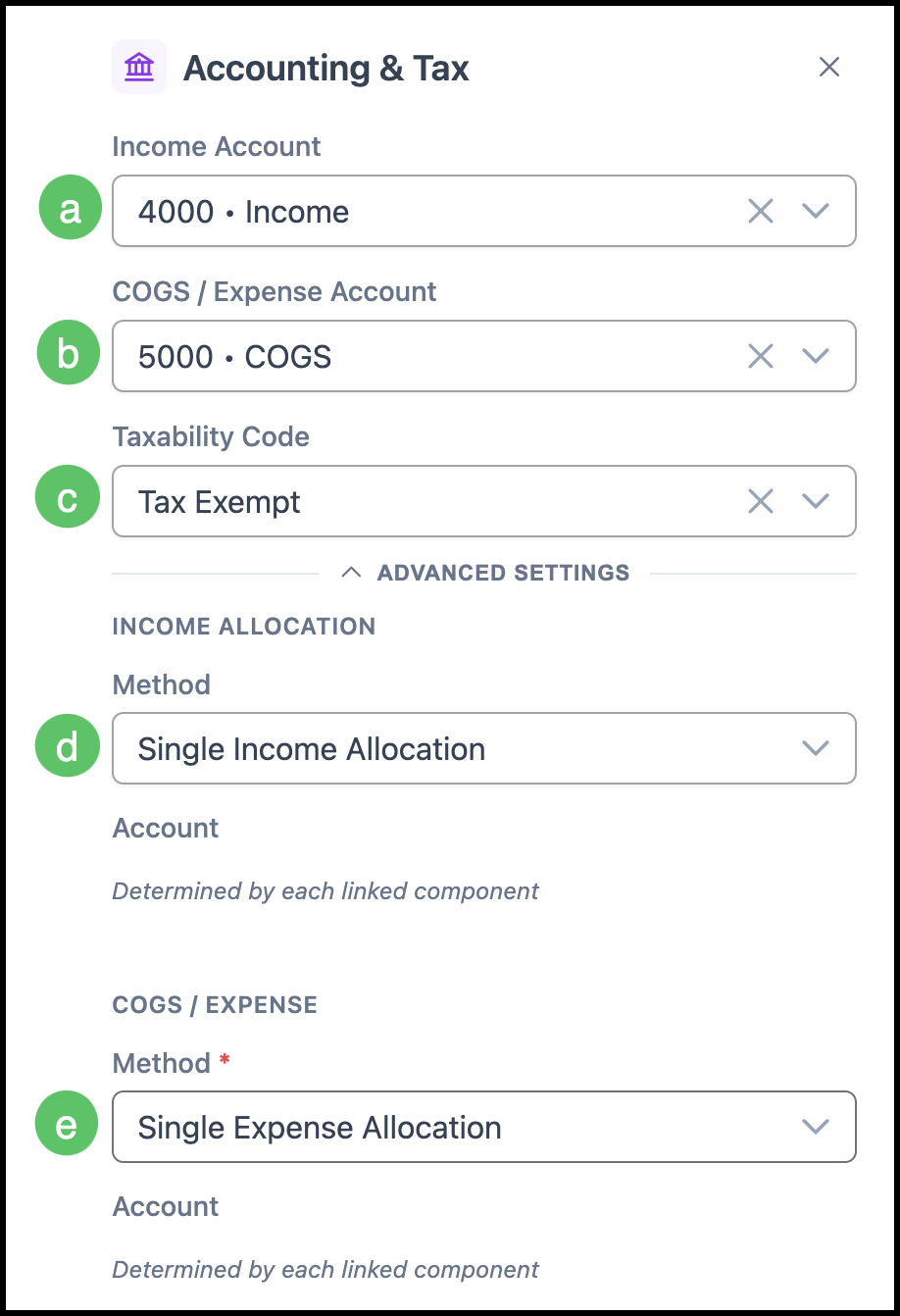
a. Income Account is the account that income from this Product posts to.
b. COGS / Expense Account is the account for costs associated with this Product.
c. Taxability Code sets how this Product is taxed.
Note: Taxability Codes are managed at System Settings / Accounting / Taxability Codes.
d. Under Income Allocation, Method is Single Income Allocation, By Material Income Account, By Machine Income Account, or By Modifier Income Account.
e. Under COGS / Expense, Method is Single Expense Allocation, By Material Expense Account, By Machine Expense Account, or By Modifier Expense Account.
Note: Advanced Settings expands or collapses with the arrow.
Linked Components
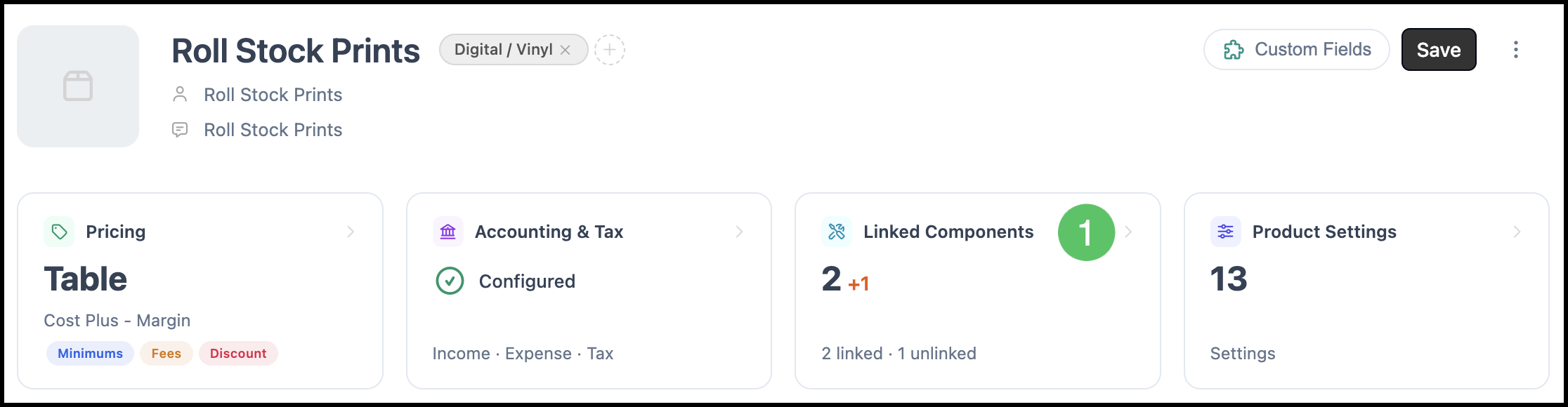
The Linked Components card shows how many components are linked to this Product.
1. Click the Linked Components card.
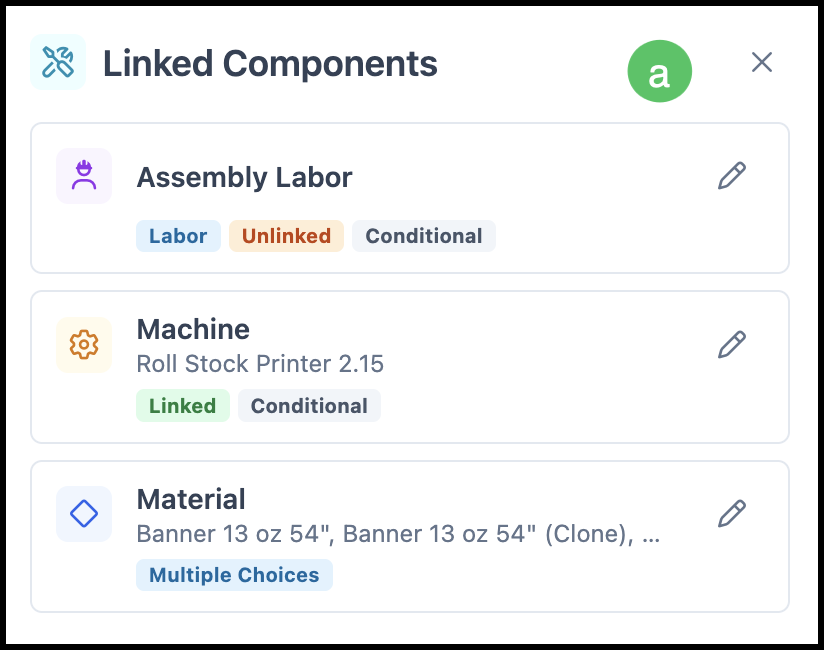
a. Linked components are listed in the side panel. The edit button opens a dialog for that component.
Product Settings
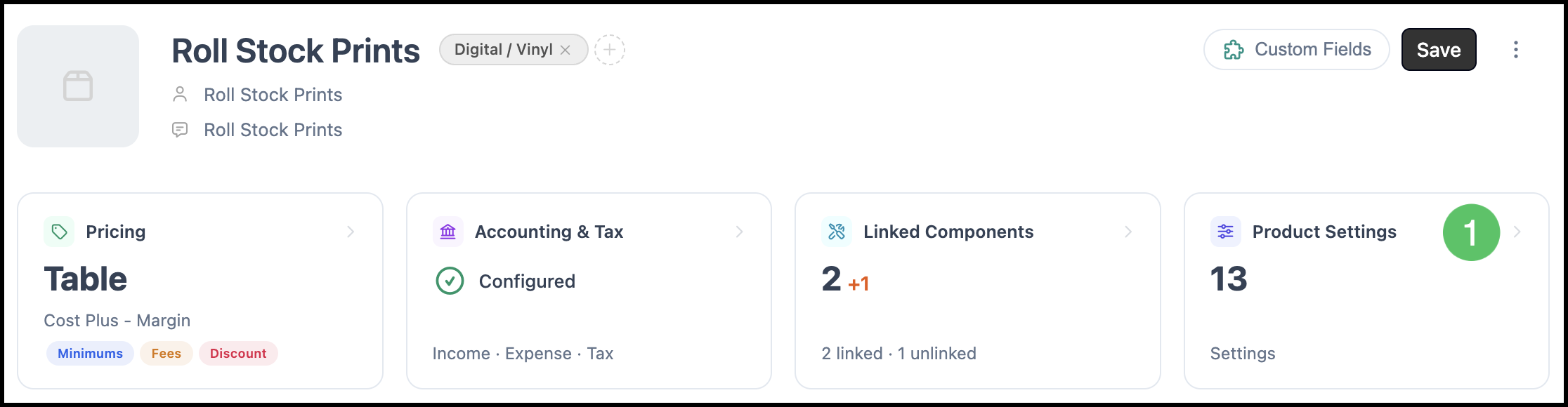
The Product Settings card shows how many settings are configured for this Product.
1. Click the Product Settings card.
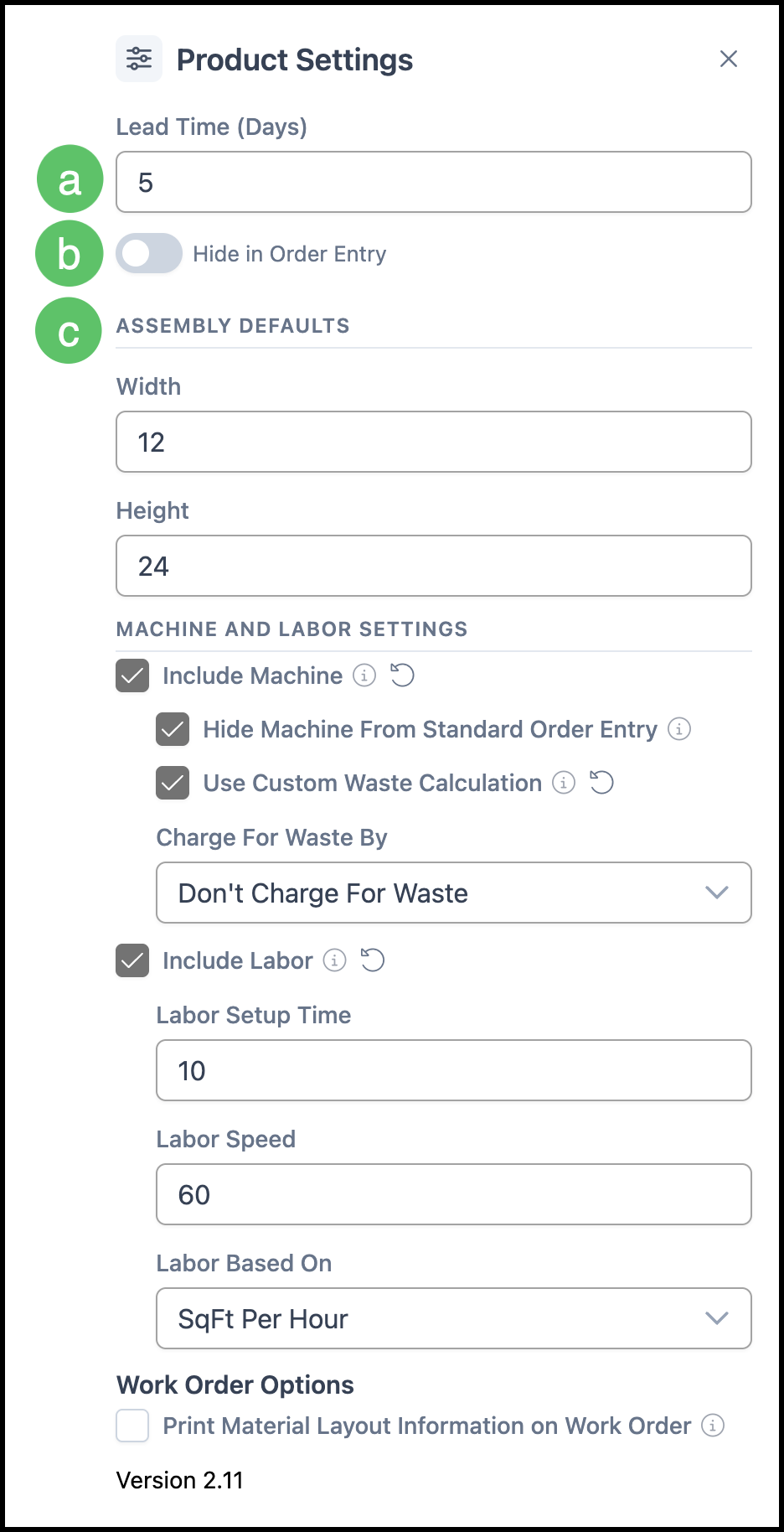
a. Lead Time (Days) is the number of days needed to produce this Product. Orders use it when calculating production due dates.
b. Hide in Order Entry keeps this Product out of the list during order entry.
c. Assembly Defaults sets default size values, such as Width and Height, that fill in when this Product is added to an Estimate or Order.
Note: Product Settings can also include Default Line Item Category and machine and labor options. Those options follow the Product.
Sales Form
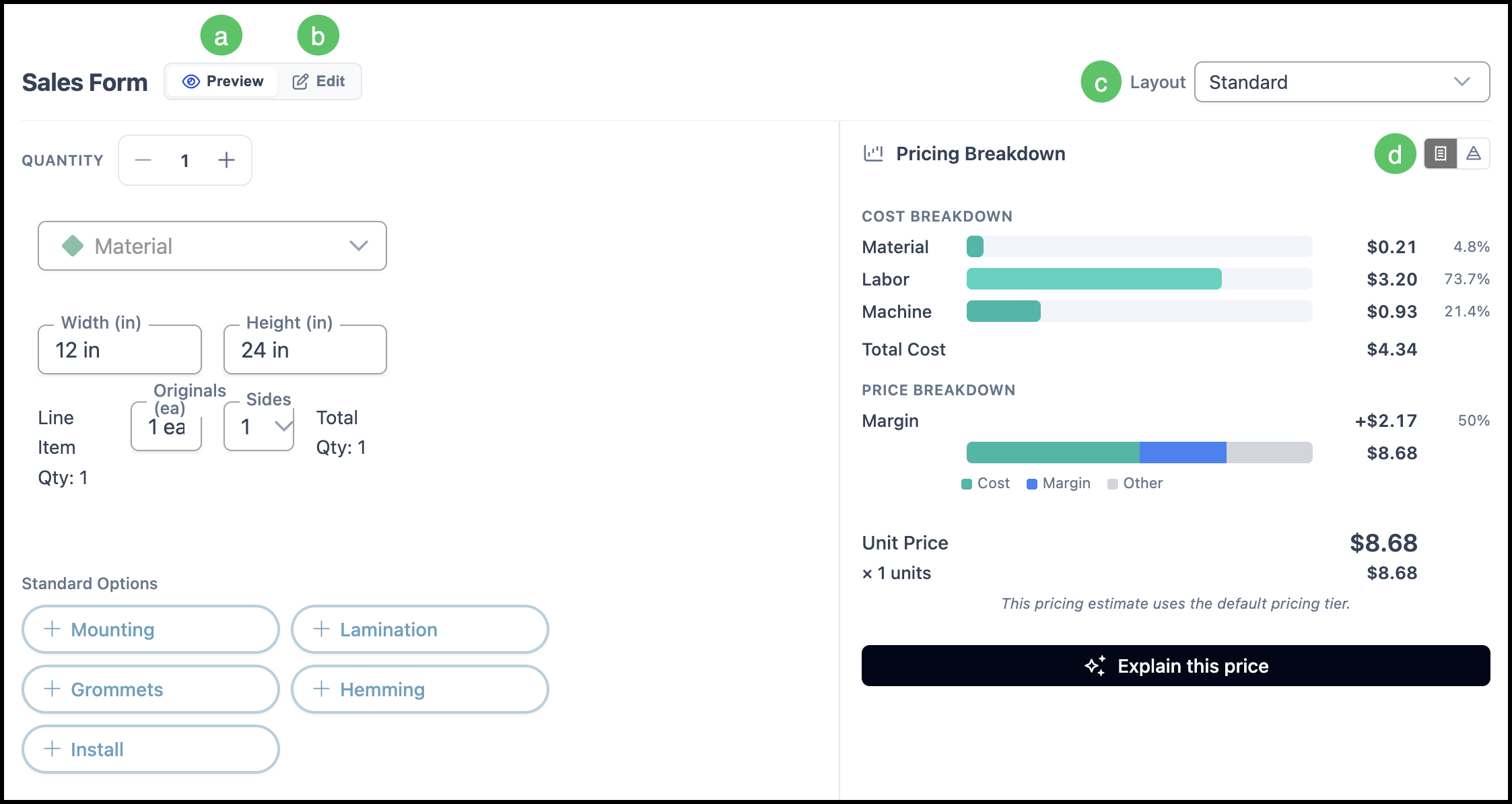
The Sales Form is what order entry shows when this Product is added to an Estimate or Order.
a. Preview shows the form as it appears during order entry.
b. Edit opens the form editor to add, remove, or rearrange elements and components.
c. Layout switches the form layout. The layouts are Standard, Invoice, and Work Order.
Note: For Invoices and Work Orders, see Work Order and Invoice Details.
d. Pricing Breakdown switches between a receipt view and a stacked view.