
Product Categories group Products so they can be filtered on Products & Modifiers. They are managed on the Products tab of Component Categories, where each category has a Name and an optional Description. A category applies after it is selected in Select Categories and saved.
Table of Contents
- Product Categories Screen
- Adding a Product Category
- Editing a Product Category
- Assigning Product Categories
- Frequently Asked Questions
- Related Articles
Product Categories Screen
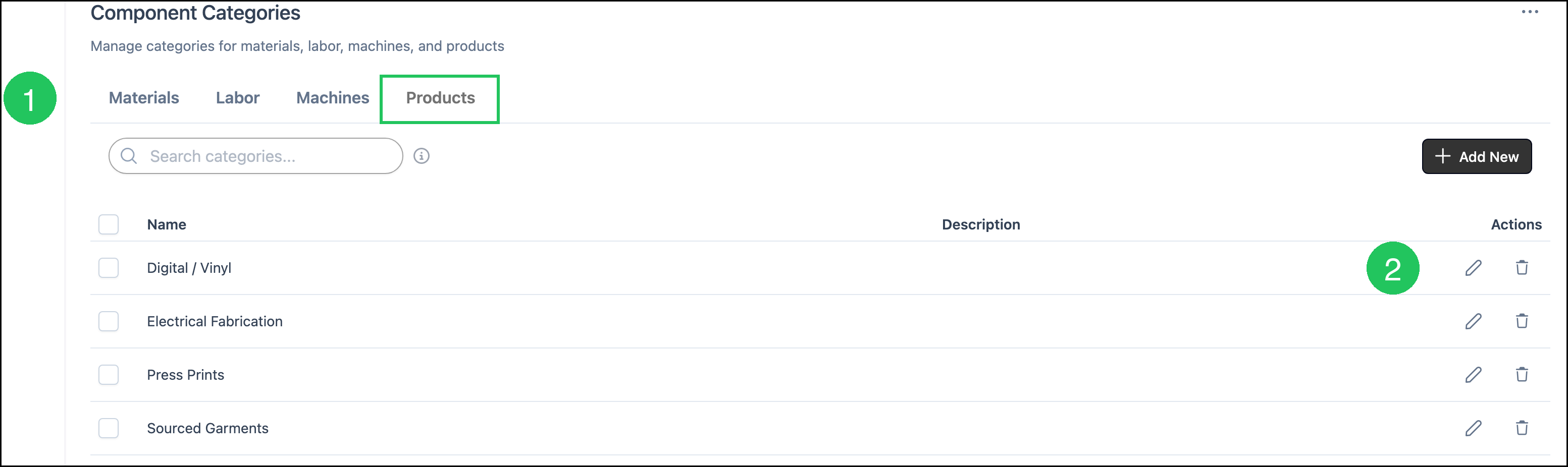
Navigate to System Settings / Components / Component Categories.
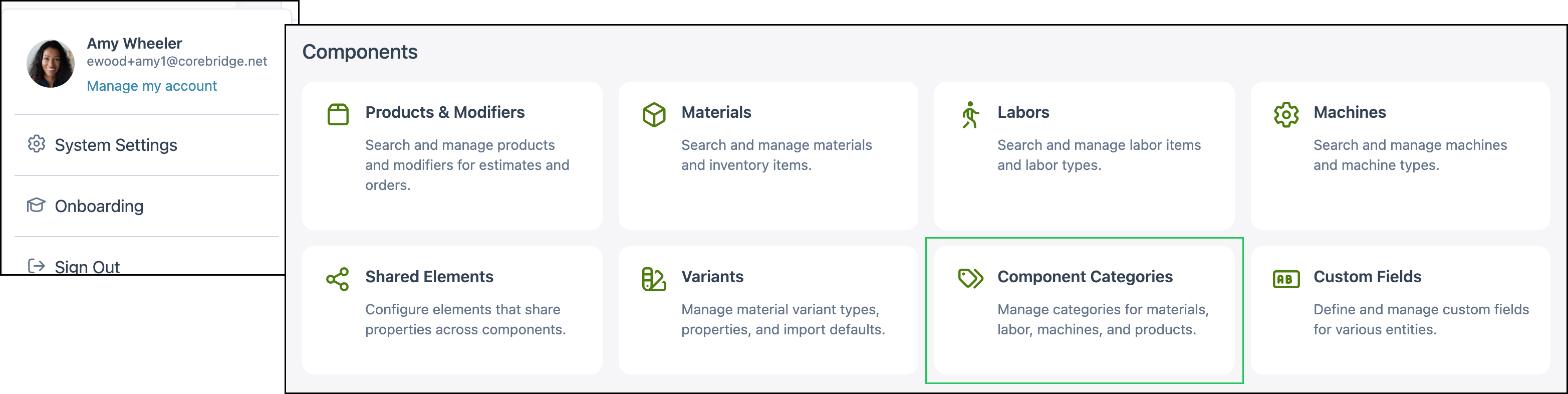
a. Products is the tab for Product Categories. Materials, Labor, and Machines are separate tabs.
b. Search finds a Product Category by name.
c. Add New opens Add Category.
d. The checkbox selects that category.
e. Actions includes Edit and Delete. Edit opens Edit Category. Delete opens Confirm Delete.
Adding a Product Category
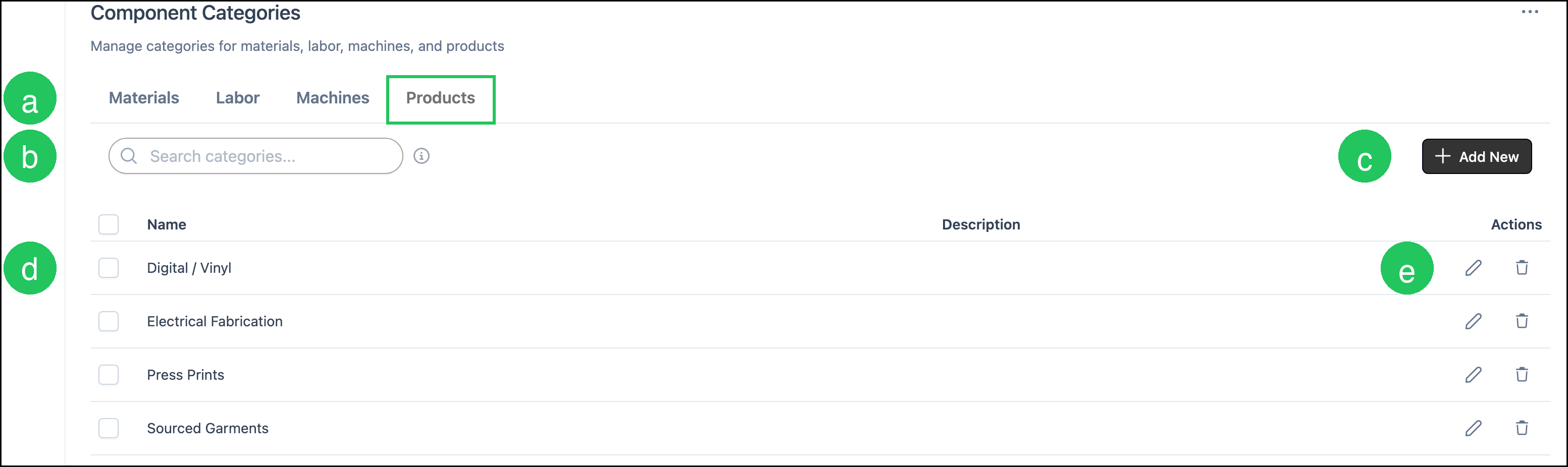
Navigate to System Settings / Components / Component Categories.
1. Click Products.
2. Click Add New.
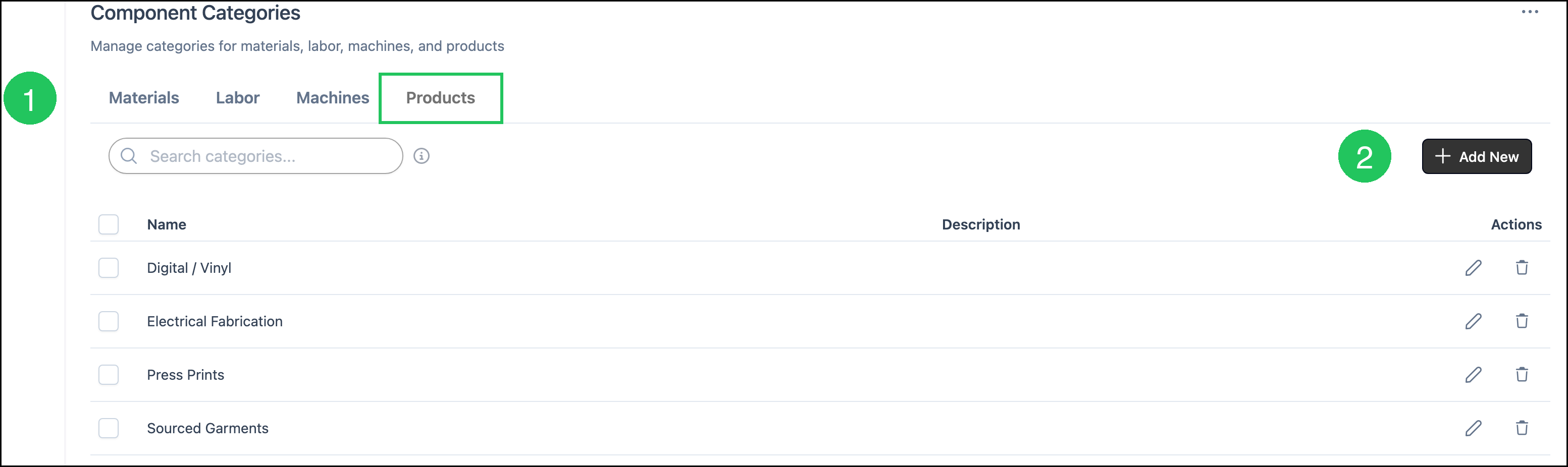
3. Enter a Name.
Note: Name is required. Save stays unavailable until a name is entered.
4. Enter a Description, if you want one.
5. Click Save.
Note: Saving the category does not assign it to a Product. Select it in Select Categories on the Product, then click Save.
Editing a Product Category
Navigate to System Settings / Components / Component Categories.
1. Click Products.
2. Click the Edit icon on the category row.
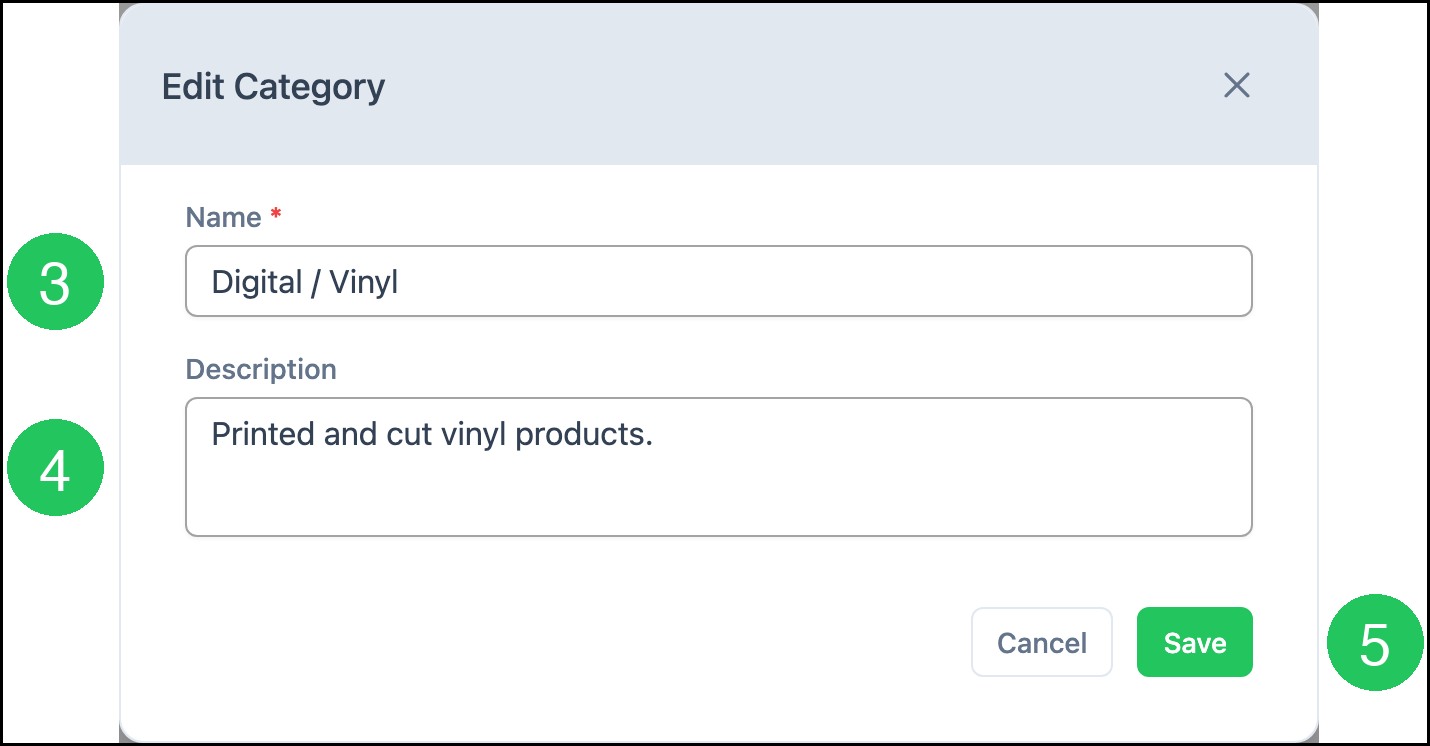
3. Update the Name.
4. Update the Description.
5. Click Save.
Assigning Product Categories
Navigate to System Settings / Components / Products & Modifiers.
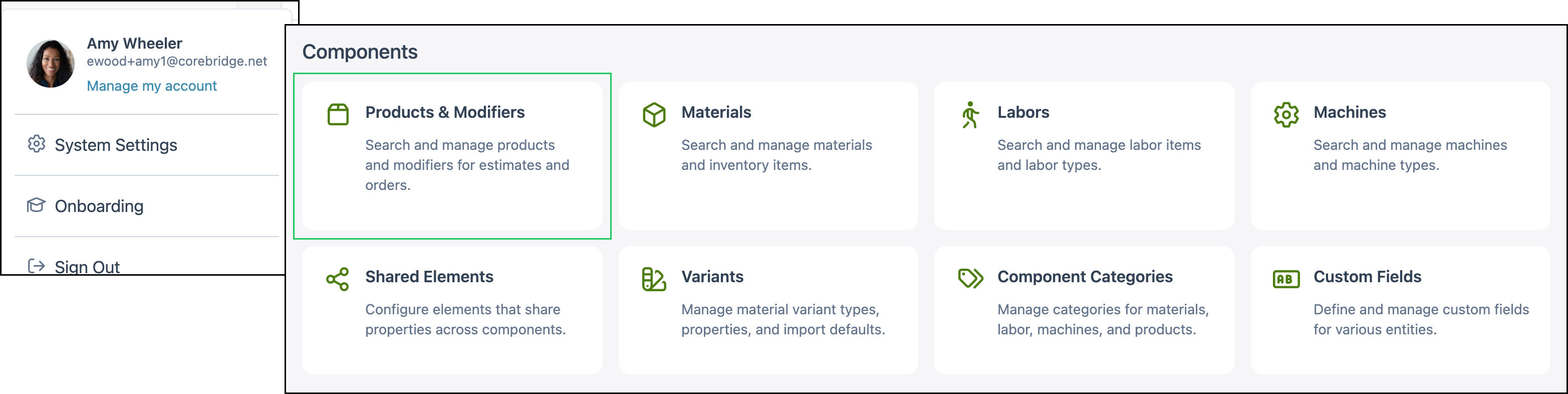
1. Click the Product. This example uses Banner.

2. Click + next to the product name.

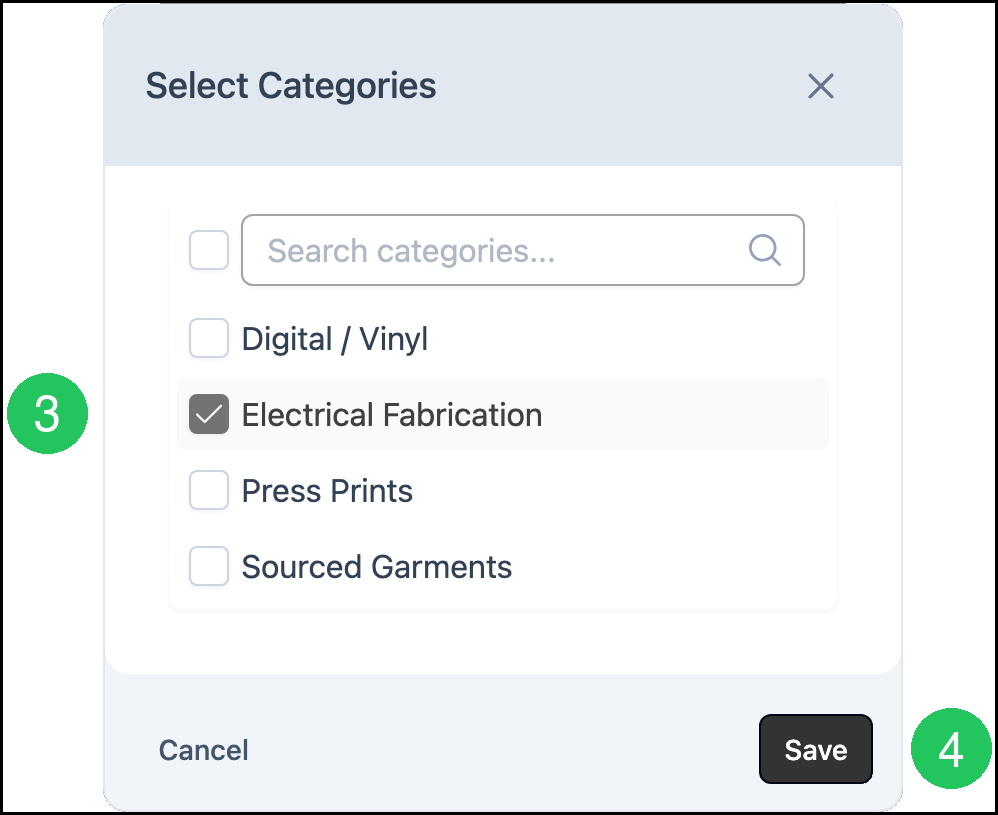
3. Select one or more categories. This example selects Electrical Fabrication.
4. Click Save.
Frequently Asked Questions
1. Is a Product Category the same as a Default Line Item Category?
Answer: No. Product Categories organize and filter Products on Products & Modifiers. Default Line Item Category is the category applied when that Product is added to an Estimate or Order.
2. I added a Product Category. Why is it missing on the Product?
Answer: Adding the category does not assign it. Open the Product, click +, select the category in Select Categories, and click Save.
3. Can one Product use more than one Product Category?
Answer: Yes. Select each category that applies in Select Categories, then click Save.
4. What happens when a Product Category is deleted?
Answer: Confirm Delete asks you to confirm. Products that used the category lose that assignment. The Products themselves are not deleted. To delete several categories on the Products tab at once, see Using Component Categories.